mirror of
https://github.com/DayuanJiang/next-ai-draw-io.git
synced 2026-01-02 22:32:27 +08:00

208 lines
7.2 KiB
Markdown
208 lines
7.2 KiB
Markdown
# Next AI Draw.io
|
||
|
||
<div align="center">
|
||
|
||
**AI驱动的图表创建工具 - 对话、绘制、可视化**
|
||
|
||
[English](./README.md) | 中文 | [日本語](./README_JA.md)
|
||
|
||
[](https://opensource.org/licenses/MIT)
|
||
[](https://nextjs.org/)
|
||
[](https://www.typescriptlang.org/)
|
||
[](https://github.com/sponsors/DayuanJiang)
|
||
|
||
[🚀 在线演示](https://next-ai-drawio.jiang.jp/)
|
||
|
||
</div>
|
||
|
||
一个集成了AI功能的Next.js网页应用,与draw.io图表无缝结合。通过自然语言命令和AI辅助可视化来创建、修改和增强图表。
|
||
|
||
https://github.com/user-attachments/assets/b2eef5f3-b335-4e71-a755-dc2e80931979
|
||
|
||
## 功能特性
|
||
|
||
- **LLM驱动的图表创建**:利用大语言模型通过自然语言命令直接创建和操作draw.io图表
|
||
- **基于图像的图表复制**:上传现有图表或图像,让AI自动复制和增强
|
||
- **图表历史记录**:全面的版本控制,跟踪所有更改,允许您查看和恢复AI编辑前的图表版本
|
||
- **交互式聊天界面**:与AI实时对话来完善您的图表
|
||
- **AWS架构图支持**:专门支持生成AWS架构图
|
||
- **动画连接器**:在图表元素之间创建动态动画连接器,实现更好的可视化效果
|
||
|
||
## **示例**
|
||
|
||
以下是一些示例提示词及其生成的图表:
|
||
|
||
<div align="center">
|
||
<table width="100%">
|
||
<tr>
|
||
<td colspan="2" valign="top" align="center">
|
||
<strong>动画Transformer连接器</strong><br />
|
||
<p><strong>提示词:</strong> 给我一个带有**动画连接器**的Transformer架构图。</p>
|
||
<img src="./public/animated_connectors.svg" alt="带动画连接器的Transformer架构" width="480" />
|
||
</td>
|
||
</tr>
|
||
<tr>
|
||
<td width="50%" valign="top">
|
||
<strong>GCP架构图</strong><br />
|
||
<p><strong>提示词:</strong> 使用**GCP图标**生成一个GCP架构图。在这个图中,用户连接到托管在实例上的前端。</p>
|
||
<img src="./public/gcp_demo.svg" alt="GCP架构图" width="480" />
|
||
</td>
|
||
<td width="50%" valign="top">
|
||
<strong>AWS架构图</strong><br />
|
||
<p><strong>提示词:</strong> 使用**AWS图标**生成一个AWS架构图。在这个图中,用户连接到托管在实例上的前端。</p>
|
||
<img src="./public/aws_demo.svg" alt="AWS架构图" width="480" />
|
||
</td>
|
||
</tr>
|
||
<tr>
|
||
<td width="50%" valign="top">
|
||
<strong>Azure架构图</strong><br />
|
||
<p><strong>提示词:</strong> 使用**Azure图标**生成一个Azure架构图。在这个图中,用户连接到托管在实例上的前端。</p>
|
||
<img src="./public/azure_demo.svg" alt="Azure架构图" width="480" />
|
||
</td>
|
||
<td width="50%" valign="top">
|
||
<strong>猫咪素描</strong><br />
|
||
<p><strong>提示词:</strong> 给我画一只可爱的猫。</p>
|
||
<img src="./public/cat_demo.svg" alt="猫咪绘图" width="240" />
|
||
</td>
|
||
</tr>
|
||
</table>
|
||
</div>
|
||
|
||
## 工作原理
|
||
|
||
本应用使用以下技术:
|
||
|
||
- **Next.js**:用于前端框架和路由
|
||
- **Vercel AI SDK**(`ai` + `@ai-sdk/*`):用于流式AI响应和多提供商支持
|
||
- **react-drawio**:用于图表表示和操作
|
||
|
||
图表以XML格式表示,可在draw.io中渲染。AI处理您的命令并相应地生成或修改此XML。
|
||
|
||
## 多提供商支持
|
||
|
||
- AWS Bedrock(默认)
|
||
- OpenAI / OpenAI兼容API(通过 `OPENAI_BASE_URL`)
|
||
- Anthropic
|
||
- Google AI
|
||
- Azure OpenAI
|
||
- Ollama
|
||
- OpenRouter
|
||
- DeepSeek
|
||
|
||
注意:`claude-sonnet-4-5` 已在带有AWS标志的draw.io图表上进行训练,因此如果您想创建AWS架构图,这是最佳选择。
|
||
|
||
## 快速开始
|
||
|
||
### 使用Docker运行(推荐)
|
||
|
||
如果您只想在本地运行,最好的方式是使用Docker。
|
||
|
||
首先,如果您还没有安装Docker,请先安装:[获取Docker](https://docs.docker.com/get-docker/)
|
||
|
||
然后运行:
|
||
|
||
```bash
|
||
docker run -d -p 3000:3000 \
|
||
-e AI_PROVIDER=openai \
|
||
-e AI_MODEL=gpt-4o \
|
||
-e OPENAI_API_KEY=your_api_key \
|
||
ghcr.io/dayuanjiang/next-ai-draw-io:latest
|
||
```
|
||
|
||
在浏览器中打开 [http://localhost:3000](http://localhost:3000)。
|
||
|
||
请根据您首选的AI提供商配置替换环境变量。可用选项请参阅[多提供商支持](#多提供商支持)。
|
||
|
||
### 安装
|
||
|
||
1. 克隆仓库:
|
||
|
||
```bash
|
||
git clone https://github.com/DayuanJiang/next-ai-draw-io
|
||
cd next-ai-draw-io
|
||
```
|
||
|
||
2. 安装依赖:
|
||
|
||
```bash
|
||
npm install
|
||
# 或
|
||
yarn install
|
||
```
|
||
|
||
3. 配置您的AI提供商:
|
||
|
||
在根目录创建 `.env.local` 文件:
|
||
|
||
```bash
|
||
cp env.example .env.local
|
||
```
|
||
|
||
编辑 `.env.local` 并配置您选择的提供商:
|
||
|
||
- 将 `AI_PROVIDER` 设置为您选择的提供商(bedrock, openai, anthropic, google, azure, ollama, openrouter, deepseek)
|
||
- 将 `AI_MODEL` 设置为您要使用的特定模型
|
||
- 添加您的提供商所需的API密钥
|
||
|
||
请参阅上面的[多提供商支持](#多提供商支持)部分了解特定提供商的配置示例。
|
||
|
||
4. 运行开发服务器:
|
||
|
||
```bash
|
||
npm run dev
|
||
```
|
||
|
||
5. 在浏览器中打开 [http://localhost:3000](http://localhost:3000) 查看应用。
|
||
|
||
## 部署
|
||
|
||
部署Next.js应用最简单的方式是使用Next.js创建者提供的[Vercel平台](https://vercel.com/new)。
|
||
|
||
查看[Next.js部署文档](https://nextjs.org/docs/app/building-your-application/deploying)了解更多详情。
|
||
|
||
或者您可以通过此按钮部署:
|
||
[](https://vercel.com/new/clone?repository-url=https%3A%2F%2Fgithub.com%2FDayuanJiang%2Fnext-ai-draw-io)
|
||
|
||
请确保在Vercel控制台中**设置环境变量**,就像您在本地 `.env.local` 文件中所做的那样。
|
||
|
||
## 项目结构
|
||
|
||
```
|
||
app/ # Next.js App Router
|
||
api/chat/ # 带AI工具的聊天API端点
|
||
page.tsx # 带DrawIO嵌入的主页面
|
||
components/ # React组件
|
||
chat-panel.tsx # 带图表控制的聊天界面
|
||
chat-input.tsx # 带文件上传的用户输入组件
|
||
history-dialog.tsx # 图表版本历史查看器
|
||
ui/ # UI组件(按钮、卡片等)
|
||
contexts/ # React上下文提供者
|
||
diagram-context.tsx # 全局图表状态管理
|
||
lib/ # 工具函数和辅助程序
|
||
ai-providers.ts # 多提供商AI配置
|
||
utils.ts # XML处理和转换工具
|
||
public/ # 静态资源包括示例图片
|
||
```
|
||
|
||
## 待办事项
|
||
|
||
- [x] 允许LLM修改XML而不是每次从头生成
|
||
- [x] 提高形状流式更新的流畅度
|
||
- [x] 添加多AI提供商支持(OpenAI, Anthropic, Google, Azure, Ollama)
|
||
- [x] 解决超过60秒的会话生成失败的bug
|
||
- [ ] 在UI上添加API配置
|
||
|
||
## 支持与联系
|
||
|
||
如果您觉得这个项目有用,请考虑[赞助](https://github.com/sponsors/DayuanJiang)来帮助我托管在线演示站点!
|
||
|
||
如需支持或咨询,请在GitHub仓库上提交issue或联系维护者:
|
||
|
||
- 邮箱:me[at]jiang.jp
|
||
|
||
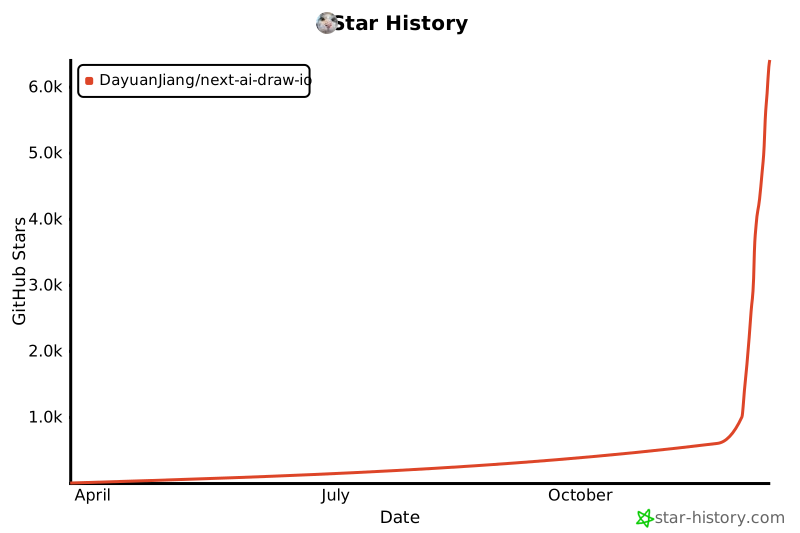
## Star历史
|
||
|
||
[](https://www.star-history.com/#DayuanJiang/next-ai-draw-io&type=date&legend=top-left)
|
||
|
||
---
|