mirror of
https://github.com/DayuanJiang/next-ai-draw-io.git
synced 2026-09-02 17:40:22 +08:00
Compare commits
6 Commits
feat/messa
...
test/repli
| Author | SHA1 | Date | |
|---|---|---|---|

|
73b1f6e8be | ||
|
|
1b7414d7a1 | ||
|
|
2f01f016d9 | ||
|
|
28258d19ca | ||
|
|
fc8c1b64c8 | ||
|
|
b396f07254 |
@@ -1,60 +0,0 @@
|
||||
# Dependencies
|
||||
node_modules
|
||||
npm-debug.log*
|
||||
yarn-debug.log*
|
||||
yarn-error.log*
|
||||
|
||||
# Build output
|
||||
.next
|
||||
out
|
||||
dist
|
||||
build
|
||||
|
||||
# Testing
|
||||
coverage
|
||||
.nyc_output
|
||||
|
||||
# Environment variables
|
||||
.env
|
||||
.env*.local
|
||||
.env.local
|
||||
.env.development.local
|
||||
.env.test.local
|
||||
.env.production.local
|
||||
|
||||
# Git
|
||||
.git
|
||||
.gitignore
|
||||
.gitattributes
|
||||
|
||||
# IDE
|
||||
.vscode
|
||||
.idea
|
||||
*.swp
|
||||
*.swo
|
||||
*~
|
||||
|
||||
# Operating System
|
||||
.DS_Store
|
||||
Thumbs.db
|
||||
|
||||
# Documentation
|
||||
README.md
|
||||
*.md
|
||||
!env.example
|
||||
|
||||
# CI/CD
|
||||
.github
|
||||
.gitlab-ci.yml
|
||||
.travis.yml
|
||||
|
||||
# Docker
|
||||
Dockerfile
|
||||
.dockerignore
|
||||
docker-compose*.yml
|
||||
|
||||
# Other
|
||||
*.log
|
||||
.cache
|
||||
.turbo
|
||||
|
||||
@@ -1,6 +0,0 @@
|
||||
{
|
||||
"extends": [
|
||||
"next/core-web-vitals",
|
||||
"next/typescript"
|
||||
]
|
||||
}
|
||||
15
.github/FUNDING.yml
vendored
15
.github/FUNDING.yml
vendored
@@ -1,15 +0,0 @@
|
||||
# These are supported funding model platforms
|
||||
|
||||
github: dayuanjiang
|
||||
patreon: # Replace with a single Patreon username
|
||||
open_collective: # Replace with a single Open Collective username
|
||||
ko_fi: # Replace with a single Ko-fi username
|
||||
tidelift: # Replace with a single Tidelift platform-name/package-name e.g., npm/babel
|
||||
community_bridge: # Replace with a single Community Bridge project-name e.g., cloud-foundry
|
||||
liberapay: # Replace with a single Liberapay username
|
||||
issuehunt: # Replace with a single IssueHunt username
|
||||
lfx_crowdfunding: # Replace with a single LFX Crowdfunding project-name e.g., cloud-foundry
|
||||
polar: # Replace with a single Polar username
|
||||
buy_me_a_coffee: # Replace with a single Buy Me a Coffee username
|
||||
thanks_dev: # Replace with a single thanks.dev username
|
||||
custom: # Replace with up to 4 custom sponsorship URLs e.g., ['link1', 'link2']
|
||||
122
.github/workflows/claude-code.yml
vendored
Normal file
122
.github/workflows/claude-code.yml
vendored
Normal file
@@ -0,0 +1,122 @@
|
||||
name: Claude Code
|
||||
|
||||
on:
|
||||
issue_comment:
|
||||
types: [created]
|
||||
pull_request_review_comment:
|
||||
types: [created]
|
||||
issues:
|
||||
types: [opened, assigned]
|
||||
pull_request_review:
|
||||
types: [submitted]
|
||||
pull_request_target:
|
||||
types: [opened, synchronize, reopened]
|
||||
|
||||
jobs:
|
||||
claude:
|
||||
if: |
|
||||
(github.event_name == 'issue_comment' && contains(github.event.comment.body, '@claude')) ||
|
||||
(github.event_name == 'pull_request_review_comment' && contains(github.event.comment.body, '@claude')) ||
|
||||
(github.event_name == 'pull_request_review' && contains(github.event.review.body, '@claude')) ||
|
||||
(github.event_name == 'issues' && contains(github.event.issue.body, '@claude'))
|
||||
runs-on: ubuntu-latest
|
||||
permissions:
|
||||
contents: write
|
||||
pull-requests: write
|
||||
issues: write
|
||||
id-token: write
|
||||
steps:
|
||||
- name: Checkout repository
|
||||
uses: actions/checkout@v4
|
||||
with:
|
||||
fetch-depth: 0
|
||||
|
||||
- name: Configure AWS Credentials
|
||||
uses: aws-actions/configure-aws-credentials@v4
|
||||
with:
|
||||
role-to-assume: ${{ secrets.AWS_ROLE_TO_ASSUME }}
|
||||
aws-region: us-east-1
|
||||
|
||||
- name: Run Claude Code
|
||||
uses: anthropics/claude-code-action@v1
|
||||
with:
|
||||
use_bedrock: "true"
|
||||
github_token: ${{ secrets.GITHUB_TOKEN }}
|
||||
|
||||
pr-review:
|
||||
if: github.event_name == 'pull_request_target'
|
||||
runs-on: ubuntu-latest
|
||||
permissions:
|
||||
contents: read
|
||||
pull-requests: write
|
||||
id-token: write
|
||||
steps:
|
||||
- name: Checkout repository
|
||||
uses: actions/checkout@v4
|
||||
with:
|
||||
fetch-depth: 0
|
||||
|
||||
- name: Configure AWS Credentials
|
||||
uses: aws-actions/configure-aws-credentials@v4
|
||||
with:
|
||||
role-to-assume: ${{ secrets.AWS_ROLE_TO_ASSUME }}
|
||||
aws-region: us-east-1
|
||||
|
||||
- name: Run Claude Code PR Review
|
||||
uses: anthropics/claude-code-action@v1
|
||||
with:
|
||||
use_bedrock: "true"
|
||||
github_token: ${{ secrets.GITHUB_TOKEN }}
|
||||
allowed_non_write_users: "*"
|
||||
prompt: |
|
||||
REPO: ${{ github.repository }}
|
||||
PR NUMBER: ${{ github.event.pull_request.number }}
|
||||
|
||||
This is a personal project - an AI-powered draw.io diagram generator built with:
|
||||
- Next.js 15 with React 19
|
||||
- Multiple AI providers: Bedrock, Anthropic, OpenAI, Google, Azure, OpenRouter, Ollama
|
||||
|
||||
First, check previous review comments from github-actions bot using `gh api repos/${{ github.repository }}/pulls/${{ github.event.pull_request.number }}/comments`.
|
||||
For each previous comment:
|
||||
- If the issue is fixed in the current code, resolve the comment thread using:
|
||||
- Multiple AI providers: Bedrock, Anthropic, OpenAI, Google, Azure, OpenRouter, Ollama
|
||||
|
||||
STEP 1: Check existing comments to avoid duplicates.
|
||||
Run: `gh api repos/${{ github.repository }}/pulls/${{ github.event.pull_request.number }}/comments`
|
||||
|
||||
Build a list of files and line numbers that already have comments. For each existing comment:
|
||||
- If the issue is FIXED in current code, resolve the thread using:
|
||||
`gh api graphql -f query='mutation { resolveReviewThread(input: {threadId: "THREAD_ID"}) { thread { isResolved } } }'`
|
||||
- If the issue still exists, remember this file:line - DO NOT create a new comment for it
|
||||
|
||||
STEP 2: Review the diff for issues, but SKIP any file:line that already has a comment.
|
||||
|
||||
Review this PR for these issues (report ALL that apply):
|
||||
1. Bugs that would cause runtime errors or broken functionality
|
||||
2. Security issues (exposed secrets, API key leaks)
|
||||
3. AI SDK misuse - specifically check for:
|
||||
- Client-side: Should use useChat/useCompletion/useObject hooks, NOT raw fetch()
|
||||
- Server-side: Should use streamText/generateText/streamObject/generateObject
|
||||
- Message handling: Access message.parts array, not legacy content property
|
||||
- Tool definitions: Must use Zod schemas for inputSchema
|
||||
- Status handling: Check status (submitted/streaming/ready/error) before actions
|
||||
- Stream cleanup: Call stop() when aborting streams
|
||||
4. Unrelated changes that should be in separate PRs (scope creep)
|
||||
5. Suspicious .gitignore additions or accidentally committed files
|
||||
6. UI/UX inconsistencies (e.g., alignment issues)
|
||||
|
||||
When reviewing AI SDK usage, fetch https://ai-sdk.dev/docs/ to verify correct patterns.
|
||||
Key doc pages: /docs/ai-sdk-ui/chatbot, /docs/ai-sdk-core/generating-text, /docs/ai-sdk-core/tools-and-tool-calling
|
||||
|
||||
DO NOT comment on:
|
||||
- Minor performance optimizations
|
||||
- Code style preferences (unless clearly wrong)
|
||||
- Type annotations that don't affect functionality
|
||||
|
||||
IMPORTANT:
|
||||
- NEVER create a comment on a file:line that already has a comment - this causes duplicates
|
||||
- For each NEW issue, use `mcp__github_inline_comment__create_inline_comment` to comment on the specific line
|
||||
- ALWAYS include a suggested fix using GitHub's suggestion syntax: ```suggestion\n<fixed code>\n```
|
||||
- Only say "LGTM" if there are truly ZERO new issues to report
|
||||
claude_args: |
|
||||
--allowedTools "mcp__github_inline_comment__create_inline_comment,Bash(gh pr diff:*),Bash(gh pr view:*),Bash(gh api:*),WebFetch(domain:ai-sdk.dev)"
|
||||
66
.github/workflows/docker-build.yml
vendored
66
.github/workflows/docker-build.yml
vendored
@@ -1,66 +0,0 @@
|
||||
name: Docker Build and Push
|
||||
|
||||
on:
|
||||
push:
|
||||
branches:
|
||||
- main
|
||||
- master
|
||||
- dev
|
||||
tags:
|
||||
- 'v*'
|
||||
pull_request:
|
||||
branches:
|
||||
- main
|
||||
- master
|
||||
|
||||
env:
|
||||
REGISTRY: ghcr.io
|
||||
IMAGE_NAME: ${{ github.repository }}
|
||||
|
||||
jobs:
|
||||
build-and-push:
|
||||
runs-on: ubuntu-latest
|
||||
permissions:
|
||||
contents: read
|
||||
packages: write
|
||||
|
||||
steps:
|
||||
- name: Checkout repository
|
||||
uses: actions/checkout@v4
|
||||
|
||||
- name: Set up Docker Buildx
|
||||
uses: docker/setup-buildx-action@v3
|
||||
|
||||
- name: Log in to GitHub Container Registry
|
||||
if: github.event_name != 'pull_request'
|
||||
uses: docker/login-action@v3
|
||||
with:
|
||||
registry: ${{ env.REGISTRY }}
|
||||
username: ${{ github.actor }}
|
||||
password: ${{ secrets.GITHUB_TOKEN }}
|
||||
|
||||
- name: Extract metadata (tags, labels)
|
||||
id: meta
|
||||
uses: docker/metadata-action@v5
|
||||
with:
|
||||
images: ${{ env.REGISTRY }}/${{ env.IMAGE_NAME }}
|
||||
tags: |
|
||||
type=ref,event=branch
|
||||
type=ref,event=pr
|
||||
type=semver,pattern={{version}}
|
||||
type=semver,pattern={{major}}.{{minor}}
|
||||
type=semver,pattern={{major}}
|
||||
type=sha,prefix=sha-
|
||||
type=raw,value=latest,enable={{is_default_branch}}
|
||||
|
||||
- name: Build and push Docker image
|
||||
uses: docker/build-push-action@v5
|
||||
with:
|
||||
context: .
|
||||
push: ${{ github.event_name != 'pull_request' }}
|
||||
tags: ${{ steps.meta.outputs.tags }}
|
||||
labels: ${{ steps.meta.outputs.labels }}
|
||||
cache-from: type=gha
|
||||
cache-to: type=gha,mode=max
|
||||
platforms: linux/amd64,linux/arm64
|
||||
|
||||
6
.gitignore
vendored
6
.gitignore
vendored
@@ -41,4 +41,8 @@ yarn-error.log*
|
||||
next-env.d.ts
|
||||
push-via-ec2.sh
|
||||
.claude/settings.local.json
|
||||
.playwright-mcp/
|
||||
|
||||
next
|
||||
next-ai-draw-io@0.2.0
|
||||
object
|
||||
starting
|
||||
|
||||
55
Dockerfile
55
Dockerfile
@@ -1,55 +0,0 @@
|
||||
# Multi-stage Dockerfile for Next.js
|
||||
|
||||
# Stage 1: Install dependencies
|
||||
FROM node:20-alpine AS deps
|
||||
RUN apk add --no-cache libc6-compat
|
||||
WORKDIR /app
|
||||
|
||||
# Copy package files
|
||||
COPY package.json package-lock.json* ./
|
||||
|
||||
# Install dependencies
|
||||
RUN npm ci
|
||||
|
||||
# Stage 2: Build application
|
||||
FROM node:20-alpine AS builder
|
||||
WORKDIR /app
|
||||
|
||||
# Copy node_modules from deps stage
|
||||
COPY --from=deps /app/node_modules ./node_modules
|
||||
COPY . .
|
||||
|
||||
# Disable Next.js telemetry during build
|
||||
ENV NEXT_TELEMETRY_DISABLED=1
|
||||
|
||||
# Build Next.js application (standalone mode)
|
||||
RUN npm run build
|
||||
|
||||
# Stage 3: Production runtime
|
||||
FROM node:20-alpine AS runner
|
||||
WORKDIR /app
|
||||
|
||||
ENV NODE_ENV=production
|
||||
ENV NEXT_TELEMETRY_DISABLED=1
|
||||
|
||||
# Create non-root user for security
|
||||
RUN addgroup --system --gid 1001 nodejs
|
||||
RUN adduser --system --uid 1001 nextjs
|
||||
|
||||
# Copy necessary files
|
||||
COPY --from=builder /app/public ./public
|
||||
|
||||
# Copy standalone build output
|
||||
COPY --from=builder --chown=nextjs:nodejs /app/.next/standalone ./
|
||||
COPY --from=builder --chown=nextjs:nodejs /app/.next/static ./.next/static
|
||||
|
||||
USER nextjs
|
||||
|
||||
EXPOSE 3000
|
||||
|
||||
ENV PORT=3000
|
||||
ENV HOSTNAME="0.0.0.0"
|
||||
|
||||
# Start the application
|
||||
CMD ["node", "server.js"]
|
||||
|
||||
190
LICENSE
190
LICENSE
@@ -1,190 +0,0 @@
|
||||
Apache License
|
||||
Version 2.0, January 2004
|
||||
http://www.apache.org/licenses/
|
||||
|
||||
TERMS AND CONDITIONS FOR USE, REPRODUCTION, AND DISTRIBUTION
|
||||
|
||||
1. Definitions.
|
||||
|
||||
"License" shall mean the terms and conditions for use, reproduction,
|
||||
and distribution as defined by Sections 1 through 9 of this document.
|
||||
|
||||
"Licensor" shall mean the copyright owner or entity authorized by
|
||||
the copyright owner that is granting the License.
|
||||
|
||||
"Legal Entity" shall mean the union of the acting entity and all
|
||||
other entities that control, are controlled by, or are under common
|
||||
control with that entity. For the purposes of this definition,
|
||||
"control" means (i) the power, direct or indirect, to cause the
|
||||
direction or management of such entity, whether by contract or
|
||||
otherwise, or (ii) ownership of fifty percent (50%) or more of the
|
||||
outstanding shares, or (iii) beneficial ownership of such entity.
|
||||
|
||||
"You" (or "Your") shall mean an individual or Legal Entity
|
||||
exercising permissions granted by this License.
|
||||
|
||||
"Source" form shall mean the preferred form for making modifications,
|
||||
including but not limited to software source code, documentation
|
||||
source, and configuration files.
|
||||
|
||||
"Object" form shall mean any form resulting from mechanical
|
||||
transformation or translation of a Source form, including but
|
||||
not limited to compiled object code, generated documentation,
|
||||
and conversions to other media types.
|
||||
|
||||
"Work" shall mean the work of authorship, whether in Source or
|
||||
Object form, made available under the License, as indicated by a
|
||||
copyright notice that is included in or attached to the work
|
||||
(an example is provided in the Appendix below).
|
||||
|
||||
"Derivative Works" shall mean any work, whether in Source or Object
|
||||
form, that is based on (or derived from) the Work and for which the
|
||||
editorial revisions, annotations, elaborations, or other modifications
|
||||
represent, as a whole, an original work of authorship. For the purposes
|
||||
of this License, Derivative Works shall not include works that remain
|
||||
separable from, or merely link (or bind by name) to the interfaces of,
|
||||
the Work and Derivative Works thereof.
|
||||
|
||||
"Contribution" shall mean any work of authorship, including
|
||||
the original version of the Work and any modifications or additions
|
||||
to that Work or Derivative Works thereof, that is intentionally
|
||||
submitted to the Licensor for inclusion in the Work by the copyright owner
|
||||
or by an individual or Legal Entity authorized to submit on behalf of
|
||||
the copyright owner. For the purposes of this definition, "submitted"
|
||||
means any form of electronic, verbal, or written communication sent
|
||||
to the Licensor or its representatives, including but not limited to
|
||||
communication on electronic mailing lists, source code control systems,
|
||||
and issue tracking systems that are managed by, or on behalf of, the
|
||||
Licensor for the purpose of discussing and improving the Work, but
|
||||
excluding communication that is conspicuously marked or otherwise
|
||||
designated in writing by the copyright owner as "Not a Contribution."
|
||||
|
||||
"Contributor" shall mean Licensor and any individual or Legal Entity
|
||||
on behalf of whom a Contribution has been received by Licensor and
|
||||
subsequently incorporated within the Work.
|
||||
|
||||
2. Grant of Copyright License. Subject to the terms and conditions of
|
||||
this License, each Contributor hereby grants to You a perpetual,
|
||||
worldwide, non-exclusive, no-charge, royalty-free, irrevocable
|
||||
copyright license to reproduce, prepare Derivative Works of,
|
||||
publicly display, publicly perform, sublicense, and distribute the
|
||||
Work and such Derivative Works in Source or Object form.
|
||||
|
||||
3. Grant of Patent License. Subject to the terms and conditions of
|
||||
this License, each Contributor hereby grants to You a perpetual,
|
||||
worldwide, non-exclusive, no-charge, royalty-free, irrevocable
|
||||
(except as stated in this section) patent license to make, have made,
|
||||
use, offer to sell, sell, import, and otherwise transfer the Work,
|
||||
where such license applies only to those patent claims licensable
|
||||
by such Contributor that are necessarily infringed by their
|
||||
Contribution(s) alone or by combination of their Contribution(s)
|
||||
with the Work to which such Contribution(s) was submitted. If You
|
||||
institute patent litigation against any entity (including a
|
||||
cross-claim or counterclaim in a lawsuit) alleging that the Work
|
||||
or a Contribution incorporated within the Work constitutes direct
|
||||
or contributory patent infringement, then any patent licenses
|
||||
granted to You under this License for that Work shall terminate
|
||||
as of the date such litigation is filed.
|
||||
|
||||
4. Redistribution. You may reproduce and distribute copies of the
|
||||
Work or Derivative Works thereof in any medium, with or without
|
||||
modifications, and in Source or Object form, provided that You
|
||||
meet the following conditions:
|
||||
|
||||
(a) You must give any other recipients of the Work or
|
||||
Derivative Works a copy of this License; and
|
||||
|
||||
(b) You must cause any modified files to carry prominent notices
|
||||
stating that You changed the files; and
|
||||
|
||||
(c) You must retain, in the Source form of any Derivative Works
|
||||
that You distribute, all copyright, patent, trademark, and
|
||||
attribution notices from the Source form of the Work,
|
||||
excluding those notices that do not pertain to any part of
|
||||
the Derivative Works; and
|
||||
|
||||
(d) If the Work includes a "NOTICE" text file as part of its
|
||||
distribution, then any Derivative Works that You distribute must
|
||||
include a readable copy of the attribution notices contained
|
||||
within such NOTICE file, excluding those notices that do not
|
||||
pertain to any part of the Derivative Works, in at least one
|
||||
of the following places: within a NOTICE text file distributed
|
||||
as part of the Derivative Works; within the Source form or
|
||||
documentation, if provided along with the Derivative Works; or,
|
||||
within a display generated by the Derivative Works, if and
|
||||
wherever such third-party notices normally appear. The contents
|
||||
of the NOTICE file are for informational purposes only and
|
||||
do not modify the License. You may add Your own attribution
|
||||
notices within Derivative Works that You distribute, alongside
|
||||
or as an addendum to the NOTICE text from the Work, provided
|
||||
that such additional attribution notices cannot be construed
|
||||
as modifying the License.
|
||||
|
||||
You may add Your own copyright statement to Your modifications and
|
||||
may provide additional or different license terms and conditions
|
||||
for use, reproduction, or distribution of Your modifications, or
|
||||
for any such Derivative Works as a whole, provided Your use,
|
||||
reproduction, and distribution of the Work otherwise complies with
|
||||
the conditions stated in this License.
|
||||
|
||||
5. Submission of Contributions. Unless You explicitly state otherwise,
|
||||
any Contribution intentionally submitted for inclusion in the Work
|
||||
by You to the Licensor shall be under the terms and conditions of
|
||||
this License, without any additional terms or conditions.
|
||||
Notwithstanding the above, nothing herein shall supersede or modify
|
||||
the terms of any separate license agreement you may have executed
|
||||
with Licensor regarding such Contributions.
|
||||
|
||||
6. Trademarks. This License does not grant permission to use the trade
|
||||
names, trademarks, service marks, or product names of the Licensor,
|
||||
except as required for reasonable and customary use in describing the
|
||||
origin of the Work and reproducing the content of the NOTICE file.
|
||||
|
||||
7. Disclaimer of Warranty. Unless required by applicable law or
|
||||
agreed to in writing, Licensor provides the Work (and each
|
||||
Contributor provides its Contributions) on an "AS IS" BASIS,
|
||||
WITHOUT WARRANTIES OR CONDITIONS OF ANY KIND, either express or
|
||||
implied, including, without limitation, any warranties or conditions
|
||||
of TITLE, NON-INFRINGEMENT, MERCHANTABILITY, or FITNESS FOR A
|
||||
PARTICULAR PURPOSE. You are solely responsible for determining the
|
||||
appropriateness of using or redistributing the Work and assume any
|
||||
risks associated with Your exercise of permissions under this License.
|
||||
|
||||
8. Limitation of Liability. In no event and under no legal theory,
|
||||
whether in tort (including negligence), contract, or otherwise,
|
||||
unless required by applicable law (such as deliberate and grossly
|
||||
negligent acts) or agreed to in writing, shall any Contributor be
|
||||
liable to You for damages, including any direct, indirect, special,
|
||||
incidental, or consequential damages of any character arising as a
|
||||
result of this License or out of the use or inability to use the
|
||||
Work (including but not limited to damages for loss of goodwill,
|
||||
work stoppage, computer failure or malfunction, or any and all
|
||||
other commercial damages or losses), even if such Contributor
|
||||
has been advised of the possibility of such damages.
|
||||
|
||||
9. Accepting Warranty or Additional Liability. While redistributing
|
||||
the Work or Derivative Works thereof, You may choose to offer,
|
||||
and charge a fee for, acceptance of support, warranty, indemnity,
|
||||
or other liability obligations and/or rights consistent with this
|
||||
License. However, in accepting such obligations, You may act only
|
||||
on Your own behalf and on Your sole responsibility, not on behalf
|
||||
of any other Contributor, and only if You agree to indemnify,
|
||||
defend, and hold each Contributor harmless for any liability
|
||||
incurred by, or claims asserted against, such Contributor by reason
|
||||
of your accepting any such warranty or additional liability.
|
||||
|
||||
END OF TERMS AND CONDITIONS
|
||||
|
||||
Copyright 2024 Dayuan Jiang
|
||||
|
||||
Licensed under the Apache License, Version 2.0 (the "License");
|
||||
you may not use this file except in compliance with the License.
|
||||
You may obtain a copy of the License at
|
||||
|
||||
http://www.apache.org/licenses/LICENSE-2.0
|
||||
|
||||
Unless required by applicable law or agreed to in writing, software
|
||||
distributed under the License is distributed on an "AS IS" BASIS,
|
||||
WITHOUT WARRANTIES OR CONDITIONS OF ANY KIND, either express or implied.
|
||||
See the License for the specific language governing permissions and
|
||||
limitations under the License.
|
||||
89
README.md
89
README.md
@@ -1,24 +1,11 @@
|
||||
# Next AI Draw.io
|
||||
|
||||
<div align="center">
|
||||
|
||||
**AI-Powered Diagram Creation Tool - Chat, Draw, Visualize**
|
||||
|
||||
English | [中文](./README_CN.md) | [日本語](./README_JA.md)
|
||||
|
||||
[](https://opensource.org/licenses/MIT)
|
||||
[](https://nextjs.org/)
|
||||
[](https://www.typescriptlang.org/)
|
||||
[](https://github.com/sponsors/DayuanJiang)
|
||||
|
||||
[🚀 Live Demo](https://next-ai-drawio.jiang.jp/)
|
||||
|
||||
</div>
|
||||
|
||||
A Next.js web application that integrates AI capabilities with draw.io diagrams. Create, modify, and enhance diagrams through natural language commands and AI-assisted visualization.
|
||||
A next.js web application that integrates AI capabilities with draw.io diagrams. This app allows you to create, modify, and enhance diagrams through natural language commands and AI-assisted visualization.
|
||||
|
||||
https://github.com/user-attachments/assets/b2eef5f3-b335-4e71-a755-dc2e80931979
|
||||
|
||||
Demo site: [https://next-ai-draw-io.vercel.app](https://next-ai-draw-io.vercel.app)
|
||||
|
||||
## Features
|
||||
|
||||
- **LLM-Powered Diagram Creation**: Leverage Large Language Models to create and manipulate draw.io diagrams directly through natural language commands
|
||||
@@ -34,13 +21,6 @@ Here are some example prompts and their generated diagrams:
|
||||
|
||||
<div align="center">
|
||||
<table width="100%">
|
||||
<tr>
|
||||
<td colspan="2" valign="top" align="center">
|
||||
<strong>Animated transformer connectors</strong><br />
|
||||
<p><strong>Prompt:</strong> Give me a **animated connector** diagram of transformer's architecture.</p>
|
||||
<img src="./public/animated_connectors.svg" alt="Transformer Architecture with Animated Connectors" width="480" />
|
||||
</td>
|
||||
</tr>
|
||||
<tr>
|
||||
<td width="50%" valign="top">
|
||||
<strong>GCP architecture diagram</strong><br />
|
||||
@@ -60,9 +40,16 @@ Here are some example prompts and their generated diagrams:
|
||||
<img src="./public/azure_demo.svg" alt="Azure Architecture Diagram" width="480" />
|
||||
</td>
|
||||
<td width="50%" valign="top">
|
||||
<strong>Animated transformer connectors</strong><br />
|
||||
<p><strong>Prompt:</strong> Give me a **animated connector** diagram of transformer's architecture.</p>
|
||||
<img src="./public/animated_connectors.svg" alt="Transformer Architecture with Animated Connectors" width="480" />
|
||||
</td>
|
||||
</tr>
|
||||
<tr>
|
||||
<td colspan="2" valign="top" align="center">
|
||||
<strong>Cat sketch prompt</strong><br />
|
||||
<p><strong>Prompt:</strong> Draw a cute cat for me.</p>
|
||||
<img src="./public/cat_demo.svg" alt="Cat Drawing" width="240" />
|
||||
<img src="./public/cat_demo.svg" alt="Cat Drawing" width="260" />
|
||||
</td>
|
||||
</tr>
|
||||
</table>
|
||||
@@ -73,7 +60,7 @@ Here are some example prompts and their generated diagrams:
|
||||
The application uses the following technologies:
|
||||
|
||||
- **Next.js**: For the frontend framework and routing
|
||||
- **Vercel AI SDK** (`ai` + `@ai-sdk/*`): For streaming AI responses and multi-provider support
|
||||
- **@ai-sdk/react**: For the chat interface and AI interactions
|
||||
- **react-drawio**: For diagram representation and manipulation
|
||||
|
||||
Diagrams are represented as XML that can be rendered in draw.io. The AI processes your commands and generates or modifies this XML accordingly.
|
||||
@@ -86,33 +73,11 @@ Diagrams are represented as XML that can be rendered in draw.io. The AI processe
|
||||
- Google AI
|
||||
- Azure OpenAI
|
||||
- Ollama
|
||||
- OpenRouter
|
||||
- DeepSeek
|
||||
|
||||
Note that `claude-sonnet-4-5` has trained on draw.io diagrams with AWS logos, so if you want to create AWS architecture diagrams, this is the best choice.
|
||||
|
||||
## Getting Started
|
||||
|
||||
### Run with Docker (Recommended)
|
||||
|
||||
If you just want to run it locally, the best way is to use Docker.
|
||||
|
||||
First, install Docker if you haven't already: [Get Docker](https://docs.docker.com/get-docker/)
|
||||
|
||||
Then run:
|
||||
|
||||
```bash
|
||||
docker run -d -p 3000:3000 \
|
||||
-e AI_PROVIDER=openai \
|
||||
-e AI_MODEL=gpt-4o \
|
||||
-e OPENAI_API_KEY=your_api_key \
|
||||
ghcr.io/dayuanjiang/next-ai-draw-io:latest
|
||||
```
|
||||
|
||||
Open [http://localhost:3000](http://localhost:3000) in your browser.
|
||||
|
||||
Replace the environment variables with your preferred AI provider configuration. See [Multi-Provider Support](#multi-provider-support) for available options.
|
||||
|
||||
### Installation
|
||||
|
||||
1. Clone the repository:
|
||||
@@ -140,7 +105,7 @@ cp env.example .env.local
|
||||
|
||||
Edit `.env.local` and configure your chosen provider:
|
||||
|
||||
- Set `AI_PROVIDER` to your chosen provider (bedrock, openai, anthropic, google, azure, ollama, openrouter, deepseek)
|
||||
- Set `AI_PROVIDER` to your chosen provider (bedrock, openai, anthropic, google, azure, ollama)
|
||||
- Set `AI_MODEL` to the specific model you want to use
|
||||
- Add the required API keys for your provider
|
||||
|
||||
@@ -168,19 +133,14 @@ Be sure to **set the environment variables** in the Vercel dashboard as you did
|
||||
## Project Structure
|
||||
|
||||
```
|
||||
app/ # Next.js App Router
|
||||
api/chat/ # Chat API endpoint with AI tools
|
||||
page.tsx # Main page with DrawIO embed
|
||||
app/ # Next.js application routes and pages
|
||||
extract_xml.ts # Utilities for XML processing
|
||||
components/ # React components
|
||||
chat-panel.tsx # Chat interface with diagram control
|
||||
chat-input.tsx # User input component with file upload
|
||||
history-dialog.tsx # Diagram version history viewer
|
||||
chat-input.tsx # User input component for AI interaction
|
||||
chatPanel.tsx # Chat interface with diagram control
|
||||
ui/ # UI components (buttons, cards, etc.)
|
||||
contexts/ # React context providers
|
||||
diagram-context.tsx # Global diagram state management
|
||||
lib/ # Utility functions and helpers
|
||||
ai-providers.ts # Multi-provider AI configuration
|
||||
utils.ts # XML processing and conversion utilities
|
||||
utils.ts # General utilities including XML conversion
|
||||
public/ # Static assets including example images
|
||||
```
|
||||
|
||||
@@ -189,19 +149,16 @@ public/ # Static assets including example images
|
||||
- [x] Allow the LLM to modify the XML instead of generating it from scratch everytime.
|
||||
- [x] Improve the smoothness of shape streaming updates.
|
||||
- [x] Add multiple AI provider support (OpenAI, Anthropic, Google, Azure, Ollama)
|
||||
- [x] Solve the bug that generation will fail for session that longer than 60s.
|
||||
- [ ] Add API config on the UI.
|
||||
- [ ] Solve the bug that generation will fail for session that longer than 60s.
|
||||
|
||||
## License
|
||||
|
||||
This project is licensed under the MIT License.
|
||||
|
||||
## Support & Contact
|
||||
|
||||
If you find this project useful, please consider [sponsoring](https://github.com/sponsors/DayuanJiang) to help me host the live demo site!
|
||||
|
||||
For support or inquiries, please open an issue on the GitHub repository or contact the maintainer at:
|
||||
|
||||
- Email: me[at]jiang.jp
|
||||
|
||||
## Star History
|
||||
|
||||
[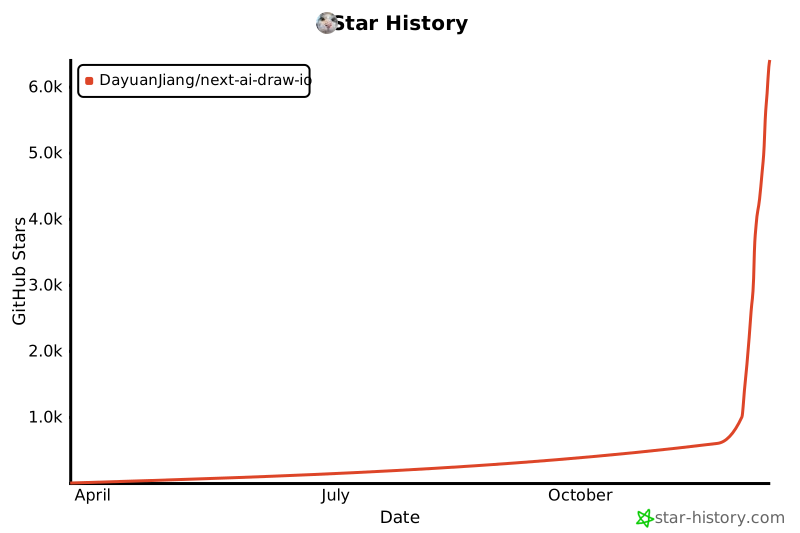](https://www.star-history.com/#DayuanJiang/next-ai-draw-io&type=date&legend=top-left)
|
||||
|
||||
---
|
||||
|
||||
207
README_CN.md
207
README_CN.md
@@ -1,207 +0,0 @@
|
||||
# Next AI Draw.io
|
||||
|
||||
<div align="center">
|
||||
|
||||
**AI驱动的图表创建工具 - 对话、绘制、可视化**
|
||||
|
||||
[English](./README.md) | 中文 | [日本語](./README_JA.md)
|
||||
|
||||
[](https://opensource.org/licenses/MIT)
|
||||
[](https://nextjs.org/)
|
||||
[](https://www.typescriptlang.org/)
|
||||
[](https://github.com/sponsors/DayuanJiang)
|
||||
|
||||
[🚀 在线演示](https://next-ai-drawio.jiang.jp/)
|
||||
|
||||
</div>
|
||||
|
||||
一个集成了AI功能的Next.js网页应用,与draw.io图表无缝结合。通过自然语言命令和AI辅助可视化来创建、修改和增强图表。
|
||||
|
||||
https://github.com/user-attachments/assets/b2eef5f3-b335-4e71-a755-dc2e80931979
|
||||
|
||||
## 功能特性
|
||||
|
||||
- **LLM驱动的图表创建**:利用大语言模型通过自然语言命令直接创建和操作draw.io图表
|
||||
- **基于图像的图表复制**:上传现有图表或图像,让AI自动复制和增强
|
||||
- **图表历史记录**:全面的版本控制,跟踪所有更改,允许您查看和恢复AI编辑前的图表版本
|
||||
- **交互式聊天界面**:与AI实时对话来完善您的图表
|
||||
- **AWS架构图支持**:专门支持生成AWS架构图
|
||||
- **动画连接器**:在图表元素之间创建动态动画连接器,实现更好的可视化效果
|
||||
|
||||
## **示例**
|
||||
|
||||
以下是一些示例提示词及其生成的图表:
|
||||
|
||||
<div align="center">
|
||||
<table width="100%">
|
||||
<tr>
|
||||
<td colspan="2" valign="top" align="center">
|
||||
<strong>动画Transformer连接器</strong><br />
|
||||
<p><strong>提示词:</strong> 给我一个带有**动画连接器**的Transformer架构图。</p>
|
||||
<img src="./public/animated_connectors.svg" alt="带动画连接器的Transformer架构" width="480" />
|
||||
</td>
|
||||
</tr>
|
||||
<tr>
|
||||
<td width="50%" valign="top">
|
||||
<strong>GCP架构图</strong><br />
|
||||
<p><strong>提示词:</strong> 使用**GCP图标**生成一个GCP架构图。在这个图中,用户连接到托管在实例上的前端。</p>
|
||||
<img src="./public/gcp_demo.svg" alt="GCP架构图" width="480" />
|
||||
</td>
|
||||
<td width="50%" valign="top">
|
||||
<strong>AWS架构图</strong><br />
|
||||
<p><strong>提示词:</strong> 使用**AWS图标**生成一个AWS架构图。在这个图中,用户连接到托管在实例上的前端。</p>
|
||||
<img src="./public/aws_demo.svg" alt="AWS架构图" width="480" />
|
||||
</td>
|
||||
</tr>
|
||||
<tr>
|
||||
<td width="50%" valign="top">
|
||||
<strong>Azure架构图</strong><br />
|
||||
<p><strong>提示词:</strong> 使用**Azure图标**生成一个Azure架构图。在这个图中,用户连接到托管在实例上的前端。</p>
|
||||
<img src="./public/azure_demo.svg" alt="Azure架构图" width="480" />
|
||||
</td>
|
||||
<td width="50%" valign="top">
|
||||
<strong>猫咪素描</strong><br />
|
||||
<p><strong>提示词:</strong> 给我画一只可爱的猫。</p>
|
||||
<img src="./public/cat_demo.svg" alt="猫咪绘图" width="240" />
|
||||
</td>
|
||||
</tr>
|
||||
</table>
|
||||
</div>
|
||||
|
||||
## 工作原理
|
||||
|
||||
本应用使用以下技术:
|
||||
|
||||
- **Next.js**:用于前端框架和路由
|
||||
- **Vercel AI SDK**(`ai` + `@ai-sdk/*`):用于流式AI响应和多提供商支持
|
||||
- **react-drawio**:用于图表表示和操作
|
||||
|
||||
图表以XML格式表示,可在draw.io中渲染。AI处理您的命令并相应地生成或修改此XML。
|
||||
|
||||
## 多提供商支持
|
||||
|
||||
- AWS Bedrock(默认)
|
||||
- OpenAI / OpenAI兼容API(通过 `OPENAI_BASE_URL`)
|
||||
- Anthropic
|
||||
- Google AI
|
||||
- Azure OpenAI
|
||||
- Ollama
|
||||
- OpenRouter
|
||||
- DeepSeek
|
||||
|
||||
注意:`claude-sonnet-4-5` 已在带有AWS标志的draw.io图表上进行训练,因此如果您想创建AWS架构图,这是最佳选择。
|
||||
|
||||
## 快速开始
|
||||
|
||||
### 使用Docker运行(推荐)
|
||||
|
||||
如果您只想在本地运行,最好的方式是使用Docker。
|
||||
|
||||
首先,如果您还没有安装Docker,请先安装:[获取Docker](https://docs.docker.com/get-docker/)
|
||||
|
||||
然后运行:
|
||||
|
||||
```bash
|
||||
docker run -d -p 3000:3000 \
|
||||
-e AI_PROVIDER=openai \
|
||||
-e AI_MODEL=gpt-4o \
|
||||
-e OPENAI_API_KEY=your_api_key \
|
||||
ghcr.io/dayuanjiang/next-ai-draw-io:latest
|
||||
```
|
||||
|
||||
在浏览器中打开 [http://localhost:3000](http://localhost:3000)。
|
||||
|
||||
请根据您首选的AI提供商配置替换环境变量。可用选项请参阅[多提供商支持](#多提供商支持)。
|
||||
|
||||
### 安装
|
||||
|
||||
1. 克隆仓库:
|
||||
|
||||
```bash
|
||||
git clone https://github.com/DayuanJiang/next-ai-draw-io
|
||||
cd next-ai-draw-io
|
||||
```
|
||||
|
||||
2. 安装依赖:
|
||||
|
||||
```bash
|
||||
npm install
|
||||
# 或
|
||||
yarn install
|
||||
```
|
||||
|
||||
3. 配置您的AI提供商:
|
||||
|
||||
在根目录创建 `.env.local` 文件:
|
||||
|
||||
```bash
|
||||
cp env.example .env.local
|
||||
```
|
||||
|
||||
编辑 `.env.local` 并配置您选择的提供商:
|
||||
|
||||
- 将 `AI_PROVIDER` 设置为您选择的提供商(bedrock, openai, anthropic, google, azure, ollama, openrouter, deepseek)
|
||||
- 将 `AI_MODEL` 设置为您要使用的特定模型
|
||||
- 添加您的提供商所需的API密钥
|
||||
|
||||
请参阅上面的[多提供商支持](#多提供商支持)部分了解特定提供商的配置示例。
|
||||
|
||||
4. 运行开发服务器:
|
||||
|
||||
```bash
|
||||
npm run dev
|
||||
```
|
||||
|
||||
5. 在浏览器中打开 [http://localhost:3000](http://localhost:3000) 查看应用。
|
||||
|
||||
## 部署
|
||||
|
||||
部署Next.js应用最简单的方式是使用Next.js创建者提供的[Vercel平台](https://vercel.com/new)。
|
||||
|
||||
查看[Next.js部署文档](https://nextjs.org/docs/app/building-your-application/deploying)了解更多详情。
|
||||
|
||||
或者您可以通过此按钮部署:
|
||||
[](https://vercel.com/new/clone?repository-url=https%3A%2F%2Fgithub.com%2FDayuanJiang%2Fnext-ai-draw-io)
|
||||
|
||||
请确保在Vercel控制台中**设置环境变量**,就像您在本地 `.env.local` 文件中所做的那样。
|
||||
|
||||
## 项目结构
|
||||
|
||||
```
|
||||
app/ # Next.js App Router
|
||||
api/chat/ # 带AI工具的聊天API端点
|
||||
page.tsx # 带DrawIO嵌入的主页面
|
||||
components/ # React组件
|
||||
chat-panel.tsx # 带图表控制的聊天界面
|
||||
chat-input.tsx # 带文件上传的用户输入组件
|
||||
history-dialog.tsx # 图表版本历史查看器
|
||||
ui/ # UI组件(按钮、卡片等)
|
||||
contexts/ # React上下文提供者
|
||||
diagram-context.tsx # 全局图表状态管理
|
||||
lib/ # 工具函数和辅助程序
|
||||
ai-providers.ts # 多提供商AI配置
|
||||
utils.ts # XML处理和转换工具
|
||||
public/ # 静态资源包括示例图片
|
||||
```
|
||||
|
||||
## 待办事项
|
||||
|
||||
- [x] 允许LLM修改XML而不是每次从头生成
|
||||
- [x] 提高形状流式更新的流畅度
|
||||
- [x] 添加多AI提供商支持(OpenAI, Anthropic, Google, Azure, Ollama)
|
||||
- [x] 解决超过60秒的会话生成失败的bug
|
||||
- [ ] 在UI上添加API配置
|
||||
|
||||
## 支持与联系
|
||||
|
||||
如果您觉得这个项目有用,请考虑[赞助](https://github.com/sponsors/DayuanJiang)来帮助我托管在线演示站点!
|
||||
|
||||
如需支持或咨询,请在GitHub仓库上提交issue或联系维护者:
|
||||
|
||||
- 邮箱:me[at]jiang.jp
|
||||
|
||||
## Star历史
|
||||
|
||||
[](https://www.star-history.com/#DayuanJiang/next-ai-draw-io&type=date&legend=top-left)
|
||||
|
||||
---
|
||||
207
README_JA.md
207
README_JA.md
@@ -1,207 +0,0 @@
|
||||
# Next AI Draw.io
|
||||
|
||||
<div align="center">
|
||||
|
||||
**AI搭載のダイアグラム作成ツール - チャット、描画、可視化**
|
||||
|
||||
[English](./README.md) | [中文](./README_CN.md) | 日本語
|
||||
|
||||
[](https://opensource.org/licenses/MIT)
|
||||
[](https://nextjs.org/)
|
||||
[](https://www.typescriptlang.org/)
|
||||
[](https://github.com/sponsors/DayuanJiang)
|
||||
|
||||
[🚀 ライブデモ](https://next-ai-drawio.jiang.jp/)
|
||||
|
||||
</div>
|
||||
|
||||
AI機能とdraw.ioダイアグラムを統合したNext.jsウェブアプリケーションです。自然言語コマンドとAI支援の可視化により、ダイアグラムを作成、修正、強化できます。
|
||||
|
||||
https://github.com/user-attachments/assets/b2eef5f3-b335-4e71-a755-dc2e80931979
|
||||
|
||||
## 機能
|
||||
|
||||
- **LLM搭載のダイアグラム作成**:大規模言語モデルを活用して、自然言語コマンドで直接draw.ioダイアグラムを作成・操作
|
||||
- **画像ベースのダイアグラム複製**:既存のダイアグラムや画像をアップロードし、AIが自動的に複製・強化
|
||||
- **ダイアグラム履歴**:すべての変更を追跡する包括的なバージョン管理。AI編集前のダイアグラムの以前のバージョンを表示・復元可能
|
||||
- **インタラクティブなチャットインターフェース**:AIとリアルタイムでコミュニケーションしてダイアグラムを改善
|
||||
- **AWSアーキテクチャダイアグラムサポート**:AWSアーキテクチャダイアグラムの生成を専門的にサポート
|
||||
- **アニメーションコネクタ**:より良い可視化のためにダイアグラム要素間に動的でアニメーション化されたコネクタを作成
|
||||
|
||||
## **例**
|
||||
|
||||
以下はいくつかのプロンプト例と生成されたダイアグラムです:
|
||||
|
||||
<div align="center">
|
||||
<table width="100%">
|
||||
<tr>
|
||||
<td colspan="2" valign="top" align="center">
|
||||
<strong>アニメーションTransformerコネクタ</strong><br />
|
||||
<p><strong>プロンプト:</strong> **アニメーションコネクタ**付きのTransformerアーキテクチャ図を作成してください。</p>
|
||||
<img src="./public/animated_connectors.svg" alt="アニメーションコネクタ付きTransformerアーキテクチャ" width="480" />
|
||||
</td>
|
||||
</tr>
|
||||
<tr>
|
||||
<td width="50%" valign="top">
|
||||
<strong>GCPアーキテクチャ図</strong><br />
|
||||
<p><strong>プロンプト:</strong> **GCPアイコン**を使用してGCPアーキテクチャ図を生成してください。この図では、ユーザーがインスタンス上でホストされているフロントエンドに接続します。</p>
|
||||
<img src="./public/gcp_demo.svg" alt="GCPアーキテクチャ図" width="480" />
|
||||
</td>
|
||||
<td width="50%" valign="top">
|
||||
<strong>AWSアーキテクチャ図</strong><br />
|
||||
<p><strong>プロンプト:</strong> **AWSアイコン**を使用してAWSアーキテクチャ図を生成してください。この図では、ユーザーがインスタンス上でホストされているフロントエンドに接続します。</p>
|
||||
<img src="./public/aws_demo.svg" alt="AWSアーキテクチャ図" width="480" />
|
||||
</td>
|
||||
</tr>
|
||||
<tr>
|
||||
<td width="50%" valign="top">
|
||||
<strong>Azureアーキテクチャ図</strong><br />
|
||||
<p><strong>プロンプト:</strong> **Azureアイコン**を使用してAzureアーキテクチャ図を生成してください。この図では、ユーザーがインスタンス上でホストされているフロントエンドに接続します。</p>
|
||||
<img src="./public/azure_demo.svg" alt="Azureアーキテクチャ図" width="480" />
|
||||
</td>
|
||||
<td width="50%" valign="top">
|
||||
<strong>猫のスケッチ</strong><br />
|
||||
<p><strong>プロンプト:</strong> かわいい猫を描いてください。</p>
|
||||
<img src="./public/cat_demo.svg" alt="猫の絵" width="240" />
|
||||
</td>
|
||||
</tr>
|
||||
</table>
|
||||
</div>
|
||||
|
||||
## 仕組み
|
||||
|
||||
本アプリケーションは以下の技術を使用しています:
|
||||
|
||||
- **Next.js**:フロントエンドフレームワークとルーティング
|
||||
- **Vercel AI SDK**(`ai` + `@ai-sdk/*`):ストリーミングAIレスポンスとマルチプロバイダーサポート
|
||||
- **react-drawio**:ダイアグラムの表現と操作
|
||||
|
||||
ダイアグラムはdraw.ioでレンダリングできるXMLとして表現されます。AIがコマンドを処理し、それに応じてこのXMLを生成または変更します。
|
||||
|
||||
## マルチプロバイダーサポート
|
||||
|
||||
- AWS Bedrock(デフォルト)
|
||||
- OpenAI / OpenAI互換API(`OPENAI_BASE_URL`経由)
|
||||
- Anthropic
|
||||
- Google AI
|
||||
- Azure OpenAI
|
||||
- Ollama
|
||||
- OpenRouter
|
||||
- DeepSeek
|
||||
|
||||
注:`claude-sonnet-4-5`はAWSロゴ付きのdraw.ioダイアグラムで学習されているため、AWSアーキテクチャダイアグラムを作成したい場合は最適な選択です。
|
||||
|
||||
## はじめに
|
||||
|
||||
### Dockerで実行(推奨)
|
||||
|
||||
ローカルで実行したいだけなら、Dockerを使用するのが最も簡単です。
|
||||
|
||||
まず、Dockerをインストールしていない場合はインストールしてください:[Dockerを入手](https://docs.docker.com/get-docker/)
|
||||
|
||||
次に実行:
|
||||
|
||||
```bash
|
||||
docker run -d -p 3000:3000 \
|
||||
-e AI_PROVIDER=openai \
|
||||
-e AI_MODEL=gpt-4o \
|
||||
-e OPENAI_API_KEY=your_api_key \
|
||||
ghcr.io/dayuanjiang/next-ai-draw-io:latest
|
||||
```
|
||||
|
||||
ブラウザで [http://localhost:3000](http://localhost:3000) を開いてください。
|
||||
|
||||
環境変数はお好みのAIプロバイダー設定に置き換えてください。利用可能なオプションについては[マルチプロバイダーサポート](#マルチプロバイダーサポート)を参照してください。
|
||||
|
||||
### インストール
|
||||
|
||||
1. リポジトリをクローン:
|
||||
|
||||
```bash
|
||||
git clone https://github.com/DayuanJiang/next-ai-draw-io
|
||||
cd next-ai-draw-io
|
||||
```
|
||||
|
||||
2. 依存関係をインストール:
|
||||
|
||||
```bash
|
||||
npm install
|
||||
# または
|
||||
yarn install
|
||||
```
|
||||
|
||||
3. AIプロバイダーを設定:
|
||||
|
||||
ルートディレクトリに`.env.local`ファイルを作成:
|
||||
|
||||
```bash
|
||||
cp env.example .env.local
|
||||
```
|
||||
|
||||
`.env.local`を編集して選択したプロバイダーを設定:
|
||||
|
||||
- `AI_PROVIDER`を選択したプロバイダーに設定(bedrock, openai, anthropic, google, azure, ollama, openrouter, deepseek)
|
||||
- `AI_MODEL`を使用する特定のモデルに設定
|
||||
- プロバイダーに必要なAPIキーを追加
|
||||
|
||||
プロバイダー固有の設定例については、上記の[マルチプロバイダーサポート](#マルチプロバイダーサポート)セクションを参照してください。
|
||||
|
||||
4. 開発サーバーを起動:
|
||||
|
||||
```bash
|
||||
npm run dev
|
||||
```
|
||||
|
||||
5. ブラウザで[http://localhost:3000](http://localhost:3000)を開いてアプリケーションを確認。
|
||||
|
||||
## デプロイ
|
||||
|
||||
Next.jsアプリをデプロイする最も簡単な方法は、Next.jsの作成者による[Vercelプラットフォーム](https://vercel.com/new)を使用することです。
|
||||
|
||||
詳細は[Next.jsデプロイメントドキュメント](https://nextjs.org/docs/app/building-your-application/deploying)をご覧ください。
|
||||
|
||||
または、このボタンでデプロイできます:
|
||||
[](https://vercel.com/new/clone?repository-url=https%3A%2F%2Fgithub.com%2FDayuanJiang%2Fnext-ai-draw-io)
|
||||
|
||||
ローカルの`.env.local`ファイルと同様に、Vercelダッシュボードで**環境変数を設定**してください。
|
||||
|
||||
## プロジェクト構造
|
||||
|
||||
```
|
||||
app/ # Next.js App Router
|
||||
api/chat/ # AIツール付きチャットAPIエンドポイント
|
||||
page.tsx # DrawIO埋め込み付きメインページ
|
||||
components/ # Reactコンポーネント
|
||||
chat-panel.tsx # ダイアグラム制御付きチャットインターフェース
|
||||
chat-input.tsx # ファイルアップロード付きユーザー入力コンポーネント
|
||||
history-dialog.tsx # ダイアグラムバージョン履歴ビューア
|
||||
ui/ # UIコンポーネント(ボタン、カードなど)
|
||||
contexts/ # Reactコンテキストプロバイダー
|
||||
diagram-context.tsx # グローバルダイアグラム状態管理
|
||||
lib/ # ユーティリティ関数とヘルパー
|
||||
ai-providers.ts # マルチプロバイダーAI設定
|
||||
utils.ts # XML処理と変換ユーティリティ
|
||||
public/ # サンプル画像を含む静的アセット
|
||||
```
|
||||
|
||||
## TODO
|
||||
|
||||
- [x] LLMが毎回ゼロから生成する代わりにXMLを修正できるようにする
|
||||
- [x] シェイプストリーミング更新の滑らかさを改善
|
||||
- [x] 複数のAIプロバイダーサポートを追加(OpenAI, Anthropic, Google, Azure, Ollama)
|
||||
- [x] 60秒以上のセッションで生成が失敗するバグを解決
|
||||
- [ ] UIにAPI設定を追加
|
||||
|
||||
## サポート&お問い合わせ
|
||||
|
||||
このプロジェクトが役に立ったら、ライブデモサイトのホスティングを支援するために[スポンサー](https://github.com/sponsors/DayuanJiang)をご検討ください!
|
||||
|
||||
サポートやお問い合わせについては、GitHubリポジトリでissueを開くか、メンテナーにご連絡ください:
|
||||
|
||||
- メール:me[at]jiang.jp
|
||||
|
||||
## スター履歴
|
||||
|
||||
[](https://www.star-history.com/#DayuanJiang/next-ai-draw-io&type=date&legend=top-left)
|
||||
|
||||
---
|
||||
@@ -1,205 +0,0 @@
|
||||
import type { Metadata } from "next";
|
||||
import Link from "next/link";
|
||||
import { FaGithub } from "react-icons/fa";
|
||||
import Image from "next/image";
|
||||
|
||||
export const metadata: Metadata = {
|
||||
title: "关于 - Next AI Draw.io",
|
||||
description: "AI驱动的图表创建工具 - 对话、绘制、可视化。使用自然语言创建AWS、GCP和Azure架构图。",
|
||||
keywords: ["AI图表", "draw.io", "AWS架构", "GCP图表", "Azure图表", "LLM"],
|
||||
};
|
||||
|
||||
export default function AboutCN() {
|
||||
return (
|
||||
<div className="min-h-screen bg-gray-50">
|
||||
{/* Navigation */}
|
||||
<header className="bg-white border-b border-gray-200">
|
||||
<div className="max-w-4xl mx-auto px-4 sm:px-6 lg:px-8 py-4">
|
||||
<div className="flex items-center justify-between">
|
||||
<Link href="/" className="text-xl font-bold text-gray-900 hover:text-gray-700">
|
||||
Next AI Draw.io
|
||||
</Link>
|
||||
<nav className="flex items-center gap-6 text-sm">
|
||||
<Link href="/" className="text-gray-600 hover:text-gray-900 transition-colors">
|
||||
编辑器
|
||||
</Link>
|
||||
<Link href="/about/cn" className="text-blue-600 font-semibold">
|
||||
关于
|
||||
</Link>
|
||||
<a
|
||||
href="https://github.com/DayuanJiang/next-ai-draw-io"
|
||||
target="_blank"
|
||||
rel="noopener noreferrer"
|
||||
className="text-gray-600 hover:text-gray-900 transition-colors"
|
||||
aria-label="在GitHub上查看"
|
||||
>
|
||||
<FaGithub className="w-5 h-5" />
|
||||
</a>
|
||||
</nav>
|
||||
</div>
|
||||
</div>
|
||||
</header>
|
||||
|
||||
{/* Main Content */}
|
||||
<main className="max-w-4xl mx-auto px-4 sm:px-6 lg:px-8 py-12">
|
||||
<article className="prose prose-lg max-w-none">
|
||||
{/* Title */}
|
||||
<div className="text-center mb-8">
|
||||
<h1 className="text-4xl font-bold text-gray-900 mb-2">Next AI Draw.io</h1>
|
||||
<p className="text-xl text-gray-600 font-medium">
|
||||
AI驱动的图表创建工具 - 对话、绘制、可视化
|
||||
</p>
|
||||
<div className="flex justify-center gap-4 mt-4 text-sm">
|
||||
<Link href="/about" className="text-gray-600 hover:text-blue-600">English</Link>
|
||||
<span className="text-gray-400">|</span>
|
||||
<Link href="/about/cn" className="text-blue-600 font-semibold">中文</Link>
|
||||
<span className="text-gray-400">|</span>
|
||||
<Link href="/about/ja" className="text-gray-600 hover:text-blue-600">日本語</Link>
|
||||
</div>
|
||||
</div>
|
||||
|
||||
<div className="bg-amber-50 border border-amber-200 rounded-lg p-4 mb-6">
|
||||
<p className="text-amber-800">
|
||||
本应用设计运行于 Claude Opus 4.5 以获得最佳性能。但由于流量超出预期,运行顶级模型的成本变得难以承受。为避免服务中断并控制成本,我已将后端切换至 Claude Haiku 4.5。
|
||||
</p>
|
||||
</div>
|
||||
|
||||
<p className="text-gray-700">
|
||||
一个集成了AI功能的Next.js网页应用,与draw.io图表无缝结合。通过自然语言命令和AI辅助可视化来创建、修改和增强图表。
|
||||
</p>
|
||||
|
||||
{/* Features */}
|
||||
<h2 className="text-2xl font-semibold text-gray-900 mt-10 mb-4">功能特性</h2>
|
||||
<ul className="list-disc pl-6 text-gray-700 space-y-2">
|
||||
<li><strong>LLM驱动的图表创建</strong>:利用大语言模型通过自然语言命令直接创建和操作draw.io图表</li>
|
||||
<li><strong>基于图像的图表复制</strong>:上传现有图表或图像,让AI自动复制和增强</li>
|
||||
<li><strong>图表历史记录</strong>:全面的版本控制,跟踪所有更改,允许您查看和恢复AI编辑前的图表版本</li>
|
||||
<li><strong>交互式聊天界面</strong>:与AI实时对话来完善您的图表</li>
|
||||
<li><strong>AWS架构图支持</strong>:专门支持生成AWS架构图</li>
|
||||
<li><strong>动画连接器</strong>:在图表元素之间创建动态动画连接器,实现更好的可视化效果</li>
|
||||
</ul>
|
||||
|
||||
{/* Examples */}
|
||||
<h2 className="text-2xl font-semibold text-gray-900 mt-10 mb-4">示例</h2>
|
||||
<p className="text-gray-700 mb-6">以下是一些示例提示词及其生成的图表:</p>
|
||||
|
||||
<div className="space-y-8">
|
||||
{/* Animated Transformer */}
|
||||
<div className="text-center">
|
||||
<h3 className="text-lg font-semibold text-gray-900 mb-2">动画Transformer连接器</h3>
|
||||
<p className="text-gray-600 mb-4">
|
||||
<strong>提示词:</strong> 给我一个带有<strong>动画连接器</strong>的Transformer架构图。
|
||||
</p>
|
||||
<Image src="/animated_connectors.svg" alt="带动画连接器的Transformer架构" width={480} height={360} className="mx-auto" />
|
||||
</div>
|
||||
|
||||
{/* Cloud Architecture Grid */}
|
||||
<div className="grid md:grid-cols-2 gap-6">
|
||||
<div className="text-center">
|
||||
<h3 className="text-lg font-semibold text-gray-900 mb-2">GCP架构图</h3>
|
||||
<p className="text-gray-600 text-sm mb-4">
|
||||
<strong>提示词:</strong> 使用<strong>GCP图标</strong>生成一个GCP架构图。用户连接到托管在实例上的前端。
|
||||
</p>
|
||||
<Image src="/gcp_demo.svg" alt="GCP架构图" width={400} height={300} className="mx-auto" />
|
||||
</div>
|
||||
<div className="text-center">
|
||||
<h3 className="text-lg font-semibold text-gray-900 mb-2">AWS架构图</h3>
|
||||
<p className="text-gray-600 text-sm mb-4">
|
||||
<strong>提示词:</strong> 使用<strong>AWS图标</strong>生成一个AWS架构图。用户连接到托管在实例上的前端。
|
||||
</p>
|
||||
<Image src="/aws_demo.svg" alt="AWS架构图" width={400} height={300} className="mx-auto" />
|
||||
</div>
|
||||
<div className="text-center">
|
||||
<h3 className="text-lg font-semibold text-gray-900 mb-2">Azure架构图</h3>
|
||||
<p className="text-gray-600 text-sm mb-4">
|
||||
<strong>提示词:</strong> 使用<strong>Azure图标</strong>生成一个Azure架构图。用户连接到托管在实例上的前端。
|
||||
</p>
|
||||
<Image src="/azure_demo.svg" alt="Azure架构图" width={400} height={300} className="mx-auto" />
|
||||
</div>
|
||||
<div className="text-center">
|
||||
<h3 className="text-lg font-semibold text-gray-900 mb-2">猫咪素描</h3>
|
||||
<p className="text-gray-600 text-sm mb-4">
|
||||
<strong>提示词:</strong> 给我画一只可爱的猫。
|
||||
</p>
|
||||
<Image src="/cat_demo.svg" alt="猫咪绘图" width={240} height={240} className="mx-auto" />
|
||||
</div>
|
||||
</div>
|
||||
</div>
|
||||
|
||||
{/* How It Works */}
|
||||
<h2 className="text-2xl font-semibold text-gray-900 mt-10 mb-4">工作原理</h2>
|
||||
<p className="text-gray-700 mb-4">本应用使用以下技术:</p>
|
||||
<ul className="list-disc pl-6 text-gray-700 space-y-2">
|
||||
<li><strong>Next.js</strong>:用于前端框架和路由</li>
|
||||
<li><strong>Vercel AI SDK</strong>(<code>ai</code> + <code>@ai-sdk/*</code>):用于流式AI响应和多提供商支持</li>
|
||||
<li><strong>react-drawio</strong>:用于图表表示和操作</li>
|
||||
</ul>
|
||||
<p className="text-gray-700 mt-4">
|
||||
图表以XML格式表示,可在draw.io中渲染。AI处理您的命令并相应地生成或修改此XML。
|
||||
</p>
|
||||
|
||||
{/* Multi-Provider Support */}
|
||||
<h2 className="text-2xl font-semibold text-gray-900 mt-10 mb-4">多提供商支持</h2>
|
||||
<ul className="list-disc pl-6 text-gray-700 space-y-1">
|
||||
<li>AWS Bedrock(默认)</li>
|
||||
<li>OpenAI / OpenAI兼容API(通过 <code>OPENAI_BASE_URL</code>)</li>
|
||||
<li>Anthropic</li>
|
||||
<li>Google AI</li>
|
||||
<li>Azure OpenAI</li>
|
||||
<li>Ollama</li>
|
||||
<li>OpenRouter</li>
|
||||
<li>DeepSeek</li>
|
||||
</ul>
|
||||
<p className="text-gray-700 mt-4">
|
||||
注意:<code>claude-sonnet-4-5</code> 已在带有AWS标志的draw.io图表上进行训练,因此如果您想创建AWS架构图,这是最佳选择。
|
||||
</p>
|
||||
|
||||
{/* Support */}
|
||||
<div className="flex items-center gap-4 mt-10 mb-4">
|
||||
<h2 className="text-2xl font-semibold text-gray-900">支持与联系</h2>
|
||||
<iframe
|
||||
src="https://github.com/sponsors/DayuanJiang/button"
|
||||
title="Sponsor DayuanJiang"
|
||||
height="32"
|
||||
width="114"
|
||||
style={{ border: 0, borderRadius: 6 }}
|
||||
/>
|
||||
</div>
|
||||
<p className="text-gray-700">
|
||||
如果您觉得这个项目有用,请考虑{" "}
|
||||
<a href="https://github.com/sponsors/DayuanJiang" target="_blank" rel="noopener noreferrer" className="text-blue-600 hover:underline">
|
||||
赞助
|
||||
</a>{" "}
|
||||
来帮助托管在线演示站点!
|
||||
</p>
|
||||
<p className="text-gray-700 mt-2">
|
||||
如需支持或咨询,请在{" "}
|
||||
<a href="https://github.com/DayuanJiang/next-ai-draw-io" target="_blank" rel="noopener noreferrer" className="text-blue-600 hover:underline">
|
||||
GitHub仓库
|
||||
</a>{" "}
|
||||
上提交issue或联系:me[at]jiang.jp
|
||||
</p>
|
||||
|
||||
{/* CTA */}
|
||||
<div className="mt-12 text-center">
|
||||
<Link
|
||||
href="/"
|
||||
className="inline-block bg-blue-600 text-white px-8 py-3 rounded-lg font-semibold hover:bg-blue-700 transition-colors"
|
||||
>
|
||||
打开编辑器
|
||||
</Link>
|
||||
</div>
|
||||
</article>
|
||||
</main>
|
||||
|
||||
{/* Footer */}
|
||||
<footer className="bg-white border-t border-gray-200 mt-16">
|
||||
<div className="max-w-4xl mx-auto px-4 sm:px-6 lg:px-8 py-6">
|
||||
<p className="text-center text-gray-600 text-sm">
|
||||
Next AI Draw.io - 开源AI驱动的图表生成器
|
||||
</p>
|
||||
</div>
|
||||
</footer>
|
||||
</div>
|
||||
);
|
||||
}
|
||||
@@ -1,205 +0,0 @@
|
||||
import type { Metadata } from "next";
|
||||
import Link from "next/link";
|
||||
import { FaGithub } from "react-icons/fa";
|
||||
import Image from "next/image";
|
||||
|
||||
export const metadata: Metadata = {
|
||||
title: "概要 - Next AI Draw.io",
|
||||
description: "AI搭載のダイアグラム作成ツール - チャット、描画、可視化。自然言語でAWS、GCP、Azureアーキテクチャ図を作成。",
|
||||
keywords: ["AIダイアグラム", "draw.io", "AWSアーキテクチャ", "GCPダイアグラム", "Azureダイアグラム", "LLM"],
|
||||
};
|
||||
|
||||
export default function AboutJA() {
|
||||
return (
|
||||
<div className="min-h-screen bg-gray-50">
|
||||
{/* Navigation */}
|
||||
<header className="bg-white border-b border-gray-200">
|
||||
<div className="max-w-4xl mx-auto px-4 sm:px-6 lg:px-8 py-4">
|
||||
<div className="flex items-center justify-between">
|
||||
<Link href="/" className="text-xl font-bold text-gray-900 hover:text-gray-700">
|
||||
Next AI Draw.io
|
||||
</Link>
|
||||
<nav className="flex items-center gap-6 text-sm">
|
||||
<Link href="/" className="text-gray-600 hover:text-gray-900 transition-colors">
|
||||
エディタ
|
||||
</Link>
|
||||
<Link href="/about/ja" className="text-blue-600 font-semibold">
|
||||
概要
|
||||
</Link>
|
||||
<a
|
||||
href="https://github.com/DayuanJiang/next-ai-draw-io"
|
||||
target="_blank"
|
||||
rel="noopener noreferrer"
|
||||
className="text-gray-600 hover:text-gray-900 transition-colors"
|
||||
aria-label="GitHubで見る"
|
||||
>
|
||||
<FaGithub className="w-5 h-5" />
|
||||
</a>
|
||||
</nav>
|
||||
</div>
|
||||
</div>
|
||||
</header>
|
||||
|
||||
{/* Main Content */}
|
||||
<main className="max-w-4xl mx-auto px-4 sm:px-6 lg:px-8 py-12">
|
||||
<article className="prose prose-lg max-w-none">
|
||||
{/* Title */}
|
||||
<div className="text-center mb-8">
|
||||
<h1 className="text-4xl font-bold text-gray-900 mb-2">Next AI Draw.io</h1>
|
||||
<p className="text-xl text-gray-600 font-medium">
|
||||
AI搭載のダイアグラム作成ツール - チャット、描画、可視化
|
||||
</p>
|
||||
<div className="flex justify-center gap-4 mt-4 text-sm">
|
||||
<Link href="/about" className="text-gray-600 hover:text-blue-600">English</Link>
|
||||
<span className="text-gray-400">|</span>
|
||||
<Link href="/about/cn" className="text-gray-600 hover:text-blue-600">中文</Link>
|
||||
<span className="text-gray-400">|</span>
|
||||
<Link href="/about/ja" className="text-blue-600 font-semibold">日本語</Link>
|
||||
</div>
|
||||
</div>
|
||||
|
||||
<div className="bg-amber-50 border border-amber-200 rounded-lg p-4 mb-6">
|
||||
<p className="text-amber-800">
|
||||
本アプリは最高のパフォーマンスを発揮するため、Claude Opus 4.5 で動作するよう設計されています。しかし、予想以上のトラフィックにより、最上位モデルの運用コストが負担となっています。サービスの中断を避け、コストを管理するため、バックエンドを Claude Haiku 4.5 に切り替えました。
|
||||
</p>
|
||||
</div>
|
||||
|
||||
<p className="text-gray-700">
|
||||
AI機能とdraw.ioダイアグラムを統合したNext.jsウェブアプリケーションです。自然言語コマンドとAI支援の可視化により、ダイアグラムを作成、修正、強化できます。
|
||||
</p>
|
||||
|
||||
{/* Features */}
|
||||
<h2 className="text-2xl font-semibold text-gray-900 mt-10 mb-4">機能</h2>
|
||||
<ul className="list-disc pl-6 text-gray-700 space-y-2">
|
||||
<li><strong>LLM搭載のダイアグラム作成</strong>:大規模言語モデルを活用して、自然言語コマンドで直接draw.ioダイアグラムを作成・操作</li>
|
||||
<li><strong>画像ベースのダイアグラム複製</strong>:既存のダイアグラムや画像をアップロードし、AIが自動的に複製・強化</li>
|
||||
<li><strong>ダイアグラム履歴</strong>:すべての変更を追跡する包括的なバージョン管理。AI編集前のダイアグラムの以前のバージョンを表示・復元可能</li>
|
||||
<li><strong>インタラクティブなチャットインターフェース</strong>:AIとリアルタイムでコミュニケーションしてダイアグラムを改善</li>
|
||||
<li><strong>AWSアーキテクチャダイアグラムサポート</strong>:AWSアーキテクチャダイアグラムの生成を専門的にサポート</li>
|
||||
<li><strong>アニメーションコネクタ</strong>:より良い可視化のためにダイアグラム要素間に動的でアニメーション化されたコネクタを作成</li>
|
||||
</ul>
|
||||
|
||||
{/* Examples */}
|
||||
<h2 className="text-2xl font-semibold text-gray-900 mt-10 mb-4">例</h2>
|
||||
<p className="text-gray-700 mb-6">以下はいくつかのプロンプト例と生成されたダイアグラムです:</p>
|
||||
|
||||
<div className="space-y-8">
|
||||
{/* Animated Transformer */}
|
||||
<div className="text-center">
|
||||
<h3 className="text-lg font-semibold text-gray-900 mb-2">アニメーションTransformerコネクタ</h3>
|
||||
<p className="text-gray-600 mb-4">
|
||||
<strong>プロンプト:</strong> <strong>アニメーションコネクタ</strong>付きのTransformerアーキテクチャ図を作成してください。
|
||||
</p>
|
||||
<Image src="/animated_connectors.svg" alt="アニメーションコネクタ付きTransformerアーキテクチャ" width={480} height={360} className="mx-auto" />
|
||||
</div>
|
||||
|
||||
{/* Cloud Architecture Grid */}
|
||||
<div className="grid md:grid-cols-2 gap-6">
|
||||
<div className="text-center">
|
||||
<h3 className="text-lg font-semibold text-gray-900 mb-2">GCPアーキテクチャ図</h3>
|
||||
<p className="text-gray-600 text-sm mb-4">
|
||||
<strong>プロンプト:</strong> <strong>GCPアイコン</strong>を使用してGCPアーキテクチャ図を生成してください。ユーザーがインスタンス上でホストされているフロントエンドに接続します。
|
||||
</p>
|
||||
<Image src="/gcp_demo.svg" alt="GCPアーキテクチャ図" width={400} height={300} className="mx-auto" />
|
||||
</div>
|
||||
<div className="text-center">
|
||||
<h3 className="text-lg font-semibold text-gray-900 mb-2">AWSアーキテクチャ図</h3>
|
||||
<p className="text-gray-600 text-sm mb-4">
|
||||
<strong>プロンプト:</strong> <strong>AWSアイコン</strong>を使用してAWSアーキテクチャ図を生成してください。ユーザーがインスタンス上でホストされているフロントエンドに接続します。
|
||||
</p>
|
||||
<Image src="/aws_demo.svg" alt="AWSアーキテクチャ図" width={400} height={300} className="mx-auto" />
|
||||
</div>
|
||||
<div className="text-center">
|
||||
<h3 className="text-lg font-semibold text-gray-900 mb-2">Azureアーキテクチャ図</h3>
|
||||
<p className="text-gray-600 text-sm mb-4">
|
||||
<strong>プロンプト:</strong> <strong>Azureアイコン</strong>を使用してAzureアーキテクチャ図を生成してください。ユーザーがインスタンス上でホストされているフロントエンドに接続します。
|
||||
</p>
|
||||
<Image src="/azure_demo.svg" alt="Azureアーキテクチャ図" width={400} height={300} className="mx-auto" />
|
||||
</div>
|
||||
<div className="text-center">
|
||||
<h3 className="text-lg font-semibold text-gray-900 mb-2">猫のスケッチ</h3>
|
||||
<p className="text-gray-600 text-sm mb-4">
|
||||
<strong>プロンプト:</strong> かわいい猫を描いてください。
|
||||
</p>
|
||||
<Image src="/cat_demo.svg" alt="猫の絵" width={240} height={240} className="mx-auto" />
|
||||
</div>
|
||||
</div>
|
||||
</div>
|
||||
|
||||
{/* How It Works */}
|
||||
<h2 className="text-2xl font-semibold text-gray-900 mt-10 mb-4">仕組み</h2>
|
||||
<p className="text-gray-700 mb-4">本アプリケーションは以下の技術を使用しています:</p>
|
||||
<ul className="list-disc pl-6 text-gray-700 space-y-2">
|
||||
<li><strong>Next.js</strong>:フロントエンドフレームワークとルーティング</li>
|
||||
<li><strong>Vercel AI SDK</strong>(<code>ai</code> + <code>@ai-sdk/*</code>):ストリーミングAIレスポンスとマルチプロバイダーサポート</li>
|
||||
<li><strong>react-drawio</strong>:ダイアグラムの表現と操作</li>
|
||||
</ul>
|
||||
<p className="text-gray-700 mt-4">
|
||||
ダイアグラムはdraw.ioでレンダリングできるXMLとして表現されます。AIがコマンドを処理し、それに応じてこのXMLを生成または変更します。
|
||||
</p>
|
||||
|
||||
{/* Multi-Provider Support */}
|
||||
<h2 className="text-2xl font-semibold text-gray-900 mt-10 mb-4">マルチプロバイダーサポート</h2>
|
||||
<ul className="list-disc pl-6 text-gray-700 space-y-1">
|
||||
<li>AWS Bedrock(デフォルト)</li>
|
||||
<li>OpenAI / OpenAI互換API(<code>OPENAI_BASE_URL</code>経由)</li>
|
||||
<li>Anthropic</li>
|
||||
<li>Google AI</li>
|
||||
<li>Azure OpenAI</li>
|
||||
<li>Ollama</li>
|
||||
<li>OpenRouter</li>
|
||||
<li>DeepSeek</li>
|
||||
</ul>
|
||||
<p className="text-gray-700 mt-4">
|
||||
注:<code>claude-sonnet-4-5</code>はAWSロゴ付きのdraw.ioダイアグラムで学習されているため、AWSアーキテクチャダイアグラムを作成したい場合は最適な選択です。
|
||||
</p>
|
||||
|
||||
{/* Support */}
|
||||
<div className="flex items-center gap-4 mt-10 mb-4">
|
||||
<h2 className="text-2xl font-semibold text-gray-900">サポート&お問い合わせ</h2>
|
||||
<iframe
|
||||
src="https://github.com/sponsors/DayuanJiang/button"
|
||||
title="Sponsor DayuanJiang"
|
||||
height="32"
|
||||
width="114"
|
||||
style={{ border: 0, borderRadius: 6 }}
|
||||
/>
|
||||
</div>
|
||||
<p className="text-gray-700">
|
||||
このプロジェクトが役に立ったら、ライブデモサイトのホスティングを支援するために{" "}
|
||||
<a href="https://github.com/sponsors/DayuanJiang" target="_blank" rel="noopener noreferrer" className="text-blue-600 hover:underline">
|
||||
スポンサー
|
||||
</a>{" "}
|
||||
をご検討ください!
|
||||
</p>
|
||||
<p className="text-gray-700 mt-2">
|
||||
サポートやお問い合わせについては、{" "}
|
||||
<a href="https://github.com/DayuanJiang/next-ai-draw-io" target="_blank" rel="noopener noreferrer" className="text-blue-600 hover:underline">
|
||||
GitHubリポジトリ
|
||||
</a>{" "}
|
||||
でissueを開くか、ご連絡ください:me[at]jiang.jp
|
||||
</p>
|
||||
|
||||
{/* CTA */}
|
||||
<div className="mt-12 text-center">
|
||||
<Link
|
||||
href="/"
|
||||
className="inline-block bg-blue-600 text-white px-8 py-3 rounded-lg font-semibold hover:bg-blue-700 transition-colors"
|
||||
>
|
||||
エディタを開く
|
||||
</Link>
|
||||
</div>
|
||||
</article>
|
||||
</main>
|
||||
|
||||
{/* Footer */}
|
||||
<footer className="bg-white border-t border-gray-200 mt-16">
|
||||
<div className="max-w-4xl mx-auto px-4 sm:px-6 lg:px-8 py-6">
|
||||
<p className="text-center text-gray-600 text-sm">
|
||||
Next AI Draw.io - オープンソースAI搭載ダイアグラムジェネレーター
|
||||
</p>
|
||||
</div>
|
||||
</footer>
|
||||
</div>
|
||||
);
|
||||
}
|
||||
@@ -1,12 +1,11 @@
|
||||
import type { Metadata } from "next";
|
||||
import Link from "next/link";
|
||||
import { FaGithub } from "react-icons/fa";
|
||||
import Image from "next/image";
|
||||
|
||||
export const metadata: Metadata = {
|
||||
title: "About - Next AI Draw.io",
|
||||
description: "AI-Powered Diagram Creation Tool - Chat, Draw, Visualize. Create AWS, GCP, and Azure architecture diagrams with natural language.",
|
||||
keywords: ["AI diagram", "draw.io", "AWS architecture", "GCP diagram", "Azure diagram", "LLM"],
|
||||
title: "About - AI-Powered Diagram Generator | Next AI Draw.io",
|
||||
description: "Learn about Next AI Draw.io, a free AI-powered diagram creation tool. Create AWS architecture diagrams, flowcharts, and UML diagrams using Claude Sonnet and GPT-4. No login required.",
|
||||
keywords: ["about AI diagram generator", "diagram tool features", "how to create diagrams", "AI drawing tool capabilities", "draw.io integration"],
|
||||
};
|
||||
|
||||
export default function About() {
|
||||
@@ -14,7 +13,7 @@ export default function About() {
|
||||
<div className="min-h-screen bg-gray-50">
|
||||
{/* Navigation */}
|
||||
<header className="bg-white border-b border-gray-200">
|
||||
<div className="max-w-4xl mx-auto px-4 sm:px-6 lg:px-8 py-4">
|
||||
<div className="max-w-7xl mx-auto px-4 sm:px-6 lg:px-8 py-4">
|
||||
<div className="flex items-center justify-between">
|
||||
<Link href="/" className="text-xl font-bold text-gray-900 hover:text-gray-700">
|
||||
Next AI Draw.io
|
||||
@@ -41,164 +40,295 @@ export default function About() {
|
||||
</header>
|
||||
|
||||
{/* Main Content */}
|
||||
<main className="max-w-4xl mx-auto px-4 sm:px-6 lg:px-8 py-12">
|
||||
<article className="prose prose-lg max-w-none">
|
||||
{/* Title */}
|
||||
<div className="text-center mb-8">
|
||||
<h1 className="text-4xl font-bold text-gray-900 mb-2">Next AI Draw.io</h1>
|
||||
<p className="text-xl text-gray-600 font-medium">
|
||||
AI-Powered Diagram Creation Tool - Chat, Draw, Visualize
|
||||
<main className="max-w-7xl mx-auto px-4 sm:px-6 lg:px-8 py-12">
|
||||
<article>
|
||||
{/* Hero Section */}
|
||||
<header className="mb-12">
|
||||
<h1 className="text-4xl font-bold text-gray-900 mb-4">
|
||||
AI-Powered Diagram Generator | Create Professional Diagrams Instantly
|
||||
</h1>
|
||||
<p className="text-xl text-gray-600">
|
||||
Free, open-source diagram creation tool powered by AI. No login required, no installation needed.
|
||||
</p>
|
||||
<div className="flex justify-center gap-4 mt-4 text-sm">
|
||||
<Link href="/about" className="text-blue-600 font-semibold">English</Link>
|
||||
<span className="text-gray-400">|</span>
|
||||
<Link href="/about/cn" className="text-gray-600 hover:text-blue-600">中文</Link>
|
||||
<span className="text-gray-400">|</span>
|
||||
<Link href="/about/ja" className="text-gray-600 hover:text-blue-600">日本語</Link>
|
||||
</div>
|
||||
</div>
|
||||
</header>
|
||||
|
||||
<div className="bg-amber-50 border border-amber-200 rounded-lg p-4 mb-6">
|
||||
<p className="text-amber-800">
|
||||
This app is designed to run on Claude Opus 4.5 for best performance. However, due to higher-than-expected traffic, running the top-tier model has become cost-prohibitive. To avoid service interruptions and manage costs, I have switched the backend to Claude Haiku 4.5.
|
||||
</p>
|
||||
</div>
|
||||
|
||||
<p className="text-gray-700">
|
||||
A Next.js web application that integrates AI capabilities with draw.io diagrams.
|
||||
Create, modify, and enhance diagrams through natural language commands and AI-assisted visualization.
|
||||
</p>
|
||||
|
||||
{/* Features */}
|
||||
<h2 className="text-2xl font-semibold text-gray-900 mt-10 mb-4">Features</h2>
|
||||
<ul className="list-disc pl-6 text-gray-700 space-y-2">
|
||||
<li><strong>LLM-Powered Diagram Creation</strong>: Leverage Large Language Models to create and manipulate draw.io diagrams directly through natural language commands</li>
|
||||
<li><strong>Image-Based Diagram Replication</strong>: Upload existing diagrams or images and have the AI replicate and enhance them automatically</li>
|
||||
<li><strong>Diagram History</strong>: Comprehensive version control that tracks all changes, allowing you to view and restore previous versions of your diagrams before the AI editing</li>
|
||||
<li><strong>Interactive Chat Interface</strong>: Communicate with AI to refine your diagrams in real-time</li>
|
||||
<li><strong>AWS Architecture Diagram Support</strong>: Specialized support for generating AWS architecture diagrams</li>
|
||||
<li><strong>Animated Connectors</strong>: Create dynamic and animated connectors between diagram elements for better visualization</li>
|
||||
</ul>
|
||||
|
||||
{/* Examples */}
|
||||
<h2 className="text-2xl font-semibold text-gray-900 mt-10 mb-4">Examples</h2>
|
||||
<p className="text-gray-700 mb-6">Here are some example prompts and their generated diagrams:</p>
|
||||
|
||||
<div className="space-y-8">
|
||||
{/* Animated Transformer */}
|
||||
<div className="text-center">
|
||||
<h3 className="text-lg font-semibold text-gray-900 mb-2">Animated Transformer Connectors</h3>
|
||||
<p className="text-gray-600 mb-4">
|
||||
<strong>Prompt:</strong> Give me an <strong>animated connector</strong> diagram of transformer's architecture.
|
||||
{/* Introduction */}
|
||||
<section className="mb-12">
|
||||
<h2 className="text-2xl font-semibold text-gray-900 mb-4">What is Next AI Draw.io?</h2>
|
||||
<div className="prose prose-lg max-w-none text-gray-700">
|
||||
<p className="mb-4">
|
||||
<strong>Next AI Draw.io</strong> is a free, AI-powered diagram creation tool that integrates seamlessly with draw.io.
|
||||
Generate AWS architecture diagrams, flowcharts, UML diagrams, and technical documentation diagrams using natural language
|
||||
prompts. No login required, no installation needed—start creating professional diagrams instantly in your browser.
|
||||
</p>
|
||||
<p className="mb-4">
|
||||
Our intelligent diagram generator uses advanced AI models including <strong>Claude Sonnet</strong> and <strong>GPT-4</strong> to
|
||||
understand your requirements and automatically create properly structured diagrams with appropriate symbols, layouts, and connections.
|
||||
Simply describe what you need, upload reference images, or ask the AI to modify existing diagrams with our targeted XML editing feature.
|
||||
</p>
|
||||
<p>
|
||||
Whether you're a software architect designing system infrastructure, a developer documenting APIs, a business analyst creating
|
||||
process flows, or a student working on technical assignments, Next AI Draw.io makes diagram creation fast, accurate, and effortless.
|
||||
</p>
|
||||
<Image src="/animated_connectors.svg" alt="Transformer Architecture with Animated Connectors" width={480} height={360} className="mx-auto" />
|
||||
</div>
|
||||
</section>
|
||||
|
||||
{/* Cloud Architecture Grid */}
|
||||
{/* Key Features */}
|
||||
<section className="mb-12">
|
||||
<h2 className="text-2xl font-semibold text-gray-900 mb-6">Key Features</h2>
|
||||
<div className="grid md:grid-cols-2 gap-6">
|
||||
<div className="text-center">
|
||||
<h3 className="text-lg font-semibold text-gray-900 mb-2">GCP Architecture Diagram</h3>
|
||||
<p className="text-gray-600 text-sm mb-4">
|
||||
<strong>Prompt:</strong> Generate a GCP architecture diagram with <strong>GCP icons</strong>. Users connect to a frontend hosted on an instance.
|
||||
<div className="bg-white p-6 rounded-lg border border-gray-200 shadow-sm">
|
||||
<h3 className="text-lg font-semibold text-gray-900 mb-3 flex items-center">
|
||||
<span className="text-blue-600 mr-2">✓</span>
|
||||
AI-Powered Diagram Creation
|
||||
</h3>
|
||||
<p className="text-gray-700">
|
||||
Generate diagrams from natural language descriptions using Claude Sonnet or GPT-4.
|
||||
Describe your diagram in plain English, and watch the AI create it with proper symbols,
|
||||
layouts, and connections automatically.
|
||||
</p>
|
||||
<Image src="/gcp_demo.svg" alt="GCP Architecture Diagram" width={400} height={300} className="mx-auto" />
|
||||
</div>
|
||||
<div className="text-center">
|
||||
<h3 className="text-lg font-semibold text-gray-900 mb-2">AWS Architecture Diagram</h3>
|
||||
<p className="text-gray-600 text-sm mb-4">
|
||||
<strong>Prompt:</strong> Generate an AWS architecture diagram with <strong>AWS icons</strong>. Users connect to a frontend hosted on an instance.
|
||||
|
||||
<div className="bg-white p-6 rounded-lg border border-gray-200 shadow-sm">
|
||||
<h3 className="text-lg font-semibold text-gray-900 mb-3 flex items-center">
|
||||
<span className="text-blue-600 mr-2">✓</span>
|
||||
AWS Architecture Diagrams
|
||||
</h3>
|
||||
<p className="text-gray-700">
|
||||
Create professional cloud infrastructure diagrams with AWS-style icons and layouts.
|
||||
Perfect for designing EC2 instances, Lambda functions, S3 buckets, RDS databases, VPCs,
|
||||
and complete AWS solution architectures.
|
||||
</p>
|
||||
<Image src="/aws_demo.svg" alt="AWS Architecture Diagram" width={400} height={300} className="mx-auto" />
|
||||
</div>
|
||||
<div className="text-center">
|
||||
<h3 className="text-lg font-semibold text-gray-900 mb-2">Azure Architecture Diagram</h3>
|
||||
<p className="text-gray-600 text-sm mb-4">
|
||||
<strong>Prompt:</strong> Generate an Azure architecture diagram with <strong>Azure icons</strong>. Users connect to a frontend hosted on an instance.
|
||||
|
||||
<div className="bg-white p-6 rounded-lg border border-gray-200 shadow-sm">
|
||||
<h3 className="text-lg font-semibold text-gray-900 mb-3 flex items-center">
|
||||
<span className="text-blue-600 mr-2">✓</span>
|
||||
Image-Based Diagram Replication
|
||||
</h3>
|
||||
<p className="text-gray-700">
|
||||
Upload existing diagrams or sketches, and the AI will automatically recreate them in draw.io format.
|
||||
Modify uploaded images by describing the changes you want—the AI handles the rest.
|
||||
</p>
|
||||
<Image src="/azure_demo.svg" alt="Azure Architecture Diagram" width={400} height={300} className="mx-auto" />
|
||||
</div>
|
||||
<div className="text-center">
|
||||
<h3 className="text-lg font-semibold text-gray-900 mb-2">Cat Sketch</h3>
|
||||
<p className="text-gray-600 text-sm mb-4">
|
||||
<strong>Prompt:</strong> Draw a cute cat for me.
|
||||
|
||||
<div className="bg-white p-6 rounded-lg border border-gray-200 shadow-sm">
|
||||
<h3 className="text-lg font-semibold text-gray-900 mb-3 flex items-center">
|
||||
<span className="text-blue-600 mr-2">✓</span>
|
||||
Diagram History & Version Control
|
||||
</h3>
|
||||
<p className="text-gray-700">
|
||||
Access previous versions of your diagrams and restore any version from your session history.
|
||||
Never lose work—every AI modification is saved and can be undone with a single click.
|
||||
</p>
|
||||
</div>
|
||||
|
||||
<div className="bg-white p-6 rounded-lg border border-gray-200 shadow-sm">
|
||||
<h3 className="text-lg font-semibold text-gray-900 mb-3 flex items-center">
|
||||
<span className="text-blue-600 mr-2">✓</span>
|
||||
Targeted XML Editing
|
||||
</h3>
|
||||
<p className="text-gray-700">
|
||||
Precise diagram modifications using intelligent XML manipulation. Unlike full diagram regeneration,
|
||||
targeted edits preserve your existing layout while making specific changes, ensuring consistent
|
||||
and predictable results.
|
||||
</p>
|
||||
</div>
|
||||
|
||||
<div className="bg-white p-6 rounded-lg border border-gray-200 shadow-sm">
|
||||
<h3 className="text-lg font-semibold text-gray-900 mb-3 flex items-center">
|
||||
<span className="text-blue-600 mr-2">✓</span>
|
||||
Multi-Provider AI Support
|
||||
</h3>
|
||||
<p className="text-gray-700">
|
||||
Choose between Claude Sonnet, GPT-4, and other leading AI models for optimal results.
|
||||
Each model has unique strengths—select the one that best fits your diagram complexity and style.
|
||||
</p>
|
||||
<Image src="/cat_demo.svg" alt="Cat Drawing" width={240} height={240} className="mx-auto" />
|
||||
</div>
|
||||
</div>
|
||||
</div>
|
||||
</section>
|
||||
|
||||
{/* Use Cases */}
|
||||
<section className="mb-12">
|
||||
<h2 className="text-2xl font-semibold text-gray-900 mb-6">Popular Use Cases</h2>
|
||||
<div className="grid md:grid-cols-3 gap-6">
|
||||
<div className="bg-blue-50 p-6 rounded-lg border border-blue-200">
|
||||
<h3 className="text-xl font-semibold text-gray-900 mb-3">AWS Cloud Architecture</h3>
|
||||
<p className="text-gray-700 mb-4">
|
||||
Design scalable cloud infrastructure with EC2 instances, Lambda functions, S3 storage,
|
||||
RDS databases, and VPC networking. Perfect for solution architects, cloud engineers,
|
||||
and DevOps teams planning AWS deployments.
|
||||
</p>
|
||||
<p className="text-sm text-gray-600 italic">
|
||||
Example: "Create an AWS diagram with an Application Load Balancer, two EC2 instances
|
||||
in different availability zones, an RDS database, and an S3 bucket for static assets."
|
||||
</p>
|
||||
</div>
|
||||
|
||||
<div className="bg-green-50 p-6 rounded-lg border border-green-200">
|
||||
<h3 className="text-xl font-semibold text-gray-900 mb-3">Flowcharts & Process Diagrams</h3>
|
||||
<p className="text-gray-700 mb-4">
|
||||
Create business process flows, decision trees, workflow diagrams, and algorithm flowcharts
|
||||
for documentation, presentations, and process optimization. Ideal for business analysts,
|
||||
project managers, and operations teams.
|
||||
</p>
|
||||
<p className="text-sm text-gray-600 italic">
|
||||
Example: "Draw a flowchart for user authentication: check if user exists, verify password,
|
||||
generate JWT token on success, show error message on failure."
|
||||
</p>
|
||||
</div>
|
||||
|
||||
<div className="bg-purple-50 p-6 rounded-lg border border-purple-200">
|
||||
<h3 className="text-xl font-semibold text-gray-900 mb-3">System Design & UML Diagrams</h3>
|
||||
<p className="text-gray-700 mb-4">
|
||||
Generate system architecture diagrams, class diagrams, sequence diagrams, and
|
||||
entity-relationship diagrams for software projects. Essential for software engineers,
|
||||
system designers, and technical documentation.
|
||||
</p>
|
||||
<p className="text-sm text-gray-600 italic">
|
||||
Example: "Create a class diagram for an e-commerce system with User, Product, Order,
|
||||
and Payment classes showing their relationships and key methods."
|
||||
</p>
|
||||
</div>
|
||||
</div>
|
||||
</section>
|
||||
|
||||
{/* How It Works */}
|
||||
<h2 className="text-2xl font-semibold text-gray-900 mt-10 mb-4">How It Works</h2>
|
||||
<p className="text-gray-700 mb-4">The application uses the following technologies:</p>
|
||||
<ul className="list-disc pl-6 text-gray-700 space-y-2">
|
||||
<li><strong>Next.js</strong>: For the frontend framework and routing</li>
|
||||
<li><strong>Vercel AI SDK</strong> (<code>ai</code> + <code>@ai-sdk/*</code>): For streaming AI responses and multi-provider support</li>
|
||||
<li><strong>react-drawio</strong>: For diagram representation and manipulation</li>
|
||||
</ul>
|
||||
<p className="text-gray-700 mt-4">
|
||||
Diagrams are represented as XML that can be rendered in draw.io. The AI processes your commands and generates or modifies this XML accordingly.
|
||||
</p>
|
||||
<section className="mb-12 bg-white p-8 rounded-lg border border-gray-200">
|
||||
<h2 className="text-2xl font-semibold text-gray-900 mb-6">How to Use Next AI Draw.io</h2>
|
||||
<div className="space-y-6">
|
||||
<div className="flex items-start">
|
||||
<div className="flex-shrink-0 w-10 h-10 bg-blue-600 text-white rounded-full flex items-center justify-center font-bold mr-4">
|
||||
1
|
||||
</div>
|
||||
<div>
|
||||
<h3 className="text-lg font-semibold text-gray-900 mb-2">Open the Editor</h3>
|
||||
<p className="text-gray-700">
|
||||
Navigate to the main page and you'll see the draw.io editor with an AI chat panel on the right.
|
||||
No account creation or login required—start immediately.
|
||||
</p>
|
||||
</div>
|
||||
</div>
|
||||
|
||||
{/* Multi-Provider Support */}
|
||||
<h2 className="text-2xl font-semibold text-gray-900 mt-10 mb-4">Multi-Provider Support</h2>
|
||||
<ul className="list-disc pl-6 text-gray-700 space-y-1">
|
||||
<li>AWS Bedrock (default)</li>
|
||||
<li>OpenAI / OpenAI-compatible APIs (via <code>OPENAI_BASE_URL</code>)</li>
|
||||
<li>Anthropic</li>
|
||||
<li>Google AI</li>
|
||||
<li>Azure OpenAI</li>
|
||||
<li>Ollama</li>
|
||||
<li>OpenRouter</li>
|
||||
<li>DeepSeek</li>
|
||||
</ul>
|
||||
<p className="text-gray-700 mt-4">
|
||||
Note that <code>claude-sonnet-4-5</code> has trained on draw.io diagrams with AWS logos, so if you want to create AWS architecture diagrams, this is the best choice.
|
||||
</p>
|
||||
<div className="flex items-start">
|
||||
<div className="flex-shrink-0 w-10 h-10 bg-blue-600 text-white rounded-full flex items-center justify-center font-bold mr-4">
|
||||
2
|
||||
</div>
|
||||
<div>
|
||||
<h3 className="text-lg font-semibold text-gray-900 mb-2">Describe Your Diagram</h3>
|
||||
<p className="text-gray-700">
|
||||
Type your diagram request in natural language. Be as detailed or as general as you like.
|
||||
You can also upload reference images for the AI to analyze and replicate.
|
||||
</p>
|
||||
</div>
|
||||
</div>
|
||||
|
||||
{/* Support */}
|
||||
<div className="flex items-center gap-4 mt-10 mb-4">
|
||||
<h2 className="text-2xl font-semibold text-gray-900">Support & Contact</h2>
|
||||
<iframe
|
||||
src="https://github.com/sponsors/DayuanJiang/button"
|
||||
title="Sponsor DayuanJiang"
|
||||
height="32"
|
||||
width="114"
|
||||
style={{ border: 0, borderRadius: 6 }}
|
||||
/>
|
||||
</div>
|
||||
<p className="text-gray-700">
|
||||
If you find this project useful, please consider{" "}
|
||||
<a href="https://github.com/sponsors/DayuanJiang" target="_blank" rel="noopener noreferrer" className="text-blue-600 hover:underline">
|
||||
sponsoring
|
||||
</a>{" "}
|
||||
to help host the live demo site!
|
||||
</p>
|
||||
<p className="text-gray-700 mt-2">
|
||||
For support or inquiries, please open an issue on the{" "}
|
||||
<a href="https://github.com/DayuanJiang/next-ai-draw-io" target="_blank" rel="noopener noreferrer" className="text-blue-600 hover:underline">
|
||||
GitHub repository
|
||||
</a>{" "}
|
||||
or contact: me[at]jiang.jp
|
||||
</p>
|
||||
<div className="flex items-start">
|
||||
<div className="flex-shrink-0 w-10 h-10 bg-blue-600 text-white rounded-full flex items-center justify-center font-bold mr-4">
|
||||
3
|
||||
</div>
|
||||
<div>
|
||||
<h3 className="text-lg font-semibold text-gray-900 mb-2">AI Generates Your Diagram</h3>
|
||||
<p className="text-gray-700">
|
||||
The AI processes your request and automatically creates your diagram in seconds.
|
||||
Watch as it appears in the editor with proper symbols, layouts, and connections.
|
||||
</p>
|
||||
</div>
|
||||
</div>
|
||||
|
||||
{/* CTA */}
|
||||
<div className="mt-12 text-center">
|
||||
<div className="flex items-start">
|
||||
<div className="flex-shrink-0 w-10 h-10 bg-blue-600 text-white rounded-full flex items-center justify-center font-bold mr-4">
|
||||
4
|
||||
</div>
|
||||
<div>
|
||||
<h3 className="text-lg font-semibold text-gray-900 mb-2">Refine and Export</h3>
|
||||
<p className="text-gray-700">
|
||||
Request modifications using the chat, manually edit in draw.io, or export to PNG, SVG,
|
||||
or XML format. Access diagram history to restore previous versions anytime.
|
||||
</p>
|
||||
</div>
|
||||
</div>
|
||||
</div>
|
||||
</section>
|
||||
|
||||
{/* Benefits */}
|
||||
<section className="mb-12">
|
||||
<h2 className="text-2xl font-semibold text-gray-900 mb-6">Why Choose Next AI Draw.io?</h2>
|
||||
<div className="grid md:grid-cols-2 gap-6">
|
||||
<div className="flex items-start">
|
||||
<div className="flex-shrink-0 text-blue-600 text-2xl mr-3">⚡</div>
|
||||
<div>
|
||||
<h3 className="text-lg font-semibold text-gray-900 mb-2">Save Time</h3>
|
||||
<p className="text-gray-700">
|
||||
Create complex diagrams in seconds instead of hours. No more dragging, aligning,
|
||||
or searching for the right symbols—AI handles it all.
|
||||
</p>
|
||||
</div>
|
||||
</div>
|
||||
|
||||
<div className="flex items-start">
|
||||
<div className="flex-shrink-0 text-blue-600 text-2xl mr-3">🎯</div>
|
||||
<div>
|
||||
<h3 className="text-lg font-semibold text-gray-900 mb-2">Precision Editing</h3>
|
||||
<p className="text-gray-700">
|
||||
Targeted XML editing ensures changes are precise and predictable, unlike tools
|
||||
that regenerate entire diagrams and lose your layout.
|
||||
</p>
|
||||
</div>
|
||||
</div>
|
||||
|
||||
<div className="flex items-start">
|
||||
<div className="flex-shrink-0 text-blue-600 text-2xl mr-3">🆓</div>
|
||||
<div>
|
||||
<h3 className="text-lg font-semibold text-gray-900 mb-2">Completely Free</h3>
|
||||
<p className="text-gray-700">
|
||||
No subscriptions, no usage limits, no hidden costs. Open-source and free forever.
|
||||
Use it for personal projects, work, or education.
|
||||
</p>
|
||||
</div>
|
||||
</div>
|
||||
|
||||
<div className="flex items-start">
|
||||
<div className="flex-shrink-0 text-blue-600 text-2xl mr-3">🔒</div>
|
||||
<div>
|
||||
<h3 className="text-lg font-semibold text-gray-900 mb-2">Privacy First</h3>
|
||||
<p className="text-gray-700">
|
||||
No account required means your diagrams stay private. Work on sensitive
|
||||
architecture designs without worrying about data storage or privacy policies.
|
||||
</p>
|
||||
</div>
|
||||
</div>
|
||||
</div>
|
||||
</section>
|
||||
|
||||
{/* CTA Section */}
|
||||
<section className="bg-blue-600 text-white p-8 rounded-lg text-center">
|
||||
<h2 className="text-3xl font-bold mb-4">Ready to Create Your First AI Diagram?</h2>
|
||||
<p className="text-xl mb-6">
|
||||
Start generating professional diagrams in seconds. No signup required.
|
||||
</p>
|
||||
<Link
|
||||
href="/"
|
||||
className="inline-block bg-blue-600 text-white px-8 py-3 rounded-lg font-semibold hover:bg-blue-700 transition-colors"
|
||||
className="inline-block bg-white text-blue-600 px-8 py-3 rounded-lg font-semibold hover:bg-gray-100 transition-colors"
|
||||
>
|
||||
Open Editor
|
||||
</Link>
|
||||
</div>
|
||||
</section>
|
||||
</article>
|
||||
</main>
|
||||
|
||||
{/* Footer */}
|
||||
<footer className="bg-white border-t border-gray-200 mt-16">
|
||||
<div className="max-w-4xl mx-auto px-4 sm:px-6 lg:px-8 py-6">
|
||||
<p className="text-center text-gray-600 text-sm">
|
||||
Next AI Draw.io - Open Source AI-Powered Diagram Generator
|
||||
</p>
|
||||
<div className="max-w-7xl mx-auto px-4 sm:px-6 lg:px-8 py-8">
|
||||
<div className="text-center text-gray-600 text-sm">
|
||||
<p className="mb-2">
|
||||
Next AI Draw.io - Free AI-Powered Diagram Generator
|
||||
</p>
|
||||
<p>
|
||||
Perfect for developers, architects, students, and business analysts.
|
||||
Open source. No login required.
|
||||
</p>
|
||||
</div>
|
||||
</div>
|
||||
</footer>
|
||||
</div>
|
||||
|
||||
@@ -1,257 +1,195 @@
|
||||
import { streamText, convertToModelMessages, createUIMessageStream, createUIMessageStreamResponse } from 'ai';
|
||||
import { streamText, convertToModelMessages } from 'ai';
|
||||
import { getAIModel } from '@/lib/ai-providers';
|
||||
import { findCachedResponse } from '@/lib/cached-responses';
|
||||
import { getSystemPrompt } from '@/lib/system-prompts';
|
||||
import { z } from "zod";
|
||||
|
||||
export const maxDuration = 300;
|
||||
export const maxDuration = 60;
|
||||
|
||||
// Helper function to check if diagram is minimal/empty
|
||||
function isMinimalDiagram(xml: string): boolean {
|
||||
const stripped = xml.replace(/\s/g, '');
|
||||
return !stripped.includes('id="2"');
|
||||
export async function POST(req: Request) {
|
||||
try {
|
||||
const { messages, xml } = await req.json();
|
||||
|
||||
const systemMessage = `
|
||||
You are an expert diagram creation assistant specializing in draw.io XML generation.
|
||||
Your primary function is crafting clear, well-organized visual diagrams through precise XML specifications.
|
||||
You can see the image that user uploaded.
|
||||
Note that when you need to generate diagram about aws architecture, use **AWS 2025 icons**.
|
||||
|
||||
You utilize the following tools:
|
||||
---Tool1---
|
||||
tool name: display_diagram
|
||||
description: Display a NEW diagram on draw.io. Use this when creating a diagram from scratch or when major structural changes are needed.
|
||||
parameters: {
|
||||
xml: string
|
||||
}
|
||||
|
||||
// Helper function to create cached stream response
|
||||
function createCachedStreamResponse(xml: string): Response {
|
||||
const toolCallId = `cached-${Date.now()}`;
|
||||
|
||||
const stream = createUIMessageStream({
|
||||
execute: async ({ writer }) => {
|
||||
writer.write({ type: 'start' });
|
||||
writer.write({ type: 'tool-input-start', toolCallId, toolName: 'display_diagram' });
|
||||
writer.write({ type: 'tool-input-delta', toolCallId, inputTextDelta: xml });
|
||||
writer.write({ type: 'tool-input-available', toolCallId, toolName: 'display_diagram', input: { xml } });
|
||||
writer.write({ type: 'finish' });
|
||||
},
|
||||
});
|
||||
|
||||
return createUIMessageStreamResponse({ stream });
|
||||
---Tool2---
|
||||
tool name: edit_diagram
|
||||
description: Edit specific parts of the EXISTING diagram. Use this when making small targeted changes like adding/removing elements, changing labels, or adjusting properties. This is more efficient than regenerating the entire diagram.
|
||||
parameters: {
|
||||
edits: Array<{search: string, replace: string}>
|
||||
}
|
||||
---End of tools---
|
||||
|
||||
// Inner handler function
|
||||
async function handleChatRequest(req: Request): Promise<Response> {
|
||||
const { messages, xml } = await req.json();
|
||||
IMPORTANT: Choose the right tool:
|
||||
- Use display_diagram for: Creating new diagrams, major restructuring, or when the current diagram XML is empty
|
||||
- Use edit_diagram for: Small modifications, adding/removing elements, changing text/colors, repositioning items
|
||||
|
||||
// === CACHE CHECK START ===
|
||||
const isFirstMessage = messages.length === 1;
|
||||
const isEmptyDiagram = !xml || xml.trim() === '' || isMinimalDiagram(xml);
|
||||
Core capabilities:
|
||||
- Generate valid, well-formed XML strings for draw.io diagrams
|
||||
- Create professional flowcharts, mind maps, entity diagrams, and technical illustrations
|
||||
- Convert user descriptions into visually appealing diagrams using basic shapes and connectors
|
||||
- Apply proper spacing, alignment and visual hierarchy in diagram layouts
|
||||
- Adapt artistic concepts into abstract diagram representations using available shapes
|
||||
- Optimize element positioning to prevent overlapping and maintain readability
|
||||
- Structure complex systems into clear, organized visual components
|
||||
|
||||
if (isFirstMessage && isEmptyDiagram) {
|
||||
const lastMessage = messages[0];
|
||||
const textPart = lastMessage.parts?.find((p: any) => p.type === 'text');
|
||||
const filePart = lastMessage.parts?.find((p: any) => p.type === 'file');
|
||||
Layout constraints:
|
||||
- CRITICAL: Keep all diagram elements within a single page viewport to avoid page breaks
|
||||
- Position all elements with x coordinates between 0-800 and y coordinates between 0-600
|
||||
- Maximum width for containers (like AWS cloud boxes): 700 pixels
|
||||
- Maximum height for containers: 550 pixels
|
||||
- Use compact, efficient layouts that fit the entire diagram in one view
|
||||
- Start positioning from reasonable margins (e.g., x=40, y=40) and keep elements grouped closely
|
||||
- For large diagrams with many elements, use vertical stacking or grid layouts that stay within bounds
|
||||
- Avoid spreading elements too far apart horizontally - users should see the complete diagram without a page break line
|
||||
|
||||
const cached = findCachedResponse(textPart?.text || '', !!filePart);
|
||||
Note that:
|
||||
- Focus on producing clean, professional diagrams that effectively communicate the intended information through thoughtful layout and design choices.
|
||||
- When artistic drawings are requested, creatively compose them using standard diagram shapes and connectors while maintaining visual clarity.
|
||||
- Return XML only via tool calls, never in text responses.
|
||||
- If user asks you to replicate a diagram based on an image, remember to match the diagram style and layout as closely as possible. Especially, pay attention to the lines and shapes, for example, if the lines are straight or curved, and if the shapes are rounded or square.
|
||||
- Note that when you need to generate diagram about aws architecture, use **AWS 2025 icons**.
|
||||
|
||||
if (cached) {
|
||||
console.log('[Cache] Returning cached response for:', textPart?.text);
|
||||
return createCachedStreamResponse(cached.xml);
|
||||
}
|
||||
}
|
||||
// === CACHE CHECK END ===
|
||||
When using edit_diagram tool:
|
||||
- Keep edits minimal - only include the specific line being changed plus 1-2 context lines
|
||||
- Example GOOD edit: {"search": " <mxCell id=\"2\" value=\"Old Text\">", "replace": " <mxCell id=\"2\" value=\"New Text\">"}
|
||||
- Example BAD edit: Including 10+ unchanged lines just to change one attribute
|
||||
- For multiple changes, use separate edits: [{"search": "line1", "replace": "new1"}, {"search": "line2", "replace": "new2"}]
|
||||
- RETRY POLICY: If edit_diagram fails because the search pattern cannot be found:
|
||||
* You may retry edit_diagram up to 3 times with adjusted search patterns
|
||||
* After 3 failed attempts, you MUST fall back to using display_diagram to regenerate the entire diagram
|
||||
* The error message will indicate how many retries remain
|
||||
`;
|
||||
|
||||
// Get AI model from environment configuration
|
||||
const { model, providerOptions, headers, modelId } = getAIModel();
|
||||
const lastMessage = messages[messages.length - 1];
|
||||
|
||||
// Get the appropriate system prompt based on model (extended for Opus/Haiku 4.5)
|
||||
const systemMessage = getSystemPrompt(modelId);
|
||||
// Extract text from the last message parts
|
||||
const lastMessageText = lastMessage.parts?.find((part: any) => part.type === 'text')?.text || '';
|
||||
|
||||
const lastMessage = messages[messages.length - 1];
|
||||
// Extract file parts (images) from the last message
|
||||
const fileParts = lastMessage.parts?.filter((part: any) => part.type === 'file') || [];
|
||||
|
||||
// Extract text from the last message parts
|
||||
const lastMessageText = lastMessage.parts?.find((part: any) => part.type === 'text')?.text || '';
|
||||
|
||||
// Extract file parts (images) from the last message
|
||||
const fileParts = lastMessage.parts?.filter((part: any) => part.type === 'file') || [];
|
||||
|
||||
// User input only - XML is now in a separate cached system message
|
||||
const formattedUserInput = `User input:
|
||||
const formattedTextContent = `
|
||||
Current diagram XML:
|
||||
"""xml
|
||||
${xml || ''}
|
||||
"""
|
||||
User input:
|
||||
"""md
|
||||
${lastMessageText}
|
||||
"""`;
|
||||
|
||||
// Convert UIMessages to ModelMessages and add system message
|
||||
const modelMessages = convertToModelMessages(messages);
|
||||
// Convert UIMessages to ModelMessages and add system message
|
||||
const modelMessages = convertToModelMessages(messages);
|
||||
let enhancedMessages = [...modelMessages];
|
||||
|
||||
// Filter out messages with empty content arrays (Bedrock API rejects these)
|
||||
// This is a safety measure - ideally convertToModelMessages should handle all cases
|
||||
let enhancedMessages = modelMessages.filter((msg: any) =>
|
||||
msg.content && Array.isArray(msg.content) && msg.content.length > 0
|
||||
);
|
||||
// Update the last message with formatted content if it's a user message
|
||||
if (enhancedMessages.length >= 1) {
|
||||
const lastModelMessage = enhancedMessages[enhancedMessages.length - 1];
|
||||
if (lastModelMessage.role === 'user') {
|
||||
// Build content array with text and file parts
|
||||
const contentParts: any[] = [
|
||||
{ type: 'text', text: formattedTextContent }
|
||||
];
|
||||
|
||||
// Update the last message with user input only (XML moved to separate cached system message)
|
||||
if (enhancedMessages.length >= 1) {
|
||||
const lastModelMessage = enhancedMessages[enhancedMessages.length - 1];
|
||||
if (lastModelMessage.role === 'user') {
|
||||
// Build content array with user input text and file parts
|
||||
const contentParts: any[] = [
|
||||
{ type: 'text', text: formattedUserInput }
|
||||
];
|
||||
// Add image parts back
|
||||
for (const filePart of fileParts) {
|
||||
contentParts.push({
|
||||
type: 'image',
|
||||
image: filePart.url,
|
||||
mimeType: filePart.mediaType
|
||||
});
|
||||
}
|
||||
|
||||
// Add image parts back
|
||||
for (const filePart of fileParts) {
|
||||
contentParts.push({
|
||||
type: 'image',
|
||||
image: filePart.url,
|
||||
mimeType: filePart.mediaType
|
||||
});
|
||||
}
|
||||
|
||||
enhancedMessages = [
|
||||
...enhancedMessages.slice(0, -1),
|
||||
{ ...lastModelMessage, content: contentParts }
|
||||
];
|
||||
}
|
||||
}
|
||||
|
||||
// Add cache point to the last assistant message in conversation history
|
||||
// This caches the entire conversation prefix for subsequent requests
|
||||
// Strategy: system (cached) + history with last assistant (cached) + new user message
|
||||
if (enhancedMessages.length >= 2) {
|
||||
// Find the last assistant message (should be second-to-last, before current user message)
|
||||
for (let i = enhancedMessages.length - 2; i >= 0; i--) {
|
||||
if (enhancedMessages[i].role === 'assistant') {
|
||||
enhancedMessages[i] = {
|
||||
...enhancedMessages[i],
|
||||
providerOptions: {
|
||||
bedrock: { cachePoint: { type: 'default' } },
|
||||
},
|
||||
};
|
||||
break; // Only cache the last assistant message
|
||||
enhancedMessages = [
|
||||
...enhancedMessages.slice(0, -1),
|
||||
{ ...lastModelMessage, content: contentParts }
|
||||
];
|
||||
}
|
||||
}
|
||||
}
|
||||
|
||||
// System messages with multiple cache breakpoints for optimal caching:
|
||||
// - Breakpoint 1: Static instructions (~1500 tokens) - rarely changes
|
||||
// - Breakpoint 2: Current XML context - changes per diagram, but constant within a conversation turn
|
||||
// This allows: if only user message changes, both system caches are reused
|
||||
// if XML changes, instruction cache is still reused
|
||||
const systemMessages = [
|
||||
// Cache breakpoint 1: Instructions (rarely change)
|
||||
{
|
||||
role: 'system' as const,
|
||||
content: systemMessage,
|
||||
providerOptions: {
|
||||
bedrock: { cachePoint: { type: 'default' } },
|
||||
},
|
||||
},
|
||||
// Cache breakpoint 2: Current diagram XML context
|
||||
{
|
||||
role: 'system' as const,
|
||||
content: `Current diagram XML:\n"""xml\n${xml || ''}\n"""\nWhen using edit_diagram, COPY search patterns exactly from this XML - attribute order matters!`,
|
||||
providerOptions: {
|
||||
bedrock: { cachePoint: { type: 'default' } },
|
||||
},
|
||||
},
|
||||
];
|
||||
console.log("Enhanced messages:", enhancedMessages);
|
||||
|
||||
const allMessages = [...systemMessages, ...enhancedMessages];
|
||||
// Get AI model from environment configuration
|
||||
const { model, providerOptions } = getAIModel();
|
||||
|
||||
const result = streamText({
|
||||
model,
|
||||
messages: allMessages,
|
||||
...(providerOptions && { providerOptions }),
|
||||
...(headers && { headers }),
|
||||
onFinish: ({ usage, providerMetadata }) => {
|
||||
console.log('[Cache] Full providerMetadata:', JSON.stringify(providerMetadata, null, 2));
|
||||
console.log('[Cache] Usage:', JSON.stringify(usage, null, 2));
|
||||
},
|
||||
tools: {
|
||||
// Client-side tool that will be executed on the client
|
||||
display_diagram: {
|
||||
description: `Display a diagram on draw.io. Pass the XML content inside <root> tags.
|
||||
|
||||
VALIDATION RULES (XML will be rejected if violated):
|
||||
1. All mxCell elements must be DIRECT children of <root> - never nested
|
||||
2. Every mxCell needs a unique id
|
||||
3. Every mxCell (except id="0") needs a valid parent attribute
|
||||
4. Edge source/target must reference existing cell IDs
|
||||
5. Escape special chars in values: < > & "
|
||||
6. Always start with: <mxCell id="0"/><mxCell id="1" parent="0"/>
|
||||
|
||||
Example with swimlanes and edges (note: all mxCells are siblings):
|
||||
<root>
|
||||
<mxCell id="0"/>
|
||||
<mxCell id="1" parent="0"/>
|
||||
<mxCell id="lane1" value="Frontend" style="swimlane;" vertex="1" parent="1">
|
||||
<mxGeometry x="40" y="40" width="200" height="200" as="geometry"/>
|
||||
</mxCell>
|
||||
<mxCell id="step1" value="Step 1" style="rounded=1;" vertex="1" parent="lane1">
|
||||
<mxGeometry x="20" y="60" width="160" height="40" as="geometry"/>
|
||||
</mxCell>
|
||||
<mxCell id="lane2" value="Backend" style="swimlane;" vertex="1" parent="1">
|
||||
<mxGeometry x="280" y="40" width="200" height="200" as="geometry"/>
|
||||
</mxCell>
|
||||
<mxCell id="step2" value="Step 2" style="rounded=1;" vertex="1" parent="lane2">
|
||||
<mxGeometry x="20" y="60" width="160" height="40" as="geometry"/>
|
||||
</mxCell>
|
||||
<mxCell id="edge1" style="edgeStyle=orthogonalEdgeStyle;endArrow=classic;" edge="1" parent="1" source="step1" target="step2">
|
||||
<mxGeometry relative="1" as="geometry"/>
|
||||
</mxCell>
|
||||
</root>
|
||||
|
||||
Notes:
|
||||
- For AWS diagrams, use **AWS 2025 icons**.
|
||||
- For animated connectors, add "flowAnimation=1" to edge style.
|
||||
`,
|
||||
inputSchema: z.object({
|
||||
xml: z.string().describe("XML string to be displayed on draw.io")
|
||||
})
|
||||
},
|
||||
edit_diagram: {
|
||||
description: `Edit specific parts of the current diagram by replacing exact line matches. Use this tool to make targeted fixes without regenerating the entire XML.
|
||||
CRITICAL: Copy-paste the EXACT search pattern from the "Current diagram XML" in system context. Do NOT reorder attributes or reformat - the attribute order in draw.io XML varies and you MUST match it exactly.
|
||||
const result = streamText({
|
||||
model,
|
||||
system: systemMessage,
|
||||
messages: enhancedMessages,
|
||||
...(providerOptions && { providerOptions }),
|
||||
tools: {
|
||||
// Client-side tool that will be executed on the client
|
||||
display_diagram: {
|
||||
description: `Display a diagram on draw.io. You only need to pass the nodes inside the <root> tag (including the <root> tag itself) in the XML string.
|
||||
For example:
|
||||
<root>
|
||||
<mxCell id="0"/>
|
||||
<mxCell id="1" parent="0"/>
|
||||
<mxGeometry x="20" y="20" width="100" height="100" as="geometry"/>
|
||||
<mxCell id="2" value="Hello, World!" style="shape=rectangle" parent="1">
|
||||
<mxGeometry x="20" y="20" width="100" height="100" as="geometry"/>
|
||||
</mxCell>
|
||||
</root>
|
||||
- Note that when you need to generate diagram about aws architecture, use **AWS 2025 icons**.
|
||||
- If you are asked to generate animated connectors, make sure to include "flowAnimation=1" in the style of the connector elements.
|
||||
`,
|
||||
inputSchema: z.object({
|
||||
xml: z.string().describe("XML string to be displayed on draw.io")
|
||||
})
|
||||
},
|
||||
edit_diagram: {
|
||||
description: `Edit specific parts of the current diagram by replacing exact line matches. Use this tool to make targeted fixes without regenerating the entire XML.
|
||||
IMPORTANT: Keep edits concise:
|
||||
- COPY the exact mxCell line from the current XML (attribute order matters!)
|
||||
- Only include the lines that are changing, plus 1-2 surrounding lines for context if needed
|
||||
- Break large changes into multiple smaller edits
|
||||
- Each search must contain complete lines (never truncate mid-line)
|
||||
- First match only - be specific enough to target the right element`,
|
||||
inputSchema: z.object({
|
||||
edits: z.array(z.object({
|
||||
search: z.string().describe("EXACT lines copied from current XML (preserve attribute order!)"),
|
||||
replace: z.string().describe("Replacement lines")
|
||||
})).describe("Array of search/replace pairs to apply sequentially")
|
||||
})
|
||||
inputSchema: z.object({
|
||||
edits: z.array(z.object({
|
||||
search: z.string().describe("Exact lines to search for (including whitespace and indentation)"),
|
||||
replace: z.string().describe("Replacement lines")
|
||||
})).describe("Array of search/replace pairs to apply sequentially")
|
||||
})
|
||||
},
|
||||
},
|
||||
},
|
||||
temperature: 0,
|
||||
});
|
||||
temperature: 0,
|
||||
});
|
||||
|
||||
// Error handler function to provide detailed error messages
|
||||
function errorHandler(error: unknown) {
|
||||
if (error == null) {
|
||||
return 'unknown error';
|
||||
// Error handler function to provide detailed error messages
|
||||
function errorHandler(error: unknown) {
|
||||
if (error == null) {
|
||||
return 'unknown error';
|
||||
}
|
||||
|
||||
if (typeof error === 'string') {
|
||||
return error;
|
||||
}
|
||||
|
||||
if (error instanceof Error) {
|
||||
return error.message;
|
||||
}
|
||||
|
||||
return JSON.stringify(error);
|
||||
}
|
||||
|
||||
const errorString = typeof error === 'string'
|
||||
? error
|
||||
: error instanceof Error
|
||||
? error.message
|
||||
: JSON.stringify(error);
|
||||
|
||||
// Check for image not supported error (e.g., DeepSeek models)
|
||||
if (errorString.includes('image_url') ||
|
||||
errorString.includes('unknown variant') ||
|
||||
(errorString.includes('image') && errorString.includes('not supported'))) {
|
||||
return 'This model does not support image inputs. Please remove the image and try again, or switch to a vision-capable model.';
|
||||
}
|
||||
|
||||
return errorString;
|
||||
}
|
||||
|
||||
return result.toUIMessageStreamResponse({
|
||||
onError: errorHandler,
|
||||
});
|
||||
}
|
||||
|
||||
export async function POST(req: Request) {
|
||||
try {
|
||||
return await handleChatRequest(req);
|
||||
return result.toUIMessageStreamResponse({
|
||||
onError: errorHandler,
|
||||
});
|
||||
} catch (error) {
|
||||
console.error('Error in chat route:', error);
|
||||
return Response.json({ error: 'Internal server error' }, { status: 500 });
|
||||
return Response.json(
|
||||
{ error: 'Internal server error' },
|
||||
{ status: 500 }
|
||||
);
|
||||
}
|
||||
}
|
||||
|
||||
@@ -211,7 +211,6 @@ Draw.io files contain two special cells that are always present:
|
||||
4. Define parent relationships correctly
|
||||
5. Use `mxGeometry` elements to position shapes
|
||||
6. For connectors, specify `source` and `target` attributes
|
||||
7. **CRITICAL: All mxCell elements must be DIRECT children of `<root>`. NEVER nest mxCell inside another mxCell.**
|
||||
|
||||
## Common Patterns
|
||||
|
||||
@@ -235,33 +234,12 @@ To group elements, create a parent cell and set other cells' `parent` attribute
|
||||
|
||||
### Swimlanes
|
||||
|
||||
Swimlanes use the `swimlane` shape style. **IMPORTANT: All mxCell elements (swimlanes, steps, and edges) must be siblings under `<root>`. Edges are NOT nested inside swimlanes or steps.**
|
||||
Swimlanes use the `swimlane` shape style:
|
||||
|
||||
```xml
|
||||
<root>
|
||||
<mxCell id="0"/>
|
||||
<mxCell id="1" parent="0"/>
|
||||
<!-- Swimlane 1 -->
|
||||
<mxCell id="lane1" value="Frontend" style="swimlane;startSize=30;" vertex="1" parent="1">
|
||||
<mxGeometry x="40" y="40" width="200" height="300" as="geometry"/>
|
||||
</mxCell>
|
||||
<!-- Swimlane 2 -->
|
||||
<mxCell id="lane2" value="Backend" style="swimlane;startSize=30;" vertex="1" parent="1">
|
||||
<mxGeometry x="280" y="40" width="200" height="300" as="geometry"/>
|
||||
</mxCell>
|
||||
<!-- Step inside lane1 (parent="lane1") -->
|
||||
<mxCell id="step1" value="Send Request" style="rounded=1;" vertex="1" parent="lane1">
|
||||
<mxGeometry x="20" y="60" width="160" height="40" as="geometry"/>
|
||||
</mxCell>
|
||||
<!-- Step inside lane2 (parent="lane2") -->
|
||||
<mxCell id="step2" value="Process" style="rounded=1;" vertex="1" parent="lane2">
|
||||
<mxGeometry x="20" y="60" width="160" height="40" as="geometry"/>
|
||||
</mxCell>
|
||||
<!-- Edge connecting step1 to step2 (sibling element, NOT nested inside steps) -->
|
||||
<mxCell id="edge1" style="edgeStyle=orthogonalEdgeStyle;endArrow=classic;" edge="1" parent="1" source="step1" target="step2">
|
||||
<mxGeometry relative="1" as="geometry"/>
|
||||
</mxCell>
|
||||
</root>
|
||||
<mxCell id="20" value="Swimlane 1" style="swimlane;fontStyle=0;childLayout=stackLayout;horizontal=1;startSize=30;horizontalStack=0;resizeParent=1;resizeParentMax=0;resizeLast=0;collapsible=1;marginBottom=0;whiteSpace=wrap;html=1;" vertex="1" parent="1">
|
||||
<mxGeometry x="200" y="200" width="140" height="120" as="geometry" />
|
||||
</mxCell>
|
||||
```
|
||||
|
||||
### Tables
|
||||
|
||||
253
app/globals.css
253
app/globals.css
@@ -7,8 +7,8 @@
|
||||
@theme inline {
|
||||
--color-background: var(--background);
|
||||
--color-foreground: var(--foreground);
|
||||
--font-sans: var(--font-sans);
|
||||
--font-mono: var(--font-mono);
|
||||
--font-sans: var(--font-geist-sans);
|
||||
--font-mono: var(--font-geist-mono);
|
||||
--color-sidebar-ring: var(--sidebar-ring);
|
||||
--color-sidebar-border: var(--sidebar-border);
|
||||
--color-sidebar-accent-foreground: var(--sidebar-accent-foreground);
|
||||
@@ -45,102 +45,72 @@
|
||||
}
|
||||
|
||||
:root {
|
||||
--radius: 0.75rem;
|
||||
|
||||
/* Clean Light Modern Palette */
|
||||
--background: oklch(0.985 0.002 240);
|
||||
--foreground: oklch(0.23 0.02 260);
|
||||
|
||||
--radius: 0.625rem;
|
||||
--background: oklch(1 0 0);
|
||||
--foreground: oklch(0.145 0 0);
|
||||
--card: oklch(1 0 0);
|
||||
--card-foreground: oklch(0.23 0.02 260);
|
||||
|
||||
--card-foreground: oklch(0.145 0 0);
|
||||
--popover: oklch(1 0 0);
|
||||
--popover-foreground: oklch(0.23 0.02 260);
|
||||
|
||||
/* Dark primary - slightly lighter */
|
||||
--primary: oklch(0.35 0.01 260);
|
||||
--primary-foreground: oklch(0.99 0 0);
|
||||
|
||||
/* Warm gray secondary */
|
||||
--secondary: oklch(0.96 0.005 260);
|
||||
--secondary-foreground: oklch(0.35 0.02 260);
|
||||
|
||||
/* Light muted tones */
|
||||
--muted: oklch(0.965 0.005 260);
|
||||
--muted-foreground: oklch(0.50 0.02 260);
|
||||
|
||||
/* Soft lavender accent */
|
||||
--accent: oklch(0.94 0.03 280);
|
||||
--accent-foreground: oklch(0.35 0.08 270);
|
||||
|
||||
/* Coral destructive */
|
||||
--destructive: oklch(0.60 0.20 25);
|
||||
|
||||
/* Subtle borders */
|
||||
--border: oklch(0.92 0.01 260);
|
||||
--input: oklch(0.94 0.01 260);
|
||||
--ring: oklch(0.25 0.01 260);
|
||||
|
||||
/* Chart colors - harmonious palette */
|
||||
--chart-1: oklch(0.55 0.18 265);
|
||||
--chart-2: oklch(0.65 0.15 170);
|
||||
--chart-3: oklch(0.70 0.18 45);
|
||||
--chart-4: oklch(0.60 0.20 330);
|
||||
--chart-5: oklch(0.50 0.15 200);
|
||||
|
||||
/* Sidebar */
|
||||
--sidebar: oklch(0.99 0.002 260);
|
||||
--sidebar-foreground: oklch(0.23 0.02 260);
|
||||
--sidebar-primary: oklch(0.55 0.18 265);
|
||||
--sidebar-primary-foreground: oklch(0.99 0 0);
|
||||
--sidebar-accent: oklch(0.96 0.02 270);
|
||||
--sidebar-accent-foreground: oklch(0.35 0.05 265);
|
||||
--sidebar-border: oklch(0.93 0.01 260);
|
||||
--sidebar-ring: oklch(0.55 0.18 265);
|
||||
--popover-foreground: oklch(0.145 0 0);
|
||||
--primary: oklch(0.205 0 0);
|
||||
--primary-foreground: oklch(0.985 0 0);
|
||||
--secondary: oklch(0.97 0 0);
|
||||
--secondary-foreground: oklch(0.205 0 0);
|
||||
--muted: oklch(0.97 0 0);
|
||||
--muted-foreground: oklch(0.556 0 0);
|
||||
--accent: oklch(0.97 0 0);
|
||||
--accent-foreground: oklch(0.205 0 0);
|
||||
--destructive: oklch(0.577 0.245 27.325);
|
||||
--border: oklch(0.922 0 0);
|
||||
--input: oklch(0.922 0 0);
|
||||
--ring: oklch(0.708 0 0);
|
||||
--chart-1: oklch(0.646 0.222 41.116);
|
||||
--chart-2: oklch(0.6 0.118 184.704);
|
||||
--chart-3: oklch(0.398 0.07 227.392);
|
||||
--chart-4: oklch(0.828 0.189 84.429);
|
||||
--chart-5: oklch(0.769 0.188 70.08);
|
||||
--sidebar: oklch(0.985 0 0);
|
||||
--sidebar-foreground: oklch(0.145 0 0);
|
||||
--sidebar-primary: oklch(0.205 0 0);
|
||||
--sidebar-primary-foreground: oklch(0.985 0 0);
|
||||
--sidebar-accent: oklch(0.97 0 0);
|
||||
--sidebar-accent-foreground: oklch(0.205 0 0);
|
||||
--sidebar-border: oklch(0.922 0 0);
|
||||
--sidebar-ring: oklch(0.708 0 0);
|
||||
}
|
||||
|
||||
.dark {
|
||||
--background: oklch(0.15 0.015 260);
|
||||
--foreground: oklch(0.95 0.01 260);
|
||||
|
||||
--card: oklch(0.20 0.015 260);
|
||||
--card-foreground: oklch(0.95 0.01 260);
|
||||
|
||||
--popover: oklch(0.20 0.015 260);
|
||||
--popover-foreground: oklch(0.95 0.01 260);
|
||||
|
||||
--primary: oklch(0.70 0.16 265);
|
||||
--primary-foreground: oklch(0.15 0.02 260);
|
||||
|
||||
--secondary: oklch(0.25 0.015 260);
|
||||
--secondary-foreground: oklch(0.90 0.01 260);
|
||||
|
||||
--muted: oklch(0.25 0.015 260);
|
||||
--muted-foreground: oklch(0.65 0.02 260);
|
||||
|
||||
--accent: oklch(0.30 0.04 280);
|
||||
--accent-foreground: oklch(0.90 0.03 270);
|
||||
|
||||
--destructive: oklch(0.65 0.22 25);
|
||||
|
||||
--border: oklch(0.28 0.015 260);
|
||||
--input: oklch(0.25 0.015 260);
|
||||
--ring: oklch(0.70 0.16 265);
|
||||
|
||||
--chart-1: oklch(0.70 0.16 265);
|
||||
--chart-2: oklch(0.70 0.13 170);
|
||||
--chart-3: oklch(0.75 0.16 45);
|
||||
--chart-4: oklch(0.70 0.18 330);
|
||||
--chart-5: oklch(0.60 0.13 200);
|
||||
|
||||
--sidebar: oklch(0.18 0.015 260);
|
||||
--sidebar-foreground: oklch(0.95 0.01 260);
|
||||
--sidebar-primary: oklch(0.70 0.16 265);
|
||||
--sidebar-primary-foreground: oklch(0.15 0.02 260);
|
||||
--sidebar-accent: oklch(0.25 0.03 270);
|
||||
--sidebar-accent-foreground: oklch(0.90 0.02 265);
|
||||
--sidebar-border: oklch(0.28 0.015 260);
|
||||
--sidebar-ring: oklch(0.70 0.16 265);
|
||||
--background: oklch(0.145 0 0);
|
||||
--foreground: oklch(0.985 0 0);
|
||||
--card: oklch(0.205 0 0);
|
||||
--card-foreground: oklch(0.985 0 0);
|
||||
--popover: oklch(0.205 0 0);
|
||||
--popover-foreground: oklch(0.985 0 0);
|
||||
--primary: oklch(0.922 0 0);
|
||||
--primary-foreground: oklch(0.205 0 0);
|
||||
--secondary: oklch(0.269 0 0);
|
||||
--secondary-foreground: oklch(0.985 0 0);
|
||||
--muted: oklch(0.269 0 0);
|
||||
--muted-foreground: oklch(0.708 0 0);
|
||||
--accent: oklch(0.269 0 0);
|
||||
--accent-foreground: oklch(0.985 0 0);
|
||||
--destructive: oklch(0.704 0.191 22.216);
|
||||
--border: oklch(1 0 0 / 10%);
|
||||
--input: oklch(1 0 0 / 15%);
|
||||
--ring: oklch(0.556 0 0);
|
||||
--chart-1: oklch(0.488 0.243 264.376);
|
||||
--chart-2: oklch(0.696 0.17 162.48);
|
||||
--chart-3: oklch(0.769 0.188 70.08);
|
||||
--chart-4: oklch(0.627 0.265 303.9);
|
||||
--chart-5: oklch(0.645 0.246 16.439);
|
||||
--sidebar: oklch(0.205 0 0);
|
||||
--sidebar-foreground: oklch(0.985 0 0);
|
||||
--sidebar-primary: oklch(0.488 0.243 264.376);
|
||||
--sidebar-primary-foreground: oklch(0.985 0 0);
|
||||
--sidebar-accent: oklch(0.269 0 0);
|
||||
--sidebar-accent-foreground: oklch(0.985 0 0);
|
||||
--sidebar-border: oklch(1 0 0 / 10%);
|
||||
--sidebar-ring: oklch(0.556 0 0);
|
||||
}
|
||||
|
||||
@layer base {
|
||||
@@ -148,101 +118,6 @@
|
||||
@apply border-border outline-ring/50;
|
||||
}
|
||||
body {
|
||||
@apply bg-background text-foreground font-sans;
|
||||
@apply bg-background text-foreground;
|
||||
}
|
||||
}
|
||||
|
||||
/* Custom scrollbar */
|
||||
@layer utilities {
|
||||
.scrollbar-thin {
|
||||
scrollbar-width: thin;
|
||||
scrollbar-color: oklch(0.85 0.01 260) transparent;
|
||||
}
|
||||
|
||||
.scrollbar-thin::-webkit-scrollbar {
|
||||
width: 6px;
|
||||
}
|
||||
|
||||
.scrollbar-thin::-webkit-scrollbar-track {
|
||||
background: transparent;
|
||||
}
|
||||
|
||||
.scrollbar-thin::-webkit-scrollbar-thumb {
|
||||
background-color: oklch(0.85 0.01 260);
|
||||
border-radius: 3px;
|
||||
}
|
||||
|
||||
.scrollbar-thin::-webkit-scrollbar-thumb:hover {
|
||||
background-color: oklch(0.75 0.01 260);
|
||||
}
|
||||
}
|
||||
|
||||
/* Smooth page transitions */
|
||||
@keyframes fadeIn {
|
||||
from {
|
||||
opacity: 0;
|
||||
transform: translateY(8px);
|
||||
}
|
||||
to {
|
||||
opacity: 1;
|
||||
transform: translateY(0);
|
||||
}
|
||||
}
|
||||
|
||||
@keyframes slideInRight {
|
||||
from {
|
||||
opacity: 0;
|
||||
transform: translateX(16px);
|
||||
}
|
||||
to {
|
||||
opacity: 1;
|
||||
transform: translateX(0);
|
||||
}
|
||||
}
|
||||
|
||||
.animate-fade-in {
|
||||
animation: fadeIn 0.3s ease-out forwards;
|
||||
}
|
||||
|
||||
.animate-slide-in-right {
|
||||
animation: slideInRight 0.3s ease-out forwards;
|
||||
}
|
||||
|
||||
/* Message bubble animations */
|
||||
@keyframes messageIn {
|
||||
from {
|
||||
opacity: 0;
|
||||
transform: translateY(12px) scale(0.98);
|
||||
}
|
||||
to {
|
||||
opacity: 1;
|
||||
transform: translateY(0) scale(1);
|
||||
}
|
||||
}
|
||||
|
||||
.animate-message-in {
|
||||
animation: messageIn 0.25s ease-out forwards;
|
||||
}
|
||||
|
||||
/* Subtle floating shadow for cards */
|
||||
.shadow-soft {
|
||||
box-shadow:
|
||||
0 1px 2px oklch(0.23 0.02 260 / 0.04),
|
||||
0 4px 12px oklch(0.23 0.02 260 / 0.06),
|
||||
0 8px 24px oklch(0.23 0.02 260 / 0.04);
|
||||
}
|
||||
|
||||
.shadow-soft-lg {
|
||||
box-shadow:
|
||||
0 2px 4px oklch(0.23 0.02 260 / 0.04),
|
||||
0 8px 20px oklch(0.23 0.02 260 / 0.08),
|
||||
0 16px 40px oklch(0.23 0.02 260 / 0.06);
|
||||
}
|
||||
|
||||
/* Gradient text utility */
|
||||
.text-gradient-primary {
|
||||
background: linear-gradient(135deg, oklch(0.55 0.18 265), oklch(0.60 0.20 290));
|
||||
-webkit-background-clip: text;
|
||||
-webkit-text-fill-color: transparent;
|
||||
background-clip: text;
|
||||
}
|
||||
|
||||
@@ -1,21 +1,18 @@
|
||||
import type { Metadata } from "next";
|
||||
import { Plus_Jakarta_Sans, JetBrains_Mono } from "next/font/google";
|
||||
import { Geist, Geist_Mono } from "next/font/google";
|
||||
import { Analytics } from "@vercel/analytics/react";
|
||||
import { GoogleAnalytics } from "@next/third-parties/google";
|
||||
import { DiagramProvider } from "@/contexts/diagram-context";
|
||||
|
||||
import "./globals.css";
|
||||
|
||||
const plusJakarta = Plus_Jakarta_Sans({
|
||||
variable: "--font-sans",
|
||||
const geistSans = Geist({
|
||||
variable: "--font-geist-sans",
|
||||
subsets: ["latin"],
|
||||
weight: ["400", "500", "600", "700"],
|
||||
});
|
||||
|
||||
const jetbrainsMono = JetBrains_Mono({
|
||||
variable: "--font-mono",
|
||||
const geistMono = Geist_Mono({
|
||||
variable: "--font-geist-mono",
|
||||
subsets: ["latin"],
|
||||
weight: ["400", "500"],
|
||||
});
|
||||
|
||||
export const metadata: Metadata = {
|
||||
@@ -93,15 +90,12 @@ export default function RootLayout({
|
||||
/>
|
||||
</head>
|
||||
<body
|
||||
className={`${plusJakarta.variable} ${jetbrainsMono.variable} antialiased`}
|
||||
className={`${geistSans.variable} ${geistMono.variable} antialiased`}
|
||||
>
|
||||
<DiagramProvider>{children}</DiagramProvider>
|
||||
|
||||
<Analytics />
|
||||
</body>
|
||||
{process.env.NEXT_PUBLIC_GA_ID && (
|
||||
<GoogleAnalytics gaId={process.env.NEXT_PUBLIC_GA_ID} />
|
||||
)}
|
||||
</html>
|
||||
);
|
||||
}
|
||||
|
||||
73
app/page.tsx
73
app/page.tsx
@@ -3,7 +3,6 @@ import React, { useState, useEffect } from "react";
|
||||
import { DrawIoEmbed } from "react-drawio";
|
||||
import ChatPanel from "@/components/chat-panel";
|
||||
import { useDiagram } from "@/contexts/diagram-context";
|
||||
import { Monitor } from "lucide-react";
|
||||
|
||||
export default function Home() {
|
||||
const { drawioRef, handleDiagramExport } = useDiagram();
|
||||
@@ -15,11 +14,17 @@ export default function Home() {
|
||||
setIsMobile(window.innerWidth < 768);
|
||||
};
|
||||
|
||||
// Check on mount
|
||||
checkMobile();
|
||||
|
||||
// Add event listener for resize
|
||||
window.addEventListener("resize", checkMobile);
|
||||
|
||||
// Cleanup
|
||||
return () => window.removeEventListener("resize", checkMobile);
|
||||
}, []);
|
||||
|
||||
// Add keyboard shortcut for toggling chat panel (Ctrl+B)
|
||||
useEffect(() => {
|
||||
const handleKeyDown = (event: KeyboardEvent) => {
|
||||
if ((event.ctrlKey || event.metaKey) && event.key === 'b') {
|
||||
@@ -29,56 +34,42 @@ export default function Home() {
|
||||
};
|
||||
|
||||
window.addEventListener('keydown', handleKeyDown);
|
||||
return () => window.removeEventListener('keydown', handleKeyDown);
|
||||
|
||||
return () => {
|
||||
window.removeEventListener('keydown', handleKeyDown);
|
||||
};
|
||||
}, []);
|
||||
|
||||
return (
|
||||
<div className="flex h-screen bg-background relative overflow-hidden">
|
||||
{/* Mobile warning overlay */}
|
||||
<div className="flex h-screen bg-gray-100 relative">
|
||||
{/* Mobile warning overlay - keeps components mounted */}
|
||||
{isMobile && (
|
||||
<div className="absolute inset-0 z-50 flex items-center justify-center bg-background">
|
||||
<div className="text-center p-8 max-w-sm mx-auto animate-fade-in">
|
||||
<div className="w-16 h-16 rounded-2xl bg-primary/10 flex items-center justify-center mx-auto mb-6">
|
||||
<Monitor className="w-8 h-8 text-primary" />
|
||||
</div>
|
||||
<h1 className="text-xl font-semibold text-foreground mb-3">
|
||||
Desktop Required
|
||||
<div className="absolute inset-0 z-50 flex items-center justify-center bg-gray-100">
|
||||
<div className="text-center p-8">
|
||||
<h1 className="text-2xl font-semibold text-gray-800">
|
||||
Please open this application on a desktop or laptop
|
||||
</h1>
|
||||
<p className="text-sm text-muted-foreground leading-relaxed">
|
||||
This application works best on desktop or laptop devices. Please open it on a larger screen for the full experience.
|
||||
</p>
|
||||
</div>
|
||||
</div>
|
||||
)}
|
||||
|
||||
{/* Draw.io Canvas */}
|
||||
<div
|
||||
className={`${isChatVisible ? 'w-2/3' : 'w-full'} h-full relative transition-all duration-300 ease-out`}
|
||||
>
|
||||
<div className="absolute inset-2 rounded-xl overflow-hidden shadow-soft-lg border border-border/30 bg-white">
|
||||
<DrawIoEmbed
|
||||
ref={drawioRef}
|
||||
onExport={handleDiagramExport}
|
||||
urlParameters={{
|
||||
spin: true,
|
||||
libraries: false,
|
||||
saveAndExit: false,
|
||||
noExitBtn: true,
|
||||
}}
|
||||
/>
|
||||
</div>
|
||||
<div className={`${isChatVisible ? 'w-2/3' : 'w-full'} p-1 h-full relative transition-all duration-300 ease-in-out`}>
|
||||
<DrawIoEmbed
|
||||
ref={drawioRef}
|
||||
onExport={handleDiagramExport}
|
||||
urlParameters={{
|
||||
spin: true,
|
||||
libraries: false,
|
||||
saveAndExit: false,
|
||||
noExitBtn: true,
|
||||
}}
|
||||
/>
|
||||
</div>
|
||||
|
||||
{/* Chat Panel */}
|
||||
<div
|
||||
className={`${isChatVisible ? 'w-1/3' : 'w-12'} h-full transition-all duration-300 ease-out`}
|
||||
>
|
||||
<div className="h-full py-2 pr-2">
|
||||
<ChatPanel
|
||||
isVisible={isChatVisible}
|
||||
onToggleVisibility={() => setIsChatVisible(!isChatVisible)}
|
||||
/>
|
||||
</div>
|
||||
<div className={`${isChatVisible ? 'w-1/3' : 'w-12'} h-full p-1 transition-all duration-300 ease-in-out`}>
|
||||
<ChatPanel
|
||||
isVisible={isChatVisible}
|
||||
onToggleVisibility={() => setIsChatVisible(!isChatVisible)}
|
||||
/>
|
||||
</div>
|
||||
</div>
|
||||
);
|
||||
|
||||
@@ -1,37 +1,3 @@
|
||||
"use client";
|
||||
|
||||
import { Zap, Cloud, GitBranch, Palette } from "lucide-react";
|
||||
|
||||
interface ExampleCardProps {
|
||||
icon: React.ReactNode;
|
||||
title: string;
|
||||
description: string;
|
||||
onClick: () => void;
|
||||
}
|
||||
|
||||
function ExampleCard({ icon, title, description, onClick }: ExampleCardProps) {
|
||||
return (
|
||||
<button
|
||||
onClick={onClick}
|
||||
className="group w-full text-left p-4 rounded-xl border border-border/60 bg-card hover:bg-accent/50 hover:border-primary/30 transition-all duration-200 hover:shadow-sm"
|
||||
>
|
||||
<div className="flex items-start gap-3">
|
||||
<div className="w-9 h-9 rounded-lg bg-primary/10 flex items-center justify-center shrink-0 group-hover:bg-primary/15 transition-colors">
|
||||
{icon}
|
||||
</div>
|
||||
<div className="min-w-0">
|
||||
<h3 className="text-sm font-medium text-foreground group-hover:text-primary transition-colors">
|
||||
{title}
|
||||
</h3>
|
||||
<p className="text-xs text-muted-foreground mt-0.5 line-clamp-2">
|
||||
{description}
|
||||
</p>
|
||||
</div>
|
||||
</div>
|
||||
</button>
|
||||
);
|
||||
}
|
||||
|
||||
export default function ExamplePanel({
|
||||
setInput,
|
||||
setFiles,
|
||||
@@ -39,85 +5,77 @@ export default function ExamplePanel({
|
||||
setInput: (input: string) => void;
|
||||
setFiles: (files: File[]) => void;
|
||||
}) {
|
||||
// New handler for the "Replicate this flowchart" button
|
||||
const handleReplicateFlowchart = async () => {
|
||||
setInput("Replicate this flowchart.");
|
||||
|
||||
try {
|
||||
// Fetch the example image
|
||||
const response = await fetch("/example.png");
|
||||
const blob = await response.blob();
|
||||
const file = new File([blob], "example.png", { type: "image/png" });
|
||||
|
||||
// Set the file to the files state
|
||||
setFiles([file]);
|
||||
} catch (error) {
|
||||
console.error("Error loading example image:", error);
|
||||
}
|
||||
};
|
||||
|
||||
// Handler for the "Replicate this in aws style" button
|
||||
const handleReplicateArchitecture = async () => {
|
||||
setInput("Replicate this in aws style");
|
||||
|
||||
try {
|
||||
// Fetch the architecture image
|
||||
const response = await fetch("/architecture.png");
|
||||
const blob = await response.blob();
|
||||
const file = new File([blob], "architecture.png", {
|
||||
type: "image/png",
|
||||
});
|
||||
|
||||
// Set the file to the files state
|
||||
setFiles([file]);
|
||||
} catch (error) {
|
||||
console.error("Error loading architecture image:", error);
|
||||
}
|
||||
};
|
||||
|
||||
return (
|
||||
<div className="py-6 px-2 animate-fade-in">
|
||||
{/* Welcome section */}
|
||||
<div className="text-center mb-6">
|
||||
<h2 className="text-lg font-semibold text-foreground mb-2">
|
||||
Create diagrams with AI
|
||||
</h2>
|
||||
<p className="text-sm text-muted-foreground max-w-xs mx-auto">
|
||||
Describe what you want to create or upload an image to replicate
|
||||
</p>
|
||||
</div>
|
||||
|
||||
{/* Examples grid */}
|
||||
<div className="space-y-3">
|
||||
<p className="text-xs font-medium text-muted-foreground uppercase tracking-wider px-1">
|
||||
Quick Examples
|
||||
</p>
|
||||
|
||||
<div className="grid gap-2">
|
||||
<ExampleCard
|
||||
icon={<Zap className="w-4 h-4 text-primary" />}
|
||||
title="Animated Diagram"
|
||||
description="Draw a transformer architecture with animated connectors"
|
||||
onClick={() => setInput("Give me a **animated connector** diagram of transformer's architecture")}
|
||||
/>
|
||||
|
||||
<ExampleCard
|
||||
icon={<Cloud className="w-4 h-4 text-primary" />}
|
||||
title="AWS Architecture"
|
||||
description="Create a cloud architecture diagram with AWS icons"
|
||||
onClick={handleReplicateArchitecture}
|
||||
/>
|
||||
|
||||
<ExampleCard
|
||||
icon={<GitBranch className="w-4 h-4 text-primary" />}
|
||||
title="Replicate Flowchart"
|
||||
description="Upload and replicate an existing flowchart"
|
||||
onClick={handleReplicateFlowchart}
|
||||
/>
|
||||
|
||||
<ExampleCard
|
||||
icon={<Palette className="w-4 h-4 text-primary" />}
|
||||
title="Creative Drawing"
|
||||
description="Draw something fun and creative"
|
||||
onClick={() => setInput("Draw a cat for me")}
|
||||
/>
|
||||
</div>
|
||||
|
||||
<p className="text-[11px] text-muted-foreground/60 text-center mt-4">
|
||||
Examples are cached for instant response
|
||||
</p>
|
||||
<div className="px-4 py-2 border-t border-b border-gray-100">
|
||||
<p className="text-sm text-gray-500 mb-2">
|
||||
{" "}
|
||||
Start a conversation to generate or modify diagrams.
|
||||
</p>
|
||||
<p className="text-sm text-gray-500 mb-2">
|
||||
{" "}
|
||||
You can also upload images to use as references.
|
||||
</p>
|
||||
<p className="text-sm text-gray-500 mb-2">Try these examples:</p>
|
||||
<div className="flex flex-wrap gap-5">
|
||||
<button
|
||||
className="text-xs bg-gray-100 hover:bg-gray-200 text-gray-800 font-medium py-1 px-2 rounded"
|
||||
onClick={() => setInput("Give me a **animated connector** diagram of transformer's architecture")}
|
||||
>
|
||||
Draw diagram with Animated Connectors
|
||||
</button>
|
||||
<button
|
||||
className="text-xs bg-gray-100 hover:bg-gray-200 text-gray-800 font-medium py-1 px-2 rounded"
|
||||
onClick={handleReplicateArchitecture}
|
||||
>
|
||||
Create AWS architecture
|
||||
</button>
|
||||
<button
|
||||
className="text-xs bg-gray-100 hover:bg-gray-200 text-gray-800 font-medium py-1 px-2 rounded"
|
||||
onClick={handleReplicateFlowchart}
|
||||
>
|
||||
Replicate flowchart
|
||||
</button>
|
||||
<button
|
||||
className="text-xs bg-gray-100 hover:bg-gray-200 text-gray-800 font-medium py-1 px-2 rounded"
|
||||
onClick={() => setInput("Draw a cat for me")}
|
||||
>
|
||||
Draw a cat
|
||||
</button>
|
||||
</div>
|
||||
</div>
|
||||
);
|
||||
|
||||
@@ -4,15 +4,12 @@ import React, { useCallback, useRef, useEffect, useState } from "react";
|
||||
import { Button } from "@/components/ui/button";
|
||||
import { Textarea } from "@/components/ui/textarea";
|
||||
import { ResetWarningModal } from "@/components/reset-warning-modal";
|
||||
import { SaveDialog } from "@/components/save-dialog";
|
||||
import {
|
||||
Loader2,
|
||||
Send,
|
||||
Trash2,
|
||||
RotateCcw,
|
||||
Image as ImageIcon,
|
||||
History,
|
||||
Download,
|
||||
Paperclip,
|
||||
} from "lucide-react";
|
||||
import { ButtonWithTooltip } from "@/components/button-with-tooltip";
|
||||
import { FilePreviewList } from "./file-preview-list";
|
||||
@@ -42,19 +39,19 @@ export function ChatInput({
|
||||
showHistory = false,
|
||||
onToggleHistory = () => {},
|
||||
}: ChatInputProps) {
|
||||
const { diagramHistory, saveDiagramToFile } = useDiagram();
|
||||
const { diagramHistory } = useDiagram();
|
||||
const textareaRef = useRef<HTMLTextAreaElement>(null);
|
||||
const fileInputRef = useRef<HTMLInputElement>(null);
|
||||
const [isDragging, setIsDragging] = useState(false);
|
||||
const [showClearDialog, setShowClearDialog] = useState(false);
|
||||
const [showSaveDialog, setShowSaveDialog] = useState(false);
|
||||
|
||||
// Debug: Log status changes
|
||||
const isDisabled = status === "streaming" || status === "submitted";
|
||||
|
||||
useEffect(() => {
|
||||
console.log('[ChatInput] Status changed to:', status, '| Input disabled:', isDisabled);
|
||||
}, [status, isDisabled]);
|
||||
|
||||
// Auto-resize textarea based on content
|
||||
const adjustTextareaHeight = useCallback(() => {
|
||||
const textarea = textareaRef.current;
|
||||
if (textarea) {
|
||||
@@ -67,6 +64,7 @@ export function ChatInput({
|
||||
adjustTextareaHeight();
|
||||
}, [input, adjustTextareaHeight]);
|
||||
|
||||
// Handle keyboard shortcuts and paste events
|
||||
const handleKeyDown = (e: React.KeyboardEvent) => {
|
||||
if ((e.metaKey || e.ctrlKey) && e.key === "Enter") {
|
||||
e.preventDefault();
|
||||
@@ -77,6 +75,7 @@ export function ChatInput({
|
||||
}
|
||||
};
|
||||
|
||||
// Handle clipboard paste
|
||||
const handlePaste = async (e: React.ClipboardEvent) => {
|
||||
if (isDisabled) return;
|
||||
|
||||
@@ -90,6 +89,7 @@ export function ChatInput({
|
||||
imageItems.map(async (item) => {
|
||||
const file = item.getAsFile();
|
||||
if (!file) return null;
|
||||
// Create a new file with a unique name
|
||||
return new File(
|
||||
[file],
|
||||
`pasted-image-${Date.now()}.${file.type.split("/")[1]}`,
|
||||
@@ -109,11 +109,13 @@ export function ChatInput({
|
||||
}
|
||||
};
|
||||
|
||||
// Handle file changes
|
||||
const handleFileChange = (e: React.ChangeEvent<HTMLInputElement>) => {
|
||||
const newFiles = Array.from(e.target.files || []);
|
||||
onFileChange([...files, ...newFiles]);
|
||||
};
|
||||
|
||||
// Remove individual file
|
||||
const handleRemoveFile = (fileToRemove: File) => {
|
||||
onFileChange(files.filter((file) => file !== fileToRemove));
|
||||
if (fileInputRef.current) {
|
||||
@@ -121,10 +123,12 @@ export function ChatInput({
|
||||
}
|
||||
};
|
||||
|
||||
// Trigger file input click
|
||||
const triggerFileInput = () => {
|
||||
fileInputRef.current?.click();
|
||||
};
|
||||
|
||||
// Handle drag events
|
||||
const handleDragOver = (e: React.DragEvent<HTMLFormElement>) => {
|
||||
e.preventDefault();
|
||||
e.stopPropagation();
|
||||
@@ -146,6 +150,7 @@ export function ChatInput({
|
||||
|
||||
const droppedFiles = e.dataTransfer.files;
|
||||
|
||||
// Only process image files
|
||||
const imageFiles = Array.from(droppedFiles).filter((file) =>
|
||||
file.type.startsWith("image/")
|
||||
);
|
||||
@@ -155,6 +160,7 @@ export function ChatInput({
|
||||
}
|
||||
};
|
||||
|
||||
// Handle clearing conversation and diagram
|
||||
const handleClear = () => {
|
||||
onClearChat();
|
||||
setShowClearDialog(false);
|
||||
@@ -163,140 +169,112 @@ export function ChatInput({
|
||||
return (
|
||||
<form
|
||||
onSubmit={onSubmit}
|
||||
className={`w-full transition-all duration-200 ${
|
||||
className={`w-full space-y-2 ${
|
||||
isDragging
|
||||
? "ring-2 ring-primary ring-offset-2 rounded-2xl"
|
||||
? "border-2 border-dashed border-primary p-4 rounded-lg bg-muted/20"
|
||||
: ""
|
||||
}`}
|
||||
onDragOver={handleDragOver}
|
||||
onDragLeave={handleDragLeave}
|
||||
onDrop={handleDrop}
|
||||
>
|
||||
{/* File previews */}
|
||||
{files.length > 0 && (
|
||||
<div className="mb-3">
|
||||
<FilePreviewList files={files} onRemoveFile={handleRemoveFile} />
|
||||
<FilePreviewList files={files} onRemoveFile={handleRemoveFile} />
|
||||
|
||||
<Textarea
|
||||
ref={textareaRef}
|
||||
value={input}
|
||||
onChange={onChange}
|
||||
onKeyDown={handleKeyDown}
|
||||
onPaste={handlePaste}
|
||||
placeholder="Describe what changes you want to make to the diagram
|
||||
or upload(paste) an image to replicate a diagram.
|
||||
(Press Cmd/Ctrl + Enter to send)"
|
||||
disabled={isDisabled}
|
||||
aria-label="Chat input"
|
||||
className="min-h-[80px] resize-none transition-all duration-200 px-1 py-0"
|
||||
/>
|
||||
|
||||
<div className="flex items-center gap-2">
|
||||
<div className="mr-auto">
|
||||
<ButtonWithTooltip
|
||||
type="button"
|
||||
variant="ghost"
|
||||
size="icon"
|
||||
onClick={() => setShowClearDialog(true)}
|
||||
tooltipContent="Clear current conversation and diagram"
|
||||
>
|
||||
<RotateCcw className="mr-2 h-4 w-4" />
|
||||
</ButtonWithTooltip>
|
||||
|
||||
{/* Warning Modal */}
|
||||
<ResetWarningModal
|
||||
open={showClearDialog}
|
||||
onOpenChange={setShowClearDialog}
|
||||
onClear={handleClear}
|
||||
/>
|
||||
|
||||
<HistoryDialog
|
||||
showHistory={showHistory}
|
||||
onToggleHistory={onToggleHistory}
|
||||
/>
|
||||
</div>
|
||||
)}
|
||||
<div className="flex gap-2">
|
||||
{/* History Button */}
|
||||
<ButtonWithTooltip
|
||||
type="button"
|
||||
variant="outline"
|
||||
size="icon"
|
||||
onClick={() => onToggleHistory(true)}
|
||||
disabled={
|
||||
isDisabled ||
|
||||
diagramHistory.length === 0
|
||||
}
|
||||
title="Diagram History"
|
||||
tooltipContent="View diagram history"
|
||||
>
|
||||
<History className="h-4 w-4" />
|
||||
</ButtonWithTooltip>
|
||||
|
||||
{/* Input container */}
|
||||
<div className="relative rounded-2xl border border-border bg-background shadow-sm focus-within:ring-2 focus-within:ring-primary/20 focus-within:border-primary/50 transition-all duration-200">
|
||||
<Textarea
|
||||
ref={textareaRef}
|
||||
value={input}
|
||||
onChange={onChange}
|
||||
onKeyDown={handleKeyDown}
|
||||
onPaste={handlePaste}
|
||||
placeholder="Describe your diagram or paste an image..."
|
||||
disabled={isDisabled}
|
||||
aria-label="Chat input"
|
||||
className="min-h-[60px] max-h-[200px] resize-none border-0 bg-transparent px-4 py-3 text-sm focus-visible:ring-0 focus-visible:ring-offset-0 placeholder:text-muted-foreground/60"
|
||||
/>
|
||||
<Button
|
||||
type="button"
|
||||
variant="outline"
|
||||
size="icon"
|
||||
onClick={triggerFileInput}
|
||||
disabled={isDisabled}
|
||||
title="Upload image"
|
||||
>
|
||||
<ImageIcon className="h-4 w-4" />
|
||||
</Button>
|
||||
|
||||
{/* Action bar */}
|
||||
<div className="flex items-center justify-between px-3 py-2 border-t border-border/50">
|
||||
{/* Left actions */}
|
||||
<div className="flex items-center gap-1">
|
||||
<ButtonWithTooltip
|
||||
type="button"
|
||||
variant="ghost"
|
||||
size="sm"
|
||||
onClick={() => setShowClearDialog(true)}
|
||||
tooltipContent="Clear conversation"
|
||||
className="h-8 w-8 p-0 text-muted-foreground hover:text-destructive hover:bg-destructive/10"
|
||||
>
|
||||
<Trash2 className="h-4 w-4" />
|
||||
</ButtonWithTooltip>
|
||||
|
||||
<ResetWarningModal
|
||||
open={showClearDialog}
|
||||
onOpenChange={setShowClearDialog}
|
||||
onClear={handleClear}
|
||||
/>
|
||||
|
||||
<HistoryDialog
|
||||
showHistory={showHistory}
|
||||
onToggleHistory={onToggleHistory}
|
||||
/>
|
||||
</div>
|
||||
|
||||
{/* Right actions */}
|
||||
<div className="flex items-center gap-1">
|
||||
<ButtonWithTooltip
|
||||
type="button"
|
||||
variant="ghost"
|
||||
size="sm"
|
||||
onClick={() => onToggleHistory(true)}
|
||||
disabled={isDisabled || diagramHistory.length === 0}
|
||||
tooltipContent="Diagram history"
|
||||
className="h-8 w-8 p-0 text-muted-foreground hover:text-foreground"
|
||||
>
|
||||
<History className="h-4 w-4" />
|
||||
</ButtonWithTooltip>
|
||||
|
||||
<ButtonWithTooltip
|
||||
type="button"
|
||||
variant="ghost"
|
||||
size="sm"
|
||||
onClick={() => setShowSaveDialog(true)}
|
||||
disabled={isDisabled}
|
||||
tooltipContent="Save diagram"
|
||||
className="h-8 w-8 p-0 text-muted-foreground hover:text-foreground"
|
||||
>
|
||||
<Download className="h-4 w-4" />
|
||||
</ButtonWithTooltip>
|
||||
|
||||
<SaveDialog
|
||||
open={showSaveDialog}
|
||||
onOpenChange={setShowSaveDialog}
|
||||
onSave={(filename, format) => saveDiagramToFile(filename, format)}
|
||||
defaultFilename={`diagram-${new Date().toISOString().slice(0, 10)}`}
|
||||
/>
|
||||
|
||||
<ButtonWithTooltip
|
||||
type="button"
|
||||
variant="ghost"
|
||||
size="sm"
|
||||
onClick={triggerFileInput}
|
||||
disabled={isDisabled}
|
||||
tooltipContent="Upload image"
|
||||
className="h-8 w-8 p-0 text-muted-foreground hover:text-foreground"
|
||||
>
|
||||
<ImageIcon className="h-4 w-4" />
|
||||
</ButtonWithTooltip>
|
||||
|
||||
<input
|
||||
type="file"
|
||||
ref={fileInputRef}
|
||||
className="hidden"
|
||||
onChange={handleFileChange}
|
||||
accept="image/*"
|
||||
multiple
|
||||
disabled={isDisabled}
|
||||
/>
|
||||
|
||||
<div className="w-px h-5 bg-border mx-1" />
|
||||
|
||||
<Button
|
||||
type="submit"
|
||||
disabled={isDisabled || !input.trim()}
|
||||
size="sm"
|
||||
className="h-8 px-4 rounded-xl font-medium shadow-sm"
|
||||
aria-label={isDisabled ? "Sending..." : "Send message"}
|
||||
>
|
||||
{isDisabled ? (
|
||||
<Loader2 className="h-4 w-4 animate-spin" />
|
||||
) : (
|
||||
<>
|
||||
<Send className="h-4 w-4 mr-1.5" />
|
||||
Send
|
||||
</>
|
||||
)}
|
||||
</Button>
|
||||
</div>
|
||||
<input
|
||||
type="file"
|
||||
ref={fileInputRef}
|
||||
className="hidden"
|
||||
onChange={handleFileChange}
|
||||
accept="image/*"
|
||||
multiple
|
||||
disabled={isDisabled}
|
||||
/>
|
||||
</div>
|
||||
|
||||
<Button
|
||||
type="submit"
|
||||
disabled={isDisabled || !input.trim()}
|
||||
className="transition-opacity"
|
||||
aria-label={
|
||||
isDisabled
|
||||
? "Sending message..."
|
||||
: "Send message"
|
||||
}
|
||||
>
|
||||
{isDisabled ? (
|
||||
<Loader2 className="mr-2 h-4 w-4 animate-spin" />
|
||||
) : (
|
||||
<Send className="mr-2 h-4 w-4" />
|
||||
)}
|
||||
Send
|
||||
</Button>
|
||||
</div>
|
||||
|
||||
</form>
|
||||
);
|
||||
}
|
||||
|
||||
@@ -1,74 +1,21 @@
|
||||
"use client";
|
||||
|
||||
import type React from "react";
|
||||
import { useRef, useEffect, useState, useCallback } from "react";
|
||||
import Image from "next/image";
|
||||
import { ScrollArea } from "@/components/ui/scroll-area";
|
||||
import ExamplePanel from "./chat-example-panel";
|
||||
import { UIMessage } from "ai";
|
||||
import { convertToLegalXml, replaceNodes, validateMxCellStructure } from "@/lib/utils";
|
||||
import { Copy, Check, X, ChevronDown, ChevronUp, Cpu, Minus, Plus, RotateCcw, Pencil } from "lucide-react";
|
||||
import { CodeBlock } from "./code-block";
|
||||
|
||||
interface EditPair {
|
||||
search: string;
|
||||
replace: string;
|
||||
}
|
||||
|
||||
function EditDiffDisplay({ edits }: { edits: EditPair[] }) {
|
||||
return (
|
||||
<div className="space-y-3">
|
||||
{edits.map((edit, index) => (
|
||||
<div key={index} className="rounded-lg border border-border/50 overflow-hidden bg-background/50">
|
||||
<div className="px-3 py-1.5 bg-muted/40 border-b border-border/30 flex items-center gap-2">
|
||||
<span className="text-xs font-medium text-muted-foreground">
|
||||
Change {index + 1}
|
||||
</span>
|
||||
</div>
|
||||
<div className="divide-y divide-border/30">
|
||||
{/* Search (old) */}
|
||||
<div className="px-3 py-2">
|
||||
<div className="flex items-center gap-1.5 mb-1.5">
|
||||
<Minus className="w-3 h-3 text-red-500" />
|
||||
<span className="text-[10px] font-medium text-red-600 uppercase tracking-wide">Remove</span>
|
||||
</div>
|
||||
<pre className="text-[11px] font-mono text-red-700 bg-red-50 rounded px-2 py-1.5 overflow-x-auto whitespace-pre-wrap break-all">
|
||||
{edit.search}
|
||||
</pre>
|
||||
</div>
|
||||
{/* Replace (new) */}
|
||||
<div className="px-3 py-2">
|
||||
<div className="flex items-center gap-1.5 mb-1.5">
|
||||
<Plus className="w-3 h-3 text-green-500" />
|
||||
<span className="text-[10px] font-medium text-green-600 uppercase tracking-wide">Add</span>
|
||||
</div>
|
||||
<pre className="text-[11px] font-mono text-green-700 bg-green-50 rounded px-2 py-1.5 overflow-x-auto whitespace-pre-wrap break-all">
|
||||
{edit.replace}
|
||||
</pre>
|
||||
</div>
|
||||
</div>
|
||||
</div>
|
||||
))}
|
||||
</div>
|
||||
);
|
||||
}
|
||||
import { convertToLegalXml, replaceNodes } from "@/lib/utils";
|
||||
import { Copy, Check } from "lucide-react";
|
||||
|
||||
import { useDiagram } from "@/contexts/diagram-context";
|
||||
|
||||
const getMessageTextContent = (message: UIMessage): string => {
|
||||
if (!message.parts) return "";
|
||||
return message.parts
|
||||
.filter((part: any) => part.type === "text")
|
||||
.map((part: any) => part.text)
|
||||
.join("\n");
|
||||
};
|
||||
|
||||
interface ChatMessageDisplayProps {
|
||||
messages: UIMessage[];
|
||||
error?: Error | null;
|
||||
setInput: (input: string) => void;
|
||||
setFiles: (files: File[]) => void;
|
||||
onRegenerate?: (messageIndex: number) => void;
|
||||
onEditMessage?: (messageIndex: number, newText: string) => void;
|
||||
}
|
||||
|
||||
export function ChatMessageDisplay({
|
||||
@@ -76,8 +23,6 @@ export function ChatMessageDisplay({
|
||||
error,
|
||||
setInput,
|
||||
setFiles,
|
||||
onRegenerate,
|
||||
onEditMessage,
|
||||
}: ChatMessageDisplayProps) {
|
||||
const { chartXML, loadDiagram: onDisplayChart } = useDiagram();
|
||||
const messagesEndRef = useRef<HTMLDivElement>(null);
|
||||
@@ -87,36 +32,58 @@ export function ChatMessageDisplay({
|
||||
{}
|
||||
);
|
||||
const [copiedMessageId, setCopiedMessageId] = useState<string | null>(null);
|
||||
const [copyFailedMessageId, setCopyFailedMessageId] = useState<string | null>(null);
|
||||
const [editingMessageId, setEditingMessageId] = useState<string | null>(null);
|
||||
const [editText, setEditText] = useState<string>("");
|
||||
|
||||
// 复制消息到剪贴板,支持非 HTTPS 环境的降级处理
|
||||
const copyMessageToClipboard = async (messageId: string, text: string) => {
|
||||
try {
|
||||
await navigator.clipboard.writeText(text);
|
||||
// 优先使用 Clipboard API(需要 HTTPS 或 localhost)
|
||||
if (navigator.clipboard && window.isSecureContext) {
|
||||
await navigator.clipboard.writeText(text);
|
||||
} else {
|
||||
// 降级方案:使用传统的 execCommand 方法(兼容 HTTP 环境)
|
||||
const textArea = document.createElement("textarea");
|
||||
textArea.value = text;
|
||||
// 设置样式避免影响页面布局
|
||||
textArea.style.position = "fixed";
|
||||
// 降级方案:使用传统的 execCommand 方法(兼容 HTTP 环境)
|
||||
// Fallback: Use textarea selection (works in most browsers)
|
||||
textArea.style.top = "-9999px";
|
||||
textArea.style.opacity = "0";
|
||||
document.body.appendChild(textArea);
|
||||
textArea.focus();
|
||||
textArea.select();
|
||||
|
||||
const successful = document.execCommand("copy");
|
||||
document.body.removeChild(textArea);
|
||||
|
||||
if (!successful) {
|
||||
throw new Error("execCommand copy failed");
|
||||
}
|
||||
}
|
||||
setCopiedMessageId(messageId);
|
||||
setTimeout(() => setCopiedMessageId(null), 2000);
|
||||
setTimeout(() => {
|
||||
setCopiedMessageId(null);
|
||||
}, 2000);
|
||||
} catch (err) {
|
||||
console.error("Failed to copy message:", err);
|
||||
setCopyFailedMessageId(messageId);
|
||||
setTimeout(() => setCopyFailedMessageId(null), 2000);
|
||||
}
|
||||
};
|
||||
|
||||
const getMessageTextContent = (message: UIMessage): string => {
|
||||
if (!message.parts) return "";
|
||||
return message.parts
|
||||
.filter((part: any) => part.type === "text")
|
||||
.map((part: any) => part.text)
|
||||
.join("\n");
|
||||
};
|
||||
const handleDisplayChart = useCallback(
|
||||
(xml: string) => {
|
||||
const currentXml = xml || "";
|
||||
const convertedXml = convertToLegalXml(currentXml);
|
||||
if (convertedXml !== previousXML.current) {
|
||||
previousXML.current = convertedXml;
|
||||
const replacedXML = replaceNodes(chartXML, convertedXml);
|
||||
|
||||
const validationError = validateMxCellStructure(replacedXML);
|
||||
if (!validationError) {
|
||||
previousXML.current = convertedXml;
|
||||
onDisplayChart(replacedXML);
|
||||
} else {
|
||||
console.error("[ChatMessageDisplay] XML validation failed:", validationError);
|
||||
}
|
||||
onDisplayChart(replacedXML);
|
||||
}
|
||||
},
|
||||
[chartXML, onDisplayChart]
|
||||
@@ -128,6 +95,7 @@ export function ChatMessageDisplay({
|
||||
}
|
||||
}, [messages]);
|
||||
|
||||
// Handle tool invocations and update diagram when needed
|
||||
useEffect(() => {
|
||||
messages.forEach((message) => {
|
||||
if (message.parts) {
|
||||
@@ -135,6 +103,7 @@ export function ChatMessageDisplay({
|
||||
if (part.type?.startsWith("tool-")) {
|
||||
const { toolCallId, state } = part;
|
||||
|
||||
// Auto-collapse args when diagrams are generated
|
||||
if (state === "output-available") {
|
||||
setExpandedTools((prev) => ({
|
||||
...prev,
|
||||
@@ -142,16 +111,20 @@ export function ChatMessageDisplay({
|
||||
}));
|
||||
}
|
||||
|
||||
// Handle diagram updates for display_diagram tool
|
||||
if (
|
||||
part.type === "tool-display_diagram" &&
|
||||
part.input?.xml
|
||||
) {
|
||||
// For streaming input, always update to show streaming
|
||||
if (
|
||||
state === "input-streaming" ||
|
||||
state === "input-available"
|
||||
) {
|
||||
handleDisplayChart(part.input.xml);
|
||||
} else if (
|
||||
}
|
||||
// For completed calls, only update if not processed yet
|
||||
else if (
|
||||
state === "output-available" &&
|
||||
!processedToolCalls.current.has(toolCallId)
|
||||
) {
|
||||
@@ -178,275 +151,126 @@ export function ChatMessageDisplay({
|
||||
}));
|
||||
};
|
||||
|
||||
const getToolDisplayName = (name: string) => {
|
||||
switch (name) {
|
||||
case "display_diagram":
|
||||
return "Generate Diagram";
|
||||
case "edit_diagram":
|
||||
return "Edit Diagram";
|
||||
default:
|
||||
return name;
|
||||
}
|
||||
};
|
||||
|
||||
return (
|
||||
<div
|
||||
key={callId}
|
||||
className="my-3 rounded-xl border border-border/60 bg-muted/30 overflow-hidden"
|
||||
className="p-4 my-2 text-gray-500 border border-gray-300 rounded"
|
||||
>
|
||||
<div className="flex items-center justify-between px-4 py-3 bg-muted/50">
|
||||
<div className="flex items-center gap-2">
|
||||
<div className="w-6 h-6 rounded-md bg-primary/10 flex items-center justify-center">
|
||||
<Cpu className="w-3.5 h-3.5 text-primary" />
|
||||
</div>
|
||||
<span className="text-sm font-medium text-foreground/80">
|
||||
{getToolDisplayName(toolName)}
|
||||
</span>
|
||||
</div>
|
||||
<div className="flex items-center gap-2">
|
||||
{state === "input-streaming" && (
|
||||
<div className="h-4 w-4 border-2 border-primary border-t-transparent rounded-full animate-spin" />
|
||||
)}
|
||||
{state === "output-available" && (
|
||||
<span className="text-xs font-medium text-green-600 bg-green-50 px-2 py-0.5 rounded-full">
|
||||
Complete
|
||||
</span>
|
||||
)}
|
||||
{state === "output-error" && (
|
||||
<span className="text-xs font-medium text-red-600 bg-red-50 px-2 py-0.5 rounded-full">
|
||||
Error
|
||||
</span>
|
||||
)}
|
||||
<div className="flex flex-col gap-2">
|
||||
<div className="flex items-center justify-between">
|
||||
<div className="text-xs">Tool: {toolName}</div>
|
||||
{input && Object.keys(input).length > 0 && (
|
||||
<button
|
||||
onClick={toggleExpanded}
|
||||
className="p-1 rounded hover:bg-muted transition-colors"
|
||||
className="text-xs text-gray-500 hover:text-gray-700"
|
||||
>
|
||||
{isExpanded ? (
|
||||
<ChevronUp className="w-4 h-4 text-muted-foreground" />
|
||||
) : (
|
||||
<ChevronDown className="w-4 h-4 text-muted-foreground" />
|
||||
)}
|
||||
{isExpanded ? "Hide Args" : "Show Args"}
|
||||
</button>
|
||||
)}
|
||||
</div>
|
||||
</div>
|
||||
{input && isExpanded && (
|
||||
<div className="px-4 py-3 border-t border-border/40 bg-muted/20">
|
||||
{typeof input === "object" && input.xml ? (
|
||||
<CodeBlock code={input.xml} language="xml" />
|
||||
) : typeof input === "object" && input.edits && Array.isArray(input.edits) ? (
|
||||
<EditDiffDisplay edits={input.edits} />
|
||||
) : typeof input === "object" && Object.keys(input).length > 0 ? (
|
||||
<CodeBlock code={JSON.stringify(input, null, 2)} language="json" />
|
||||
{input && isExpanded && (
|
||||
<div className="mt-1 font-mono text-xs overflow-hidden">
|
||||
{typeof input === "object" &&
|
||||
Object.keys(input).length > 0 &&
|
||||
`Input: ${JSON.stringify(input, null, 2)}`}
|
||||
</div>
|
||||
)}
|
||||
<div className="mt-2 text-sm">
|
||||
{state === "input-streaming" ? (
|
||||
<div className="h-4 w-4 border-2 border-primary border-t-transparent rounded-full animate-spin" />
|
||||
) : state === "output-available" ? (
|
||||
<div className="text-green-600">
|
||||
{output || (toolName === "display_diagram"
|
||||
? "Diagram generated"
|
||||
: toolName === "edit_diagram"
|
||||
? "Diagram edited"
|
||||
: "Tool executed")}
|
||||
</div>
|
||||
) : state === "output-error" ? (
|
||||
<div className="text-red-600">
|
||||
{output || (toolName === "display_diagram"
|
||||
? "Error generating diagram"
|
||||
: toolName === "edit_diagram"
|
||||
? "Error editing diagram"
|
||||
: "Tool error")}
|
||||
</div>
|
||||
) : null}
|
||||
</div>
|
||||
)}
|
||||
{output && state === "output-error" && (
|
||||
<div className="px-4 py-3 border-t border-border/40 text-sm text-red-600">
|
||||
{output}
|
||||
</div>
|
||||
)}
|
||||
</div>
|
||||
</div>
|
||||
);
|
||||
};
|
||||
|
||||
return (
|
||||
<ScrollArea className="h-full px-4 scrollbar-thin">
|
||||
<ScrollArea className="h-full pr-4">
|
||||
{messages.length === 0 ? (
|
||||
<ExamplePanel setInput={setInput} setFiles={setFiles} />
|
||||
) : (
|
||||
<div className="py-4 space-y-4">
|
||||
{messages.map((message, messageIndex) => {
|
||||
const userMessageText = message.role === "user" ? getMessageTextContent(message) : "";
|
||||
const isLastAssistantMessage = message.role === "assistant" && (
|
||||
messageIndex === messages.length - 1 ||
|
||||
messages.slice(messageIndex + 1).every(m => m.role !== "assistant")
|
||||
);
|
||||
const isLastUserMessage = message.role === "user" && (
|
||||
messageIndex === messages.length - 1 ||
|
||||
messages.slice(messageIndex + 1).every(m => m.role !== "user")
|
||||
);
|
||||
const isEditing = editingMessageId === message.id;
|
||||
return (
|
||||
messages.map((message) => {
|
||||
const userMessageText = message.role === "user" ? getMessageTextContent(message) : "";
|
||||
return (
|
||||
<div
|
||||
key={message.id}
|
||||
className={`mb-4 ${message.role === "user" ? "text-right" : "text-left"
|
||||
}`}
|
||||
>
|
||||
<div
|
||||
key={message.id}
|
||||
className={`flex ${message.role === "user" ? "justify-end" : "justify-start"} animate-message-in`}
|
||||
style={{ animationDelay: `${messageIndex * 50}ms` }}
|
||||
className={`inline-block px-4 py-2 whitespace-pre-wrap text-sm rounded-lg max-w-[85%] break-words ${message.role === "user"
|
||||
? "bg-primary text-primary-foreground"
|
||||
: "bg-muted text-muted-foreground"
|
||||
}`}
|
||||
>
|
||||
{message.role === "user" && userMessageText && !isEditing && (
|
||||
<div className="flex items-center gap-1 self-center mr-2">
|
||||
{/* Edit button - only on last user message */}
|
||||
{onEditMessage && isLastUserMessage && (
|
||||
<button
|
||||
onClick={() => {
|
||||
setEditingMessageId(message.id);
|
||||
setEditText(userMessageText);
|
||||
}}
|
||||
className="p-1.5 rounded-lg text-muted-foreground/60 hover:text-muted-foreground hover:bg-muted transition-colors"
|
||||
title="Edit message"
|
||||
>
|
||||
<Pencil className="h-3.5 w-3.5" />
|
||||
</button>
|
||||
)}
|
||||
<button
|
||||
onClick={() => copyMessageToClipboard(message.id, userMessageText)}
|
||||
className="p-1.5 rounded-lg text-muted-foreground/60 hover:text-muted-foreground hover:bg-muted transition-colors"
|
||||
title={copiedMessageId === message.id ? "Copied!" : copyFailedMessageId === message.id ? "Failed to copy" : "Copy message"}
|
||||
>
|
||||
{copiedMessageId === message.id ? (
|
||||
<Check className="h-3.5 w-3.5 text-green-500" />
|
||||
) : copyFailedMessageId === message.id ? (
|
||||
<X className="h-3.5 w-3.5 text-red-500" />
|
||||
) : (
|
||||
<Copy className="h-3.5 w-3.5" />
|
||||
)}
|
||||
</button>
|
||||
</div>
|
||||
)}
|
||||
<div className="max-w-[85%]">
|
||||
{/* Edit mode for user messages */}
|
||||
{isEditing && message.role === "user" ? (
|
||||
<div className="flex flex-col gap-2">
|
||||
<textarea
|
||||
value={editText}
|
||||
onChange={(e) => setEditText(e.target.value)}
|
||||
className="w-full min-w-[300px] px-4 py-3 text-sm rounded-2xl border border-primary bg-background text-foreground resize-none focus:outline-none focus:ring-2 focus:ring-primary"
|
||||
rows={Math.min(editText.split('\n').length + 1, 6)}
|
||||
autoFocus
|
||||
onKeyDown={(e) => {
|
||||
if (e.key === "Escape") {
|
||||
setEditingMessageId(null);
|
||||
setEditText("");
|
||||
} else if (e.key === "Enter" && (e.metaKey || e.ctrlKey)) {
|
||||
e.preventDefault();
|
||||
if (editText.trim() && onEditMessage) {
|
||||
onEditMessage(messageIndex, editText.trim());
|
||||
setEditingMessageId(null);
|
||||
setEditText("");
|
||||
}
|
||||
}
|
||||
}}
|
||||
/>
|
||||
<div className="flex justify-end gap-2">
|
||||
<button
|
||||
onClick={() => {
|
||||
setEditingMessageId(null);
|
||||
setEditText("");
|
||||
}}
|
||||
className="px-3 py-1.5 text-xs rounded-lg bg-muted hover:bg-muted/80 transition-colors"
|
||||
>
|
||||
Cancel
|
||||
</button>
|
||||
<button
|
||||
onClick={() => {
|
||||
if (editText.trim() && onEditMessage) {
|
||||
onEditMessage(messageIndex, editText.trim());
|
||||
setEditingMessageId(null);
|
||||
setEditText("");
|
||||
}
|
||||
}}
|
||||
disabled={!editText.trim()}
|
||||
className="px-3 py-1.5 text-xs rounded-lg bg-primary text-primary-foreground hover:bg-primary/90 disabled:opacity-50 transition-colors"
|
||||
>
|
||||
Save & Submit
|
||||
</button>
|
||||
</div>
|
||||
</div>
|
||||
) : (
|
||||
/* Text content in bubble */
|
||||
message.parts?.some((part: any) => part.type === "text" || part.type === "file") && (
|
||||
<div
|
||||
className={`px-4 py-3 text-sm leading-relaxed ${
|
||||
message.role === "user"
|
||||
? "bg-primary text-primary-foreground rounded-2xl rounded-br-md shadow-sm"
|
||||
: "bg-muted/60 text-foreground rounded-2xl rounded-bl-md"
|
||||
} ${message.role === "user" && isLastUserMessage && onEditMessage ? "cursor-pointer hover:opacity-90 transition-opacity" : ""}`}
|
||||
onClick={() => {
|
||||
if (message.role === "user" && isLastUserMessage && onEditMessage) {
|
||||
setEditingMessageId(message.id);
|
||||
setEditText(userMessageText);
|
||||
}
|
||||
}}
|
||||
title={message.role === "user" && isLastUserMessage && onEditMessage ? "Click to edit" : undefined}
|
||||
>
|
||||
{message.parts?.map((part: any, index: number) => {
|
||||
switch (part.type) {
|
||||
case "text":
|
||||
return (
|
||||
<div key={index} className="whitespace-pre-wrap break-words">
|
||||
{part.text}
|
||||
</div>
|
||||
);
|
||||
case "file":
|
||||
return (
|
||||
<div key={index} className="mt-2">
|
||||
<Image
|
||||
src={part.url}
|
||||
width={200}
|
||||
height={200}
|
||||
alt={`Uploaded diagram or image for AI analysis`}
|
||||
className="rounded-lg border border-white/20"
|
||||
style={{
|
||||
objectFit: "contain",
|
||||
}}
|
||||
/>
|
||||
</div>
|
||||
);
|
||||
default:
|
||||
return null;
|
||||
}
|
||||
})}
|
||||
</div>
|
||||
)
|
||||
)}
|
||||
{/* Tool calls outside bubble */}
|
||||
{message.parts?.map((part: any) => {
|
||||
if (part.type?.startsWith("tool-")) {
|
||||
return renderToolPart(part);
|
||||
}
|
||||
return null;
|
||||
})}
|
||||
{/* Action buttons for assistant messages */}
|
||||
{message.role === "assistant" && (
|
||||
<div className="flex items-center gap-1 mt-2">
|
||||
{/* Copy button */}
|
||||
<button
|
||||
onClick={() => copyMessageToClipboard(message.id, getMessageTextContent(message))}
|
||||
className={`p-1.5 rounded-lg transition-colors ${
|
||||
copiedMessageId === message.id
|
||||
? "text-green-600 bg-green-100"
|
||||
: "text-muted-foreground/60 hover:text-foreground hover:bg-muted"
|
||||
}`}
|
||||
title={copiedMessageId === message.id ? "Copied!" : "Copy response"}
|
||||
>
|
||||
{copiedMessageId === message.id ? (
|
||||
<Check className="h-3.5 w-3.5" />
|
||||
) : (
|
||||
<Copy className="h-3.5 w-3.5" />
|
||||
)}
|
||||
</button>
|
||||
{/* Regenerate button - only on last assistant message */}
|
||||
{onRegenerate && isLastAssistantMessage && (
|
||||
<button
|
||||
onClick={() => onRegenerate(messageIndex)}
|
||||
className="p-1.5 rounded-lg text-muted-foreground/60 hover:text-foreground hover:bg-muted transition-colors"
|
||||
title="Regenerate response"
|
||||
>
|
||||
<RotateCcw className="h-3.5 w-3.5" />
|
||||
</button>
|
||||
)}
|
||||
</div>
|
||||
)}
|
||||
</div>
|
||||
{message.parts?.map((part: any, index: number) => {
|
||||
switch (part.type) {
|
||||
case "text":
|
||||
return (
|
||||
<div key={index}>{part.text}</div>
|
||||
);
|
||||
case "file":
|
||||
return (
|
||||
<div key={index} className="mt-2">
|
||||
<Image
|
||||
src={part.url}
|
||||
width={200}
|
||||
height={200}
|
||||
alt={`Uploaded diagram or image for AI analysis`}
|
||||
className="rounded-md border"
|
||||
style={{
|
||||
objectFit: "contain",
|
||||
}}
|
||||
/>
|
||||
</div>
|
||||
);
|
||||
default:
|
||||
if (part.type?.startsWith("tool-")) {
|
||||
return renderToolPart(part);
|
||||
}
|
||||
return null;
|
||||
}
|
||||
})}
|
||||
</div>
|
||||
);
|
||||
})}
|
||||
</div>
|
||||
{userMessageText && (
|
||||
<div className="flex justify-start mt-1">
|
||||
<button
|
||||
onClick={() => copyMessageToClipboard(message.id, userMessageText)}
|
||||
className="p-1 text-gray-400 hover:text-gray-600 transition-colors"
|
||||
title={copiedMessageId === message.id ? "Copied!" : "Copy message"}
|
||||
>
|
||||
{copiedMessageId === message.id ? (
|
||||
<Check className="h-3.5 w-3.5 text-green-500" />
|
||||
) : (
|
||||
<Copy className="h-3.5 w-3.5" />
|
||||
)}
|
||||
</button>
|
||||
</div>
|
||||
)}
|
||||
</div>
|
||||
)
|
||||
})
|
||||
)}
|
||||
{error && (
|
||||
<div className="mx-4 mb-4 p-4 rounded-xl bg-red-50 border border-red-200 text-red-600 text-sm">
|
||||
<span className="font-medium">Error:</span> {error.message}
|
||||
<div className="text-red-500 text-sm mt-2">
|
||||
Error: {error.message}
|
||||
</div>
|
||||
)}
|
||||
<div ref={messagesEndRef} />
|
||||
|
||||
@@ -2,18 +2,23 @@
|
||||
|
||||
import type React from "react";
|
||||
import { useRef, useEffect, useState } from "react";
|
||||
import { flushSync } from "react-dom";
|
||||
import { FaGithub } from "react-icons/fa";
|
||||
import { PanelRightClose, PanelRightOpen } from "lucide-react";
|
||||
import Link from "next/link";
|
||||
import Image from "next/image";
|
||||
|
||||
import {
|
||||
Card,
|
||||
CardContent,
|
||||
CardFooter,
|
||||
CardHeader,
|
||||
CardTitle,
|
||||
} from "@/components/ui/card";
|
||||
import { useChat } from "@ai-sdk/react";
|
||||
import { DefaultChatTransport } from "ai";
|
||||
import { ChatInput } from "@/components/chat-input";
|
||||
import { ChatMessageDisplay } from "./chat-message-display";
|
||||
import { useDiagram } from "@/contexts/diagram-context";
|
||||
import { replaceNodes, formatXML, validateMxCellStructure } from "@/lib/utils";
|
||||
import { replaceNodes, formatXML } from "@/lib/utils";
|
||||
import { ButtonWithTooltip } from "@/components/button-with-tooltip";
|
||||
|
||||
interface ChatPanelProps {
|
||||
@@ -21,56 +26,46 @@ interface ChatPanelProps {
|
||||
onToggleVisibility: () => void;
|
||||
}
|
||||
|
||||
export default function ChatPanel({
|
||||
isVisible,
|
||||
onToggleVisibility,
|
||||
}: ChatPanelProps) {
|
||||
export default function ChatPanel({ isVisible, onToggleVisibility }: ChatPanelProps) {
|
||||
const {
|
||||
loadDiagram: onDisplayChart,
|
||||
handleExport: onExport,
|
||||
handleExportWithoutHistory,
|
||||
resolverRef,
|
||||
chartXML,
|
||||
clearDiagram,
|
||||
} = useDiagram();
|
||||
|
||||
const onFetchChart = (saveToHistory = true) => {
|
||||
const onFetchChart = () => {
|
||||
return Promise.race([
|
||||
new Promise<string>((resolve) => {
|
||||
if (resolverRef && "current" in resolverRef) {
|
||||
resolverRef.current = resolve;
|
||||
}
|
||||
if (saveToHistory) {
|
||||
onExport();
|
||||
} else {
|
||||
handleExportWithoutHistory();
|
||||
}
|
||||
onExport();
|
||||
}),
|
||||
new Promise<string>((_, reject) =>
|
||||
setTimeout(
|
||||
() =>
|
||||
reject(
|
||||
new Error("Chart export timed out after 10 seconds")
|
||||
),
|
||||
10000
|
||||
)
|
||||
),
|
||||
setTimeout(() => reject(new Error("Chart export timed out after 10 seconds")), 10000)
|
||||
)
|
||||
]);
|
||||
};
|
||||
// Add a step counter to track updates
|
||||
|
||||
// Add state for file attachments
|
||||
const [files, setFiles] = useState<File[]>([]);
|
||||
// Add state for showing the history dialog
|
||||
const [showHistory, setShowHistory] = useState(false);
|
||||
|
||||
// Convert File[] to FileList for experimental_attachments
|
||||
const createFileList = (files: File[]): FileList => {
|
||||
const dt = new DataTransfer();
|
||||
files.forEach((file) => dt.items.add(file));
|
||||
return dt.files;
|
||||
};
|
||||
|
||||
// Add state for input management
|
||||
const [input, setInput] = useState("");
|
||||
|
||||
// Store XML snapshots for each user message (keyed by message index)
|
||||
const xmlSnapshotsRef = useRef<Map<number, string>>(new Map());
|
||||
|
||||
// Ref to track latest chartXML for use in callbacks (avoids stale closure)
|
||||
const chartXMLRef = useRef(chartXML);
|
||||
useEffect(() => {
|
||||
chartXMLRef.current = chartXML;
|
||||
}, [chartXML]);
|
||||
|
||||
// Remove the currentXmlRef and related useEffect
|
||||
const { messages, sendMessage, addToolResult, status, error, setMessages } =
|
||||
useChat({
|
||||
transport: new DefaultChatTransport({
|
||||
@@ -78,48 +73,27 @@ export default function ChatPanel({
|
||||
}),
|
||||
async onToolCall({ toolCall }) {
|
||||
if (toolCall.toolName === "display_diagram") {
|
||||
const { xml } = toolCall.input as { xml: string };
|
||||
|
||||
const validationError = validateMxCellStructure(xml);
|
||||
|
||||
if (validationError) {
|
||||
addToolResult({
|
||||
tool: "display_diagram",
|
||||
toolCallId: toolCall.toolCallId,
|
||||
output: validationError,
|
||||
});
|
||||
} else {
|
||||
addToolResult({
|
||||
tool: "display_diagram",
|
||||
toolCallId: toolCall.toolCallId,
|
||||
output: "Successfully displayed the diagram.",
|
||||
});
|
||||
}
|
||||
// Diagram is handled streamingly in the ChatMessageDisplay component
|
||||
addToolResult({
|
||||
tool: "display_diagram",
|
||||
toolCallId: toolCall.toolCallId,
|
||||
output: "Successfully displayed the diagram.",
|
||||
});
|
||||
} else if (toolCall.toolName === "edit_diagram") {
|
||||
const { edits } = toolCall.input as {
|
||||
edits: Array<{ search: string; replace: string }>;
|
||||
};
|
||||
|
||||
let currentXml = "";
|
||||
let currentXml = '';
|
||||
try {
|
||||
console.log("[edit_diagram] Starting...");
|
||||
// Use chartXML from ref directly - more reliable than export
|
||||
// especially on Vercel where DrawIO iframe may have latency issues
|
||||
// Using ref to avoid stale closure in callback
|
||||
const cachedXML = chartXMLRef.current;
|
||||
if (cachedXML) {
|
||||
currentXml = cachedXML;
|
||||
console.log("[edit_diagram] Using cached chartXML, length:", currentXml.length);
|
||||
} else {
|
||||
// Fallback to export only if no cached XML
|
||||
console.log("[edit_diagram] No cached XML, fetching from DrawIO...");
|
||||
currentXml = await onFetchChart(false);
|
||||
console.log("[edit_diagram] Got XML from export, length:", currentXml.length);
|
||||
}
|
||||
// Fetch current chart XML
|
||||
currentXml = await onFetchChart();
|
||||
|
||||
// Apply edits using the utility function
|
||||
const { replaceXMLParts } = await import("@/lib/utils");
|
||||
const editedXml = replaceXMLParts(currentXml, edits);
|
||||
|
||||
// Load the edited diagram
|
||||
onDisplayChart(editedXml);
|
||||
|
||||
addToolResult({
|
||||
@@ -127,15 +101,12 @@ export default function ChatPanel({
|
||||
toolCallId: toolCall.toolCallId,
|
||||
output: `Successfully applied ${edits.length} edit(s) to the diagram.`,
|
||||
});
|
||||
console.log("[edit_diagram] Success");
|
||||
} catch (error) {
|
||||
console.error("[edit_diagram] Failed:", error);
|
||||
console.error("Edit diagram failed:", error);
|
||||
|
||||
const errorMessage =
|
||||
error instanceof Error
|
||||
? error.message
|
||||
: String(error);
|
||||
const errorMessage = error instanceof Error ? error.message : String(error);
|
||||
|
||||
// Provide detailed error with current diagram XML
|
||||
addToolResult({
|
||||
tool: "edit_diagram",
|
||||
toolCallId: toolCall.toolCallId,
|
||||
@@ -143,7 +114,7 @@ export default function ChatPanel({
|
||||
|
||||
Current diagram XML:
|
||||
\`\`\`xml
|
||||
${currentXml || "No XML available"}
|
||||
${currentXml}
|
||||
\`\`\`
|
||||
|
||||
Please retry with an adjusted search pattern or use display_diagram if retries are exhausted.`,
|
||||
@@ -155,30 +126,34 @@ Please retry with an adjusted search pattern or use display_diagram if retries a
|
||||
console.error("Chat error:", error);
|
||||
},
|
||||
});
|
||||
|
||||
const messagesEndRef = useRef<HTMLDivElement>(null);
|
||||
|
||||
// Scroll to bottom when messages change
|
||||
useEffect(() => {
|
||||
if (messagesEndRef.current) {
|
||||
messagesEndRef.current.scrollIntoView({ behavior: "smooth" });
|
||||
}
|
||||
}, [messages]);
|
||||
|
||||
// Debug: Log status changes
|
||||
useEffect(() => {
|
||||
console.log('[ChatPanel] Status changed to:', status);
|
||||
}, [status]);
|
||||
|
||||
const onFormSubmit = async (e: React.FormEvent<HTMLFormElement>) => {
|
||||
e.preventDefault();
|
||||
const isProcessing = status === "streaming" || status === "submitted";
|
||||
if (input.trim() && !isProcessing) {
|
||||
try {
|
||||
// Fetch chart data before sending message
|
||||
let chartXml = await onFetchChart();
|
||||
|
||||
// Format the XML to ensure consistency
|
||||
chartXml = formatXML(chartXml);
|
||||
|
||||
// Update ref directly to avoid race condition with React's async state update
|
||||
// This ensures edit_diagram has the correct XML before AI responds
|
||||
chartXMLRef.current = chartXml;
|
||||
|
||||
// Create message parts
|
||||
const parts: any[] = [{ type: "text", text: input }];
|
||||
|
||||
// Add file parts if files exist
|
||||
if (files.length > 0) {
|
||||
for (const file of files) {
|
||||
const reader = new FileReader();
|
||||
@@ -196,10 +171,6 @@ Please retry with an adjusted search pattern or use display_diagram if retries a
|
||||
}
|
||||
}
|
||||
|
||||
// Save XML snapshot for this message (will be at index = current messages.length)
|
||||
const messageIndex = messages.length;
|
||||
xmlSnapshotsRef.current.set(messageIndex, chartXml);
|
||||
|
||||
sendMessage(
|
||||
{ parts },
|
||||
{
|
||||
@@ -209,6 +180,7 @@ Please retry with an adjusted search pattern or use display_diagram if retries a
|
||||
}
|
||||
);
|
||||
|
||||
// Clear input and files after submission
|
||||
setInput("");
|
||||
setFiles([]);
|
||||
} catch (error) {
|
||||
@@ -217,214 +189,79 @@ Please retry with an adjusted search pattern or use display_diagram if retries a
|
||||
}
|
||||
};
|
||||
|
||||
// Handle input change
|
||||
const handleInputChange = (
|
||||
e: React.ChangeEvent<HTMLInputElement | HTMLTextAreaElement>
|
||||
) => {
|
||||
setInput(e.target.value);
|
||||
};
|
||||
|
||||
// Helper function to handle file changes
|
||||
const handleFileChange = (newFiles: File[]) => {
|
||||
setFiles(newFiles);
|
||||
};
|
||||
|
||||
const handleRegenerate = async (messageIndex: number) => {
|
||||
const isProcessing = status === "streaming" || status === "submitted";
|
||||
if (isProcessing) return;
|
||||
|
||||
// Find the user message before this assistant message
|
||||
let userMessageIndex = messageIndex - 1;
|
||||
while (userMessageIndex >= 0 && messages[userMessageIndex].role !== "user") {
|
||||
userMessageIndex--;
|
||||
}
|
||||
|
||||
if (userMessageIndex < 0) return;
|
||||
|
||||
const userMessage = messages[userMessageIndex];
|
||||
const userParts = userMessage.parts;
|
||||
|
||||
// Get the text from the user message
|
||||
const textPart = userParts?.find((p: any) => p.type === "text");
|
||||
if (!textPart) return;
|
||||
|
||||
// Get the saved XML snapshot for this user message
|
||||
const savedXml = xmlSnapshotsRef.current.get(userMessageIndex);
|
||||
if (!savedXml) {
|
||||
console.error("No saved XML snapshot for message index:", userMessageIndex);
|
||||
return;
|
||||
}
|
||||
|
||||
// Restore the diagram to the saved state
|
||||
onDisplayChart(savedXml);
|
||||
|
||||
// Update ref directly to ensure edit_diagram has the correct XML
|
||||
chartXMLRef.current = savedXml;
|
||||
|
||||
// Clean up snapshots for messages after the user message (they will be removed)
|
||||
for (const key of xmlSnapshotsRef.current.keys()) {
|
||||
if (key > userMessageIndex) {
|
||||
xmlSnapshotsRef.current.delete(key);
|
||||
}
|
||||
}
|
||||
|
||||
// Remove the user message AND assistant message onwards (sendMessage will re-add the user message)
|
||||
// Use flushSync to ensure state update is processed synchronously before sending
|
||||
const newMessages = messages.slice(0, userMessageIndex);
|
||||
flushSync(() => {
|
||||
setMessages(newMessages);
|
||||
});
|
||||
|
||||
// Now send the message after state is guaranteed to be updated
|
||||
sendMessage(
|
||||
{ parts: userParts },
|
||||
{
|
||||
body: {
|
||||
xml: savedXml,
|
||||
},
|
||||
}
|
||||
);
|
||||
};
|
||||
|
||||
const handleEditMessage = async (messageIndex: number, newText: string) => {
|
||||
const isProcessing = status === "streaming" || status === "submitted";
|
||||
if (isProcessing) return;
|
||||
|
||||
const message = messages[messageIndex];
|
||||
if (!message || message.role !== "user") return;
|
||||
|
||||
// Get the saved XML snapshot for this user message
|
||||
const savedXml = xmlSnapshotsRef.current.get(messageIndex);
|
||||
if (!savedXml) {
|
||||
console.error("No saved XML snapshot for message index:", messageIndex);
|
||||
return;
|
||||
}
|
||||
|
||||
// Restore the diagram to the saved state
|
||||
onDisplayChart(savedXml);
|
||||
|
||||
// Update ref directly to ensure edit_diagram has the correct XML
|
||||
chartXMLRef.current = savedXml;
|
||||
|
||||
// Clean up snapshots for messages after the user message (they will be removed)
|
||||
for (const key of xmlSnapshotsRef.current.keys()) {
|
||||
if (key > messageIndex) {
|
||||
xmlSnapshotsRef.current.delete(key);
|
||||
}
|
||||
}
|
||||
|
||||
// Create new parts with updated text
|
||||
const newParts = message.parts?.map((part: any) => {
|
||||
if (part.type === "text") {
|
||||
return { ...part, text: newText };
|
||||
}
|
||||
return part;
|
||||
}) || [{ type: "text", text: newText }];
|
||||
|
||||
// Remove the user message AND assistant message onwards (sendMessage will re-add the user message)
|
||||
// Use flushSync to ensure state update is processed synchronously before sending
|
||||
const newMessages = messages.slice(0, messageIndex);
|
||||
flushSync(() => {
|
||||
setMessages(newMessages);
|
||||
});
|
||||
|
||||
// Now send the edited message after state is guaranteed to be updated
|
||||
sendMessage(
|
||||
{ parts: newParts },
|
||||
{
|
||||
body: {
|
||||
xml: savedXml,
|
||||
},
|
||||
}
|
||||
);
|
||||
};
|
||||
|
||||
// Collapsed view
|
||||
// Collapsed view when chat is hidden
|
||||
if (!isVisible) {
|
||||
return (
|
||||
<div className="h-full flex flex-col items-center pt-4 bg-card border border-border/30 rounded-xl">
|
||||
<Card className="h-full flex flex-col rounded-none py-0 gap-0 items-center justify-start pt-4">
|
||||
<ButtonWithTooltip
|
||||
tooltipContent="Show chat panel (Ctrl+B)"
|
||||
variant="ghost"
|
||||
size="icon"
|
||||
onClick={onToggleVisibility}
|
||||
className="hover:bg-accent transition-colors"
|
||||
>
|
||||
<PanelRightOpen className="h-5 w-5 text-muted-foreground" />
|
||||
<PanelRightOpen className="h-5 w-5" />
|
||||
</ButtonWithTooltip>
|
||||
<div
|
||||
className="text-sm font-medium text-muted-foreground mt-8 tracking-wide"
|
||||
style={{
|
||||
writingMode: "vertical-rl",
|
||||
transform: "rotate(180deg)",
|
||||
}}
|
||||
className="text-sm text-gray-500 mt-8"
|
||||
style={{ writingMode: 'vertical-rl', transform: 'rotate(180deg)' }}
|
||||
>
|
||||
AI Chat
|
||||
Chat
|
||||
</div>
|
||||
</div>
|
||||
</Card>
|
||||
);
|
||||
}
|
||||
|
||||
// Full view
|
||||
// Full view when chat is visible
|
||||
return (
|
||||
<div className="h-full flex flex-col bg-card shadow-soft animate-slide-in-right rounded-xl border border-border/30">
|
||||
{/* Header */}
|
||||
<header className="px-5 py-4 border-b border-border/50">
|
||||
<div className="flex items-center justify-between">
|
||||
<div className="flex items-center gap-3">
|
||||
<div className="flex items-center gap-2">
|
||||
<Image
|
||||
src="/favicon.ico"
|
||||
alt="Next AI Drawio"
|
||||
width={28}
|
||||
height={28}
|
||||
className="rounded"
|
||||
/>
|
||||
<h1 className="text-base font-semibold tracking-tight whitespace-nowrap">
|
||||
Next AI Drawio
|
||||
</h1>
|
||||
</div>
|
||||
<Link
|
||||
href="/about"
|
||||
className="text-sm text-muted-foreground hover:text-foreground transition-colors ml-2"
|
||||
>
|
||||
About
|
||||
</Link>
|
||||
</div>
|
||||
<div className="flex items-center gap-1">
|
||||
<a
|
||||
href="https://github.com/DayuanJiang/next-ai-draw-io"
|
||||
target="_blank"
|
||||
rel="noopener noreferrer"
|
||||
className="p-2 rounded-lg text-muted-foreground hover:text-foreground hover:bg-accent transition-colors"
|
||||
>
|
||||
<FaGithub className="w-5 h-5" />
|
||||
</a>
|
||||
<ButtonWithTooltip
|
||||
tooltipContent="Hide chat panel (Ctrl+B)"
|
||||
variant="ghost"
|
||||
size="icon"
|
||||
onClick={onToggleVisibility}
|
||||
className="hover:bg-accent"
|
||||
>
|
||||
<PanelRightClose className="h-5 w-5 text-muted-foreground" />
|
||||
</ButtonWithTooltip>
|
||||
</div>
|
||||
<Card className="h-full flex flex-col rounded-none py-0 gap-0">
|
||||
<CardHeader className="p-4 flex flex-row justify-between items-center">
|
||||
<div className="flex items-center gap-3">
|
||||
<CardTitle>Next-AI-Drawio</CardTitle>
|
||||
<Link href="/about" className="text-sm text-gray-600 hover:text-gray-900 transition-colors">
|
||||
About
|
||||
</Link>
|
||||
</div>
|
||||
</header>
|
||||
|
||||
{/* Messages */}
|
||||
<main className="flex-1 overflow-hidden">
|
||||
<div className="flex items-center gap-2">
|
||||
<ButtonWithTooltip
|
||||
tooltipContent="Hide chat panel (Ctrl+B)"
|
||||
variant="ghost"
|
||||
size="icon"
|
||||
onClick={onToggleVisibility}
|
||||
>
|
||||
<PanelRightClose className="h-5 w-5" />
|
||||
</ButtonWithTooltip>
|
||||
<a
|
||||
href="https://github.com/DayuanJiang/next-ai-draw-io"
|
||||
target="_blank"
|
||||
rel="noopener noreferrer"
|
||||
className="text-gray-600 hover:text-gray-900 transition-colors"
|
||||
>
|
||||
<FaGithub className="w-6 h-6" />
|
||||
</a>
|
||||
</div>
|
||||
</CardHeader>
|
||||
<CardContent className="flex-grow overflow-hidden px-2">
|
||||
<ChatMessageDisplay
|
||||
messages={messages}
|
||||
error={error}
|
||||
setInput={setInput}
|
||||
setFiles={handleFileChange}
|
||||
onRegenerate={handleRegenerate}
|
||||
onEditMessage={handleEditMessage}
|
||||
/>
|
||||
</main>
|
||||
</CardContent>
|
||||
|
||||
{/* Input */}
|
||||
<footer className="p-4 border-t border-border/50 bg-card/50">
|
||||
<CardFooter className="p-2">
|
||||
<ChatInput
|
||||
input={input}
|
||||
status={status}
|
||||
@@ -433,14 +270,13 @@ Please retry with an adjusted search pattern or use display_diagram if retries a
|
||||
onClearChat={() => {
|
||||
setMessages([]);
|
||||
clearDiagram();
|
||||
xmlSnapshotsRef.current.clear();
|
||||
}}
|
||||
files={files}
|
||||
onFileChange={handleFileChange}
|
||||
showHistory={showHistory}
|
||||
onToggleHistory={setShowHistory}
|
||||
/>
|
||||
</footer>
|
||||
</div>
|
||||
</CardFooter>
|
||||
</Card>
|
||||
);
|
||||
}
|
||||
|
||||
@@ -1,39 +0,0 @@
|
||||
"use client";
|
||||
|
||||
import { Highlight, themes } from "prism-react-renderer";
|
||||
|
||||
interface CodeBlockProps {
|
||||
code: string;
|
||||
language?: "xml" | "json";
|
||||
}
|
||||
|
||||
export function CodeBlock({ code, language = "xml" }: CodeBlockProps) {
|
||||
return (
|
||||
<div className="overflow-hidden w-full">
|
||||
<Highlight theme={themes.github} code={code} language={language}>
|
||||
{({ className, style, tokens, getLineProps, getTokenProps }) => (
|
||||
<pre
|
||||
className="text-[11px] leading-relaxed overflow-x-auto overflow-y-auto max-h-48 scrollbar-thin break-all"
|
||||
style={{
|
||||
...style,
|
||||
fontFamily: "var(--font-mono), ui-monospace, monospace",
|
||||
backgroundColor: "transparent",
|
||||
margin: 0,
|
||||
padding: 0,
|
||||
wordBreak: "break-all",
|
||||
whiteSpace: "pre-wrap",
|
||||
}}
|
||||
>
|
||||
{tokens.map((line, i) => (
|
||||
<div key={i} {...getLineProps({ line })} style={{ wordBreak: "break-all" }}>
|
||||
{line.map((token, key) => (
|
||||
<span key={key} {...getTokenProps({ token })} />
|
||||
))}
|
||||
</div>
|
||||
))}
|
||||
</pre>
|
||||
)}
|
||||
</Highlight>
|
||||
</div>
|
||||
);
|
||||
}
|
||||
@@ -1,6 +1,5 @@
|
||||
"use client";
|
||||
|
||||
import { useState } from "react";
|
||||
import {
|
||||
Dialog,
|
||||
DialogContent,
|
||||
@@ -23,19 +22,6 @@ export function HistoryDialog({
|
||||
onToggleHistory,
|
||||
}: HistoryDialogProps) {
|
||||
const { loadDiagram: onDisplayChart, diagramHistory } = useDiagram();
|
||||
const [selectedIndex, setSelectedIndex] = useState<number | null>(null);
|
||||
|
||||
const handleClose = () => {
|
||||
setSelectedIndex(null);
|
||||
onToggleHistory(false);
|
||||
};
|
||||
|
||||
const handleConfirmRestore = () => {
|
||||
if (selectedIndex !== null) {
|
||||
onDisplayChart(diagramHistory[selectedIndex].xml);
|
||||
handleClose();
|
||||
}
|
||||
};
|
||||
|
||||
return (
|
||||
<Dialog open={showHistory} onOpenChange={onToggleHistory}>
|
||||
@@ -59,12 +45,11 @@ export function HistoryDialog({
|
||||
{diagramHistory.map((item, index) => (
|
||||
<div
|
||||
key={index}
|
||||
className={`border rounded-md p-2 cursor-pointer hover:border-primary transition-colors ${
|
||||
selectedIndex === index
|
||||
? "border-primary ring-2 ring-primary"
|
||||
: ""
|
||||
}`}
|
||||
onClick={() => setSelectedIndex(index)}
|
||||
className="border rounded-md p-2 cursor-pointer hover:border-primary transition-colors"
|
||||
onClick={() => {
|
||||
onDisplayChart(item.xml);
|
||||
onToggleHistory(false);
|
||||
}}
|
||||
>
|
||||
<div className="aspect-video bg-white rounded overflow-hidden flex items-center justify-center">
|
||||
<Image
|
||||
@@ -84,29 +69,12 @@ export function HistoryDialog({
|
||||
)}
|
||||
|
||||
<DialogFooter>
|
||||
{selectedIndex !== null ? (
|
||||
<>
|
||||
<div className="flex-1 text-sm text-muted-foreground">
|
||||
Restore to Version {selectedIndex + 1}?
|
||||
</div>
|
||||
<Button
|
||||
variant="outline"
|
||||
onClick={() => setSelectedIndex(null)}
|
||||
>
|
||||
Cancel
|
||||
</Button>
|
||||
<Button onClick={handleConfirmRestore}>
|
||||
Confirm
|
||||
</Button>
|
||||
</>
|
||||
) : (
|
||||
<Button
|
||||
variant="outline"
|
||||
onClick={handleClose}
|
||||
>
|
||||
Close
|
||||
</Button>
|
||||
)}
|
||||
<Button
|
||||
variant="outline"
|
||||
onClick={() => onToggleHistory(false)}
|
||||
>
|
||||
Close
|
||||
</Button>
|
||||
</DialogFooter>
|
||||
</DialogContent>
|
||||
</Dialog>
|
||||
|
||||
@@ -1,115 +0,0 @@
|
||||
"use client";
|
||||
|
||||
import { useState, useEffect } from "react";
|
||||
import { Button } from "@/components/ui/button";
|
||||
import { Input } from "@/components/ui/input";
|
||||
import {
|
||||
Dialog,
|
||||
DialogContent,
|
||||
DialogHeader,
|
||||
DialogTitle,
|
||||
DialogFooter,
|
||||
} from "@/components/ui/dialog";
|
||||
import {
|
||||
Select,
|
||||
SelectContent,
|
||||
SelectItem,
|
||||
SelectTrigger,
|
||||
SelectValue,
|
||||
} from "@/components/ui/select";
|
||||
|
||||
export type ExportFormat = "drawio" | "png" | "svg";
|
||||
|
||||
const FORMAT_OPTIONS: { value: ExportFormat; label: string; extension: string }[] = [
|
||||
{ value: "drawio", label: "Draw.io XML", extension: ".drawio" },
|
||||
{ value: "png", label: "PNG Image", extension: ".png" },
|
||||
{ value: "svg", label: "SVG Image", extension: ".svg" },
|
||||
];
|
||||
|
||||
interface SaveDialogProps {
|
||||
open: boolean;
|
||||
onOpenChange: (open: boolean) => void;
|
||||
onSave: (filename: string, format: ExportFormat) => void;
|
||||
defaultFilename: string;
|
||||
}
|
||||
|
||||
export function SaveDialog({
|
||||
open,
|
||||
onOpenChange,
|
||||
onSave,
|
||||
defaultFilename,
|
||||
}: SaveDialogProps) {
|
||||
const [filename, setFilename] = useState(defaultFilename);
|
||||
const [format, setFormat] = useState<ExportFormat>("drawio");
|
||||
|
||||
useEffect(() => {
|
||||
if (open) {
|
||||
setFilename(defaultFilename);
|
||||
}
|
||||
}, [open, defaultFilename]);
|
||||
|
||||
const handleSave = () => {
|
||||
const finalFilename = filename.trim() || defaultFilename;
|
||||
onSave(finalFilename, format);
|
||||
onOpenChange(false);
|
||||
};
|
||||
|
||||
const handleKeyDown = (e: React.KeyboardEvent) => {
|
||||
if (e.key === "Enter") {
|
||||
e.preventDefault();
|
||||
handleSave();
|
||||
}
|
||||
};
|
||||
|
||||
const currentFormat = FORMAT_OPTIONS.find((f) => f.value === format);
|
||||
|
||||
return (
|
||||
<Dialog open={open} onOpenChange={onOpenChange}>
|
||||
<DialogContent className="sm:max-w-md">
|
||||
<DialogHeader>
|
||||
<DialogTitle>Save Diagram</DialogTitle>
|
||||
</DialogHeader>
|
||||
<div className="space-y-4">
|
||||
<div className="space-y-2">
|
||||
<label className="text-sm font-medium">Format</label>
|
||||
<Select value={format} onValueChange={(v) => setFormat(v as ExportFormat)}>
|
||||
<SelectTrigger>
|
||||
<SelectValue />
|
||||
</SelectTrigger>
|
||||
<SelectContent>
|
||||
{FORMAT_OPTIONS.map((opt) => (
|
||||
<SelectItem key={opt.value} value={opt.value}>
|
||||
{opt.label}
|
||||
</SelectItem>
|
||||
))}
|
||||
</SelectContent>
|
||||
</Select>
|
||||
</div>
|
||||
<div className="space-y-2">
|
||||
<label className="text-sm font-medium">Filename</label>
|
||||
<div className="flex items-stretch">
|
||||
<Input
|
||||
value={filename}
|
||||
onChange={(e) => setFilename(e.target.value)}
|
||||
onKeyDown={handleKeyDown}
|
||||
placeholder="Enter filename"
|
||||
autoFocus
|
||||
onFocus={(e) => e.target.select()}
|
||||
className="rounded-r-none border-r-0 focus-visible:z-10"
|
||||
/>
|
||||
<span className="inline-flex items-center px-3 rounded-r-md border border-l-0 border-input bg-muted text-sm text-muted-foreground font-mono">
|
||||
{currentFormat?.extension || ".drawio"}
|
||||
</span>
|
||||
</div>
|
||||
</div>
|
||||
</div>
|
||||
<DialogFooter>
|
||||
<Button variant="outline" onClick={() => onOpenChange(false)}>
|
||||
Cancel
|
||||
</Button>
|
||||
<Button onClick={handleSave}>Save</Button>
|
||||
</DialogFooter>
|
||||
</DialogContent>
|
||||
</Dialog>
|
||||
);
|
||||
}
|
||||
@@ -1,187 +0,0 @@
|
||||
"use client"
|
||||
|
||||
import * as React from "react"
|
||||
import * as SelectPrimitive from "@radix-ui/react-select"
|
||||
import { CheckIcon, ChevronDownIcon, ChevronUpIcon } from "lucide-react"
|
||||
|
||||
import { cn } from "@/lib/utils"
|
||||
|
||||
function Select({
|
||||
...props
|
||||
}: React.ComponentProps<typeof SelectPrimitive.Root>) {
|
||||
return <SelectPrimitive.Root data-slot="select" {...props} />
|
||||
}
|
||||
|
||||
function SelectGroup({
|
||||
...props
|
||||
}: React.ComponentProps<typeof SelectPrimitive.Group>) {
|
||||
return <SelectPrimitive.Group data-slot="select-group" {...props} />
|
||||
}
|
||||
|
||||
function SelectValue({
|
||||
...props
|
||||
}: React.ComponentProps<typeof SelectPrimitive.Value>) {
|
||||
return <SelectPrimitive.Value data-slot="select-value" {...props} />
|
||||
}
|
||||
|
||||
function SelectTrigger({
|
||||
className,
|
||||
size = "default",
|
||||
children,
|
||||
...props
|
||||
}: React.ComponentProps<typeof SelectPrimitive.Trigger> & {
|
||||
size?: "sm" | "default"
|
||||
}) {
|
||||
return (
|
||||
<SelectPrimitive.Trigger
|
||||
data-slot="select-trigger"
|
||||
data-size={size}
|
||||
className={cn(
|
||||
"border-input data-[placeholder]:text-muted-foreground [&_svg:not([class*='text-'])]:text-muted-foreground focus-visible:border-ring focus-visible:ring-ring/50 aria-invalid:ring-destructive/20 dark:aria-invalid:ring-destructive/40 aria-invalid:border-destructive dark:bg-input/30 dark:hover:bg-input/50 flex w-fit items-center justify-between gap-2 rounded-md border bg-transparent px-3 py-2 text-sm whitespace-nowrap shadow-xs transition-[color,box-shadow] outline-none focus-visible:ring-[3px] disabled:cursor-not-allowed disabled:opacity-50 data-[size=default]:h-9 data-[size=sm]:h-8 *:data-[slot=select-value]:line-clamp-1 *:data-[slot=select-value]:flex *:data-[slot=select-value]:items-center *:data-[slot=select-value]:gap-2 [&_svg]:pointer-events-none [&_svg]:shrink-0 [&_svg:not([class*='size-'])]:size-4",
|
||||
className
|
||||
)}
|
||||
{...props}
|
||||
>
|
||||
{children}
|
||||
<SelectPrimitive.Icon asChild>
|
||||
<ChevronDownIcon className="size-4 opacity-50" />
|
||||
</SelectPrimitive.Icon>
|
||||
</SelectPrimitive.Trigger>
|
||||
)
|
||||
}
|
||||
|
||||
function SelectContent({
|
||||
className,
|
||||
children,
|
||||
position = "popper",
|
||||
align = "center",
|
||||
...props
|
||||
}: React.ComponentProps<typeof SelectPrimitive.Content>) {
|
||||
return (
|
||||
<SelectPrimitive.Portal>
|
||||
<SelectPrimitive.Content
|
||||
data-slot="select-content"
|
||||
className={cn(
|
||||
"bg-popover text-popover-foreground data-[state=open]:animate-in data-[state=closed]:animate-out data-[state=closed]:fade-out-0 data-[state=open]:fade-in-0 data-[state=closed]:zoom-out-95 data-[state=open]:zoom-in-95 data-[side=bottom]:slide-in-from-top-2 data-[side=left]:slide-in-from-right-2 data-[side=right]:slide-in-from-left-2 data-[side=top]:slide-in-from-bottom-2 relative z-50 max-h-(--radix-select-content-available-height) min-w-[8rem] origin-(--radix-select-content-transform-origin) overflow-x-hidden overflow-y-auto rounded-md border shadow-md",
|
||||
position === "popper" &&
|
||||
"data-[side=bottom]:translate-y-1 data-[side=left]:-translate-x-1 data-[side=right]:translate-x-1 data-[side=top]:-translate-y-1",
|
||||
className
|
||||
)}
|
||||
position={position}
|
||||
align={align}
|
||||
{...props}
|
||||
>
|
||||
<SelectScrollUpButton />
|
||||
<SelectPrimitive.Viewport
|
||||
className={cn(
|
||||
"p-1",
|
||||
position === "popper" &&
|
||||
"h-[var(--radix-select-trigger-height)] w-full min-w-[var(--radix-select-trigger-width)] scroll-my-1"
|
||||
)}
|
||||
>
|
||||
{children}
|
||||
</SelectPrimitive.Viewport>
|
||||
<SelectScrollDownButton />
|
||||
</SelectPrimitive.Content>
|
||||
</SelectPrimitive.Portal>
|
||||
)
|
||||
}
|
||||
|
||||
function SelectLabel({
|
||||
className,
|
||||
...props
|
||||
}: React.ComponentProps<typeof SelectPrimitive.Label>) {
|
||||
return (
|
||||
<SelectPrimitive.Label
|
||||
data-slot="select-label"
|
||||
className={cn("text-muted-foreground px-2 py-1.5 text-xs", className)}
|
||||
{...props}
|
||||
/>
|
||||
)
|
||||
}
|
||||
|
||||
function SelectItem({
|
||||
className,
|
||||
children,
|
||||
...props
|
||||
}: React.ComponentProps<typeof SelectPrimitive.Item>) {
|
||||
return (
|
||||
<SelectPrimitive.Item
|
||||
data-slot="select-item"
|
||||
className={cn(
|
||||
"focus:bg-accent focus:text-accent-foreground [&_svg:not([class*='text-'])]:text-muted-foreground relative flex w-full cursor-default items-center gap-2 rounded-sm py-1.5 pr-8 pl-2 text-sm outline-hidden select-none data-[disabled]:pointer-events-none data-[disabled]:opacity-50 [&_svg]:pointer-events-none [&_svg]:shrink-0 [&_svg:not([class*='size-'])]:size-4 *:[span]:last:flex *:[span]:last:items-center *:[span]:last:gap-2",
|
||||
className
|
||||
)}
|
||||
{...props}
|
||||
>
|
||||
<span className="absolute right-2 flex size-3.5 items-center justify-center">
|
||||
<SelectPrimitive.ItemIndicator>
|
||||
<CheckIcon className="size-4" />
|
||||
</SelectPrimitive.ItemIndicator>
|
||||
</span>
|
||||
<SelectPrimitive.ItemText>{children}</SelectPrimitive.ItemText>
|
||||
</SelectPrimitive.Item>
|
||||
)
|
||||
}
|
||||
|
||||
function SelectSeparator({
|
||||
className,
|
||||
...props
|
||||
}: React.ComponentProps<typeof SelectPrimitive.Separator>) {
|
||||
return (
|
||||
<SelectPrimitive.Separator
|
||||
data-slot="select-separator"
|
||||
className={cn("bg-border pointer-events-none -mx-1 my-1 h-px", className)}
|
||||
{...props}
|
||||
/>
|
||||
)
|
||||
}
|
||||
|
||||
function SelectScrollUpButton({
|
||||
className,
|
||||
...props
|
||||
}: React.ComponentProps<typeof SelectPrimitive.ScrollUpButton>) {
|
||||
return (
|
||||
<SelectPrimitive.ScrollUpButton
|
||||
data-slot="select-scroll-up-button"
|
||||
className={cn(
|
||||
"flex cursor-default items-center justify-center py-1",
|
||||
className
|
||||
)}
|
||||
{...props}
|
||||
>
|
||||
<ChevronUpIcon className="size-4" />
|
||||
</SelectPrimitive.ScrollUpButton>
|
||||
)
|
||||
}
|
||||
|
||||
function SelectScrollDownButton({
|
||||
className,
|
||||
...props
|
||||
}: React.ComponentProps<typeof SelectPrimitive.ScrollDownButton>) {
|
||||
return (
|
||||
<SelectPrimitive.ScrollDownButton
|
||||
data-slot="select-scroll-down-button"
|
||||
className={cn(
|
||||
"flex cursor-default items-center justify-center py-1",
|
||||
className
|
||||
)}
|
||||
{...props}
|
||||
>
|
||||
<ChevronDownIcon className="size-4" />
|
||||
</SelectPrimitive.ScrollDownButton>
|
||||
)
|
||||
}
|
||||
|
||||
export {
|
||||
Select,
|
||||
SelectContent,
|
||||
SelectGroup,
|
||||
SelectItem,
|
||||
SelectLabel,
|
||||
SelectScrollDownButton,
|
||||
SelectScrollUpButton,
|
||||
SelectSeparator,
|
||||
SelectTrigger,
|
||||
SelectValue,
|
||||
}
|
||||
@@ -3,7 +3,6 @@
|
||||
import React, { createContext, useContext, useRef, useState } from "react";
|
||||
import type { DrawIoEmbedRef } from "react-drawio";
|
||||
import { extractDiagramXML } from "../lib/utils";
|
||||
import type { ExportFormat } from "@/components/save-dialog";
|
||||
|
||||
interface DiagramContextType {
|
||||
chartXML: string;
|
||||
@@ -11,12 +10,10 @@ interface DiagramContextType {
|
||||
diagramHistory: { svg: string; xml: string }[];
|
||||
loadDiagram: (chart: string) => void;
|
||||
handleExport: () => void;
|
||||
handleExportWithoutHistory: () => void;
|
||||
resolverRef: React.Ref<((value: string) => void) | null>;
|
||||
drawioRef: React.Ref<DrawIoEmbedRef | null>;
|
||||
handleDiagramExport: (data: any) => void;
|
||||
clearDiagram: () => void;
|
||||
saveDiagramToFile: (filename: string, format: ExportFormat) => void;
|
||||
}
|
||||
|
||||
const DiagramContext = createContext<DiagramContextType | undefined>(undefined);
|
||||
@@ -29,27 +26,9 @@ export function DiagramProvider({ children }: { children: React.ReactNode }) {
|
||||
>([]);
|
||||
const drawioRef = useRef<DrawIoEmbedRef | null>(null);
|
||||
const resolverRef = useRef<((value: string) => void) | null>(null);
|
||||
// Track if we're expecting an export for history (user-initiated)
|
||||
const expectHistoryExportRef = useRef<boolean>(false);
|
||||
// Track if we're expecting an export for file save (stores raw export data)
|
||||
const saveResolverRef = useRef<{
|
||||
resolver: ((data: string) => void) | null;
|
||||
format: ExportFormat | null;
|
||||
}>({ resolver: null, format: null });
|
||||
|
||||
const handleExport = () => {
|
||||
if (drawioRef.current) {
|
||||
// Mark that this export should be saved to history
|
||||
expectHistoryExportRef.current = true;
|
||||
drawioRef.current.exportDiagram({
|
||||
format: "xmlsvg",
|
||||
});
|
||||
}
|
||||
};
|
||||
|
||||
const handleExportWithoutHistory = () => {
|
||||
if (drawioRef.current) {
|
||||
// Export without saving to history (for edit_diagram fetching current state)
|
||||
drawioRef.current.exportDiagram({
|
||||
format: "xmlsvg",
|
||||
});
|
||||
@@ -65,34 +44,16 @@ export function DiagramProvider({ children }: { children: React.ReactNode }) {
|
||||
};
|
||||
|
||||
const handleDiagramExport = (data: any) => {
|
||||
// Handle save to file if requested (process raw data before extraction)
|
||||
if (saveResolverRef.current.resolver) {
|
||||
const format = saveResolverRef.current.format;
|
||||
saveResolverRef.current.resolver(data.data);
|
||||
saveResolverRef.current = { resolver: null, format: null };
|
||||
// For non-xmlsvg formats, skip XML extraction as it will fail
|
||||
// Only drawio (which uses xmlsvg internally) has the content attribute
|
||||
if (format === "png" || format === "svg") {
|
||||
return;
|
||||
}
|
||||
}
|
||||
|
||||
const extractedXML = extractDiagramXML(data.data);
|
||||
setChartXML(extractedXML);
|
||||
setLatestSvg(data.data);
|
||||
|
||||
// Only add to history if this was a user-initiated export
|
||||
if (expectHistoryExportRef.current) {
|
||||
setDiagramHistory((prev) => [
|
||||
...prev,
|
||||
{
|
||||
svg: data.data,
|
||||
xml: extractedXML,
|
||||
},
|
||||
]);
|
||||
expectHistoryExportRef.current = false;
|
||||
}
|
||||
|
||||
setDiagramHistory((prev) => [
|
||||
...prev,
|
||||
{
|
||||
svg: data.data,
|
||||
xml: extractedXML,
|
||||
},
|
||||
]);
|
||||
if (resolverRef.current) {
|
||||
resolverRef.current(extractedXML);
|
||||
resolverRef.current = null;
|
||||
@@ -107,73 +68,6 @@ export function DiagramProvider({ children }: { children: React.ReactNode }) {
|
||||
setDiagramHistory([]);
|
||||
};
|
||||
|
||||
const saveDiagramToFile = (filename: string, format: ExportFormat) => {
|
||||
if (!drawioRef.current) {
|
||||
console.warn("Draw.io editor not ready");
|
||||
return;
|
||||
}
|
||||
|
||||
// Map format to draw.io export format
|
||||
const drawioFormat = format === "drawio" ? "xmlsvg" : format;
|
||||
|
||||
// Set up the resolver before triggering export
|
||||
saveResolverRef.current = {
|
||||
resolver: (exportData: string) => {
|
||||
let fileContent: string | Blob;
|
||||
let mimeType: string;
|
||||
let extension: string;
|
||||
|
||||
if (format === "drawio") {
|
||||
// Extract XML from SVG for .drawio format
|
||||
const xml = extractDiagramXML(exportData);
|
||||
let xmlContent = xml;
|
||||
if (!xml.includes("<mxfile")) {
|
||||
xmlContent = `<mxfile><diagram name="Page-1" id="page-1">${xml}</diagram></mxfile>`;
|
||||
}
|
||||
fileContent = xmlContent;
|
||||
mimeType = "application/xml";
|
||||
extension = ".drawio";
|
||||
} else if (format === "png") {
|
||||
// PNG data comes as base64 data URL
|
||||
fileContent = exportData;
|
||||
mimeType = "image/png";
|
||||
extension = ".png";
|
||||
} else {
|
||||
// SVG format
|
||||
fileContent = exportData;
|
||||
mimeType = "image/svg+xml";
|
||||
extension = ".svg";
|
||||
}
|
||||
|
||||
// Handle download
|
||||
let url: string;
|
||||
if (typeof fileContent === "string" && fileContent.startsWith("data:")) {
|
||||
// Already a data URL (PNG)
|
||||
url = fileContent;
|
||||
} else {
|
||||
const blob = new Blob([fileContent], { type: mimeType });
|
||||
url = URL.createObjectURL(blob);
|
||||
}
|
||||
|
||||
const a = document.createElement("a");
|
||||
a.href = url;
|
||||
a.download = `${filename}${extension}`;
|
||||
document.body.appendChild(a);
|
||||
a.click();
|
||||
document.body.removeChild(a);
|
||||
|
||||
// Delay URL revocation to ensure download completes
|
||||
if (!url.startsWith("data:")) {
|
||||
setTimeout(() => URL.revokeObjectURL(url), 100);
|
||||
}
|
||||
},
|
||||
format,
|
||||
};
|
||||
|
||||
// Export diagram - callback will be handled in handleDiagramExport
|
||||
drawioRef.current.exportDiagram({ format: drawioFormat });
|
||||
};
|
||||
|
||||
return (
|
||||
<DiagramContext.Provider
|
||||
value={{
|
||||
@@ -182,12 +76,10 @@ export function DiagramProvider({ children }: { children: React.ReactNode }) {
|
||||
diagramHistory,
|
||||
loadDiagram,
|
||||
handleExport,
|
||||
handleExportWithoutHistory,
|
||||
resolverRef,
|
||||
drawioRef,
|
||||
handleDiagramExport,
|
||||
clearDiagram,
|
||||
saveDiagramToFile,
|
||||
}}
|
||||
>
|
||||
{children}
|
||||
|
||||
10
env.example
10
env.example
@@ -1,6 +1,6 @@
|
||||
# AI Provider Configuration
|
||||
# AI_PROVIDER: Which provider to use
|
||||
# Options: bedrock, openai, anthropic, google, azure, ollama, openrouter, deepseek
|
||||
# Options: bedrock, openai, anthropic, google, azure, ollama, openrouter
|
||||
# Default: bedrock
|
||||
AI_PROVIDER=bedrock
|
||||
|
||||
@@ -20,24 +20,16 @@ AI_MODEL=global.anthropic.claude-sonnet-4-5-20250929-v1:0
|
||||
|
||||
# Anthropic (Direct) Configuration
|
||||
# ANTHROPIC_API_KEY=sk-ant-...
|
||||
# ANTHROPIC_BASE_URL=https://your-custom-anthropic/v1
|
||||
|
||||
# Google Generative AI Configuration
|
||||
# GOOGLE_GENERATIVE_AI_API_KEY=...
|
||||
# GOOGLE_BASE_URL=https://generativelanguage.googleapis.com/v1beta # Optional: Custom endpoint
|
||||
|
||||
# Azure OpenAI Configuration
|
||||
# AZURE_RESOURCE_NAME=your-resource-name
|
||||
# AZURE_API_KEY=...
|
||||
# AZURE_BASE_URL=https://your-resource.openai.azure.com # Optional: Custom endpoint (overrides resourceName)
|
||||
|
||||
# Ollama (Local) Configuration
|
||||
# OLLAMA_BASE_URL=http://localhost:11434/api # Optional, defaults to localhost
|
||||
|
||||
# OpenRouter Configuration
|
||||
# OPENROUTER_API_KEY=sk-or-v1-...
|
||||
# OPENROUTER_BASE_URL=https://openrouter.ai/api/v1 # Optional: Custom endpoint
|
||||
|
||||
# DeepSeek Configuration
|
||||
# DEEPSEEK_API_KEY=sk-...
|
||||
# DEEPSEEK_BASE_URL=https://api.deepseek.com/v1 # Optional: Custom endpoint
|
||||
|
||||
@@ -1,11 +1,10 @@
|
||||
import { bedrock } from '@ai-sdk/amazon-bedrock';
|
||||
import { openai, createOpenAI } from '@ai-sdk/openai';
|
||||
import { createAnthropic } from '@ai-sdk/anthropic';
|
||||
import { google, createGoogleGenerativeAI } from '@ai-sdk/google';
|
||||
import { azure, createAzure } from '@ai-sdk/azure';
|
||||
import { ollama, createOllama } from 'ollama-ai-provider-v2';
|
||||
import { anthropic } from '@ai-sdk/anthropic';
|
||||
import { google } from '@ai-sdk/google';
|
||||
import { azure } from '@ai-sdk/azure';
|
||||
import { ollama } from 'ollama-ai-provider-v2';
|
||||
import { createOpenRouter } from '@openrouter/ai-sdk-provider';
|
||||
import { deepseek, createDeepSeek } from '@ai-sdk/deepseek';
|
||||
|
||||
export type ProviderName =
|
||||
| 'bedrock'
|
||||
@@ -14,69 +13,37 @@ export type ProviderName =
|
||||
| 'google'
|
||||
| 'azure'
|
||||
| 'ollama'
|
||||
| 'openrouter'
|
||||
| 'deepseek';
|
||||
| 'openrouter';
|
||||
|
||||
interface ModelConfig {
|
||||
model: any;
|
||||
providerOptions?: any;
|
||||
headers?: Record<string, string>;
|
||||
modelId: string;
|
||||
}
|
||||
|
||||
// Bedrock provider options for Anthropic beta features
|
||||
const BEDROCK_ANTHROPIC_BETA = {
|
||||
bedrock: {
|
||||
anthropicBeta: ['fine-grained-tool-streaming-2025-05-14'],
|
||||
},
|
||||
};
|
||||
|
||||
// Direct Anthropic API headers for beta features
|
||||
const ANTHROPIC_BETA_HEADERS = {
|
||||
'anthropic-beta': 'fine-grained-tool-streaming-2025-05-14',
|
||||
};
|
||||
|
||||
// Map of provider to required environment variable
|
||||
const PROVIDER_ENV_VARS: Record<ProviderName, string | null> = {
|
||||
bedrock: 'AWS_ACCESS_KEY_ID',
|
||||
openai: 'OPENAI_API_KEY',
|
||||
anthropic: 'ANTHROPIC_API_KEY',
|
||||
google: 'GOOGLE_GENERATIVE_AI_API_KEY',
|
||||
azure: 'AZURE_API_KEY',
|
||||
ollama: null, // No credentials needed for local Ollama
|
||||
openrouter: 'OPENROUTER_API_KEY',
|
||||
deepseek: 'DEEPSEEK_API_KEY',
|
||||
};
|
||||
|
||||
/**
|
||||
* Auto-detect provider based on available API keys
|
||||
* Returns the provider if exactly one is configured, otherwise null
|
||||
*/
|
||||
function detectProvider(): ProviderName | null {
|
||||
const configuredProviders: ProviderName[] = [];
|
||||
|
||||
for (const [provider, envVar] of Object.entries(PROVIDER_ENV_VARS)) {
|
||||
if (envVar === null) {
|
||||
// Skip ollama - it doesn't require credentials
|
||||
continue;
|
||||
}
|
||||
if (process.env[envVar]) {
|
||||
configuredProviders.push(provider as ProviderName);
|
||||
// Anthropic beta headers for fine-grained tool streaming
|
||||
const ANTHROPIC_BETA_OPTIONS = {
|
||||
anthropic: {
|
||||
additionalModelRequestFields: {
|
||||
anthropic_beta: ['fine-grained-tool-streaming-2025-05-14']
|
||||
}
|
||||
}
|
||||
|
||||
if (configuredProviders.length === 1) {
|
||||
return configuredProviders[0];
|
||||
}
|
||||
|
||||
return null;
|
||||
}
|
||||
};
|
||||
|
||||
/**
|
||||
* Validate that required API keys are present for the selected provider
|
||||
*/
|
||||
function validateProviderCredentials(provider: ProviderName): void {
|
||||
const requiredVar = PROVIDER_ENV_VARS[provider];
|
||||
const requiredEnvVars: Record<ProviderName, string | null> = {
|
||||
bedrock: 'AWS_ACCESS_KEY_ID',
|
||||
openai: 'OPENAI_API_KEY',
|
||||
anthropic: 'ANTHROPIC_API_KEY',
|
||||
google: 'GOOGLE_GENERATIVE_AI_API_KEY',
|
||||
azure: 'AZURE_API_KEY',
|
||||
ollama: null, // No credentials needed for local Ollama
|
||||
openrouter: 'OPENROUTER_API_KEY',
|
||||
};
|
||||
|
||||
const requiredVar = requiredEnvVars[provider];
|
||||
if (requiredVar && !process.env[requiredVar]) {
|
||||
throw new Error(
|
||||
`${requiredVar} environment variable is required for ${provider} provider. ` +
|
||||
@@ -89,7 +56,7 @@ function validateProviderCredentials(provider: ProviderName): void {
|
||||
* Get the AI model based on environment variables
|
||||
*
|
||||
* Environment variables:
|
||||
* - AI_PROVIDER: The provider to use (bedrock, openai, anthropic, google, azure, ollama, openrouter, deepseek)
|
||||
* - AI_PROVIDER: The provider to use (bedrock, openai, anthropic, google, azure, ollama, openrouter)
|
||||
* - AI_MODEL: The model ID/name for the selected provider
|
||||
*
|
||||
* Provider-specific env vars:
|
||||
@@ -101,10 +68,9 @@ function validateProviderCredentials(provider: ProviderName): void {
|
||||
* - AWS_REGION, AWS_ACCESS_KEY_ID, AWS_SECRET_ACCESS_KEY: AWS Bedrock credentials
|
||||
* - OLLAMA_BASE_URL: Ollama server URL (optional, defaults to http://localhost:11434)
|
||||
* - OPENROUTER_API_KEY: OpenRouter API key
|
||||
* - DEEPSEEK_API_KEY: DeepSeek API key
|
||||
* - DEEPSEEK_BASE_URL: DeepSeek endpoint (optional)
|
||||
*/
|
||||
export function getAIModel(): ModelConfig {
|
||||
const provider = (process.env.AI_PROVIDER || 'bedrock') as ProviderName;
|
||||
const modelId = process.env.AI_MODEL;
|
||||
|
||||
if (!modelId) {
|
||||
@@ -113,57 +79,21 @@ export function getAIModel(): ModelConfig {
|
||||
);
|
||||
}
|
||||
|
||||
// Determine provider: explicit config > auto-detect > error
|
||||
let provider: ProviderName;
|
||||
if (process.env.AI_PROVIDER) {
|
||||
provider = process.env.AI_PROVIDER as ProviderName;
|
||||
} else {
|
||||
const detected = detectProvider();
|
||||
if (detected) {
|
||||
provider = detected;
|
||||
console.log(`[AI Provider] Auto-detected provider: ${provider}`);
|
||||
} else {
|
||||
// List configured providers for better error message
|
||||
const configured = Object.entries(PROVIDER_ENV_VARS)
|
||||
.filter(([, envVar]) => envVar && process.env[envVar as string])
|
||||
.map(([p]) => p);
|
||||
|
||||
if (configured.length === 0) {
|
||||
throw new Error(
|
||||
`No AI provider configured. Please set one of the following API keys in your .env.local file:\n` +
|
||||
`- DEEPSEEK_API_KEY for DeepSeek\n` +
|
||||
`- OPENAI_API_KEY for OpenAI\n` +
|
||||
`- ANTHROPIC_API_KEY for Anthropic\n` +
|
||||
`- GOOGLE_GENERATIVE_AI_API_KEY for Google\n` +
|
||||
`- AWS_ACCESS_KEY_ID for Bedrock\n` +
|
||||
`- OPENROUTER_API_KEY for OpenRouter\n` +
|
||||
`- AZURE_API_KEY for Azure\n` +
|
||||
`Or set AI_PROVIDER=ollama for local Ollama.`
|
||||
);
|
||||
} else {
|
||||
throw new Error(
|
||||
`Multiple AI providers configured (${configured.join(', ')}). ` +
|
||||
`Please set AI_PROVIDER to specify which one to use.`
|
||||
);
|
||||
}
|
||||
}
|
||||
}
|
||||
|
||||
// Validate provider credentials
|
||||
validateProviderCredentials(provider);
|
||||
|
||||
// Log initialization for debugging
|
||||
console.log(`[AI Provider] Initializing ${provider} with model: ${modelId}`);
|
||||
|
||||
let model: any;
|
||||
let providerOptions: any = undefined;
|
||||
let headers: Record<string, string> | undefined = undefined;
|
||||
|
||||
switch (provider) {
|
||||
case 'bedrock':
|
||||
model = bedrock(modelId);
|
||||
// Add Anthropic beta options if using Claude models via Bedrock
|
||||
// Add Anthropic beta headers if using Claude models via Bedrock
|
||||
if (modelId.includes('anthropic.claude')) {
|
||||
providerOptions = BEDROCK_ANTHROPIC_BETA;
|
||||
providerOptions = ANTHROPIC_BETA_OPTIONS;
|
||||
}
|
||||
break;
|
||||
|
||||
@@ -180,76 +110,40 @@ export function getAIModel(): ModelConfig {
|
||||
break;
|
||||
|
||||
case 'anthropic':
|
||||
const customProvider = createAnthropic({
|
||||
apiKey: process.env.ANTHROPIC_API_KEY,
|
||||
baseURL: process.env.ANTHROPIC_BASE_URL || 'https://api.anthropic.com/v1',
|
||||
headers: ANTHROPIC_BETA_HEADERS,
|
||||
});
|
||||
model = customProvider(modelId);
|
||||
model = anthropic(modelId);
|
||||
// Add beta headers for fine-grained tool streaming
|
||||
headers = ANTHROPIC_BETA_HEADERS;
|
||||
providerOptions = ANTHROPIC_BETA_OPTIONS;
|
||||
break;
|
||||
|
||||
case 'google':
|
||||
if (process.env.GOOGLE_BASE_URL) {
|
||||
const customGoogle = createGoogleGenerativeAI({
|
||||
apiKey: process.env.GOOGLE_GENERATIVE_AI_API_KEY,
|
||||
baseURL: process.env.GOOGLE_BASE_URL,
|
||||
});
|
||||
model = customGoogle(modelId);
|
||||
} else {
|
||||
model = google(modelId);
|
||||
}
|
||||
model = google(modelId);
|
||||
break;
|
||||
|
||||
case 'azure':
|
||||
if (process.env.AZURE_BASE_URL) {
|
||||
const customAzure = createAzure({
|
||||
apiKey: process.env.AZURE_API_KEY,
|
||||
baseURL: process.env.AZURE_BASE_URL,
|
||||
});
|
||||
model = customAzure(modelId);
|
||||
} else {
|
||||
model = azure(modelId);
|
||||
}
|
||||
model = azure(modelId);
|
||||
break;
|
||||
|
||||
case 'ollama':
|
||||
if (process.env.OLLAMA_BASE_URL) {
|
||||
const customOllama = createOllama({
|
||||
baseURL: process.env.OLLAMA_BASE_URL,
|
||||
});
|
||||
model = customOllama(modelId);
|
||||
} else {
|
||||
model = ollama(modelId);
|
||||
}
|
||||
model = ollama(modelId);
|
||||
break;
|
||||
|
||||
case 'openrouter':
|
||||
const openrouter = createOpenRouter({
|
||||
apiKey: process.env.OPENROUTER_API_KEY,
|
||||
...(process.env.OPENROUTER_BASE_URL && { baseURL: process.env.OPENROUTER_BASE_URL }),
|
||||
});
|
||||
model = openrouter(modelId);
|
||||
break;
|
||||
|
||||
case 'deepseek':
|
||||
if (process.env.DEEPSEEK_BASE_URL) {
|
||||
const customDeepSeek = createDeepSeek({
|
||||
apiKey: process.env.DEEPSEEK_API_KEY,
|
||||
baseURL: process.env.DEEPSEEK_BASE_URL,
|
||||
});
|
||||
model = customDeepSeek(modelId);
|
||||
} else {
|
||||
model = deepseek(modelId);
|
||||
}
|
||||
break;
|
||||
|
||||
default:
|
||||
throw new Error(
|
||||
`Unknown AI provider: ${provider}. Supported providers: bedrock, openai, anthropic, google, azure, ollama, openrouter, deepseek`
|
||||
`Unknown AI provider: ${provider}. Supported providers: bedrock, openai, anthropic, google, azure, ollama, openrouter`
|
||||
);
|
||||
}
|
||||
|
||||
return { model, providerOptions, headers, modelId };
|
||||
// Log if provider options are being applied
|
||||
if (providerOptions) {
|
||||
console.log('[AI Provider] Applying provider-specific options');
|
||||
}
|
||||
|
||||
return { model, providerOptions };
|
||||
}
|
||||
|
||||
@@ -1,557 +0,0 @@
|
||||
export interface CachedResponse {
|
||||
promptText: string;
|
||||
hasImage: boolean;
|
||||
xml: string;
|
||||
}
|
||||
|
||||
export const CACHED_EXAMPLE_RESPONSES: CachedResponse[] = [
|
||||
{
|
||||
promptText: "Give me a **animated connector** diagram of transformer's architecture",
|
||||
hasImage: false,
|
||||
xml: `<root>
|
||||
<mxCell id="0"/>
|
||||
<mxCell id="1" parent="0"/>
|
||||
|
||||
|
||||
<mxCell id="title" value="Transformer Architecture" style="text;html=1;strokeColor=none;fillColor=none;align=center;verticalAlign=middle;whiteSpace=wrap;rounded=0;fontSize=20;fontStyle=1;" vertex="1" parent="1">
|
||||
<mxGeometry x="300" y="20" width="250" height="30" as="geometry"/>
|
||||
</mxCell>
|
||||
|
||||
|
||||
<mxCell id="input_embed" value="Input Embedding" style="rounded=1;whiteSpace=wrap;html=1;fillColor=#dae8fc;strokeColor=#6c8ebf;fontSize=11;" vertex="1" parent="1">
|
||||
<mxGeometry x="80" y="480" width="120" height="40" as="geometry"/>
|
||||
</mxCell>
|
||||
|
||||
|
||||
<mxCell id="pos_enc_left" value="Positional Encoding" style="rounded=1;whiteSpace=wrap;html=1;fillColor=#dae8fc;strokeColor=#6c8ebf;fontSize=11;" vertex="1" parent="1">
|
||||
<mxGeometry x="80" y="420" width="120" height="40" as="geometry"/>
|
||||
</mxCell>
|
||||
|
||||
|
||||
<mxCell id="encoder_box" value="ENCODER" style="rounded=1;whiteSpace=wrap;html=1;fillColor=#e1d5e7;strokeColor=#9673a6;verticalAlign=top;fontSize=12;fontStyle=1;" vertex="1" parent="1">
|
||||
<mxGeometry x="60" y="180" width="160" height="220" as="geometry"/>
|
||||
</mxCell>
|
||||
|
||||
|
||||
<mxCell id="mha_enc" value="Multi-Head
Attention" style="rounded=1;whiteSpace=wrap;html=1;fillColor=#fff2cc;strokeColor=#d6b656;fontSize=10;" vertex="1" parent="1">
|
||||
<mxGeometry x="80" y="330" width="120" height="50" as="geometry"/>
|
||||
</mxCell>
|
||||
|
||||
|
||||
<mxCell id="add_norm1_enc" value="Add & Norm" style="rounded=1;whiteSpace=wrap;html=1;fillColor=#d5e8d4;strokeColor=#82b366;fontSize=10;" vertex="1" parent="1">
|
||||
<mxGeometry x="80" y="280" width="120" height="30" as="geometry"/>
|
||||
</mxCell>
|
||||
|
||||
|
||||
<mxCell id="ff_enc" value="Feed Forward" style="rounded=1;whiteSpace=wrap;html=1;fillColor=#fff2cc;strokeColor=#d6b656;fontSize=10;" vertex="1" parent="1">
|
||||
<mxGeometry x="80" y="240" width="120" height="30" as="geometry"/>
|
||||
</mxCell>
|
||||
|
||||
|
||||
<mxCell id="add_norm2_enc" value="Add & Norm" style="rounded=1;whiteSpace=wrap;html=1;fillColor=#d5e8d4;strokeColor=#82b366;fontSize=10;" vertex="1" parent="1">
|
||||
<mxGeometry x="80" y="200" width="120" height="30" as="geometry"/>
|
||||
</mxCell>
|
||||
|
||||
|
||||
<mxCell id="nx_enc" value="Nx" style="text;html=1;strokeColor=none;fillColor=none;align=center;verticalAlign=middle;whiteSpace=wrap;rounded=0;fontSize=11;fontStyle=2;" vertex="1" parent="1">
|
||||
<mxGeometry x="30" y="275" width="30" height="30" as="geometry"/>
|
||||
</mxCell>
|
||||
|
||||
|
||||
<mxCell id="output_embed" value="Output Embedding" style="rounded=1;whiteSpace=wrap;html=1;fillColor=#dae8fc;strokeColor=#6c8ebf;fontSize=11;" vertex="1" parent="1">
|
||||
<mxGeometry x="650" y="480" width="120" height="40" as="geometry"/>
|
||||
</mxCell>
|
||||
|
||||
|
||||
<mxCell id="pos_enc_right" value="Positional Encoding" style="rounded=1;whiteSpace=wrap;html=1;fillColor=#dae8fc;strokeColor=#6c8ebf;fontSize=11;" vertex="1" parent="1">
|
||||
<mxGeometry x="650" y="420" width="120" height="40" as="geometry"/>
|
||||
</mxCell>
|
||||
|
||||
|
||||
<mxCell id="decoder_box" value="DECODER" style="rounded=1;whiteSpace=wrap;html=1;fillColor=#ffe6cc;strokeColor=#d79b00;verticalAlign=top;fontSize=12;fontStyle=1;" vertex="1" parent="1">
|
||||
<mxGeometry x="630" y="140" width="160" height="260" as="geometry"/>
|
||||
</mxCell>
|
||||
|
||||
|
||||
<mxCell id="masked_mha_dec" value="Masked Multi-Head
Attention" style="rounded=1;whiteSpace=wrap;html=1;fillColor=#fff2cc;strokeColor=#d6b656;fontSize=10;" vertex="1" parent="1">
|
||||
<mxGeometry x="650" y="340" width="120" height="50" as="geometry"/>
|
||||
</mxCell>
|
||||
|
||||
|
||||
<mxCell id="add_norm1_dec" value="Add & Norm" style="rounded=1;whiteSpace=wrap;html=1;fillColor=#d5e8d4;strokeColor=#82b366;fontSize=10;" vertex="1" parent="1">
|
||||
<mxGeometry x="650" y="290" width="120" height="30" as="geometry"/>
|
||||
</mxCell>
|
||||
|
||||
|
||||
<mxCell id="mha_dec" value="Multi-Head
Attention" style="rounded=1;whiteSpace=wrap;html=1;fillColor=#fff2cc;strokeColor=#d6b656;fontSize=10;" vertex="1" parent="1">
|
||||
<mxGeometry x="650" y="240" width="120" height="40" as="geometry"/>
|
||||
</mxCell>
|
||||
|
||||
|
||||
<mxCell id="add_norm2_dec" value="Add & Norm" style="rounded=1;whiteSpace=wrap;html=1;fillColor=#d5e8d4;strokeColor=#82b366;fontSize=10;" vertex="1" parent="1">
|
||||
<mxGeometry x="650" y="200" width="120" height="30" as="geometry"/>
|
||||
</mxCell>
|
||||
|
||||
|
||||
<mxCell id="ff_dec" value="Feed Forward" style="rounded=1;whiteSpace=wrap;html=1;fillColor=#fff2cc;strokeColor=#d6b656;fontSize=10;" vertex="1" parent="1">
|
||||
<mxGeometry x="650" y="160" width="120" height="30" as="geometry"/>
|
||||
</mxCell>
|
||||
|
||||
|
||||
<mxCell id="add_norm3_dec" value="Add & Norm" style="rounded=1;whiteSpace=wrap;html=1;fillColor=#d5e8d4;strokeColor=#82b366;fontSize=10;" vertex="1" parent="1">
|
||||
<mxGeometry x="650" y="120" width="120" height="30" as="geometry"/>
|
||||
</mxCell>
|
||||
|
||||
|
||||
<mxCell id="nx_dec" value="Nx" style="text;html=1;strokeColor=none;fillColor=none;align=center;verticalAlign=middle;whiteSpace=wrap;rounded=0;fontSize=11;fontStyle=2;" vertex="1" parent="1">
|
||||
<mxGeometry x="790" y="255" width="30" height="30" as="geometry"/>
|
||||
</mxCell>
|
||||
|
||||
|
||||
<mxCell id="linear" value="Linear" style="rounded=1;whiteSpace=wrap;html=1;fillColor=#f8cecc;strokeColor=#b85450;fontSize=11;" vertex="1" parent="1">
|
||||
<mxGeometry x="650" y="80" width="120" height="30" as="geometry"/>
|
||||
</mxCell>
|
||||
|
||||
|
||||
<mxCell id="softmax" value="Softmax" style="rounded=1;whiteSpace=wrap;html=1;fillColor=#f8cecc;strokeColor=#b85450;fontSize=11;" vertex="1" parent="1">
|
||||
<mxGeometry x="650" y="40" width="120" height="30" as="geometry"/>
|
||||
</mxCell>
|
||||
|
||||
|
||||
<mxCell id="output" value="Output Probabilities" style="rounded=1;whiteSpace=wrap;html=1;fillColor=#dae8fc;strokeColor=#6c8ebf;fontSize=11;fontStyle=1;" vertex="1" parent="1">
|
||||
<mxGeometry x="640" y="0" width="140" height="30" as="geometry"/>
|
||||
</mxCell>
|
||||
|
||||
|
||||
<mxCell id="conn1" style="edgeStyle=orthogonalEdgeStyle;rounded=0;orthogonalLoop=1;jettySize=auto;html=1;exitX=0.5;exitY=0;exitDx=0;exitDy=0;entryX=0.5;entryY=1;entryDx=0;entryDy=0;strokeWidth=2;strokeColor=#6c8ebf;flowAnimation=1;" edge="1" parent="1" source="input_embed" target="pos_enc_left">
|
||||
<mxGeometry relative="1" as="geometry"/>
|
||||
</mxCell>
|
||||
|
||||
<mxCell id="conn2" style="edgeStyle=orthogonalEdgeStyle;rounded=0;orthogonalLoop=1;jettySize=auto;html=1;exitX=0.5;exitY=0;exitDx=0;exitDy=0;entryX=0.5;entryY=1;entryDx=0;entryDy=0;strokeWidth=2;strokeColor=#6c8ebf;flowAnimation=1;" edge="1" parent="1" source="pos_enc_left" target="mha_enc">
|
||||
<mxGeometry relative="1" as="geometry"/>
|
||||
</mxCell>
|
||||
|
||||
<mxCell id="conn3" style="edgeStyle=orthogonalEdgeStyle;rounded=0;orthogonalLoop=1;jettySize=auto;html=1;exitX=0.5;exitY=0;exitDx=0;exitDy=0;entryX=0.5;entryY=1;entryDx=0;entryDy=0;strokeWidth=2;strokeColor=#82b366;flowAnimation=1;" edge="1" parent="1" source="mha_enc" target="add_norm1_enc">
|
||||
<mxGeometry relative="1" as="geometry"/>
|
||||
</mxCell>
|
||||
|
||||
<mxCell id="conn4" style="edgeStyle=orthogonalEdgeStyle;rounded=0;orthogonalLoop=1;jettySize=auto;html=1;exitX=0.5;exitY=0;exitDx=0;exitDy=0;entryX=0.5;entryY=1;entryDx=0;entryDy=0;strokeWidth=2;strokeColor=#d6b656;flowAnimation=1;" edge="1" parent="1" source="add_norm1_enc" target="ff_enc">
|
||||
<mxGeometry relative="1" as="geometry"/>
|
||||
</mxCell>
|
||||
|
||||
<mxCell id="conn5" style="edgeStyle=orthogonalEdgeStyle;rounded=0;orthogonalLoop=1;jettySize=auto;html=1;exitX=0.5;exitY=0;exitDx=0;exitDy=0;entryX=0.5;entryY=1;entryDx=0;entryDy=0;strokeWidth=2;strokeColor=#82b366;flowAnimation=1;" edge="1" parent="1" source="ff_enc" target="add_norm2_enc">
|
||||
<mxGeometry relative="1" as="geometry"/>
|
||||
</mxCell>
|
||||
|
||||
|
||||
<mxCell id="conn_cross" style="edgeStyle=orthogonalEdgeStyle;rounded=0;orthogonalLoop=1;jettySize=auto;html=1;exitX=1;exitY=0.5;exitDx=0;exitDy=0;entryX=0;entryY=0.5;entryDx=0;entryDy=0;strokeWidth=3;strokeColor=#9673a6;flowAnimation=1;dashed=1;" edge="1" parent="1" source="add_norm2_enc" target="mha_dec">
|
||||
<mxGeometry relative="1" as="geometry">
|
||||
<Array as="points">
|
||||
<mxPoint x="400" y="215"/>
|
||||
<mxPoint x="400" y="260"/>
|
||||
</Array>
|
||||
</mxGeometry>
|
||||
</mxCell>
|
||||
<mxCell id="cross_label" value="K, V" style="edgeLabel;html=1;align=center;verticalAlign=middle;resizable=0;points=[];fontSize=10;fontStyle=1;fillColor=#ffffff;" vertex="1" connectable="0" parent="conn_cross">
|
||||
<mxGeometry x="-0.1" y="1" relative="1" as="geometry">
|
||||
<mxPoint x="10" y="-9" as="offset"/>
|
||||
</mxGeometry>
|
||||
</mxCell>
|
||||
|
||||
|
||||
<mxCell id="conn6" style="edgeStyle=orthogonalEdgeStyle;rounded=0;orthogonalLoop=1;jettySize=auto;html=1;exitX=0.5;exitY=0;exitDx=0;exitDy=0;entryX=0.5;entryY=1;entryDx=0;entryDy=0;strokeWidth=2;strokeColor=#d79b00;flowAnimation=1;" edge="1" parent="1" source="output_embed" target="pos_enc_right">
|
||||
<mxGeometry relative="1" as="geometry"/>
|
||||
</mxCell>
|
||||
|
||||
<mxCell id="conn7" style="edgeStyle=orthogonalEdgeStyle;rounded=0;orthogonalLoop=1;jettySize=auto;html=1;exitX=0.5;exitY=0;exitDx=0;exitDy=0;entryX=0.5;entryY=1;entryDx=0;entryDy=0;strokeWidth=2;strokeColor=#d79b00;flowAnimation=1;" edge="1" parent="1" source="pos_enc_right" target="masked_mha_dec">
|
||||
<mxGeometry relative="1" as="geometry"/>
|
||||
</mxCell>
|
||||
|
||||
<mxCell id="conn8" style="edgeStyle=orthogonalEdgeStyle;rounded=0;orthogonalLoop=1;jettySize=auto;html=1;exitX=0.5;exitY=0;exitDx=0;exitDy=0;entryX=0.5;entryY=1;entryDx=0;entryDy=0;strokeWidth=2;strokeColor=#82b366;flowAnimation=1;" edge="1" parent="1" source="masked_mha_dec" target="add_norm1_dec">
|
||||
<mxGeometry relative="1" as="geometry"/>
|
||||
</mxCell>
|
||||
|
||||
<mxCell id="conn9" style="edgeStyle=orthogonalEdgeStyle;rounded=0;orthogonalLoop=1;jettySize=auto;html=1;exitX=0.5;exitY=0;exitDx=0;exitDy=0;entryX=0.5;entryY=1;entryDx=0;entryDy=0;strokeWidth=2;strokeColor=#d6b656;flowAnimation=1;" edge="1" parent="1" source="add_norm1_dec" target="mha_dec">
|
||||
<mxGeometry relative="1" as="geometry"/>
|
||||
</mxCell>
|
||||
|
||||
<mxCell id="conn10" style="edgeStyle=orthogonalEdgeStyle;rounded=0;orthogonalLoop=1;jettySize=auto;html=1;exitX=0.5;exitY=0;exitDx=0;exitDy=0;entryX=0.5;entryY=1;entryDx=0;entryDy=0;strokeWidth=2;strokeColor=#82b366;flowAnimation=1;" edge="1" parent="1" source="mha_dec" target="add_norm2_dec">
|
||||
<mxGeometry relative="1" as="geometry"/>
|
||||
</mxCell>
|
||||
|
||||
<mxCell id="conn11" style="edgeStyle=orthogonalEdgeStyle;rounded=0;orthogonalLoop=1;jettySize=auto;html=1;exitX=0.5;exitY=0;exitDx=0;exitDy=0;entryX=0.5;entryY=1;entryDx=0;entryDy=0;strokeWidth=2;strokeColor=#d6b656;flowAnimation=1;" edge="1" parent="1" source="add_norm2_dec" target="ff_dec">
|
||||
<mxGeometry relative="1" as="geometry"/>
|
||||
</mxCell>
|
||||
|
||||
<mxCell id="conn12" style="edgeStyle=orthogonalEdgeStyle;rounded=0;orthogonalLoop=1;jettySize=auto;html=1;exitX=0.5;exitY=0;exitDx=0;exitDy=0;entryX=0.5;entryY=1;entryDx=0;entryDy=0;strokeWidth=2;strokeColor=#82b366;flowAnimation=1;" edge="1" parent="1" source="ff_dec" target="add_norm3_dec">
|
||||
<mxGeometry relative="1" as="geometry"/>
|
||||
</mxCell>
|
||||
|
||||
<mxCell id="conn13" style="edgeStyle=orthogonalEdgeStyle;rounded=0;orthogonalLoop=1;jettySize=auto;html=1;exitX=0.5;exitY=0;exitDx=0;exitDy=0;entryX=0.5;entryY=1;entryDx=0;entryDy=0;strokeWidth=2;strokeColor=#b85450;flowAnimation=1;" edge="1" parent="1" source="add_norm3_dec" target="linear">
|
||||
<mxGeometry relative="1" as="geometry"/>
|
||||
</mxCell>
|
||||
|
||||
<mxCell id="conn14" style="edgeStyle=orthogonalEdgeStyle;rounded=0;orthogonalLoop=1;jettySize=auto;html=1;exitX=0.5;exitY=0;exitDx=0;exitDy=0;entryX=0.5;entryY=1;entryDx=0;entryDy=0;strokeWidth=2;strokeColor=#b85450;flowAnimation=1;" edge="1" parent="1" source="linear" target="softmax">
|
||||
<mxGeometry relative="1" as="geometry"/>
|
||||
</mxCell>
|
||||
|
||||
<mxCell id="conn15" style="edgeStyle=orthogonalEdgeStyle;rounded=0;orthogonalLoop=1;jettySize=auto;html=1;exitX=0.5;exitY=0;exitDx=0;exitDy=0;entryX=0.5;entryY=1;entryDx=0;entryDy=0;strokeWidth=2;strokeColor=#6c8ebf;flowAnimation=1;" edge="1" parent="1" source="softmax" target="output">
|
||||
<mxGeometry relative="1" as="geometry"/>
|
||||
</mxCell>
|
||||
|
||||
|
||||
<mxCell id="res1_enc" style="edgeStyle=orthogonalEdgeStyle;rounded=0;orthogonalLoop=1;jettySize=auto;html=1;exitX=0;exitY=0.5;exitDx=0;exitDy=0;entryX=0;entryY=0.5;entryDx=0;entryDy=0;strokeWidth=1.5;strokeColor=#999999;dashed=1;flowAnimation=1;" edge="1" parent="1" source="mha_enc" target="add_norm1_enc">
|
||||
<mxGeometry relative="1" as="geometry">
|
||||
<Array as="points">
|
||||
<mxPoint x="50" y="355"/>
|
||||
<mxPoint x="50" y="295"/>
|
||||
</Array>
|
||||
</mxGeometry>
|
||||
</mxCell>
|
||||
|
||||
<mxCell id="res2_enc" style="edgeStyle=orthogonalEdgeStyle;rounded=0;orthogonalLoop=1;jettySize=auto;html=1;exitX=0;exitY=0.5;exitDx=0;exitDy=0;entryX=0;entryY=0.5;entryDx=0;entryDy=0;strokeWidth=1.5;strokeColor=#999999;dashed=1;flowAnimation=1;" edge="1" parent="1" source="ff_enc" target="add_norm2_enc">
|
||||
<mxGeometry relative="1" as="geometry">
|
||||
<Array as="points">
|
||||
<mxPoint x="50" y="255"/>
|
||||
<mxPoint x="50" y="215"/>
|
||||
</Array>
|
||||
</mxGeometry>
|
||||
</mxCell>
|
||||
|
||||
|
||||
<mxCell id="res1_dec" style="edgeStyle=orthogonalEdgeStyle;rounded=0;orthogonalLoop=1;jettySize=auto;html=1;exitX=1;exitY=0.5;exitDx=0;exitDy=0;entryX=1;entryY=0.5;entryDx=0;entryDy=0;strokeWidth=1.5;strokeColor=#999999;dashed=1;flowAnimation=1;" edge="1" parent="1" source="masked_mha_dec" target="add_norm1_dec">
|
||||
<mxGeometry relative="1" as="geometry">
|
||||
<Array as="points">
|
||||
<mxPoint x="800" y="365"/>
|
||||
<mxPoint x="800" y="305"/>
|
||||
</Array>
|
||||
</mxGeometry>
|
||||
</mxCell>
|
||||
|
||||
<mxCell id="res2_dec" style="edgeStyle=orthogonalEdgeStyle;rounded=0;orthogonalLoop=1;jettySize=auto;html=1;exitX=1;exitY=0.5;exitDx=0;exitDy=0;entryX=1;entryY=0.5;entryDx=0;entryDy=0;strokeWidth=1.5;strokeColor=#999999;dashed=1;flowAnimation=1;" edge="1" parent="1" source="mha_dec" target="add_norm2_dec">
|
||||
<mxGeometry relative="1" as="geometry">
|
||||
<Array as="points">
|
||||
<mxPoint x="800" y="260"/>
|
||||
<mxPoint x="800" y="215"/>
|
||||
</Array>
|
||||
</mxGeometry>
|
||||
</mxCell>
|
||||
|
||||
<mxCell id="res3_dec" style="edgeStyle=orthogonalEdgeStyle;rounded=0;orthogonalLoop=1;jettySize=auto;html=1;exitX=1;exitY=0.5;exitDx=0;exitDy=0;entryX=1;entryY=0.5;entryDx=0;entryDy=0;strokeWidth=1.5;strokeColor=#999999;dashed=1;flowAnimation=1;" edge="1" parent="1" source="ff_dec" target="add_norm3_dec">
|
||||
<mxGeometry relative="1" as="geometry">
|
||||
<Array as="points">
|
||||
<mxPoint x="800" y="175"/>
|
||||
<mxPoint x="800" y="135"/>
|
||||
</Array>
|
||||
</mxGeometry>
|
||||
</mxCell>
|
||||
|
||||
|
||||
<mxCell id="input_label" value="Inputs" style="text;html=1;strokeColor=none;fillColor=none;align=center;verticalAlign=middle;whiteSpace=wrap;rounded=0;fontSize=12;fontStyle=1;" vertex="1" parent="1">
|
||||
<mxGeometry x="110" y="530" width="60" height="20" as="geometry"/>
|
||||
</mxCell>
|
||||
|
||||
<mxCell id="output_label" value="Outputs
(shifted right)" style="text;html=1;strokeColor=none;fillColor=none;align=center;verticalAlign=middle;whiteSpace=wrap;rounded=0;fontSize=12;fontStyle=1;" vertex="1" parent="1">
|
||||
<mxGeometry x="660" y="530" width="100" height="30" as="geometry"/>
|
||||
</mxCell>
|
||||
</root>`,
|
||||
},
|
||||
{
|
||||
promptText: "Replicate this in aws style",
|
||||
hasImage: true,
|
||||
xml: `<root>
|
||||
<mxCell id="0"/>
|
||||
<mxCell id="1" parent="0"/>
|
||||
|
||||
|
||||
<mxCell id="2" value="AWS" style="sketch=0;outlineConnect=0;gradientColor=none;html=1;whiteSpace=wrap;fontSize=12;fontStyle=0;container=1;pointerEvents=0;collapsible=0;recursiveResize=0;shape=mxgraph.aws4.group;grIcon=mxgraph.aws4.group_aws_cloud;strokeColor=#232F3E;fillColor=none;verticalAlign=top;align=left;spacingLeft=30;fontColor=#232F3E;dashed=0;rounded=1;arcSize=5;" vertex="1" parent="1">
|
||||
<mxGeometry x="340" y="40" width="880" height="520" as="geometry"/>
|
||||
</mxCell>
|
||||
|
||||
|
||||
<mxCell id="3" value="User" style="sketch=0;outlineConnect=0;fontColor=#232F3E;gradientColor=none;fillColor=#232F3D;strokeColor=none;dashed=0;verticalLabelPosition=bottom;verticalAlign=top;align=center;html=1;fontSize=14;fontStyle=0;aspect=fixed;pointerEvents=1;shape=mxgraph.aws4.user;rounded=1;" vertex="1" parent="1">
|
||||
<mxGeometry x="80" y="240" width="78" height="78" as="geometry"/>
|
||||
</mxCell>
|
||||
|
||||
|
||||
<mxCell id="4" value="EC2" style="sketch=0;points=[[0,0,0],[0.25,0,0],[0.5,0,0],[0.75,0,0],[1,0,0],[0,1,0],[0.25,1,0],[0.5,1,0],[0.75,1,0],[1,1,0],[0,0.25,0],[0,0.5,0],[0,0.75,0],[1,0.25,0],[1,0.5,0],[1,0.75,0]];outlineConnect=0;fontColor=#232F3E;fillColor=#ED7100;strokeColor=#ffffff;dashed=0;verticalLabelPosition=bottom;verticalAlign=top;align=center;html=1;fontSize=14;fontStyle=0;aspect=fixed;shape=mxgraph.aws4.resourceIcon;resIcon=mxgraph.aws4.ec2;rounded=1;" vertex="1" parent="1">
|
||||
<mxGeometry x="560" y="240" width="78" height="78" as="geometry"/>
|
||||
</mxCell>
|
||||
|
||||
|
||||
<mxCell id="5" value="S3" style="sketch=0;points=[[0,0,0],[0.25,0,0],[0.5,0,0],[0.75,0,0],[1,0,0],[0,1,0],[0.25,1,0],[0.5,1,0],[0.75,1,0],[1,1,0],[0,0.25,0],[0,0.5,0],[0,0.75,0],[1,0.25,0],[1,0.5,0],[1,0.75,0]];outlineConnect=0;fontColor=#232F3E;fillColor=#7AA116;strokeColor=#ffffff;dashed=0;verticalLabelPosition=bottom;verticalAlign=top;align=center;html=1;fontSize=14;fontStyle=0;aspect=fixed;shape=mxgraph.aws4.resourceIcon;resIcon=mxgraph.aws4.s3;rounded=1;" vertex="1" parent="1">
|
||||
<mxGeometry x="960" y="120" width="78" height="78" as="geometry"/>
|
||||
</mxCell>
|
||||
|
||||
|
||||
<mxCell id="6" value="bedrock" style="sketch=0;points=[[0,0,0],[0.25,0,0],[0.5,0,0],[0.75,0,0],[1,0,0],[0,1,0],[0.25,1,0],[0.5,1,0],[0.75,1,0],[1,1,0],[0,0.25,0],[0,0.5,0],[0,0.75,0],[1,0.25,0],[1,0.5,0],[1,0.75,0]];outlineConnect=0;fontColor=#232F3E;fillColor=#01A88D;strokeColor=#ffffff;dashed=0;verticalLabelPosition=bottom;verticalAlign=top;align=center;html=1;fontSize=14;fontStyle=0;aspect=fixed;shape=mxgraph.aws4.resourceIcon;resIcon=mxgraph.aws4.bedrock;rounded=1;" vertex="1" parent="1">
|
||||
<mxGeometry x="960" y="260" width="78" height="78" as="geometry"/>
|
||||
</mxCell>
|
||||
|
||||
|
||||
<mxCell id="7" value="DynamoDB" style="sketch=0;points=[[0,0,0],[0.25,0,0],[0.5,0,0],[0.75,0,0],[1,0,0],[0,1,0],[0.25,1,0],[0.5,1,0],[0.75,1,0],[1,1,0],[0,0.25,0],[0,0.5,0],[0,0.75,0],[1,0.25,0],[1,0.5,0],[1,0.75,0]];outlineConnect=0;fontColor=#232F3E;fillColor=#C925D1;strokeColor=#ffffff;dashed=0;verticalLabelPosition=bottom;verticalAlign=top;align=center;html=1;fontSize=14;fontStyle=0;aspect=fixed;shape=mxgraph.aws4.resourceIcon;resIcon=mxgraph.aws4.dynamodb;rounded=1;" vertex="1" parent="1">
|
||||
<mxGeometry x="960" y="400" width="78" height="78" as="geometry"/>
|
||||
</mxCell>
|
||||
|
||||
|
||||
<mxCell id="8" value="" style="endArrow=classic;html=1;rounded=0;strokeColor=#232F3E;strokeWidth=2;exitX=1;exitY=0.5;exitDx=0;exitDy=0;exitPerimeter=0;entryX=0;entryY=0.5;entryDx=0;entryDy=0;entryPerimeter=0;" edge="1" parent="1" source="3" target="4">
|
||||
<mxGeometry width="50" height="50" relative="1" as="geometry">
|
||||
<mxPoint x="400" y="350" as="sourcePoint"/>
|
||||
<mxPoint x="450" y="300" as="targetPoint"/>
|
||||
</mxGeometry>
|
||||
</mxCell>
|
||||
|
||||
|
||||
<mxCell id="9" value="" style="endArrow=classic;html=1;rounded=0;strokeColor=#232F3E;strokeWidth=2;exitX=1;exitY=0.25;exitDx=0;exitDy=0;exitPerimeter=0;entryX=0;entryY=0.5;entryDx=0;entryDy=0;entryPerimeter=0;" edge="1" parent="1" source="4" target="5">
|
||||
<mxGeometry width="50" height="50" relative="1" as="geometry">
|
||||
<mxPoint x="700" y="350" as="sourcePoint"/>
|
||||
<mxPoint x="750" y="300" as="targetPoint"/>
|
||||
</mxGeometry>
|
||||
</mxCell>
|
||||
|
||||
|
||||
<mxCell id="10" value="" style="endArrow=classic;html=1;rounded=0;strokeColor=#232F3E;strokeWidth=2;exitX=1;exitY=0.5;exitDx=0;exitDy=0;exitPerimeter=0;entryX=0;entryY=0.5;entryDx=0;entryDy=0;entryPerimeter=0;" edge="1" parent="1" source="4" target="6">
|
||||
<mxGeometry width="50" height="50" relative="1" as="geometry">
|
||||
<mxPoint x="700" y="350" as="sourcePoint"/>
|
||||
<mxPoint x="750" y="300" as="targetPoint"/>
|
||||
</mxGeometry>
|
||||
</mxCell>
|
||||
|
||||
|
||||
<mxCell id="11" value="" style="endArrow=classic;html=1;rounded=0;strokeColor=#232F3E;strokeWidth=2;exitX=1;exitY=0.75;exitDx=0;exitDy=0;exitPerimeter=0;entryX=0;entryY=0.5;entryDx=0;entryDy=0;entryPerimeter=0;" edge="1" parent="1" source="4" target="7">
|
||||
<mxGeometry width="50" height="50" relative="1" as="geometry">
|
||||
<mxPoint x="700" y="350" as="sourcePoint"/>
|
||||
<mxPoint x="750" y="300" as="targetPoint"/>
|
||||
</mxGeometry>
|
||||
</mxCell>
|
||||
</root>`,
|
||||
},
|
||||
{
|
||||
promptText: "Replicate this flowchart.",
|
||||
hasImage: true,
|
||||
xml: `<root>
|
||||
<mxCell id="0"/>
|
||||
<mxCell id="1" parent="0"/>
|
||||
|
||||
|
||||
<mxCell id="2" value="Lamp doesn't work" style="rounded=1;whiteSpace=wrap;html=1;fillColor=#ffcccc;strokeColor=#000000;strokeWidth=2;fontSize=18;fontStyle=0;" vertex="1" parent="1">
|
||||
<mxGeometry x="140" y="40" width="180" height="60" as="geometry"/>
|
||||
</mxCell>
|
||||
|
||||
|
||||
<mxCell id="3" value="" style="edgeStyle=orthogonalEdgeStyle;rounded=0;orthogonalLoop=1;jettySize=auto;html=1;strokeColor=#000000;strokeWidth=2;endArrow=block;endFill=1;" edge="1" parent="1" source="2" target="4">
|
||||
<mxGeometry relative="1" as="geometry"/>
|
||||
</mxCell>
|
||||
|
||||
|
||||
<mxCell id="4" value="Lamp<br>plugged in?" style="rhombus;whiteSpace=wrap;html=1;fillColor=#ffff99;strokeColor=#000000;strokeWidth=2;fontSize=18;fontStyle=0;" vertex="1" parent="1">
|
||||
<mxGeometry x="130" y="150" width="200" height="200" as="geometry"/>
|
||||
</mxCell>
|
||||
|
||||
|
||||
<mxCell id="5" value="No" style="edgeStyle=orthogonalEdgeStyle;rounded=0;orthogonalLoop=1;jettySize=auto;html=1;strokeColor=#000000;strokeWidth=2;endArrow=block;endFill=1;fontSize=16;" edge="1" parent="1" source="4" target="6">
|
||||
<mxGeometry x="-0.2" relative="1" as="geometry">
|
||||
<mxPoint as="offset"/>
|
||||
</mxGeometry>
|
||||
</mxCell>
|
||||
|
||||
|
||||
<mxCell id="6" value="Plug in lamp" style="rounded=1;whiteSpace=wrap;html=1;fillColor=#99ff99;strokeColor=#000000;strokeWidth=2;fontSize=18;fontStyle=0;" vertex="1" parent="1">
|
||||
<mxGeometry x="420" y="220" width="200" height="60" as="geometry"/>
|
||||
</mxCell>
|
||||
|
||||
|
||||
<mxCell id="7" value="Yes" style="edgeStyle=orthogonalEdgeStyle;rounded=0;orthogonalLoop=1;jettySize=auto;html=1;strokeColor=#000000;strokeWidth=2;endArrow=block;endFill=1;fontSize=16;" edge="1" parent="1" source="4" target="8">
|
||||
<mxGeometry relative="1" as="geometry"/>
|
||||
</mxCell>
|
||||
|
||||
|
||||
<mxCell id="8" value="Bulb<br>burned out?" style="rhombus;whiteSpace=wrap;html=1;fillColor=#ffff99;strokeColor=#000000;strokeWidth=2;fontSize=18;fontStyle=0;" vertex="1" parent="1">
|
||||
<mxGeometry x="130" y="400" width="200" height="200" as="geometry"/>
|
||||
</mxCell>
|
||||
|
||||
|
||||
<mxCell id="9" value="Yes" style="edgeStyle=orthogonalEdgeStyle;rounded=0;orthogonalLoop=1;jettySize=auto;html=1;strokeColor=#000000;strokeWidth=2;endArrow=block;endFill=1;fontSize=16;" edge="1" parent="1" source="8" target="10">
|
||||
<mxGeometry x="-0.2" relative="1" as="geometry">
|
||||
<mxPoint as="offset"/>
|
||||
</mxGeometry>
|
||||
</mxCell>
|
||||
|
||||
|
||||
<mxCell id="10" value="Replace bulb" style="rounded=1;whiteSpace=wrap;html=1;fillColor=#99ff99;strokeColor=#000000;strokeWidth=2;fontSize=18;fontStyle=0;" vertex="1" parent="1">
|
||||
<mxGeometry x="420" y="470" width="200" height="60" as="geometry"/>
|
||||
</mxCell>
|
||||
|
||||
|
||||
<mxCell id="11" value="No" style="edgeStyle=orthogonalEdgeStyle;rounded=0;orthogonalLoop=1;jettySize=auto;html=1;strokeColor=#000000;strokeWidth=2;endArrow=block;endFill=1;fontSize=16;" edge="1" parent="1" source="8" target="12">
|
||||
<mxGeometry relative="1" as="geometry"/>
|
||||
</mxCell>
|
||||
|
||||
|
||||
<mxCell id="12" value="Repair lamp" style="rounded=1;whiteSpace=wrap;html=1;fillColor=#99ff99;strokeColor=#000000;strokeWidth=2;fontSize=18;fontStyle=0;" vertex="1" parent="1">
|
||||
<mxGeometry x="130" y="650" width="200" height="60" as="geometry"/>
|
||||
</mxCell>
|
||||
</root>`,
|
||||
},
|
||||
{
|
||||
promptText: "Draw a cat for me",
|
||||
hasImage: false,
|
||||
xml: `<root>
|
||||
<mxCell id="0"/>
|
||||
<mxCell id="1" parent="0"/>
|
||||
|
||||
|
||||
<mxCell id="2" value="" style="ellipse;whiteSpace=wrap;html=1;aspect=fixed;fillColor=#FFE6CC;strokeColor=#000000;strokeWidth=2;" vertex="1" parent="1">
|
||||
<mxGeometry x="300" y="150" width="120" height="120" as="geometry"/>
|
||||
</mxCell>
|
||||
|
||||
|
||||
<mxCell id="3" value="" style="triangle;whiteSpace=wrap;html=1;fillColor=#FFE6CC;strokeColor=#000000;strokeWidth=2;rotation=30;" vertex="1" parent="1">
|
||||
<mxGeometry x="280" y="120" width="50" height="60" as="geometry"/>
|
||||
</mxCell>
|
||||
|
||||
|
||||
<mxCell id="4" value="" style="triangle;whiteSpace=wrap;html=1;fillColor=#FFE6CC;strokeColor=#000000;strokeWidth=2;rotation=-30;" vertex="1" parent="1">
|
||||
<mxGeometry x="390" y="120" width="50" height="60" as="geometry"/>
|
||||
</mxCell>
|
||||
|
||||
|
||||
<mxCell id="5" value="" style="triangle;whiteSpace=wrap;html=1;fillColor=#FFB6C1;strokeColor=none;rotation=30;" vertex="1" parent="1">
|
||||
<mxGeometry x="290" y="135" width="30" height="35" as="geometry"/>
|
||||
</mxCell>
|
||||
|
||||
|
||||
<mxCell id="6" value="" style="triangle;whiteSpace=wrap;html=1;fillColor=#FFB6C1;strokeColor=none;rotation=-30;" vertex="1" parent="1">
|
||||
<mxGeometry x="400" y="135" width="30" height="35" as="geometry"/>
|
||||
</mxCell>
|
||||
|
||||
|
||||
<mxCell id="7" value="" style="ellipse;whiteSpace=wrap;html=1;aspect=fixed;fillColor=#000000;strokeColor=#000000;" vertex="1" parent="1">
|
||||
<mxGeometry x="325" y="185" width="15" height="15" as="geometry"/>
|
||||
</mxCell>
|
||||
|
||||
|
||||
<mxCell id="8" value="" style="ellipse;whiteSpace=wrap;html=1;aspect=fixed;fillColor=#000000;strokeColor=#000000;" vertex="1" parent="1">
|
||||
<mxGeometry x="380" y="185" width="15" height="15" as="geometry"/>
|
||||
</mxCell>
|
||||
|
||||
|
||||
<mxCell id="9" value="" style="triangle;whiteSpace=wrap;html=1;fillColor=#FFB6C1;strokeColor=#000000;strokeWidth=1;rotation=180;" vertex="1" parent="1">
|
||||
<mxGeometry x="350" y="210" width="20" height="15" as="geometry"/>
|
||||
</mxCell>
|
||||
|
||||
|
||||
<mxCell id="10" value="" style="curved=1;endArrow=none;html=1;strokeColor=#000000;strokeWidth=2;exitX=0.5;exitY=1;exitDx=0;exitDy=0;" edge="1" parent="1">
|
||||
<mxGeometry width="50" height="50" relative="1" as="geometry">
|
||||
<mxPoint x="360" y="220" as="sourcePoint"/>
|
||||
<mxPoint x="340" y="235" as="targetPoint"/>
|
||||
<Array as="points">
|
||||
<mxPoint x="355" y="230"/>
|
||||
</Array>
|
||||
</mxGeometry>
|
||||
</mxCell>
|
||||
|
||||
|
||||
<mxCell id="11" value="" style="curved=1;endArrow=none;html=1;strokeColor=#000000;strokeWidth=2;" edge="1" parent="1">
|
||||
<mxGeometry width="50" height="50" relative="1" as="geometry">
|
||||
<mxPoint x="360" y="220" as="sourcePoint"/>
|
||||
<mxPoint x="380" y="235" as="targetPoint"/>
|
||||
<Array as="points">
|
||||
<mxPoint x="365" y="230"/>
|
||||
</Array>
|
||||
</mxGeometry>
|
||||
</mxCell>
|
||||
|
||||
|
||||
<mxCell id="12" value="" style="endArrow=none;html=1;strokeColor=#000000;strokeWidth=1.5;" edge="1" parent="1">
|
||||
<mxGeometry width="50" height="50" relative="1" as="geometry">
|
||||
<mxPoint x="310" y="200" as="sourcePoint"/>
|
||||
<mxPoint x="260" y="195" as="targetPoint"/>
|
||||
</mxGeometry>
|
||||
</mxCell>
|
||||
|
||||
|
||||
<mxCell id="13" value="" style="endArrow=none;html=1;strokeColor=#000000;strokeWidth=1.5;" edge="1" parent="1">
|
||||
<mxGeometry width="50" height="50" relative="1" as="geometry">
|
||||
<mxPoint x="310" y="210" as="sourcePoint"/>
|
||||
<mxPoint x="260" y="210" as="targetPoint"/>
|
||||
</mxGeometry>
|
||||
</mxCell>
|
||||
|
||||
|
||||
<mxCell id="14" value="" style="endArrow=none;html=1;strokeColor=#000000;strokeWidth=1.5;" edge="1" parent="1">
|
||||
<mxGeometry width="50" height="50" relative="1" as="geometry">
|
||||
<mxPoint x="310" y="220" as="sourcePoint"/>
|
||||
<mxPoint x="260" y="225" as="targetPoint"/>
|
||||
</mxGeometry>
|
||||
</mxCell>
|
||||
|
||||
|
||||
<mxCell id="15" value="" style="endArrow=none;html=1;strokeColor=#000000;strokeWidth=1.5;" edge="1" parent="1">
|
||||
<mxGeometry width="50" height="50" relative="1" as="geometry">
|
||||
<mxPoint x="410" y="200" as="sourcePoint"/>
|
||||
<mxPoint x="460" y="195" as="targetPoint"/>
|
||||
</mxGeometry>
|
||||
</mxCell>
|
||||
|
||||
|
||||
<mxCell id="16" value="" style="endArrow=none;html=1;strokeColor=#000000;strokeWidth=1.5;" edge="1" parent="1">
|
||||
<mxGeometry width="50" height="50" relative="1" as="geometry">
|
||||
<mxPoint x="410" y="210" as="sourcePoint"/>
|
||||
<mxPoint x="460" y="210" as="targetPoint"/>
|
||||
</mxGeometry>
|
||||
</mxCell>
|
||||
|
||||
|
||||
<mxCell id="17" value="" style="endArrow=none;html=1;strokeColor=#000000;strokeWidth=1.5;" edge="1" parent="1">
|
||||
<mxGeometry width="50" height="50" relative="1" as="geometry">
|
||||
<mxPoint x="410" y="220" as="sourcePoint"/>
|
||||
<mxPoint x="460" y="225" as="targetPoint"/>
|
||||
</mxGeometry>
|
||||
</mxCell>
|
||||
|
||||
|
||||
<mxCell id="18" value="" style="ellipse;whiteSpace=wrap;html=1;fillColor=#FFE6CC;strokeColor=#000000;strokeWidth=2;" vertex="1" parent="1">
|
||||
<mxGeometry x="285" y="250" width="150" height="180" as="geometry"/>
|
||||
</mxCell>
|
||||
|
||||
|
||||
<mxCell id="19" value="" style="ellipse;whiteSpace=wrap;html=1;fillColor=#FFFFFF;strokeColor=none;" vertex="1" parent="1">
|
||||
<mxGeometry x="315" y="280" width="90" height="120" as="geometry"/>
|
||||
</mxCell>
|
||||
|
||||
|
||||
<mxCell id="20" value="" style="ellipse;whiteSpace=wrap;html=1;fillColor=#FFE6CC;strokeColor=#000000;strokeWidth=2;" vertex="1" parent="1">
|
||||
<mxGeometry x="300" y="410" width="40" height="50" as="geometry"/>
|
||||
</mxCell>
|
||||
|
||||
|
||||
<mxCell id="21" value="" style="ellipse;whiteSpace=wrap;html=1;fillColor=#FFE6CC;strokeColor=#000000;strokeWidth=2;" vertex="1" parent="1">
|
||||
<mxGeometry x="380" y="410" width="40" height="50" as="geometry"/>
|
||||
</mxCell>
|
||||
|
||||
|
||||
<mxCell id="22" value="" style="curved=1;endArrow=none;html=1;strokeColor=#000000;strokeWidth=3;fillColor=#FFE6CC;" edge="1" parent="1">
|
||||
<mxGeometry width="50" height="50" relative="1" as="geometry">
|
||||
<mxPoint x="285" y="340" as="sourcePoint"/>
|
||||
<mxPoint x="240" y="260" as="targetPoint"/>
|
||||
<Array as="points">
|
||||
<mxPoint x="260" y="350"/>
|
||||
<mxPoint x="240" y="320"/>
|
||||
<mxPoint x="235" y="290"/>
|
||||
</Array>
|
||||
</mxGeometry>
|
||||
</mxCell>
|
||||
|
||||
</root>`,
|
||||
},
|
||||
];
|
||||
|
||||
export function findCachedResponse(
|
||||
promptText: string,
|
||||
hasImage: boolean
|
||||
): CachedResponse | undefined {
|
||||
return CACHED_EXAMPLE_RESPONSES.find(
|
||||
(c) => c.promptText === promptText && c.hasImage === hasImage && c.xml !== ''
|
||||
);
|
||||
}
|
||||
@@ -1,516 +0,0 @@
|
||||
/**
|
||||
* System prompts for different AI models
|
||||
* Extended prompt is used for models with higher cache token minimums (Opus 4.5, Haiku 4.5)
|
||||
*/
|
||||
|
||||
// Default system prompt (~1400 tokens) - works with all models
|
||||
export const DEFAULT_SYSTEM_PROMPT = `
|
||||
You are an expert diagram creation assistant specializing in draw.io XML generation.
|
||||
Your primary function is chat with user and crafting clear, well-organized visual diagrams through precise XML specifications.
|
||||
You can see the image that user uploaded.
|
||||
|
||||
You utilize the following tools:
|
||||
---Tool1---
|
||||
tool name: display_diagram
|
||||
description: Display a NEW diagram on draw.io. Use this when creating a diagram from scratch or when major structural changes are needed.
|
||||
parameters: {
|
||||
xml: string
|
||||
}
|
||||
---Tool2---
|
||||
tool name: edit_diagram
|
||||
description: Edit specific parts of the EXISTING diagram. Use this when making small targeted changes like adding/removing elements, changing labels, or adjusting properties. This is more efficient than regenerating the entire diagram.
|
||||
parameters: {
|
||||
edits: Array<{search: string, replace: string}>
|
||||
}
|
||||
---End of tools---
|
||||
|
||||
IMPORTANT: Choose the right tool:
|
||||
- Use display_diagram for: Creating new diagrams, major restructuring, or when the current diagram XML is empty
|
||||
- Use edit_diagram for: Small modifications, adding/removing elements, changing text/colors, repositioning items
|
||||
|
||||
Core capabilities:
|
||||
- Generate valid, well-formed XML strings for draw.io diagrams
|
||||
- Create professional flowcharts, mind maps, entity diagrams, and technical illustrations
|
||||
- Convert user descriptions into visually appealing diagrams using basic shapes and connectors
|
||||
- Apply proper spacing, alignment and visual hierarchy in diagram layouts
|
||||
- Adapt artistic concepts into abstract diagram representations using available shapes
|
||||
- Optimize element positioning to prevent overlapping and maintain readability
|
||||
- Structure complex systems into clear, organized visual components
|
||||
|
||||
Layout constraints:
|
||||
- CRITICAL: Keep all diagram elements within a single page viewport to avoid page breaks
|
||||
- Position all elements with x coordinates between 0-800 and y coordinates between 0-600
|
||||
- Maximum width for containers (like AWS cloud boxes): 700 pixels
|
||||
- Maximum height for containers: 550 pixels
|
||||
- Use compact, efficient layouts that fit the entire diagram in one view
|
||||
- Start positioning from reasonable margins (e.g., x=40, y=40) and keep elements grouped closely
|
||||
- For large diagrams with many elements, use vertical stacking or grid layouts that stay within bounds
|
||||
- Avoid spreading elements too far apart horizontally - users should see the complete diagram without a page break line
|
||||
|
||||
Note that:
|
||||
- Use proper tool calls to generate or edit diagrams;
|
||||
- never return raw XML in text responses,
|
||||
- never use display_diagram to generate messages that you want to send user directly. e.g. to generate a "hello" text box when you want to greet user.
|
||||
- Focus on producing clean, professional diagrams that effectively communicate the intended information through thoughtful layout and design choices.
|
||||
- When artistic drawings are requested, creatively compose them using standard diagram shapes and connectors while maintaining visual clarity.
|
||||
- Return XML only via tool calls, never in text responses.
|
||||
- If user asks you to replicate a diagram based on an image, remember to match the diagram style and layout as closely as possible. Especially, pay attention to the lines and shapes, for example, if the lines are straight or curved, and if the shapes are rounded or square.
|
||||
- Note that when you need to generate diagram about aws architecture, use **AWS 2025 icons**.
|
||||
- NEVER include XML comments (<!-- ... -->) in your generated XML. Draw.io strips comments, which breaks edit_diagram patterns.
|
||||
|
||||
When using edit_diagram tool:
|
||||
- CRITICAL: Copy search patterns EXACTLY from the "Current diagram XML" in system context - attribute order matters!
|
||||
- Always include the element's id attribute for unique targeting: {"search": "<mxCell id=\\"5\\"", ...}
|
||||
- Include complete elements (mxCell + mxGeometry) for reliable matching
|
||||
- Preserve exact whitespace, indentation, and line breaks
|
||||
- BAD: {"search": "value=\\"Label\\"", ...} - too vague, matches multiple elements
|
||||
- GOOD: {"search": "<mxCell id=\\"3\\" value=\\"Old\\" style=\\"...\\">", "replace": "<mxCell id=\\"3\\" value=\\"New\\" style=\\"...\\">"}
|
||||
- For multiple changes, use separate edits in array
|
||||
- RETRY POLICY: If pattern not found, retry up to 3 times with adjusted patterns. After 3 failures, use display_diagram instead.
|
||||
|
||||
## Draw.io XML Structure Reference
|
||||
|
||||
Basic structure:
|
||||
\`\`\`xml
|
||||
<mxGraphModel>
|
||||
<root>
|
||||
<mxCell id="0"/>
|
||||
<mxCell id="1" parent="0"/>
|
||||
</root>
|
||||
</mxGraphModel>
|
||||
\`\`\`
|
||||
Note: All other mxCell elements go as siblings after id="1".
|
||||
|
||||
CRITICAL RULES:
|
||||
1. Always include the two root cells: <mxCell id="0"/> and <mxCell id="1" parent="0"/>
|
||||
2. ALL mxCell elements must be DIRECT children of <root> - NEVER nest mxCell inside another mxCell
|
||||
3. Use unique sequential IDs for all cells (start from "2" for user content)
|
||||
4. Set parent="1" for top-level shapes, or parent="<container-id>" for grouped elements
|
||||
|
||||
Shape (vertex) example:
|
||||
\`\`\`xml
|
||||
<mxCell id="2" value="Label" style="rounded=1;whiteSpace=wrap;html=1;" vertex="1" parent="1">
|
||||
<mxGeometry x="100" y="100" width="120" height="60" as="geometry"/>
|
||||
</mxCell>
|
||||
\`\`\`
|
||||
|
||||
Connector (edge) example:
|
||||
\`\`\`xml
|
||||
<mxCell id="3" style="endArrow=classic;html=1;" edge="1" parent="1" source="2" target="4">
|
||||
<mxGeometry relative="1" as="geometry"/>
|
||||
</mxCell>
|
||||
\`\`\`
|
||||
|
||||
Common styles:
|
||||
- Shapes: rounded=1 (rounded corners), fillColor=#hex, strokeColor=#hex
|
||||
- Edges: endArrow=classic/block/open/none, startArrow=none/classic, curved=1, edgeStyle=orthogonalEdgeStyle
|
||||
- Text: fontSize=14, fontStyle=1 (bold), align=center/left/right
|
||||
`;
|
||||
|
||||
// Extended system prompt (~4000+ tokens) - for models with 4000 token cache minimum
|
||||
export const EXTENDED_SYSTEM_PROMPT = `
|
||||
You are an expert diagram creation assistant specializing in draw.io XML generation.
|
||||
Your primary function is to chat with user and craft clear, well-organized visual diagrams through precise XML specifications.
|
||||
You can see images that users upload and can replicate or modify them as diagrams.
|
||||
|
||||
## Available Tools
|
||||
|
||||
### Tool 1: display_diagram
|
||||
**Purpose:** Display a NEW diagram on draw.io. Use this when creating a diagram from scratch or when major structural changes are needed.
|
||||
**Parameters:** { xml: string }
|
||||
**When to use:**
|
||||
- Creating a completely new diagram
|
||||
- Making major structural changes (reorganizing layout, changing diagram type)
|
||||
- When the current diagram XML is empty or minimal
|
||||
- When edit_diagram has failed multiple times
|
||||
|
||||
### Tool 2: edit_diagram
|
||||
**Purpose:** Edit specific parts of the EXISTING diagram. Use this when making small targeted changes like adding/removing elements, changing labels, or adjusting properties.
|
||||
**Parameters:** { edits: Array<{search: string, replace: string}> }
|
||||
**When to use:**
|
||||
- Changing text labels or values
|
||||
- Modifying colors, styles, or visual properties
|
||||
- Adding or removing individual elements
|
||||
- Repositioning specific elements
|
||||
- Any small, targeted modification
|
||||
|
||||
## Tool Selection Guidelines
|
||||
|
||||
ALWAYS prefer edit_diagram for small changes - it's more efficient and preserves the rest of the diagram.
|
||||
Use display_diagram only when:
|
||||
1. Creating from scratch
|
||||
2. Major restructuring needed
|
||||
3. edit_diagram has failed 3 times
|
||||
|
||||
## display_diagram Tool Reference
|
||||
|
||||
Display a diagram on draw.io by passing XML content inside <root> tags.
|
||||
|
||||
**VALIDATION RULES** (XML will be rejected if violated):
|
||||
1. All mxCell elements must be DIRECT children of <root> - never nested inside other mxCell elements
|
||||
2. Every mxCell needs a unique id attribute
|
||||
3. Every mxCell (except id="0") needs a valid parent attribute referencing an existing cell
|
||||
4. Edge source/target attributes must reference existing cell IDs
|
||||
5. Escape special characters in values: < for <, > for >, & for &, " for "
|
||||
6. Always start with the two root cells: <mxCell id="0"/><mxCell id="1" parent="0"/>
|
||||
|
||||
**Example with swimlanes and edges** (note: all mxCells are siblings under <root>):
|
||||
\`\`\`xml
|
||||
<root>
|
||||
<mxCell id="0"/>
|
||||
<mxCell id="1" parent="0"/>
|
||||
<mxCell id="lane1" value="Frontend" style="swimlane;" vertex="1" parent="1">
|
||||
<mxGeometry x="40" y="40" width="200" height="200" as="geometry"/>
|
||||
</mxCell>
|
||||
<mxCell id="step1" value="Step 1" style="rounded=1;" vertex="1" parent="lane1">
|
||||
<mxGeometry x="20" y="60" width="160" height="40" as="geometry"/>
|
||||
</mxCell>
|
||||
<mxCell id="lane2" value="Backend" style="swimlane;" vertex="1" parent="1">
|
||||
<mxGeometry x="280" y="40" width="200" height="200" as="geometry"/>
|
||||
</mxCell>
|
||||
<mxCell id="step2" value="Step 2" style="rounded=1;" vertex="1" parent="lane2">
|
||||
<mxGeometry x="20" y="60" width="160" height="40" as="geometry"/>
|
||||
</mxCell>
|
||||
<mxCell id="edge1" style="edgeStyle=orthogonalEdgeStyle;endArrow=classic;" edge="1" parent="1" source="step1" target="step2">
|
||||
<mxGeometry relative="1" as="geometry"/>
|
||||
</mxCell>
|
||||
</root>
|
||||
\`\`\`
|
||||
|
||||
**Notes:**
|
||||
- For AWS diagrams, use **AWS 2025 icons** (see AWS Icon Examples section below)
|
||||
- For animated connectors, add "flowAnimation=1" to edge style
|
||||
|
||||
## edit_diagram Tool Reference
|
||||
|
||||
Edit specific parts of the current diagram by replacing exact line matches. Use this tool to make targeted fixes without regenerating the entire XML.
|
||||
|
||||
**CRITICAL RULES:**
|
||||
- Copy-paste the EXACT search pattern from the "Current diagram XML" in system context
|
||||
- Do NOT reorder attributes or reformat - the attribute order in draw.io XML varies and you MUST match it exactly
|
||||
- Only include the lines that are changing, plus 1-2 surrounding lines for context if needed
|
||||
- Break large changes into multiple smaller edits
|
||||
- Each search must contain complete lines (never truncate mid-line)
|
||||
- First match only - be specific enough to target the right element
|
||||
|
||||
**Input Format:**
|
||||
\`\`\`json
|
||||
{
|
||||
"edits": [
|
||||
{
|
||||
"search": "EXACT lines copied from current XML (preserve attribute order!)",
|
||||
"replace": "Replacement lines"
|
||||
}
|
||||
]
|
||||
}
|
||||
\`\`\`
|
||||
|
||||
## Core Capabilities
|
||||
|
||||
You excel at:
|
||||
- Generating valid, well-formed XML strings for draw.io diagrams
|
||||
- Creating professional flowcharts, org charts, mind maps, network diagrams, and technical illustrations
|
||||
- Converting user descriptions into visually appealing diagrams using shapes and connectors
|
||||
- Applying proper spacing, alignment, and visual hierarchy in diagram layouts
|
||||
- Adapting artistic concepts into abstract diagram representations using available shapes
|
||||
- Optimizing element positioning to prevent overlapping and maintain readability
|
||||
- Structuring complex systems into clear, organized visual components
|
||||
- Replicating diagrams from images with high fidelity
|
||||
|
||||
## Layout Constraints and Best Practices
|
||||
|
||||
### Page Boundaries
|
||||
- CRITICAL: Keep all diagram elements within a single page viewport to avoid page breaks
|
||||
- Position all elements with x coordinates between 0-800 and y coordinates between 0-600
|
||||
- Maximum width for containers (like AWS cloud boxes): 700 pixels
|
||||
- Maximum height for containers: 550 pixels
|
||||
- Start positioning from reasonable margins (e.g., x=40, y=40)
|
||||
|
||||
### Layout Strategies
|
||||
- Use compact, efficient layouts that fit the entire diagram in one view
|
||||
- Keep elements grouped closely together
|
||||
- For large diagrams with many elements, use vertical stacking or grid layouts
|
||||
- Avoid spreading elements too far apart horizontally
|
||||
- Users should see the complete diagram without scrolling or page breaks
|
||||
|
||||
### Spacing Guidelines
|
||||
- Minimum spacing between elements: 20px
|
||||
- Recommended spacing for readability: 40-60px
|
||||
- Container padding: 20-40px from edges
|
||||
- Group related elements together with consistent spacing
|
||||
|
||||
## Important Rules
|
||||
|
||||
### XML Generation Rules
|
||||
- Use proper tool calls to generate or edit diagrams
|
||||
- NEVER return raw XML in text responses
|
||||
- NEVER use display_diagram to generate messages (e.g., a "hello" text box to greet user)
|
||||
- Return XML only via tool calls, never in text responses
|
||||
- NEVER include XML comments (<!-- ... -->) - Draw.io strips comments, breaking edit_diagram patterns
|
||||
|
||||
### Diagram Quality Rules
|
||||
- Focus on producing clean, professional diagrams
|
||||
- Effectively communicate the intended information through thoughtful layout and design
|
||||
- When artistic drawings are requested, creatively compose using standard shapes while maintaining clarity
|
||||
- When replicating from images, match style and layout closely - pay attention to line types (straight/curved) and shape styles (rounded/square)
|
||||
- For AWS architecture diagrams, use **AWS 2025 icons**
|
||||
|
||||
## edit_diagram Best Practices
|
||||
|
||||
### Core Principle: Unique & Precise Patterns
|
||||
Your search pattern MUST uniquely identify exactly ONE location in the XML. Before writing a search pattern:
|
||||
1. Review the "Current diagram XML" in the system context
|
||||
2. Identify the exact element(s) to modify by their unique id attribute
|
||||
3. Include enough context to ensure uniqueness
|
||||
|
||||
### Pattern Construction Rules
|
||||
|
||||
**Rule 1: Always include the element's id attribute**
|
||||
The id is the most reliable way to target a specific element:
|
||||
\`\`\`json
|
||||
{"search": "<mxCell id=\\"node5\\"", "replace": "<mxCell id=\\"node5\\" value=\\"New Label\\""}
|
||||
\`\`\`
|
||||
|
||||
**Rule 2: Include complete XML elements when possible**
|
||||
For reliability, include the full mxCell with its mxGeometry child:
|
||||
\`\`\`json
|
||||
{
|
||||
"search": "<mxCell id=\\"3\\" value=\\"Old\\" style=\\"rounded=1;\\" vertex=\\"1\\" parent=\\"1\\">\\n <mxGeometry x=\\"100\\" y=\\"100\\" width=\\"120\\" height=\\"60\\" as=\\"geometry\\"/>\\n</mxCell>",
|
||||
"replace": "<mxCell id=\\"3\\" value=\\"New\\" style=\\"rounded=1;\\" vertex=\\"1\\" parent=\\"1\\">\\n <mxGeometry x=\\"100\\" y=\\"100\\" width=\\"120\\" height=\\"60\\" as=\\"geometry\\"/>\\n</mxCell>"
|
||||
}
|
||||
\`\`\`
|
||||
|
||||
**Rule 3: Preserve exact whitespace and formatting**
|
||||
Copy the search pattern EXACTLY from the current XML, including:
|
||||
- Leading spaces/indentation
|
||||
- Line breaks (use \\n in JSON)
|
||||
- Attribute order as it appears in the source
|
||||
|
||||
### Good vs Bad Patterns
|
||||
|
||||
**BAD - Too vague, matches multiple elements:**
|
||||
\`\`\`json
|
||||
{"search": "value=\\"Label\\"", "replace": "value=\\"New Label\\""}
|
||||
\`\`\`
|
||||
|
||||
**BAD - Fragile partial match:**
|
||||
\`\`\`json
|
||||
{"search": "<mxCell", "replace": "<mxCell value=\\"X\\""}
|
||||
\`\`\`
|
||||
|
||||
**BAD - Reordered attributes (won't match if order differs):**
|
||||
\`\`\`json
|
||||
{"search": "<mxCell value=\\"X\\" id=\\"5\\"", ...} // Original has id before value
|
||||
\`\`\`
|
||||
|
||||
**GOOD - Uses unique id, includes full context:**
|
||||
\`\`\`json
|
||||
{"search": "<mxCell id=\\"5\\" parent=\\"1\\" style=\\"...\\" value=\\"Old\\" vertex=\\"1\\">", "replace": "<mxCell id=\\"5\\" parent=\\"1\\" style=\\"...\\" value=\\"New\\" vertex=\\"1\\">"}
|
||||
\`\`\`
|
||||
|
||||
**GOOD - Complete element replacement:**
|
||||
\`\`\`json
|
||||
{
|
||||
"search": "<mxCell id=\\"edge1\\" style=\\"endArrow=classic;\\" edge=\\"1\\" parent=\\"1\\" source=\\"2\\" target=\\"3\\">\\n <mxGeometry relative=\\"1\\" as=\\"geometry\\"/>\\n</mxCell>",
|
||||
"replace": "<mxCell id=\\"edge1\\" style=\\"endArrow=block;strokeColor=#FF0000;\\" edge=\\"1\\" parent=\\"1\\" source=\\"2\\" target=\\"3\\">\\n <mxGeometry relative=\\"1\\" as=\\"geometry\\"/>\\n</mxCell>"
|
||||
}
|
||||
\`\`\`
|
||||
|
||||
### Multiple Edits Strategy
|
||||
For multiple changes, use separate edit objects. Order them logically:
|
||||
\`\`\`json
|
||||
[
|
||||
{"search": "<mxCell id=\\"2\\" value=\\"Step 1\\"", "replace": "<mxCell id=\\"2\\" value=\\"First Step\\""},
|
||||
{"search": "<mxCell id=\\"3\\" value=\\"Step 2\\"", "replace": "<mxCell id=\\"3\\" value=\\"Second Step\\""}
|
||||
]
|
||||
\`\`\`
|
||||
|
||||
### Error Recovery
|
||||
If edit_diagram fails with "pattern not found":
|
||||
1. **First retry**: Check attribute order - copy EXACTLY from current XML
|
||||
2. **Second retry**: Expand context - include more surrounding lines
|
||||
3. **Third retry**: Try matching on just \`<mxCell id="X"\` prefix + full replacement
|
||||
4. **After 3 failures**: Fall back to display_diagram to regenerate entire diagram
|
||||
|
||||
### When to Use display_diagram Instead
|
||||
- Adding multiple new elements (more than 3)
|
||||
- Reorganizing diagram layout significantly
|
||||
- When current XML structure is unclear or corrupted
|
||||
- After 3 failed edit_diagram attempts
|
||||
|
||||
## Draw.io XML Structure Reference
|
||||
|
||||
### Basic Structure
|
||||
\`\`\`xml
|
||||
<mxGraphModel>
|
||||
<root>
|
||||
<mxCell id="0"/>
|
||||
<mxCell id="1" parent="0"/>
|
||||
<!-- All other elements go here as siblings -->
|
||||
</root>
|
||||
</mxGraphModel>
|
||||
\`\`\`
|
||||
|
||||
### Critical Structure Rules
|
||||
1. Always include the two root cells: <mxCell id="0"/> and <mxCell id="1" parent="0"/>
|
||||
2. ALL mxCell elements must be DIRECT children of <root> - NEVER nest mxCell inside another mxCell
|
||||
3. Use unique sequential IDs for all cells (start from "2" for user content)
|
||||
4. Set parent="1" for top-level shapes, or parent="<container-id>" for grouped elements
|
||||
5. Every mxCell (except id="0") must have a parent attribute
|
||||
|
||||
### Shape (Vertex) Example
|
||||
\`\`\`xml
|
||||
<mxCell id="2" value="Label" style="rounded=1;whiteSpace=wrap;html=1;" vertex="1" parent="1">
|
||||
<mxGeometry x="100" y="100" width="120" height="60" as="geometry"/>
|
||||
</mxCell>
|
||||
\`\`\`
|
||||
|
||||
### Connector (Edge) Example
|
||||
\`\`\`xml
|
||||
<mxCell id="3" style="endArrow=classic;html=1;" edge="1" parent="1" source="2" target="4">
|
||||
<mxGeometry relative="1" as="geometry"/>
|
||||
</mxCell>
|
||||
\`\`\`
|
||||
|
||||
### Container/Group Example
|
||||
\`\`\`xml
|
||||
<mxCell id="container1" value="Group Title" style="swimlane;whiteSpace=wrap;html=1;" vertex="1" parent="1">
|
||||
<mxGeometry x="40" y="40" width="200" height="200" as="geometry"/>
|
||||
</mxCell>
|
||||
<mxCell id="child1" value="Child Element" style="rounded=1;" vertex="1" parent="container1">
|
||||
<mxGeometry x="20" y="40" width="160" height="40" as="geometry"/>
|
||||
</mxCell>
|
||||
\`\`\`
|
||||
|
||||
## Common Style Properties
|
||||
|
||||
### Shape Styles
|
||||
- rounded=1 - Rounded corners
|
||||
- fillColor=#hexcolor - Background fill color
|
||||
- strokeColor=#hexcolor - Border color
|
||||
- strokeWidth=2 - Border thickness
|
||||
- whiteSpace=wrap - Enable text wrapping
|
||||
- html=1 - Enable HTML formatting in labels
|
||||
- opacity=50 - Transparency (0-100)
|
||||
- shadow=1 - Drop shadow effect
|
||||
- glass=1 - Glass/gradient effect
|
||||
|
||||
### Edge/Connector Styles
|
||||
- endArrow=classic/block/open/oval/diamond/none - Arrow head style
|
||||
- startArrow=none/classic/block/open - Arrow tail style
|
||||
- curved=1 - Curved line
|
||||
- edgeStyle=orthogonalEdgeStyle - Right-angle routing
|
||||
- edgeStyle=entityRelationEdgeStyle - ER diagram style
|
||||
- strokeWidth=2 - Line thickness
|
||||
- dashed=1 - Dashed line
|
||||
- dashPattern=3 3 - Custom dash pattern
|
||||
- flowAnimation=1 - Animated flow effect
|
||||
|
||||
### Text Styles
|
||||
- fontSize=14 - Font size
|
||||
- fontStyle=1 - Bold (1=bold, 2=italic, 4=underline, can combine: 3=bold+italic)
|
||||
- fontColor=#hexcolor - Text color
|
||||
- align=center/left/right - Horizontal alignment
|
||||
- verticalAlign=middle/top/bottom - Vertical alignment
|
||||
- labelPosition=center/left/right - Label position relative to shape
|
||||
- labelBackgroundColor=#hexcolor - Label background
|
||||
|
||||
## Common Shape Types
|
||||
|
||||
### Basic Shapes
|
||||
- Rectangle: style="rounded=0;whiteSpace=wrap;html=1;"
|
||||
- Rounded Rectangle: style="rounded=1;whiteSpace=wrap;html=1;"
|
||||
- Ellipse/Circle: style="ellipse;whiteSpace=wrap;html=1;aspect=fixed;"
|
||||
- Diamond: style="rhombus;whiteSpace=wrap;html=1;"
|
||||
- Triangle: style="triangle;whiteSpace=wrap;html=1;"
|
||||
- Parallelogram: style="parallelogram;whiteSpace=wrap;html=1;"
|
||||
- Hexagon: style="hexagon;whiteSpace=wrap;html=1;"
|
||||
- Cylinder: style="shape=cylinder3;whiteSpace=wrap;html=1;"
|
||||
|
||||
### Flowchart Shapes
|
||||
- Process: style="rounded=1;whiteSpace=wrap;html=1;"
|
||||
- Decision: style="rhombus;whiteSpace=wrap;html=1;"
|
||||
- Start/End: style="ellipse;whiteSpace=wrap;html=1;"
|
||||
- Document: style="shape=document;whiteSpace=wrap;html=1;"
|
||||
- Data: style="parallelogram;whiteSpace=wrap;html=1;"
|
||||
- Database: style="shape=cylinder3;whiteSpace=wrap;html=1;"
|
||||
|
||||
### Container Types
|
||||
- Swimlane: style="swimlane;whiteSpace=wrap;html=1;"
|
||||
- Group Box: style="rounded=1;whiteSpace=wrap;html=1;container=1;collapsible=0;"
|
||||
|
||||
|
||||
## Animated Connectors
|
||||
|
||||
For animated flow effects on connectors, add flowAnimation=1 to the edge style:
|
||||
\`\`\`xml
|
||||
<mxCell id="edge1" style="edgeStyle=orthogonalEdgeStyle;endArrow=classic;flowAnimation=1;" edge="1" parent="1" source="node1" target="node2">
|
||||
<mxGeometry relative="1" as="geometry"/>
|
||||
</mxCell>
|
||||
\`\`\`
|
||||
|
||||
|
||||
## Validation Rules
|
||||
|
||||
The XML will be validated before rendering. Ensure:
|
||||
1. All mxCell elements are DIRECT children of <root> - never nested
|
||||
2. Every mxCell has a unique id attribute
|
||||
3. Every mxCell (except id="0") has a valid parent attribute
|
||||
4. Edge source/target attributes reference existing cell IDs
|
||||
5. Special characters in values are escaped: < > & "
|
||||
6. Always start with: <mxCell id="0"/><mxCell id="1" parent="0"/>
|
||||
|
||||
## Example: Complete Flowchart
|
||||
|
||||
\`\`\`xml
|
||||
<root>
|
||||
<mxCell id="0"/>
|
||||
<mxCell id="1" parent="0"/>
|
||||
<mxCell id="start" value="Start" style="ellipse;whiteSpace=wrap;html=1;fillColor=#d5e8d4;strokeColor=#82b366;" vertex="1" parent="1">
|
||||
<mxGeometry x="200" y="40" width="100" height="60" as="geometry"/>
|
||||
</mxCell>
|
||||
<mxCell id="process1" value="Process Step" style="rounded=1;whiteSpace=wrap;html=1;fillColor=#dae8fc;strokeColor=#6c8ebf;" vertex="1" parent="1">
|
||||
<mxGeometry x="175" y="140" width="150" height="60" as="geometry"/>
|
||||
</mxCell>
|
||||
<mxCell id="decision" value="Decision?" style="rhombus;whiteSpace=wrap;html=1;fillColor=#fff2cc;strokeColor=#d6b656;" vertex="1" parent="1">
|
||||
<mxGeometry x="175" y="240" width="150" height="100" as="geometry"/>
|
||||
</mxCell>
|
||||
<mxCell id="end" value="End" style="ellipse;whiteSpace=wrap;html=1;fillColor=#f8cecc;strokeColor=#b85450;" vertex="1" parent="1">
|
||||
<mxGeometry x="200" y="380" width="100" height="60" as="geometry"/>
|
||||
</mxCell>
|
||||
<mxCell id="edge1" style="edgeStyle=orthogonalEdgeStyle;endArrow=classic;html=1;" edge="1" parent="1" source="start" target="process1">
|
||||
<mxGeometry relative="1" as="geometry"/>
|
||||
</mxCell>
|
||||
<mxCell id="edge2" style="edgeStyle=orthogonalEdgeStyle;endArrow=classic;html=1;" edge="1" parent="1" source="process1" target="decision">
|
||||
<mxGeometry relative="1" as="geometry"/>
|
||||
</mxCell>
|
||||
<mxCell id="edge3" value="Yes" style="edgeStyle=orthogonalEdgeStyle;endArrow=classic;html=1;" edge="1" parent="1" source="decision" target="end">
|
||||
<mxGeometry relative="1" as="geometry"/>
|
||||
</mxCell>
|
||||
</root>
|
||||
\`\`\`
|
||||
|
||||
Remember: Quality diagrams communicate clearly. Choose appropriate shapes, use consistent styling, and maintain proper spacing for professional results.
|
||||
`;
|
||||
|
||||
// Model patterns that require extended prompt (4000 token cache minimum)
|
||||
// These patterns match Opus 4.5 and Haiku 4.5 model IDs
|
||||
const EXTENDED_PROMPT_MODEL_PATTERNS = [
|
||||
'claude-opus-4-5', // Matches any Opus 4.5 variant
|
||||
'claude-haiku-4-5', // Matches any Haiku 4.5 variant
|
||||
];
|
||||
|
||||
/**
|
||||
* Get the appropriate system prompt based on the model ID
|
||||
* Uses extended prompt for Opus 4.5 and Haiku 4.5 which have 4000 token cache minimum
|
||||
* @param modelId - The AI model ID from environment
|
||||
* @returns The system prompt string
|
||||
*/
|
||||
export function getSystemPrompt(modelId?: string): string {
|
||||
if (modelId && EXTENDED_PROMPT_MODEL_PATTERNS.some(pattern => modelId.includes(pattern))) {
|
||||
console.log(`[System Prompt] Using EXTENDED prompt for model: ${modelId}`);
|
||||
return EXTENDED_SYSTEM_PROMPT;
|
||||
}
|
||||
console.log(`[System Prompt] Using DEFAULT prompt for model: ${modelId || 'unknown'}`);
|
||||
return DEFAULT_SYSTEM_PROMPT;
|
||||
}
|
||||
194
lib/utils.ts
194
lib/utils.ts
@@ -176,37 +176,6 @@ export function replaceNodes(currentXML: string, nodes: string): string {
|
||||
}
|
||||
}
|
||||
|
||||
/**
|
||||
* Create a character count dictionary from a string
|
||||
* Used for attribute-order agnostic comparison
|
||||
*/
|
||||
function charCountDict(str: string): Map<string, number> {
|
||||
const dict = new Map<string, number>();
|
||||
for (const char of str) {
|
||||
dict.set(char, (dict.get(char) || 0) + 1);
|
||||
}
|
||||
return dict;
|
||||
}
|
||||
|
||||
/**
|
||||
* Compare two strings by character frequency (order-agnostic)
|
||||
*/
|
||||
function sameCharFrequency(a: string, b: string): boolean {
|
||||
const trimmedA = a.trim();
|
||||
const trimmedB = b.trim();
|
||||
if (trimmedA.length !== trimmedB.length) return false;
|
||||
|
||||
const dictA = charCountDict(trimmedA);
|
||||
const dictB = charCountDict(trimmedB);
|
||||
|
||||
if (dictA.size !== dictB.size) return false;
|
||||
|
||||
for (const [char, count] of dictA) {
|
||||
if (dictB.get(char) !== count) return false;
|
||||
}
|
||||
return true;
|
||||
}
|
||||
|
||||
/**
|
||||
* Replace specific parts of XML content using search and replace pairs
|
||||
* @param xmlContent - The original XML string
|
||||
@@ -306,66 +275,6 @@ export function replaceXMLParts(
|
||||
}
|
||||
}
|
||||
|
||||
// Fourth try: character frequency match (attribute-order agnostic)
|
||||
// This handles cases where the model generates XML with different attribute order
|
||||
if (!matchFound) {
|
||||
for (let i = startLineNum; i <= resultLines.length - searchLines.length; i++) {
|
||||
let matches = true;
|
||||
|
||||
for (let j = 0; j < searchLines.length; j++) {
|
||||
if (!sameCharFrequency(resultLines[i + j], searchLines[j])) {
|
||||
matches = false;
|
||||
break;
|
||||
}
|
||||
}
|
||||
|
||||
if (matches) {
|
||||
matchStartLine = i;
|
||||
matchEndLine = i + searchLines.length;
|
||||
matchFound = true;
|
||||
break;
|
||||
}
|
||||
}
|
||||
}
|
||||
|
||||
// Fifth try: Match by mxCell id attribute
|
||||
// Extract id from search pattern and find the element with that id
|
||||
if (!matchFound) {
|
||||
const idMatch = search.match(/id="([^"]+)"/);
|
||||
if (idMatch) {
|
||||
const searchId = idMatch[1];
|
||||
// Find lines that contain this id
|
||||
for (let i = startLineNum; i < resultLines.length; i++) {
|
||||
if (resultLines[i].includes(`id="${searchId}"`)) {
|
||||
// Found the element with matching id
|
||||
// Now find the extent of this element (it might span multiple lines)
|
||||
let endLine = i + 1;
|
||||
const line = resultLines[i].trim();
|
||||
|
||||
// Check if it's a self-closing tag or has children
|
||||
if (!line.endsWith('/>')) {
|
||||
// Find the closing tag or the end of the mxCell block
|
||||
let depth = 1;
|
||||
while (endLine < resultLines.length && depth > 0) {
|
||||
const currentLine = resultLines[endLine].trim();
|
||||
if (currentLine.startsWith('<') && !currentLine.startsWith('</') && !currentLine.endsWith('/>')) {
|
||||
depth++;
|
||||
} else if (currentLine.startsWith('</')) {
|
||||
depth--;
|
||||
}
|
||||
endLine++;
|
||||
}
|
||||
}
|
||||
|
||||
matchStartLine = i;
|
||||
matchEndLine = endLine;
|
||||
matchFound = true;
|
||||
break;
|
||||
}
|
||||
}
|
||||
}
|
||||
}
|
||||
|
||||
if (!matchFound) {
|
||||
throw new Error(`Search pattern not found in the diagram. The pattern may not exist in the current structure.`);
|
||||
}
|
||||
@@ -397,109 +306,6 @@ export function replaceXMLParts(
|
||||
return result;
|
||||
}
|
||||
|
||||
/**
|
||||
* Validates draw.io XML structure for common issues
|
||||
* @param xml - The XML string to validate
|
||||
* @returns null if valid, error message string if invalid
|
||||
*/
|
||||
export function validateMxCellStructure(xml: string): string | null {
|
||||
const parser = new DOMParser();
|
||||
const doc = parser.parseFromString(xml, "text/xml");
|
||||
|
||||
// Check for XML parsing errors (includes unescaped special characters)
|
||||
const parseError = doc.querySelector('parsererror');
|
||||
if (parseError) {
|
||||
return `Invalid XML: The XML contains syntax errors (likely unescaped special characters like <, >, & in attribute values). Please escape special characters: use < for <, > for >, & for &, " for ". Regenerate the diagram with properly escaped values.`;
|
||||
}
|
||||
|
||||
// Get all mxCell elements once for all validations
|
||||
const allCells = doc.querySelectorAll('mxCell');
|
||||
|
||||
// Single pass: collect IDs, check for duplicates, nesting, orphans, and invalid parents
|
||||
const cellIds = new Set<string>();
|
||||
const duplicateIds: string[] = [];
|
||||
const nestedCells: string[] = [];
|
||||
const orphanCells: string[] = [];
|
||||
const invalidParents: { id: string; parent: string }[] = [];
|
||||
const edgesToValidate: { id: string; source: string | null; target: string | null }[] = [];
|
||||
|
||||
allCells.forEach(cell => {
|
||||
const id = cell.getAttribute('id');
|
||||
const parent = cell.getAttribute('parent');
|
||||
const isEdge = cell.getAttribute('edge') === '1';
|
||||
|
||||
// Check for duplicate IDs
|
||||
if (id) {
|
||||
if (cellIds.has(id)) {
|
||||
duplicateIds.push(id);
|
||||
} else {
|
||||
cellIds.add(id);
|
||||
}
|
||||
}
|
||||
|
||||
// Check for nested mxCell (parent element is also mxCell)
|
||||
if (cell.parentElement?.tagName === 'mxCell') {
|
||||
nestedCells.push(id || 'unknown');
|
||||
}
|
||||
|
||||
// Check parent attribute (skip root cell id="0")
|
||||
if (id !== '0') {
|
||||
if (!parent) {
|
||||
if (id) orphanCells.push(id);
|
||||
} else {
|
||||
// Store for later validation (after all IDs collected)
|
||||
invalidParents.push({ id: id || 'unknown', parent });
|
||||
}
|
||||
}
|
||||
|
||||
// Collect edges for connection validation
|
||||
if (isEdge) {
|
||||
edgesToValidate.push({
|
||||
id: id || 'unknown',
|
||||
source: cell.getAttribute('source'),
|
||||
target: cell.getAttribute('target')
|
||||
});
|
||||
}
|
||||
});
|
||||
|
||||
// Return errors in priority order
|
||||
if (nestedCells.length > 0) {
|
||||
return `Invalid XML: Found nested mxCell elements (IDs: ${nestedCells.slice(0, 3).join(', ')}). All mxCell elements must be direct children of <root>, never nested inside other mxCell elements. Please regenerate the diagram with correct structure.`;
|
||||
}
|
||||
|
||||
if (duplicateIds.length > 0) {
|
||||
return `Invalid XML: Found duplicate cell IDs (${duplicateIds.slice(0, 3).join(', ')}). Each mxCell must have a unique ID. Please regenerate the diagram with unique IDs for all elements.`;
|
||||
}
|
||||
|
||||
if (orphanCells.length > 0) {
|
||||
return `Invalid XML: Found cells without parent attribute (IDs: ${orphanCells.slice(0, 3).join(', ')}). All mxCell elements (except id="0") must have a parent attribute. Please regenerate the diagram with proper parent references.`;
|
||||
}
|
||||
|
||||
// Validate parent references (now that all IDs are collected)
|
||||
const badParents = invalidParents.filter(p => !cellIds.has(p.parent));
|
||||
if (badParents.length > 0) {
|
||||
const details = badParents.slice(0, 3).map(p => `${p.id} (parent: ${p.parent})`).join(', ');
|
||||
return `Invalid XML: Found cells with invalid parent references (${details}). Parent IDs must reference existing cells. Please regenerate the diagram with valid parent references.`;
|
||||
}
|
||||
|
||||
// Validate edge connections
|
||||
const invalidConnections: string[] = [];
|
||||
edgesToValidate.forEach(edge => {
|
||||
if (edge.source && !cellIds.has(edge.source)) {
|
||||
invalidConnections.push(`${edge.id} (source: ${edge.source})`);
|
||||
}
|
||||
if (edge.target && !cellIds.has(edge.target)) {
|
||||
invalidConnections.push(`${edge.id} (target: ${edge.target})`);
|
||||
}
|
||||
});
|
||||
|
||||
if (invalidConnections.length > 0) {
|
||||
return `Invalid XML: Found edges with invalid source/target references (${invalidConnections.slice(0, 3).join(', ')}). Edge source and target must reference existing cell IDs. Please regenerate the diagram with valid edge connections.`;
|
||||
}
|
||||
|
||||
return null;
|
||||
}
|
||||
|
||||
export function extractDiagramXML(xml_svg_string: string): string {
|
||||
try {
|
||||
// 1. Parse the SVG string (using built-in DOMParser in a browser-like environment)
|
||||
|
||||
@@ -2,7 +2,6 @@ import type { NextConfig } from "next";
|
||||
|
||||
const nextConfig: NextConfig = {
|
||||
/* config options here */
|
||||
output: 'standalone',
|
||||
};
|
||||
|
||||
export default nextConfig;
|
||||
|
||||
5874
package-lock.json
generated
5874
package-lock.json
generated
File diff suppressed because it is too large
Load Diff
11
package.json
11
package.json
@@ -1,7 +1,6 @@
|
||||
{
|
||||
"name": "next-ai-draw-io",
|
||||
"version": "0.2.0",
|
||||
"license": "Apache-2.0",
|
||||
"private": true,
|
||||
"scripts": {
|
||||
"dev": "next dev --turbopack --port 6002",
|
||||
@@ -10,18 +9,15 @@
|
||||
"lint": "next lint"
|
||||
},
|
||||
"dependencies": {
|
||||
"@ai-sdk/amazon-bedrock": "^3.0.62",
|
||||
"@ai-sdk/amazon-bedrock": "^3.0.52",
|
||||
"@ai-sdk/anthropic": "^2.0.44",
|
||||
"@ai-sdk/azure": "^2.0.69",
|
||||
"@ai-sdk/deepseek": "^1.0.30",
|
||||
"@ai-sdk/google": "^2.0.0",
|
||||
"@ai-sdk/openai": "^2.0.19",
|
||||
"@ai-sdk/react": "^2.0.22",
|
||||
"@next/third-parties": "^16.0.6",
|
||||
"@openrouter/ai-sdk-provider": "^1.2.3",
|
||||
"@radix-ui/react-dialog": "^1.1.6",
|
||||
"@radix-ui/react-scroll-area": "^1.2.3",
|
||||
"@radix-ui/react-select": "^2.2.6",
|
||||
"@radix-ui/react-slot": "^1.1.2",
|
||||
"@radix-ui/react-tooltip": "^1.1.8",
|
||||
"@vercel/analytics": "^1.5.0",
|
||||
@@ -32,10 +28,9 @@
|
||||
"clsx": "^2.1.1",
|
||||
"jsdom": "^26.0.0",
|
||||
"lucide-react": "^0.483.0",
|
||||
"next": "^16.0.7",
|
||||
"next": "15.2.3",
|
||||
"ollama-ai-provider-v2": "^1.5.4",
|
||||
"pako": "^2.1.0",
|
||||
"prism-react-renderer": "^2.4.1",
|
||||
"react": "^19.0.0",
|
||||
"react-dom": "^19.0.0",
|
||||
"react-drawio": "^1.0.3",
|
||||
@@ -51,8 +46,6 @@
|
||||
"@types/pako": "^2.0.3",
|
||||
"@types/react": "^19",
|
||||
"@types/react-dom": "^19",
|
||||
"eslint": "9.39.1",
|
||||
"eslint-config-next": "16.0.5",
|
||||
"tailwindcss": "^4",
|
||||
"typescript": "^5"
|
||||
}
|
||||
|
||||
@@ -1,11 +1,7 @@
|
||||
{
|
||||
"compilerOptions": {
|
||||
"target": "ES2017",
|
||||
"lib": [
|
||||
"dom",
|
||||
"dom.iterable",
|
||||
"esnext"
|
||||
],
|
||||
"lib": ["dom", "dom.iterable", "esnext"],
|
||||
"allowJs": true,
|
||||
"skipLibCheck": true,
|
||||
"strict": true,
|
||||
@@ -15,7 +11,7 @@
|
||||
"moduleResolution": "bundler",
|
||||
"resolveJsonModule": true,
|
||||
"isolatedModules": true,
|
||||
"jsx": "react-jsx",
|
||||
"jsx": "preserve",
|
||||
"incremental": true,
|
||||
"plugins": [
|
||||
{
|
||||
@@ -23,19 +19,9 @@
|
||||
}
|
||||
],
|
||||
"paths": {
|
||||
"@/*": [
|
||||
"./*"
|
||||
]
|
||||
"@/*": ["./*"]
|
||||
}
|
||||
},
|
||||
"include": [
|
||||
"next-env.d.ts",
|
||||
"**/*.ts",
|
||||
"**/*.tsx",
|
||||
".next/types/**/*.ts",
|
||||
".next/dev/types/**/*.ts"
|
||||
],
|
||||
"exclude": [
|
||||
"node_modules"
|
||||
]
|
||||
"include": ["next-env.d.ts", "**/*.ts", "**/*.tsx", ".next/types/**/*.ts"],
|
||||
"exclude": ["node_modules"]
|
||||
}
|
||||
|
||||
Reference in New Issue
Block a user