2025-04-18 18:42:48 +08:00
<!-- markdownlint-disable MD028 MD033 MD045 -->
2024-05-22 22:32:43 +08:00
2023-05-17 22:54:26 +08:00
# reinstall
2023-09-21 00:12:35 +08:00
2024-08-20 23:52:55 +08:00
[](https://app.codacy.com/gh/bin456789/reinstall/dashboard)
[](https://www.codefactor.io/repository/github/bin456789/reinstall)
2026-01-07 21:34:18 +08:00
[](https://github.com/aschey/vercel-tokei)
<!-- [](https://github.com/XAMPPRocky/tokei_rs) -->
2023-12-04 22:19:59 +08:00
2025-09-16 00:24:09 +08:00
一键 VPS 系统重装脚本 [English ](README.en.md )
2023-05-17 22:54:26 +08:00
2025-09-16 00:24:09 +08:00
## 介绍
2024-10-01 20:05:25 +08:00
2025-09-16 00:24:09 +08:00
- 一键重装到 Linux,支持 19 种常见发行版
- 一键重装到 Windows,使用官方原版 ISO 而非自制镜像,脚本支持自动查找 ISO 链接、自动安装 `VirtIO` 等公有云驱动
2024-08-20 23:52:55 +08:00
- 支持任意方向重装,即 `Linux to Linux` 、`Linux to Windows` 、`Windows to Windows` 、`Windows to Linux`
2025-09-16 00:24:09 +08:00
- 自动设置 IP,智能设置动静态,支持 `/32` 、`/128` 、`网关不在子网范围内` 、`纯 IPv6` 、`IPv4/IPv6 在不同的网卡`
2024-08-20 23:52:55 +08:00
- 专门适配低配小鸡,比官方 netboot 需要更少的内存
- 全程用分区表 ID 识别硬盘,确保不会写错硬盘
2024-11-23 23:50:12 +08:00
- 支持 BIOS、EFI 引导,支持 ARM 服务器
2024-11-05 00:33:58 +08:00
- 不含自制包,所有资源均实时从镜像源获得
2023-05-25 20:15:12 +08:00
2026-05-29 07:25:17 +08:00
请我喝奶茶:
2025-09-16 00:24:09 +08:00
[](https://github.com/sponsors/bin456789)
[](https://github.com/sponsors/bin456789)
### 反馈
[](https://github.com/bin456789/reinstall/issues)
[](https://t.me/reinstall_os)
## 快速开始
- [下载 ](#下载当前系统是--linux )
- [功能 1. 一键重装到 Linux ](#功能-1-安装--linux )
- [功能 2. 一键 DD Raw 镜像到硬盘 ](#功能-2-dd-raw-镜像到硬盘 )
- [功能 3. 一键引导到 Alpine Live OS 内存系统 ](#功能-3-重启到--alpine-live-os内存系统 )
- [功能 4. 一键引导到 netboot.xyz ](#功能-4-重启到--netbootxyz )
- [功能 5. 一键重装到 Windows ](#功能-5-安装--windows-iso )
2026-03-10 00:09:05 +08:00
- [取消重装 ](#取消重装 )
2025-09-16 00:24:09 +08:00
2024-10-18 01:02:54 +08:00
## 系统要求
原系统可以是表格中的任意系统
目标系统的配置要求如下:
2024-05-03 21:37:07 +08:00
2025-02-21 00:30:34 +08:00
| 系统 | 版本 | 内存 | 硬盘 |
2025-01-01 17:38:34 +08:00
| ---------------------------------------------------------------------------------------------------------------------------------------------------------------------------------------------------------------------------------------------------------------------------------------------------------------------------------------------------------------------- | ------------------------------------- | --------- | ------------ |
2026-06-11 00:12:39 +08:00
| <img width="16" height="16" src="https://www.alpinelinux.org/alpine-logo.ico" /> Alpine | 3.21, 3.22, 3.23, 3.24 | 256 MB | 1 GB |
2025-08-10 08:02:22 +08:00
| <img width="16" height="16" src="https://www.debian.org/favicon.ico" /> Debian | 9, 10, 11, 12, 13 | 256 MB | 1 ~ 1.5 GB ^ |
2025-01-01 17:38:34 +08:00
| <img width="16" height="16" src="https://github.com/bin456789/reinstall/assets/7548515/f74b3d5b-085f-4df3-bcc9-8a9bd80bb16d" /> Kali | 滚动 | 256 MB | 1 ~ 1.5 GB ^ |
2026-04-24 00:12:09 +08:00
| <img width="16" height="16" src="https://documentation.ubuntu.com/server/_static/favicon.png" /> Ubuntu | 18.04 LTS - 26.04 LTS | 512 MB \* | 2 GB |
2025-01-13 23:19:38 +08:00
| <img width="16" height="16" src="https://img.alicdn.com/imgextra/i1/O1CN01oJnJZg1yK4RzI4Rx2_!!6000000006559-2-tps-118-118.png" /> Anolis | 7, 8, 23 | 512 MB \* | 5 GB |
2025-09-29 21:00:08 +08:00
| <img width="16" height="16" src="https://www.redhat.com/favicon.ico" /> RHEL <img width="16" height="16" src="https://almalinux.org/fav/favicon.ico" /> AlmaLinux <img width="16" height="16" src="https://rockylinux.org/favicon.png" /> Rocky <img width="16" height="16" src="https://www.oracle.com/asset/web/favicons/favicon-32.png" /> Oracle | 8, 9, 10 | 512 MB \* | 5 GB |
2025-01-13 23:19:38 +08:00
| <img width="16" height="16" src="https://opencloudos.org/qq.ico" /> OpenCloudOS | 8, 9, Stream 23 | 512 MB \* | 5 GB |
2025-04-02 19:26:07 +08:00
| <img width="16" height="16" src="https://www.centos.org/assets/icons/favicon.svg" /> CentOS Stream | 9, 10 | 512 MB \* | 5 GB |
2026-04-30 22:08:15 +08:00
| <img width="16" height="16" src="https://fedoraproject.org/favicon.ico" /> Fedora | 43, 44 | 512 MB \* | 5 GB |
| <img width="16" height="16" src="https://www.openeuler.org/favicon.ico" /> openEuler | 20.03 LTS - 24.03 LTS | 512 MB \* | 5 GB |
2026-05-11 20:20:33 +08:00
| <img width="16" height="16" src="https://static.opensuse.org/favicon.ico" /> openSUSE | Leap 16.0, Tumbleweed (滚动) | 512 MB \* | 5 GB |
2026-06-12 22:15:57 +08:00
| <img width="16" height="16" src="https://nixos.org/favicon.svg" /> NixOS | 26.05 | 512 MB | 5 GB |
2025-01-01 17:38:34 +08:00
| <img width="16" height="16" src="https://archlinux.org/static/favicon.png" /> Arch | 滚动 | 512 MB | 5 GB |
| <img width="16" height="16" src="https://www.gentoo.org/assets/img/logo/gentoo-g.png" /> Gentoo | 滚动 | 512 MB | 5 GB |
2025-10-31 07:50:45 +08:00
| <img width="16" height="16" src="https://aosc.io/distros/aosc-os.svg" /> 安同 OS | 滚动 | 512 MB | 5 GB |
2026-06-09 23:08:15 +08:00
| <img width="16" height="16" src="https://www.fnnas.com/favicon.ico" /> 飞牛 fnOS <img width="16" height="16" src="https://fygonas.com/favicon.ico" /> FygoOS | 1 | 512 MB | 8 GB |
2025-01-01 17:38:34 +08:00
| <img width="16" height="16" src="https://blogs.windows.com/wp-content/uploads/prod/2022/09/cropped-Windows11IconTransparent512-32x32.png" /> Windows (DD) | 任何 | 512 MB | 取决于镜像 |
2025-01-13 23:19:38 +08:00
| <img width="16" height="16" src="https://blogs.windows.com/wp-content/uploads/prod/2022/09/cropped-Windows11IconTransparent512-32x32.png" /> Windows (ISO) | Vista, 7, 8.x (Server 2008 - 2012 R2) | 512 MB | 25 GB |
| <img width="16" height="16" src="https://blogs.windows.com/wp-content/uploads/prod/2022/09/cropped-Windows11IconTransparent512-32x32.png" /> Windows (ISO) | 10, 11 (Server 2016 - 2025) | 1 GB | 25 GB |
2024-05-03 21:37:07 +08:00
2024-10-18 01:02:54 +08:00
\* 表示使用云镜像安装,非传统网络安装
2024-05-03 21:37:07 +08:00
2024-10-18 01:02:54 +08:00
^ 表示需要 256 MB 内存 + 1.5 GB 硬盘,或 512 MB 内存 + 1 GB 硬盘
2024-05-03 21:37:07 +08:00
2024-05-22 22:32:43 +08:00
> [!WARNING]
2025-09-16 00:24:09 +08:00
>
> 本脚本理论上支持独服和 PC
>
> 但如果能使用 IPMI 或 U 盘,则不建议使用本脚本
> [!WARNING]
>
2024-05-22 22:32:43 +08:00
> ❌ 本脚本不支持 OpenVZ、LXC 虚拟机
>
> 请改用 <https://github.com/LloydAsp/OsMutation>
2023-09-21 00:12:35 +08:00
2024-05-22 22:32:43 +08:00
## 下载(当前系统是 <img width="20" height="20" src="https://www.kernel.org/theme/images/logos/favicon.png" /> Linux)
国外服务器:
2023-05-25 20:15:12 +08:00
2023-10-22 23:02:48 +08:00
```bash
2025-09-16 00:24:09 +08:00
curl -O https://raw.githubusercontent.com/bin456789/reinstall/main/reinstall.sh || wget -O ${ _ ##*/ } $_
2023-10-22 23:02:48 +08:00
```
2023-05-25 20:15:12 +08:00
2024-05-22 22:32:43 +08:00
国内服务器:
2023-09-21 00:12:35 +08:00
2023-10-22 23:02:48 +08:00
```bash
2025-09-16 00:24:09 +08:00
curl -O https://cnb.cool/bin456789/reinstall/-/git/raw/main/reinstall.sh || wget -O ${ _ ##*/ } $_
2023-10-22 23:02:48 +08:00
```
2023-09-21 00:12:35 +08:00
2024-05-22 22:32:43 +08:00
## 下载(当前系统是 <img width="20" height="20" src="https://blogs.windows.com/wp-content/uploads/prod/2022/09/cropped-Windows11IconTransparent512-32x32.png" /> Windows)
2024-01-27 23:08:34 +08:00
2024-05-22 22:32:43 +08:00
> [!IMPORTANT]
> 请先关闭 `Windows Defender` 的 `实时保护` 功能。该功能会阻止 `certutil` 下载任何文件。
2024-01-28 22:46:38 +08:00
2024-05-22 22:32:43 +08:00
<details>
2024-01-27 23:08:34 +08:00
2024-11-23 23:50:12 +08:00
<summary>解决 Windows 7 下无法下载脚本</summary>
2024-05-22 22:32:43 +08:00
2024-11-23 23:50:12 +08:00
由于不支持 TLS 1.2、SHA-256、根证书没有更新等原因,Vista,
2024-05-22 22:32:43 +08:00
2024-11-23 23:50:12 +08:00
用 IE 下载 (先在 IE 高级设置里启用 TLS 1.2),或者通过远程桌面,将这两个文件保存到同一个目录
2024-05-22 22:32:43 +08:00
2024-11-23 23:50:12 +08:00
- <https://raw.githubusercontent.com/bin456789/reinstall/main/reinstall.bat>
2024-05-22 22:32:43 +08:00
2024-11-23 23:50:12 +08:00
- <https://www.cygwin.com/setup-x86.exe>
2024-05-22 22:32:43 +08:00
2024-11-23 23:50:12 +08:00
使用时运行下载的 `reinstall.bat`
2024-05-22 22:32:43 +08:00
</details>
国外服务器:
2024-01-27 23:08:34 +08:00
```batch
certutil -urlcache -f -split https://raw.githubusercontent.com/bin456789/reinstall/main/reinstall.bat
```
2024-05-22 22:32:43 +08:00
国内服务器:
2024-01-27 23:08:34 +08:00
```batch
2025-04-04 07:50:22 +08:00
certutil -urlcache -f -split https://cnb.cool/bin456789/reinstall/-/git/raw/main/reinstall.bat
2024-01-27 23:08:34 +08:00
```
## 使用
2024-08-20 23:52:55 +08:00
**所有功能** 都可在 Linux / Windows 下运行
2025-02-21 00:30:36 +08:00
- Linux 下运行 `bash reinstall.sh ...`
- Windows 下先运行 `cmd` ,再运行 `reinstall.bat ...`
2025-09-16 00:24:09 +08:00
- 如果参数中的链接包含特殊字符,要用 `""` 将链接包裹起来,不能用 `''`
2024-01-27 23:08:34 +08:00
2024-05-22 22:32:43 +08:00
### 功能 1: 安装 <img width="16" height="16" src="https://www.kernel.org/theme/images/logos/favicon.png" /> Linux
2023-08-12 21:11:46 +08:00
2025-09-16 00:24:09 +08:00
> [!CAUTION]
>
> 此功能会清除当前系统**整个硬盘**的全部数据(包含其它分区)!
>
2026-03-10 00:09:05 +08:00
> 如果不小心运行了脚本,可以在重启前运行 `bash reinstall.sh reset` 取消重装
2025-09-16 00:24:09 +08:00
2026-05-29 07:25:17 +08:00
- 脚本会提示输入用户名和密码,不输入则使用 `root` 和随机密码
- 不输入版本号则安装最新版
2026-04-30 22:08:15 +08:00
- 最大化利用磁盘空间:不含 boot 和 swap 分区
2026-05-29 07:25:17 +08:00
- 自动根据机器类型和商家安装优化内核
2026-01-07 21:34:18 +08:00
- 安装 Red Hat 时需填写 <https://access.redhat.com/downloads/content/rhel> 得到的 `qcow2` 镜像链接,也可以安装其它类 RHEL 系统的 `qcow2` ,例如 `Alibaba Cloud Linux` 和 `TencentOS Server`
2024-10-18 01:02:54 +08:00
- 重装后如需修改 SSH 端口或者改成密钥登录,注意还要修改 `/etc/ssh/sshd_config.d/` 里面的文件
2026-05-29 07:25:17 +08:00
- 为了快速安装,重装时不会对新系统进行更新,请在重装后自行更新
2024-07-07 17:07:22 +08:00
2023-10-22 23:02:48 +08:00
```bash
2025-01-13 23:19:38 +08:00
bash reinstall.sh anolis 7| 8| 23
2025-06-13 21:41:24 +08:00
rocky 8| 9| 10
2025-09-29 21:00:08 +08:00
oracle 8| 9| 10
2025-05-29 20:48:30 +08:00
almalinux 8| 9| 10
opencloudos 8| 9| 23
2024-12-06 22:50:07 +08:00
centos 9| 10
2025-12-04 19:43:54 +08:00
fnos 1
2026-06-09 23:08:15 +08:00
fygoos 1
2026-06-12 22:15:57 +08:00
nixos 26.05
2026-04-30 22:08:15 +08:00
fedora 43| 44
2025-08-10 08:02:22 +08:00
debian 9| 10| 11| 12| 13
2026-05-11 20:20:33 +08:00
opensuse 16.0| tumbleweed
2026-04-30 22:08:15 +08:00
openeuler 20.03| 22.03| 24.03
2026-06-11 00:12:39 +08:00
alpine 3.21| 3.22| 3.23| 3.24
2026-04-24 00:12:09 +08:00
ubuntu 18.04| 20.04| 22.04| 24.04| 26.04 [ --minimal]
2024-05-03 21:37:07 +08:00
kali
2024-03-31 00:32:05 +08:00
arch
2024-03-28 00:16:05 +08:00
gentoo
2025-02-24 22:05:26 +08:00
aosc
2025-05-16 19:06:09 +08:00
redhat --img= "http://access.cdn.redhat.com/xxx.qcow2"
2023-10-22 23:02:48 +08:00
```
2023-09-21 00:12:35 +08:00
2024-10-18 01:02:54 +08:00
#### 可选参数
2026-05-29 07:25:17 +08:00
- `--username USERNAME` 设置用户名
2024-10-18 01:02:54 +08:00
- `--password PASSWORD` 设置密码
2025-09-16 00:24:09 +08:00
- `--ssh-key KEY` 设置 SSH 登录公钥,[格式如下 ](#--ssh-key )。当使用公钥时,密码为空
2026-05-29 07:25:17 +08:00
- `--ssh-port PORT` 修改 SSH 端口
2024-10-18 01:02:54 +08:00
- `--web-port PORT` 修改 Web 端口(安装期间观察日志用)
2026-03-08 23:50:50 +08:00
- `--frpc-config PATH` 添加 frpc 内网穿透,参数填配置文件的本地路径或 HTTP 链接
2025-10-31 07:50:45 +08:00
- `--hold 1` 仅重启到安装环境,不运行安装,用于 SSH 登录验证网络连通性
- `--hold 2` 安装结束后不重启,用于 SSH 登录修改系统内容,Debian/Kali 会挂载在 `/target` ,其它系统会挂载在 `/os`
2024-10-18 01:02:54 +08:00
2024-08-20 23:52:55 +08:00
> [!TIP]
>
2025-10-31 07:50:45 +08:00
> 可通过多种方式(SSH、HTTP 80 端口、商家后台 VNC、串行控制台)查看安装进度。
>
> 即使安装过程出错,也能连接 SSH 手动救砖。
>
> 目标系统非 Debian/Kali 时,可以运行 `/trans.sh alpine` 自动救砖成 Alpine 系统。
2024-08-20 23:52:55 +08:00
2024-09-06 23:00:35 +08:00
<details>
2026-06-19 10:53:30 +08:00
<summary>已弃用的功能</summary>
2024-09-06 23:00:35 +08:00
2024-10-18 01:02:54 +08:00
云镜像安装 Debian
- 适合于 CPU 较慢的机器
2024-09-06 23:00:35 +08:00
```bash
bash reinstall.sh debian --ci
```
2024-11-26 22:09:05 +08:00
ISO 安装 CentOS, AlmaLinux, Rocky, Fedora
2024-09-06 23:00:35 +08:00
2024-10-18 01:02:54 +08:00
- 仅支持内存大于 2G 且为动态 IP 的机器
2026-06-19 10:53:30 +08:00
- 用户名 `root` ,密码 `123@@@` , `22` ,不支持用参数修改
2024-10-13 22:58:12 +08:00
2024-09-06 23:00:35 +08:00
```bash
bash reinstall.sh centos --installer
2026-06-19 10:53:30 +08:00
bash reinstall.sh almalinux --installer
bash reinstall.sh rocky --installer
bash reinstall.sh fedora --installer
2024-09-06 23:00:35 +08:00
```
2024-10-18 01:02:54 +08:00
ISO 安装 Ubuntu
2024-09-06 23:00:35 +08:00
2024-10-18 01:02:54 +08:00
- 仅支持内存大于 1G 且为动态 IP 的机器
2026-06-19 10:53:30 +08:00
- 用户名 `root` ,密码 `123@@@` , `22` ,不支持用参数修改
2024-10-13 22:58:12 +08:00
2024-09-06 23:00:35 +08:00
```bash
bash reinstall.sh ubuntu --installer
```
</details>
2025-09-16 00:24:09 +08:00
### 功能 2: DD RAW 镜像到硬盘
> [!CAUTION]
>
> 此功能会清除当前系统**整个硬盘**的全部数据(包含其它分区)!
>
2026-03-10 00:09:05 +08:00
> 如果不小心运行了脚本,可以在重启前运行 `bash reinstall.sh reset` 取消重装
2023-09-21 00:12:35 +08:00
2025-10-31 07:50:45 +08:00
- 支持 `raw` 和固定大小的 `vhd` 镜像。未压缩或者压缩成 `.gz` `.xz` `.zst` `.tar` `.tar.gz` `.tar.xz` `.tar.zst`
2024-10-18 01:02:54 +08:00
- DD Windows 镜像时,会自动扩展系统盘,静态 IP 的机器会配置好 IP,可能首次开机几分钟后才生效
- DD Linux 镜像时,**不会**修改镜像的任何内容
2026-05-29 07:25:17 +08:00
- 脚本会提示输入用户名和密码,用于安装时 SSH 登录观察日志,不输入则使用 `root` 和随机密码
2024-05-22 22:32:43 +08:00
2023-11-01 22:19:48 +08:00
```bash
2025-02-21 00:30:36 +08:00
bash reinstall.sh dd --img "https://example.com/xxx.xz"
2023-11-01 22:19:48 +08:00
```
2024-10-18 01:02:54 +08:00
#### 可选参数
2026-05-29 07:25:17 +08:00
- `--username USERNAME` 设置用户名(安装期间观察日志用)
- `--password PASSWORD` 设置密码(安装期间观察日志用)
- `--ssh-key KEY` 设置 SSH 登录公钥(安装期间观察日志用),[格式如下 ](#--ssh-key )。当使用公钥时,密码为空
2024-10-18 01:02:54 +08:00
- `--ssh-port PORT` 修改 SSH 端口(安装期间观察日志用)
2026-05-29 07:25:17 +08:00
- `--rdp-port PORT` 修改 RDP 端口(仅限 DD Windows)
2024-10-18 01:02:54 +08:00
- `--web-port PORT` 修改 Web 端口(安装期间观察日志用)
2026-05-29 07:25:17 +08:00
- `--allow-ping` 设置 Windows 防火墙允许被 Ping(仅限 DD Windows)
2026-03-08 23:50:50 +08:00
- `--frpc-config PATH` 添加 frpc 内网穿透(仅限 DD Windows),参数填配置文件的本地路径或 HTTP 链接
2026-02-26 20:01:07 +08:00
- `--cloud-data PATH_OR_URL` 为 DD Linux 镜像注入 cloud-init NoCloud 配置(仅限 DD Linux)
2025-10-31 07:50:45 +08:00
- `--hold 1` 仅重启到安装环境,不运行安装,用于 SSH 登录验证网络连通性
- `--hold 2` DD 结束后不重启,用于 SSH 登录修改系统内容,Windows 系统会挂载在 `/os` ,
2024-10-18 01:02:54 +08:00
2026-02-26 20:01:07 +08:00
> [!TIP]
>
> `--cloud-data` 参数为本地目录或 HTTP 基础 URL,目录须包含 `user-data` 文件,`meta-data`、`network-config` 可选:
>
2026-05-29 07:25:17 +08:00
> ```bash
2026-02-26 20:01:07 +08:00
> seed/
> ├── user-data # 必须
> ├── meta-data # 可选
> └── network-config # 可选
> ```
>
> ```bash
> # 使用本地目录
> bash reinstall.sh dd --img "https://example.com/xxx.xz" --cloud-data /path/to/seed/
> # 使用 HTTP 目录
> bash reinstall.sh dd --img "https://example.com/xxx.xz" --cloud-data "https://example.com/seed/"
> ```
2024-08-20 23:52:55 +08:00
> [!TIP]
2025-10-31 07:50:45 +08:00
>
2025-04-15 23:40:58 +08:00
> 可通过多种方式(SSH、HTTP 80 端口、商家后台 VNC、串行控制台)查看安装进度。
2025-10-31 07:50:45 +08:00
>
> 即使安装过程出错,也能连接 SSH 手动救砖
>
> 也可以运行 `/trans.sh alpine` 自动救砖成 Alpine 系统。
2024-08-20 23:52:55 +08:00
2025-01-27 22:22:59 +08:00
### 功能 3: 重启到 <img width="16" height="16" src="https://www.alpinelinux.org/alpine-logo.ico" /> Alpine Live OS(内存系统)
2023-11-09 23:23:33 +08:00
2025-09-16 00:24:09 +08:00
- 可用 ssh 连接,进行备份/恢复硬盘、手动 DD、修改分区、手动安装 Alpine 等操作
2026-05-29 07:25:17 +08:00
- 脚本会提示输入用户名和密码,不输入则使用 `root` 和随机密码
2025-09-16 00:24:09 +08:00
> [!TIP]
>
> 虽然运行的脚本叫 `reinstall`,但是此功能**不会**删除任何数据和进行自动重装,而是要用户手动操作
>
> 如果用户手动操作没有破坏原系统,再次重启将回到原系统
2023-11-09 23:23:33 +08:00
```bash
2025-10-31 07:50:45 +08:00
bash reinstall.sh alpine --hold 1
2023-11-09 23:23:33 +08:00
```
2024-10-18 01:02:54 +08:00
#### 可选参数
2026-05-29 07:25:17 +08:00
- `--username USERNAME` 设置用户名
2024-10-18 01:02:54 +08:00
- `--password PASSWORD` 设置密码
2025-09-16 00:24:09 +08:00
- `--ssh-key KEY` 设置 SSH 登录公钥,[格式如下 ](#--ssh-key )。当使用公钥时,密码为空
2026-05-29 07:25:17 +08:00
- `--ssh-port PORT` 修改 SSH 端口
2026-03-08 23:50:50 +08:00
- `--frpc-config PATH` 添加 frpc 内网穿透,参数填配置文件的本地路径或 HTTP 链接
2024-10-18 01:02:54 +08:00
2024-05-22 22:32:43 +08:00
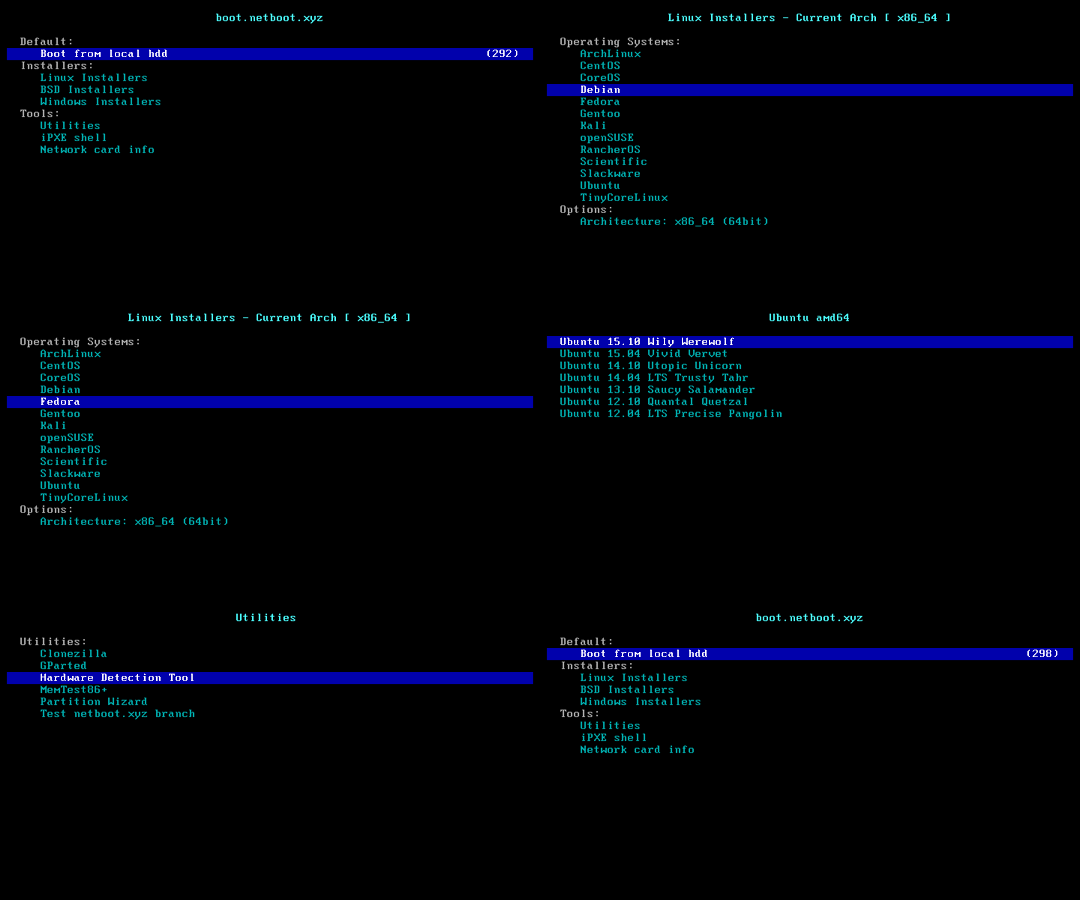
### 功能 4: 重启到 <img width="16" height="16" src="https://netboot.xyz/img/favicon.ico" /> netboot.xyz
2024-01-27 23:08:34 +08:00
2024-10-18 01:02:54 +08:00
- 可使用商家后台 VNC 手动安装 [更多系统 ](https://github.com/netbootxyz/netboot.xyz?tab=readme-ov-file#what-operating-systems-are-currently-available-on-netbootxyz )
2025-09-16 00:24:09 +08:00
> [!TIP]
>
> 虽然运行的脚本叫 `reinstall`,但是此功能**不会**删除任何数据和进行自动重装,而是要用户手动操作
>
> 如果用户手动操作没有破坏原系统,再次重启将回到原系统
2023-11-09 23:23:33 +08:00
```bash
bash reinstall.sh netboot.xyz
```
2024-01-27 23:08:34 +08:00
2024-05-22 22:32:43 +08:00
### 功能 5: 安装 <img width="16" height="16" src="https://blogs.windows.com/wp-content/uploads/prod/2022/09/cropped-Windows11IconTransparent512-32x32.png" /> Windows ISO
2023-09-21 00:12:35 +08:00
2024-10-12 23:07:01 +08:00

2024-10-03 23:40:53 +08:00
2025-09-16 00:24:09 +08:00
> [!CAUTION]
>
> 此功能会清除当前系统**整个硬盘**的全部数据(包含其它分区)!
>
2026-03-10 00:09:05 +08:00
> 如果不小心运行了脚本,可以在重启前运行 `bash reinstall.sh reset` 取消重装
2025-09-16 00:24:09 +08:00
2026-05-29 07:25:17 +08:00
- 脚本会提示输入用户名和密码,不输入则使用 `administrator` 和随机密码
2026-05-05 22:55:00 +08:00
- 如果远程登录失败,请尝试在用户名前添加 `.\` ,例如 `.\administrator`
2026-05-29 07:25:17 +08:00
- 少数语言的系统管理员账号不是 `administrator` [详情 ](https://learn.microsoft.com/archive/technet-wiki/13813.localized-names-for-administrator-account-in-windows#list-of-languages-that-localize-the-administrator-account-name )
2024-10-18 01:02:54 +08:00
- 静态机器会自动配置好 IP,可能首次开机几分钟后才生效
2025-10-31 07:50:45 +08:00
- 支持任意语言的 ISO
2026-04-28 07:33:09 +08:00
- 自动绕过 Windows 11 硬件限制
2024-05-22 22:32:43 +08:00
2024-10-18 01:02:54 +08:00
#### 支持的系统
- Windows (Vista ~ 11)
- Windows Server (2008 ~ 2025)
2026-03-16 22:50:42 +08:00
- Windows Server Essentials
- Windows Server (Semi) Annual Channel
- Hyper-V Server
- Azure Local (Azure Stack HCI)
2024-10-18 01:02:54 +08:00
2025-05-16 19:06:07 +08:00
#### 方法 1: 让脚本自动查找 ISO
2024-10-18 01:02:54 +08:00
2026-08-15 22:40:23 +08:00
- 脚本会 <https://ntriver.org/download-windows-office> 查找 ISO,网站专门提供官方 ISO 下载
2024-04-05 22:45:59 +08:00
```bash
bash reinstall.sh windows \
2025-02-21 00:30:36 +08:00
--image-name "Windows 11 Enterprise LTSC 2024" \
2024-04-05 22:45:59 +08:00
--lang zh-cn
2023-10-22 23:02:48 +08:00
```
2023-07-06 22:52:18 +08:00
2024-10-01 20:05:25 +08:00
<details>
2026-08-06 22:13:07 +08:00
<summary> --lang 列表</summary>
2024-10-01 20:05:25 +08:00
2026-08-06 22:13:07 +08:00
支持这三种语言代码格式,不区分大小写
| CC 格式 | CC-CC 格式 | 语言 |
| - | - | - |
| ar | ar-sa | Arabic |
| bg | bg-bg | Bulgarian |
| cs | cs-cz | Czech |
| da | da-dk | Danish |
| de | de-de | German |
| el | el-gr | Greek |
| gb | en-gb | Eng_Intl |
| en | en-us | English |
| es | es-es | Spanish |
| mx | es-mx | Spanish_Latam |
| et | et-ee | Estonian |
| fi | fi-fi | Finnish |
| | fr-ca | FrenchCanadian |
| fr | fr-fr | French |
| he | he-il | Hebrew |
| hr | hr-hr | Croatian |
| hu | hu-hu | Hungarian |
| it | it-it | Italian |
| ja | ja-jp | Japanese |
| ko | ko-kr | Korean |
| lt | lt-lt | Lithuanian |
| lv | lv-lv | Latvian |
| no | nb-no | Norwegian |
| nl | nl-nl | Dutch |
| pl | pl-pl | Polish |
| pp | pt-pt | Portuguese |
| pt | pt-br | Brazilian |
| ro | ro-ro | Romanian |
| ru | ru-ru | Russian |
| sk | sk-sk | Slovak |
| sl | sl-si | Slovenian |
| sr | sr-latn / sr-latn-rs | Serbian_Latin |
| sv | sv-se | Swedish |
| th | th-th | Thai |
| tr | tr-tr | Turkish |
| uk | uk-ua | Ukrainian |
| cn | zh-cn | ChnSimp |
| tw | zh-tw | ChnTrad |
| hk | zh-hk | ChnTrad_Hong_Kong |
2024-10-01 20:05:25 +08:00
</details>
2024-08-20 23:52:55 +08:00
#### 方法 2: 自行指定 ISO 连接
2024-10-18 01:02:54 +08:00
- 如果不知道 `--image-name` ,可以随便填,在重启后连接 SSH,根据错误提示重新输入正确的值
2024-05-03 21:37:07 +08:00
```bash
bash reinstall.sh windows \
2025-03-20 21:55:38 +08:00
--image-name "Windows 11 Enterprise LTSC 2024 Evaluation" \
2025-02-21 00:30:36 +08:00
--iso "https://go.microsoft.com/fwlink/?linkid=2289029"
2024-05-03 21:37:07 +08:00
```
2025-03-02 21:57:06 +08:00
或者磁力链接
```bash
bash reinstall.sh windows \
--image-name "Windows 11 Enterprise LTSC 2024" \
--iso "magnet:?xt=urn:btih:7352bd2db48c3381dffa783763dc75aa4a6f1cff"
```
2024-05-22 22:32:43 +08:00
<details>
2024-10-18 01:02:54 +08:00
<summary>以下网站可找到 ISO 链接</summary>
2024-05-22 22:32:43 +08:00
2025-02-15 00:25:38 +08:00
- 正式版
- <https://msdl.gravesoft.dev>
2026-08-04 21:10:05 +08:00
- <https://ntriver.org/download-windows-office> (推荐,ISO 是最新版)
2026-08-15 22:40:23 +08:00
- <https://massgrave.dev/genuine-installation-media> (推荐,ISO 是最新版)
2025-03-02 21:57:06 +08:00
- <https://next.itellyou.cn>
- <https://www.xitongku.com>
2025-02-15 00:25:38 +08:00
- <https://www.microsoft.com/software-download/windows10> (需用非 Windows User-Agent 打开)
- <https://www.microsoft.com/software-download/windows11>
- <https://www.microsoft.com/software-download/windows11arm64>
- 评估版
- <https://www.microsoft.com/evalcenter/download-windows-11-enterprise>
- <https://www.microsoft.com/evalcenter/download-windows-11-iot-enterprise-ltsc-eval>
- <https://www.microsoft.com/evalcenter/download-windows-server-2012-r2>
- <https://www.microsoft.com/evalcenter/download-windows-server-2016>
- <https://www.microsoft.com/evalcenter/download-windows-server-2019>
- <https://www.microsoft.com/evalcenter/download-windows-server-2022>
- <https://www.microsoft.com/evalcenter/download-windows-server-2025>
- Insider 预览版
2025-03-02 21:57:06 +08:00
- <https://www.microsoft.com/en-us/software-download/windowsinsiderpreviewiso>
- <https://www.microsoft.com/en-us/software-download/windowsinsiderpreviewserver>
2024-05-22 22:32:43 +08:00
</details>
2024-10-18 01:02:54 +08:00
#### 可选参数
2023-08-12 21:11:46 +08:00
2026-05-29 07:25:17 +08:00
- `--username USERNAME` 设置用户名
2024-10-18 01:02:54 +08:00
- `--password PASSWORD` 设置密码
2026-05-29 07:25:17 +08:00
- `--rdp-port PORT` 修改 RDP 端口
- `--ssh-port PORT` 修改 SSH 端口(安装期间观察日志用)
- `--web-port PORT` 修改 Web 端口(安装期间观察日志用)
2025-02-15 00:25:38 +08:00
- `--allow-ping` 设置 Windows 防火墙允许被 Ping
2025-03-02 21:57:06 +08:00
- `--add-driver INF_OR_DIR` 添加额外驱动,填写 .inf 路径,或者 .inf 所在的文件夹
2025-09-16 00:24:09 +08:00
- 需先下载驱动到当前系统
2025-03-02 21:57:06 +08:00
- 可多次设置该参数以添加不同的驱动
2026-03-08 23:50:50 +08:00
- `--frpc-config PATH` 添加 frpc 内网穿透,参数填配置文件的本地路径或 HTTP 链接
2025-10-31 07:50:45 +08:00
- `--hold 1` 仅重启到安装环境,不运行安装,用于 SSH 登录验证网络连通性
- `--hold 2` 用于在进入 Windows 官方安装程序之前,SSH 登录修改 `boot.wim` 、`install.wim` 或者其它内容,硬盘挂载在 `/os`
2024-10-18 01:02:54 +08:00
2025-02-21 00:30:36 +08:00
#### 以下驱动会自动按需下载安装,无需手动添加
2025-02-15 00:25:38 +08:00
2025-09-16 00:24:09 +08:00
- VirtIO ([社区版][virtio-virtio], [阿里云][virtio-aliyun], [腾讯云][virtio-qcloud], [GCP][virtio-gcp])
- XEN ([~~社区版~~][xen-xen] (未签名), [Citrix][xen-citrix], [AWS][xen-aws])
2025-03-10 22:21:46 +08:00
- AWS ([ENA 网卡][aws-ena], [NVME 存储控制器][aws-nvme])
- GCP ([gVNIC 网卡][gcp-gvnic], [GGA 显卡][gcp-gga])
- Azure ([MANA 网卡][azure-mana])
2026-05-29 07:25:17 +08:00
- Intel (VMD 存储控制器: [11代酷睿][intel-vmd-gen11], [12-15代酷睿][intel-vmd-gen12-to-gen15], [酷睿 Ultra 3][intel-vmd-ultra3], 网卡: [7][intel-nic-7], [8.x][intel-nic-8.1], [10][intel-nic-10], [11][intel-nic-11], [2008 R2][intel-nic-7], [2012][intel-nic-2012], [2012 R2][intel-nic-2012-r2], [2016][intel-nic-2016], [2019][intel-nic-2019], [2022][intel-nic-2022], [2025][intel-nic-2025])
2025-03-10 22:21:46 +08:00
[virtio-virtio]: https://fedorapeople.org/groups/virt/virtio-win/direct-downloads/
[virtio-aliyun]: https://www.alibabacloud.com/help/ecs/user-guide/install-the-virtio-driver-1
2025-03-24 21:02:01 +08:00
[virtio-qcloud]: https://cloud.tencent.com/document/product/213/17815#b84b2032 -752c-43c4-a509-73530b8f82ff
[virtio-gcp]: https://console.cloud.google.com/storage/browser/gce-windows-drivers-public
2025-03-10 22:21:46 +08:00
[xen-xen]: https://xenproject.org/resources/downloads/
[xen-aws]: https://docs.aws.amazon.com/AWSEC2/latest/UserGuide/xen-drivers-overview.html
[xen-citrix]: https://docs.aws.amazon.com/AWSEC2/latest/UserGuide/Upgrading_PV_drivers.html#win2008 -citrix-upgrade
[aws-ena]: https://docs.aws.amazon.com/AWSEC2/latest/UserGuide/ena-driver-releases-windows.html
[aws-nvme]: https://docs.aws.amazon.com/AWSEC2/latest/UserGuide/nvme-driver-version-history.html
[gcp-gvnic]: https://cloud.google.com/compute/docs/networking/using-gvnic
[gcp-gga]: https://cloud.google.com/compute/docs/instances/enable-instance-virtual-display
[azure-mana]: https://learn.microsoft.com/azure/virtual-network/accelerated-networking-mana-windows
2026-03-10 00:09:05 +08:00
[intel-vmd-gen11]: https://www.intel.com/content/www/us/en/download/849933/intel-rapid-storage-technology-driver-installation-software-with-intel-optane-memory-12th-to-13th-gen-platforms.html
[intel-vmd-gen12-to-gen15]: https://www.intel.com/content/www/us/en/download/849936/intel-rapid-storage-technology-driver-installation-software-with-intel-optane-memory-12th-to-15th-gen-platforms.html
2026-05-29 07:25:17 +08:00
[intel-vmd-ultra3]: https://www.intel.com/content/www/us/en/download/920456/intel-rapid-storage-technology-driver-installation-software-for-intel-core-ultra-series-3-platforms.html
2025-04-18 18:42:48 +08:00
[intel-nic-7]: https://www.intel.com/content/www/us/en/download/15590/intel-network-adapter-driver-for-windows-7-final-release.html
2025-03-10 22:21:46 +08:00
[intel-nic-8.1]: https://www.intel.com/content/www/us/en/download/17479/intel-network-adapter-driver-for-windows-8-1.html
[intel-nic-10]: https://www.intel.com/content/www/us/en/download/18293/intel-network-adapter-driver-for-windows-10.html
[intel-nic-11]: https://www.intel.com/content/www/us/en/download/727998/intel-network-adapter-driver-for-microsoft-windows-11.html
[intel-nic-2012]: https://www.intel.com/content/www/us/en/download/16789/intel-network-adapter-driver-for-windows-server-2012.html
[intel-nic-2012-r2]: https://www.intel.com/content/www/us/en/download/17480/intel-network-adapter-driver-for-windows-server-2012-r2.html
[intel-nic-2016]: https://www.intel.com/content/www/us/en/download/18737/intel-network-adapter-driver-for-windows-server-2016.html
[intel-nic-2019]: https://www.intel.com/content/www/us/en/download/19372/intel-network-adapter-driver-for-windows-server-2019.html
[intel-nic-2022]: https://www.intel.com/content/www/us/en/download/706171/intel-network-adapter-driver-for-windows-server-2022.html
[intel-nic-2025]: https://www.intel.com/content/www/us/en/download/838943/intel-network-adapter-driver-for-windows-server-2025.html
2025-02-15 00:25:38 +08:00
2024-10-18 01:02:54 +08:00
#### 如何填写映像名称 `--image-name`
2025-09-16 00:24:09 +08:00
一个 ISO 通常包含多个系统版本,例如家庭版、专业版。因此需要用 `--image-name` 指定要安装的系统版本(映像名称),不区分大小写
2024-10-18 01:02:54 +08:00
可以用 DISM、DISM++、Wimlib 等工具查询 ISO 包含的映像名称
常用的映像名称有:
2023-08-12 21:11:46 +08:00
2023-10-22 23:02:48 +08:00
```text
2024-02-02 00:49:24 +08:00
Windows 7 Ultimate
Windows 11 Pro
2024-10-03 23:40:53 +08:00
Windows 11 Enterprise LTSC 2024
Windows Server 2025 SERVERDATACENTER
2023-10-22 23:02:48 +08:00
```
2023-08-12 21:11:46 +08:00
2024-10-18 01:02:54 +08:00
#### 如何用 [DISM++](https://github.com/Chuyu-Team/Dism-Multi-language/releases) 查询 ISO 包含的映像名称
打开文件菜单 > 打开映像文件,选择要安装的 iso,即可得到映像名称,所有映像名称都可以安装
2023-09-21 00:12:35 +08:00
2023-07-06 22:52:18 +08:00

2024-05-22 22:32:43 +08:00
> [!WARNING]
> Vista (Server 2008) 和 32 位系统可能会缺少驱动
2024-03-17 00:08:48 +08:00
2024-05-22 22:32:43 +08:00
> [!WARNING]
2024-10-01 20:05:25 +08:00
>
2025-10-31 07:50:45 +08:00
> 安装 Windows 7 (Server 2008 R2) 时
>
> 1. EFI 引导的机器要开启 CSM
>
> 2. Hyper-V (Azure) 需选择第 1 代虚拟机 <https://learn.microsoft.com/windows-server/virtualization/hyper-v/plan/should-i-create-a-generation-1-or-2-virtual-machine-in-hyper-v>
2024-03-17 00:08:48 +08:00
2024-05-22 22:32:43 +08:00
> [!WARNING]
2025-10-31 07:50:45 +08:00
>
2024-05-22 22:32:43 +08:00
> Windows 10 LTSC 2021 中文版镜像 `zh-cn_windows_10_enterprise_ltsc_2021_x64_dvd_033b7312.iso` 的 `wsappx` 进程会长期占用 CPU
>
> 解决方法是更新系统补丁,或者手动安装 `VCLibs` 库 <https://www.google.com/search?q=ltsc+wsappx>
2023-09-21 00:12:35 +08:00
2025-10-11 00:01:18 +08:00
> [!WARNING]
2025-10-31 07:50:45 +08:00
>
2025-10-11 00:01:18 +08:00
> 在 GCP 上安装 `2022年5月` 和之后发布的 Windows ISO,在引导 Windows 安装界面 (PE) 时会不断反复重启。解决方法如下,二选一
>
> 1. 添加 `--force-boot-mode bios` 参数,脚本将以 `BIOS 引导 + MBR 分区表` 方式安装 Windows
2025-10-31 07:50:45 +08:00
>
> (可选) 安装完成后用 `MBR2GPT /convert /allowFullOS` 命令转为 `EFI 引导 + GPT 分区表`
2025-10-11 00:01:18 +08:00
>
> 2. 自制 RAW 镜像并通过 DD 安装
2024-10-18 01:02:54 +08:00
#### ARM 安装 Windows 的注意事项
2024-10-01 20:05:25 +08:00
2026-08-15 22:40:23 +08:00
大部分 ARM 云服务器支持安装 Windows 11
2024-10-14 22:41:01 +08:00
2024-10-18 01:02:54 +08:00
安装过程可能会黑屏,串行控制台可能会显示 `ConvertPages: failed to find range` ,均不影响正常安装
2024-10-01 20:05:25 +08:00
2026-03-10 00:09:05 +08:00
| 兼容性 | 云服务商 | 实例类型 | 问题 |
| ------ | -------- | ----------------------- | ------------------------------------------ |
| ✔️ | Azure | B2pts_v2 | |
| ✔️ | AWS | T4g | |
| ✔️ | Scaleway | COPARM1 | |
| ✔️ | Gcore | | |
| ❔ | 阿里云 | g6r, c6r, g8y, c8y, r8y | 有几率重启时卡开机 Logo,强制重启即可 |
| ❔ | 甲骨文云 | A1.Flex | 不一定能安装成功,越新创建的实例越容易成功 |
| ❌ | 谷歌云 | t2a | 缺少网卡驱动 |
2024-10-01 20:05:25 +08:00
2026-03-10 00:09:05 +08:00
### 取消重装
- 如果不小心运行了脚本,可以运行以下命令取消重装
- 需要在重启前运行
```bash
bash reinstall.sh reset
```
2025-09-16 00:24:09 +08:00
## 参数格式
2024-10-01 20:05:25 +08:00
2025-09-16 00:24:09 +08:00
### --ssh-key
- `--ssh-key "ssh-rsa ..."`
- `--ssh-key "ssh-ed25519 ..."`
- `--ssh-key "ecdsa-sha2-nistp256/384/521 ..."`
- `--ssh-key http://path/to/public_key`
- `--ssh-key github:your_username`
- `--ssh-key gitlab:your_username`
- `--ssh-key /path/to/public_key`
- `--ssh-key C:\path\to\public_key`
2024-10-01 20:05:25 +08:00
2025-10-18 23:41:24 +08:00
## 如何使用旧版本
根据 Bug 守恒定律,修复旧 Bug 的同时会引入新的 Bug
2026-04-28 07:33:09 +08:00
如果脚本出现问题,可以试下旧版本是否正常
2025-10-18 23:41:24 +08:00
从 <https://github.com/bin456789/reinstall/commits/main> 右侧找到旧版本的 `commit_id`
2026-04-28 07:33:09 +08:00
将下面脚本的 `xxxxxxxx` 替换成旧版本的 `commit_id` 并运行脚本
2025-10-18 23:41:24 +08:00
```bash
2026-04-28 07:33:09 +08:00
commit_id = xxxxxxxx
2025-10-18 23:41:24 +08:00
curl -O https://raw.githubusercontent.com/bin456789/reinstall/$commit_id /reinstall.sh || wget -O ${ _ ##*/ } $_
sed -i "/^confhome.*main $/s/main/ $commit_id /" reinstall.sh
bash reinstall.sh ...
```
2024-10-18 01:02:54 +08:00
## 如何修改脚本自用
2024-07-14 22:11:53 +08:00
1. Fork 本仓库
2024-08-19 00:42:12 +08:00
2. 修改 `reinstall.sh` 和 `reinstall.bat` 开头的 `confhome` 和 `confhome_cn`
2024-07-14 22:11:53 +08:00
3. 修改其它代码
2026-04-28 07:33:09 +08:00
4. 下载并运行你的 `reinstall.sh` 或 `reinstall.bat`
2024-07-14 22:11:53 +08:00
2024-02-02 00:49:24 +08:00
## 感谢
2024-01-19 11:55:35 +08:00
2024-02-02 00:49:24 +08:00
感谢以下商家提供白嫖机器
[](https://www.oracle.com/cloud/)
2024-03-01 00:22:04 +08:00
[](https://dartnode.com/)
