2025-12-02 22:53:31 +09:00
<div align="center">
2026-10-10 07:20:15 +09:00
# Next AI Draw.io
**AI とチャットしながら draw.io のダイアグラムを描き、直す。**
2025-12-02 22:53:31 +09:00
2025-12-31 00:04:32 +09:00
[English ](../../README.md ) | [中文 ](../cn/README_CN.md ) | 日本語
2025-12-02 22:53:31 +09:00
2025-12-10 08:42:53 +09:00
[](https://opensource.org/licenses/Apache-2.0)
2025-12-02 22:53:31 +09:00
[](https://github.com/sponsors/DayuanJiang)
2026-10-10 07:20:15 +09:00
[**オンラインデモ** ](https://next-ai-drawio.jiang.jp/ ) · [**デスクトップアプリ** ](https://github.com/DayuanJiang/next-ai-draw-io/releases ) · [**MCP サーバー** ](#ai-エージェントから使うmcp )
2025-12-09 17:50:07 +09:00
2025-12-02 22:53:31 +09:00
</div>
2026-10-10 07:20:15 +09:00
https://github.com/user-attachments/assets/66b9f12f-219f-4d62-acc0-0725e6850eec
2025-12-02 22:53:31 +09:00
2026-10-10 07:20:15 +09:00
欲しいダイアグラムを一文で伝えると、AI が本物の draw.io キャンバスに描きます。普通の draw.io ファイルと同じように手で直すことも、図形をいくつか選んで AI に変更を頼むこともできます。AI の変更はすべてバージョンとして残り、比較・復元・取り消しができます。結果は `.drawio` 、`.png` 、`.svg` で書き出せます。
2025-12-29 11:30:58 +09:00
2026-10-10 07:20:15 +09:00
Web アプリ、Windows / macOS / Linux 向けデスクトップアプリ、そして Claude Code、Cursor、VS Code などの AI エージェントから呼び出せる MCP サーバーとして使えます。
2025-12-02 22:53:31 +09:00
2026-10-10 07:20:15 +09:00
## 特長
**描く**
- アーキテクチャ図、フローチャート、シーケンス図などを一文から生成。AWS、Azure、GCP、Kubernetes のアイコンライブラリを内蔵
- コネクタに流れるアニメーションを付けられる
- スクリーンショットや手描きの図をアップロードすると AI が描き直す。PDF、Markdown、コードなどのテキストファイルからも内容を図にできる
**直す**
- チャットで修正:変更はストリーミングでキャンバスに反映され、AI が変更した図形はハイライト表示
- 選択して頼む:キャンバスで図形を選ぶと、AI はその図形だけを変更
- バージョンと取り消し:AI の変更ごとにサムネイル付きのバージョンカードが残り、キャンバスと比較・復元・取り消しができる。キャンバス上の Ctrl+Z でも AI の変更を一度で戻せる
- ただの draw.io ダイアグラム:ダブルクリックで名前を変え、ドラッグし、スタイルを変え、複数ページを使い、いつでも `.drawio` 、`.png` 、`.svg` 、`.drawio.svg` に書き出せる
**使う**
- 24 のモデルプロバイダーに対応。自分の API キーをブラウザに入力でき、キーは端末内にだけ保存される
- 推論するモデルは思考過程を表示
- ダークモード。UI は英語、簡体字中国語、繁体字中国語、日本語に対応
2025-12-10 08:42:53 +09:00
## 例
<div align="center">
<table width="100%">
<tr>
<td colspan="2" valign="top" align="center">
2026-10-10 07:20:15 +09:00
<strong>アニメーションコネクタ付き Transformer アーキテクチャ</strong><br />
<p><strong>Prompt:</strong> Give me a <strong>animated connector</strong> diagram of transformer's architecture.</p>
<img src="../../public/animated_connectors.svg" alt="アニメーションコネクタ付き Transformer アーキテクチャ" width="440" />
2025-12-10 08:42:53 +09:00
</td>
</tr>
<tr>
<td width="50%" valign="top">
2026-10-10 07:20:15 +09:00
<strong>RAG アーキテクチャ</strong><br />
<p><strong>Prompt:</strong> Generate a RAG architecture diagram for <strong>chat application</strong>. Use connected diagram for data ingestion</p>
<img src="../../public/rag_prod.svg" alt="RAG アーキテクチャ図" width="400" />
2025-12-10 08:42:53 +09:00
</td>
<td width="50%" valign="top">
2026-10-10 07:20:15 +09:00
<strong>React と AWS による認証フロー</strong><br />
<p><strong>Prompt:</strong> Generate authentication process using React with <strong>AWS</strong>. Use Serverless architecture.</p>
<img src="../../public/auth.svg" alt="認証アーキテクチャ図" width="400" />
2025-12-10 08:42:53 +09:00
</td>
</tr>
<tr>
<td width="50%" valign="top">
2026-10-10 07:20:15 +09:00
<strong>オープンイノベーションモデル</strong><br />
2026-04-10 11:11:34 +07:00
<p><strong>Prompt:</strong> Create visualization of Henry Chesbrough's Open Innovation model.</p>
2026-10-10 07:20:15 +09:00
<img src="../../public/inno.svg" alt="オープンイノベーション図" width="400" />
2025-12-10 08:42:53 +09:00
</td>
<td width="50%" valign="top">
<strong>猫のスケッチ</strong><br />
2026-04-10 11:11:34 +07:00
<p><strong>Prompt:</strong> Draw a cute cat for me.</p>
2026-10-10 07:20:15 +09:00
<img src="../../public/cat_demo.svg" alt="猫の絵" width="200" />
2025-12-10 08:42:53 +09:00
</td>
</tr>
</table>
</div>
2026-10-10 07:20:15 +09:00
## 使い方
2025-12-02 22:53:31 +09:00
2026-10-10 07:20:15 +09:00
### オンラインデモ
2025-12-02 22:53:31 +09:00
2026-10-10 07:20:15 +09:00
[next-ai-drawio.jiang.jp ](https://next-ai-drawio.jiang.jp/ ) を開けばすぐ使えます。インストールは不要です。デモサイトには利用上限があります。チャットパネルの設定アイコンから自分のプロバイダーと API キーを入力すると上限なしで使えます。キーはブラウザ内にだけ保存され、サーバーには送られません。
2025-12-17 14:50:07 +09:00
2026-10-10 07:20:15 +09:00
### デスクトップアプリ
[Releases ページ ](https://github.com/DayuanJiang/next-ai-draw-io/releases ) から Windows、macOS、Linux 向けのインストーラーをダウンロードしてください。
### AI エージェントから使う(MCP)
MCP(
2025-12-17 14:50:07 +09:00
```json
{
"mcpServers" : {
"drawio" : {
"command" : "npx" ,
"args" : [ "@next-ai-drawio/mcp-server@latest" ]
}
}
}
```
2026-10-10 07:20:15 +09:00
Claude Code ならコマンド一つです。
2025-12-17 14:50:07 +09:00
```bash
claude mcp add drawio -- npx @next-ai-drawio/mcp-server@latest
```
2026-10-10 07:20:15 +09:00
あとは AI に「ログイン、MFA、セッション管理を含むユーザー認証のフローチャートを描いて」と頼めば、描かれていく様子がブラウザに表示されます。MCP サーバーには Web アプリの作図機能のほとんどが入っています。
2025-12-17 14:50:07 +09:00
2026-10-10 07:20:15 +09:00
- 同じ作図ルールとアイコンライブラリ(AWS、Azure、GCP、Kubernetes など)
- スクリーンショットツール。AI が描いた結果を確認して自分で直せる
- バージョン履歴、複数ページのダイアグラム、`.drawio` 、`.png` 、`.svg` 、`.drawio.svg` でのダウンロード
- `~/.next-ai-drawio/` への自動保存。再起動後も続きから描ける
2025-12-17 14:50:07 +09:00
2026-10-10 07:20:15 +09:00
VS Code、Cursor などの設定は [MCP サーバーの README ](../../packages/mcp-server/README.md ) を参照してください。
2026-10-05 22:39:32 +09:00
2026-10-10 07:20:15 +09:00
## 自分でホストする
2026-10-05 22:39:32 +09:00
2026-10-10 07:20:15 +09:00
### ローカルで動かす
2025-12-02 22:53:31 +09:00
```bash
git clone https://github.com/DayuanJiang/next-ai-draw-io
cd next-ai-draw-io
npm install
2026-10-10 07:20:15 +09:00
cp env.example .env.local # プロバイダーと API キーを記入。下の「モデルとプロバイダー」を参照
2025-12-02 22:53:31 +09:00
npm run dev
```
2026-10-10 07:20:15 +09:00
[http://localhost:6002 ](http://localhost:6002 ) を開きます。
2025-12-02 22:53:31 +09:00
2026-10-10 07:20:15 +09:00
### ワンクリックデプロイ
2025-12-02 22:53:31 +09:00
2026-10-10 07:20:15 +09:00
| プラットフォーム | 方法 |
| --- | --- |
| Tencent EdgeOne Pages | [](https://edgeone.ai/pages/new?repository-url=https%3A%2F%2Fgithub.com%2FDayuanJiang%2Fnext-ai-draw-io) デプロイすると [DeepSeek モデルの毎日の無料クォータ ](https://pages.edgeone.ai/document/edge-ai ) も付きます |
| Vercel | [](https://vercel.com/new/clone?repository-url=https%3A%2F%2Fgithub.com%2FDayuanJiang%2Fnext-ai-draw-io) `.env.local` と同じ環境変数を Vercel のダッシュボードで設定してください |
| Cloudflare Workers | [Cloudflare デプロイガイド ](./cloudflare-deploy.md ) |
| Docker | [Docker ガイド ](./docker.md ) |
| オフラインまたは社内ネットワーク | [オフラインデプロイ ](./offline-deployment.md ) |
2025-12-30 21:13:22 +08:00
2026-10-10 07:20:15 +09:00
### モデルとプロバイダー
2025-12-30 21:13:22 +08:00
2026-10-10 07:20:15 +09:00
AWS Bedrock(既定)、OpenAI、Anthropic、Google AI、Google Vertex AI、Azure OpenAI、Ollama、OpenRouter、AIHubMix、DeepSeek、SiliconFlow、SGLang、Vercel AI Gateway、Tencent EdgeOne、ByteDance Doubao、ModelScope、Zhipu GLM、Qwen、Qiniu、Kimi、MiniMax、Novita、Xiaomi MiMo、Atlas Cloud の 24 プロバイダーに対応しています。各プロバイダーの環境変数と注意点は[プロバイダー設定ガイド ](./ai-providers.md )にあります。
2025-12-30 21:13:22 +08:00
2026-10-10 07:20:15 +09:00
**どのモデルを選ぶか** :厳密な形式の長いテキスト(draw.io の XML)を生成するタスクなので、能力の高いモデルを選んでください。小さなモデルは壊れた図を出しがちです。
2025-12-30 21:13:22 +08:00
2026-10-10 07:20:15 +09:00
**複数モデルと管理パネル** : `AI_MODEL` にモデル ID をカンマ区切りで並べるか、`AI_MODELS_CONFIG` 環境変数または `ai-models.json` ファイルで複数プロバイダーのモデルを設定すると、全ユーザーが自分のキーなしで使えます。`ADMIN_PASSWORD` を設定して `/admin` を開くと、モデル、アクセスコード、機能の切り替え、オブザーバビリティ、クォータを Web 画面から管理できます。[管理パネルガイド ](./admin-panel.md )を参照してください。
2025-12-30 21:13:22 +08:00
2026-10-10 07:20:15 +09:00
## サポート
2025-12-30 21:13:22 +08:00
2026-10-10 07:20:15 +09:00
- 質問や提案:[GitHub Issue ](https://github.com/DayuanJiang/next-ai-draw-io/issues ) を立てるか、me[at]jiang.jp までメールしてください
- よくある問題:[FAQ ](./FAQ.md )
- このプロジェクトが役に立ったら、デモサイトの運営のために[スポンサー ](https://github.com/sponsors/DayuanJiang )をご検討ください
2025-12-30 21:13:22 +08:00
2026-10-10 07:20:15 +09:00
<div align="center">
2025-12-31 00:04:32 +09:00
2026-10-10 07:20:15 +09:00
[](https://next-ai-drawio.jiang.jp/)
2025-12-02 22:53:31 +09:00
[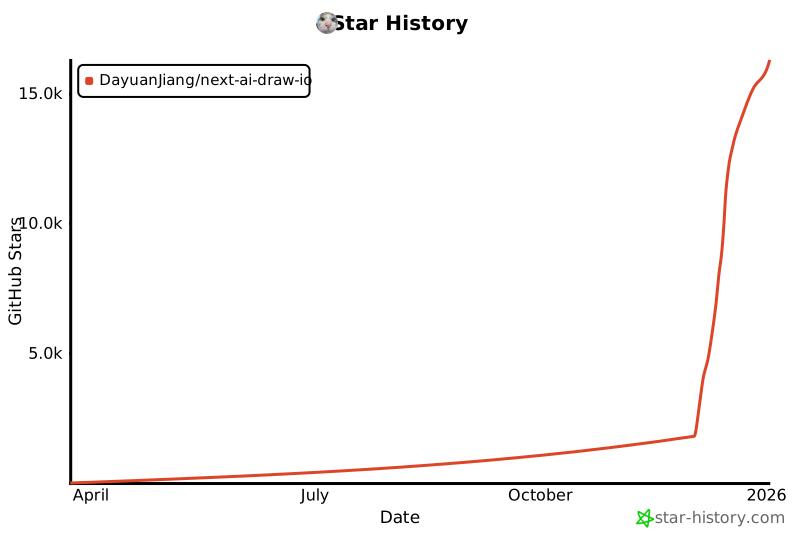](https://www.star-history.com/#DayuanJiang/next -ai-draw-io&type=date&legend=top-left)
2026-10-10 07:20:15 +09:00
</div>
