2025-12-02 22:53:31 +09:00
# Next AI Draw.io
< div align = "center" >
**AI驱动的图表创建工具 - 对话、绘制、可视化**
2025-12-31 00:04:32 +09:00
[English ](../../README.md ) | 中文 | [日本語 ](../ja/README_JA.md )
2025-12-02 22:53:31 +09:00
2025-12-10 08:42:53 +09:00
[](https://next-ai-drawio.jiang.jp/)
2025-12-02 22:53:31 +09:00
2025-12-10 08:42:53 +09:00
[](https://opensource.org/licenses/Apache-2.0)
[](https://nextjs.org/)
[](https://react.dev/)
[](https://github.com/sponsors/DayuanJiang)
2025-12-09 15:53:59 +09:00
2025-12-31 00:04:32 +09:00
[](https://next-ai-drawio.jiang.jp/)
feat: add bring-your-own-API-key support (#186)
- Add AI provider settings to config panel (provider, model, API key, base URL)
- Support 7 providers: OpenAI, Anthropic, Google, Azure, OpenRouter, DeepSeek, SiliconFlow
- Client API keys stored in localStorage, never stored on server
- Client settings override server env vars when provided
- Skip server credential validation when client provides API key
- Bypass usage limits (request/token/TPM) when using own API key
- Add /api/config endpoint for fetching usage limits
- Add privacy notices to settings dialog, about pages, and quota toast
- Add clear settings button to reset saved API keys
- Update README files (EN/CN/JA) with BYOK documentation
Co-authored-by: dayuan.jiang <jiangdy@amazon.co.jp>
2025-12-09 17:50:07 +09:00
2025-12-02 22:53:31 +09:00
< / div >
一个集成了AI功能的Next.js网页应用,
2025-12-29 11:30:58 +09:00
> 注:感谢 <img src="https://raw.githubusercontent.com/DayuanJiang/next-ai-draw-io/main/public/doubao-color.png" alt="" height="20" /> [字节跳动豆包](https://console.volcengine.com/ark/region:ark+cn-beijing/overview?briefPage=0&briefType=introduce&type=new&utm_campaign=doubao&utm_content=aidrawio&utm_medium=github&utm_source=coopensrc&utm_term=project) 的赞助支持,本项目的 Demo 现已接入强大的 K2-thinking 模型!
2025-12-02 22:53:31 +09:00
https://github.com/user-attachments/assets/b2eef5f3-b335-4e71-a755-dc2e80931979
2025-12-10 08:42:53 +09:00
## 目录
- [Next AI Draw.io ](#next-ai-drawio )
- [目录 ](#目录 )
- [示例 ](#示例 )
- [功能特性 ](#功能特性 )
2025-12-17 14:50:07 +09:00
- [MCP服务器( ) ](#mcp服务器预览 )
2025-12-31 00:04:32 +09:00
- [Claude Code CLI ](#claude-code-cli )
2025-12-10 08:42:53 +09:00
- [快速开始 ](#快速开始 )
- [在线试用 ](#在线试用 )
2025-12-31 00:04:32 +09:00
- [桌面应用 ](#桌面应用 )
- [使用Docker运行 ](#使用docker运行 )
2025-12-10 08:42:53 +09:00
- [安装 ](#安装 )
- [部署 ](#部署 )
2025-12-31 00:04:32 +09:00
- [部署到腾讯云EdgeOne Pages ](#部署到腾讯云edgeone-pages )
- [部署到Vercel( ) ](#部署到vercel推荐 )
- [部署到Cloudflare Workers ](#部署到cloudflare-workers )
2025-12-10 08:42:53 +09:00
- [多提供商支持 ](#多提供商支持 )
- [工作原理 ](#工作原理 )
- [支持与联系 ](#支持与联系 )
- [Star历史 ](#star历史 )
## 示例
2025-12-02 22:53:31 +09:00
以下是一些示例提示词及其生成的图表:
< div align = "center" >
< table width = "100%" >
< tr >
< td colspan = "2" valign = "top" align = "center" >
< strong > 动画Transformer连接器< / strong > < br / >
< p > < strong > 提示词:< / strong > 给我一个带有**动画连接器**的Transformer架构图。< / p >
2025-12-31 00:04:32 +09:00
< img src = "../../public/animated_connectors.svg" alt = "带动画连接器的Transformer架构" width = "480" / >
2025-12-02 22:53:31 +09:00
< / td >
< / tr >
< tr >
< td width = "50%" valign = "top" >
< strong > GCP架构图< / strong > < br / >
< p > < strong > 提示词:< / strong > 使用**GCP图标**生成一个GCP架构图。在这个图中, < / p >
2025-12-31 00:04:32 +09:00
< img src = "../../public/gcp_demo.svg" alt = "GCP架构图" width = "480" / >
2025-12-02 22:53:31 +09:00
< / td >
< td width = "50%" valign = "top" >
< strong > AWS架构图< / strong > < br / >
< p > < strong > 提示词:< / strong > 使用**AWS图标**生成一个AWS架构图。在这个图中, < / p >
2025-12-31 00:04:32 +09:00
< img src = "../../public/aws_demo.svg" alt = "AWS架构图" width = "480" / >
2025-12-02 22:53:31 +09:00
< / td >
< / tr >
< tr >
< td width = "50%" valign = "top" >
< strong > Azure架构图< / strong > < br / >
< p > < strong > 提示词:< / strong > 使用**Azure图标**生成一个Azure架构图。在这个图中, < / p >
2025-12-31 00:04:32 +09:00
< img src = "../../public/azure_demo.svg" alt = "Azure架构图" width = "480" / >
2025-12-02 22:53:31 +09:00
< / td >
< td width = "50%" valign = "top" >
< strong > 猫咪素描< / strong > < br / >
< p > < strong > 提示词:< / strong > 给我画一只可爱的猫。< / p >
2025-12-31 00:04:32 +09:00
< img src = "../../public/cat_demo.svg" alt = "猫咪绘图" width = "240" / >
2025-12-02 22:53:31 +09:00
< / td >
< / tr >
< / table >
< / div >
2025-12-10 08:42:53 +09:00
## 功能特性
2025-12-02 22:53:31 +09:00
2025-12-10 08:42:53 +09:00
- **LLM驱动的图表创建** :
- **基于图像的图表复制** : ,
2025-12-11 14:57:16 +09:00
- **PDF和文本文件上传** : ,
- **AI推理过程显示** : ( )
2025-12-10 08:42:53 +09:00
- **图表历史记录** : , ,
- **交互式聊天界面** :
2025-12-11 14:57:16 +09:00
- **云架构图支持** : ( )
2025-12-10 08:42:53 +09:00
- **动画连接器** :在图表元素之间创建动态动画连接器,实现更好的可视化效果
2025-12-02 22:53:31 +09:00
2025-12-17 14:50:07 +09:00
## MCP服务器( )
2025-12-31 00:04:32 +09:00
> **预览功能**:此功能为实验性功能,可能不稳定。
2025-12-17 14:50:07 +09:00
通过MCP( )
```json
{
"mcpServers": {
"drawio": {
"command": "npx",
"args": ["@next -ai-drawio/mcp-server@latest "]
}
}
}
```
### Claude Code CLI
```bash
claude mcp add drawio -- npx @next -ai-drawio/mcp-server@latest
```
然后让Claude创建图表:
> "创建一个展示用户认证流程的流程图,
图表会实时显示在浏览器中!
2025-12-31 00:04:32 +09:00
详情请参阅[MCP服务器README ](../../packages/mcp-server/README.md ),
2025-12-17 14:50:07 +09:00
2025-12-10 08:42:53 +09:00
## 快速开始
2025-12-02 22:53:31 +09:00
2025-12-10 08:42:53 +09:00
### 在线试用
2025-12-05 18:53:34 +09:00
2025-12-10 08:42:53 +09:00
无需安装!直接在我们的演示站点试用:
2025-12-05 18:53:34 +09:00
2025-12-31 00:04:32 +09:00
[](https://next-ai-drawio.jiang.jp/)
2025-12-05 18:53:34 +09:00
2025-12-10 08:42:53 +09:00
> **使用自己的 API Key**:您可以使用自己的 API Key 来绕过演示站点的用量限制。点击聊天面板中的设置图标即可配置您的 Provider 和 API Key。您的 Key 仅保存在浏览器本地,不会被存储在服务器上。
2025-12-02 22:53:31 +09:00
2025-12-31 00:04:32 +09:00
### 桌面应用
2025-12-03 21:15:25 +09:00
2025-12-31 00:04:32 +09:00
从 [Releases 页面 ](https://github.com/DayuanJiang/next-ai-draw-io/releases ) 下载适用于您平台的原生桌面应用:
2025-12-03 21:15:25 +09:00
2025-12-31 00:04:32 +09:00
支持的平台:
2025-12-03 21:15:25 +09:00
2025-12-31 00:04:32 +09:00
### 使用Docker运行
2025-12-03 21:15:25 +09:00
2025-12-31 00:04:32 +09:00
[查看 Docker 指南 ](./docker.md )
2025-12-10 08:42:53 +09:00
2025-12-02 22:53:31 +09:00
### 安装
1. 克隆仓库:
```bash
git clone https://github.com/DayuanJiang/next-ai-draw-io
cd next-ai-draw-io
npm install
cp env.example .env.local
```
2025-12-10 08:42:53 +09:00
详细设置说明请参阅[提供商配置指南 ](./ai-providers.md )。
2025-12-02 22:53:31 +09:00
2025-12-31 00:04:32 +09:00
2. 运行开发服务器:
2025-12-02 22:53:31 +09:00
```bash
npm run dev
```
2025-12-31 00:04:32 +09:00
3. 在浏览器中打开 [http://localhost:6002 ](http://localhost:6002 ) 查看应用。
2025-12-02 22:53:31 +09:00
## 部署
2025-12-30 21:13:22 +08:00
### 部署到腾讯云EdgeOne Pages
您可以通过[腾讯云EdgeOne Pages ](https://pages.edgeone.ai/zh )一键部署。
直接点击此按钮一键部署:
[](https://console.cloud.tencent.com/edgeone/pages/new?repository-url=https%3A%2F%2Fgithub.com%2FDayuanJiang%2Fnext-ai-draw-io)
查看[腾讯云EdgeOne Pages文档 ](https://pages.edgeone.ai/zh/document/product-introduction )了解更多详情。
同时, , 每日免费的DeepSeek模型额度 ](https://edgeone.cloud.tencent.com/pages/document/169925463311781888 )。
2025-12-31 00:04:32 +09:00
### 部署到Vercel( )
2025-12-30 21:13:22 +08:00
2025-12-31 00:04:32 +09:00
[](https://vercel.com/new/clone?repository-url=https%3A%2F%2Fgithub.com%2FDayuanJiang%2Fnext-ai-draw-io)
部署Next.js应用最简单的方式是使用Next.js创建者提供的[Vercel平台 ](https://vercel.com/new )。请确保在Vercel控制台中**设置环境变量**,就像您在本地 `.env.local` 文件中所做的那样。
2025-12-02 22:53:31 +09:00
查看[Next.js部署文档 ](https://nextjs.org/docs/app/building-your-application/deploying )了解更多详情。
2025-12-31 00:04:32 +09:00
### 部署到Cloudflare Workers
2025-12-02 22:53:31 +09:00
2025-12-31 00:04:32 +09:00
[查看 Cloudflare 部署指南 ](./cloudflare-deploy.md )
2025-12-02 22:53:31 +09:00
2025-12-10 08:42:53 +09:00
## 多提供商支持
2025-12-29 11:30:58 +09:00
- [字节跳动豆包 ](https://console.volcengine.com/ark/region:ark+cn-beijing/overview?briefPage=0&briefType=introduce&type=new&utm_campaign=doubao&utm_content=aidrawio&utm_medium=github&utm_source=coopensrc&utm_term=project )
2025-12-10 08:42:53 +09:00
- AWS Bedrock( )
- OpenAI
- Anthropic
- Google AI
- Azure OpenAI
- Ollama
- OpenRouter
- DeepSeek
- SiliconFlow
2025-12-31 00:04:32 +09:00
- SGLang
- Vercel AI Gateway
2025-12-10 08:42:53 +09:00
除AWS Bedrock和OpenRouter外,
📖 ** [详细的提供商配置指南 ](./ai-providers.md )** - 查看各提供商的设置说明。
2025-12-31 00:04:32 +09:00
**模型要求**: , ( )
2025-12-10 08:42:53 +09:00
2025-12-31 00:04:32 +09:00
注意:`claude` 系列已在带有 AWS、Azure、GCP 等云架构 Logo 的 draw.io 图表上进行训练,因此如果您想创建云架构图,这是最佳选择。
2025-12-10 08:42:53 +09:00
## 工作原理
本应用使用以下技术:
- **Next.js** :用于前端框架和路由
- **Vercel AI SDK** ( `ai` + `@ai-sdk/*` ) :
- **react-drawio** :用于图表表示和操作
图表以XML格式表示,
2025-12-02 22:53:31 +09:00
## 支持与联系
2025-12-29 11:30:58 +09:00
**特别感谢[字节跳动豆包 ](https://console.volcengine.com/ark/region:ark+cn-beijing/overview?briefPage=0&briefType=introduce&type=new&utm_campaign=doubao&utm_content=aidrawio&utm_medium=github&utm_source=coopensrc&utm_term=project )赞助演示站点的 API Token 使用!** 注册火山引擎 ARK 平台即可获得50万免费Token!
2025-12-02 22:53:31 +09:00
如果您觉得这个项目有用,请考虑[赞助 ](https://github.com/sponsors/DayuanJiang )来帮助我托管在线演示站点!
如需支持或咨询, :
- 邮箱:
## Star历史
[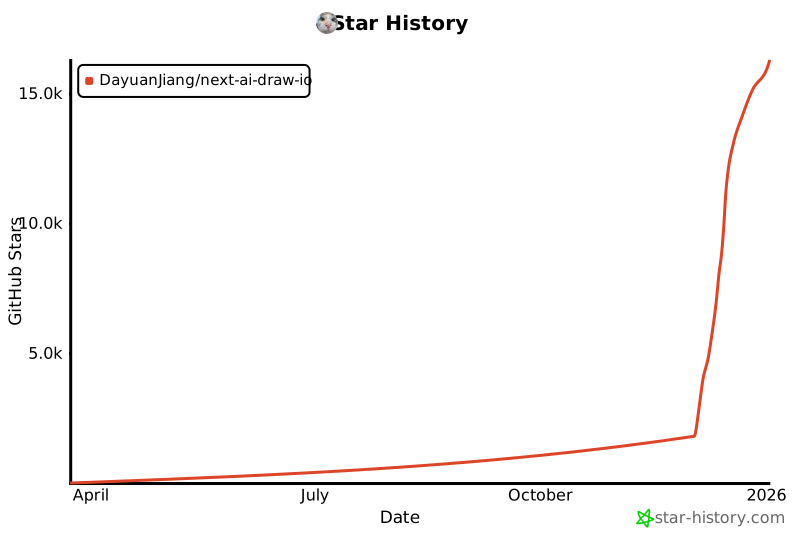](https://www.star-history.com/#DayuanJiang/next -ai-draw-io& type=date& legend=top-left)
---
